First login
Access to the worker has been created for you. As even the developers have no access to the passwords, which are completely encrypted in the database, it is necessary for you to generate a transition password yourself.
Transition password
To do this, switch to the page: https://app.x-sitter.com/login/forget-password
Enter the e-mail address you were created with.
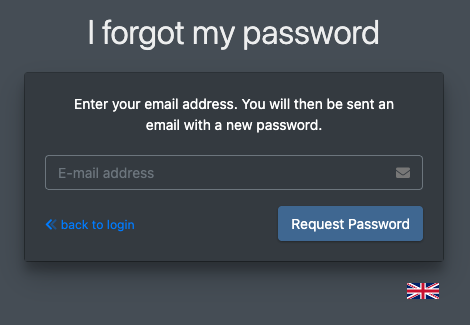
A free e-mail address cannot be used.
Confirm e-mail
For security reasons and in accordance with the specifications of some major providers, we work with the e-mail double opt-in procedure.
In the following e-mail that reaches you, you must therefore confirm that you have requested a transition password. This triggers the sending of the actual password.
New transition password
You will now receive your transition password with the second email. You can use this to log in at https://app.x-sitter.com/login.
Google Authenticator
Our portal can be protected by two-factor authentication. If it is active for your company, you are asked for a code after every login. You simply read this code from an authenticator app such as Google Authenticator. You can find it in the respective app store. Here you can find it: iPhone, Android
Set up app
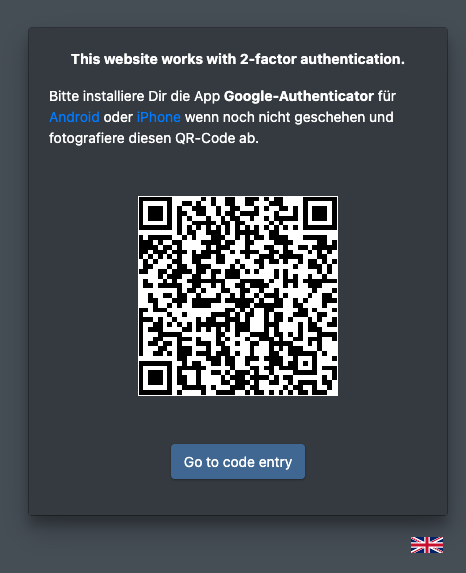
Your app must be set up the first time you log in. All you need to do is scan the QR image shown to you with the Google Authenticator app. You will be asked again if you want to "Add account".
In the Google app there is a colourful plus at the bottom right where you select "Scan QR code".
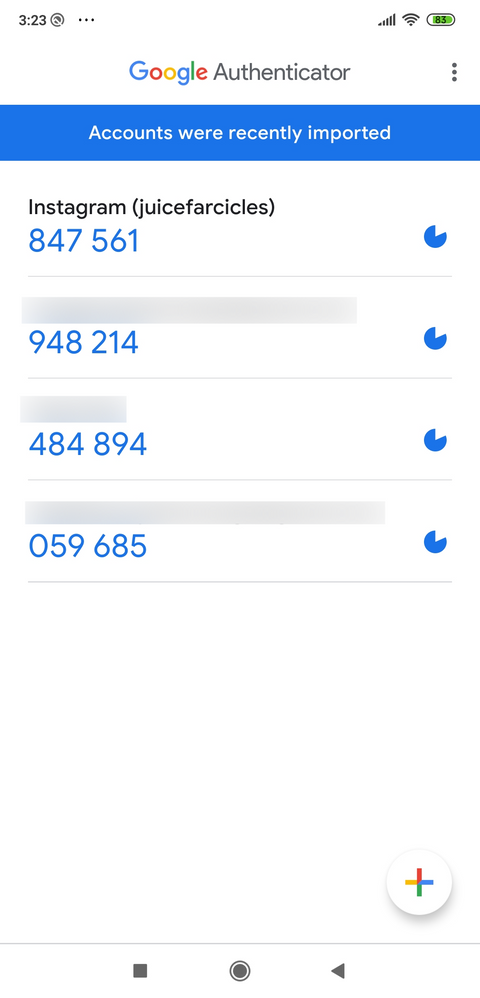
An entry should now appear in your mobile phone app. Here is a similar photo, as screenshots from this app are not permitted:
Enter code
The QR code will never be displayed again after clicking on Go to code entry (Weiter zur Codeeingabe).
From now on, this dialogue will always appear after logging in. Enter the six-digit code from the app – of course the one with the name "X-Sitter" – into the field Security code (Sicherheitscode). X-Sitter checks it automatically as soon as you have typed the sixth digit.
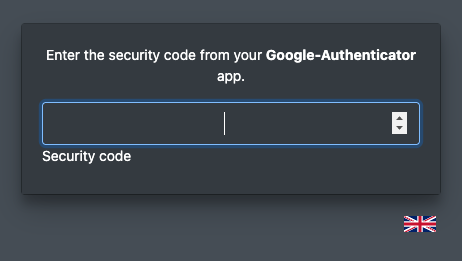
The code changes regularly; a small timer in the app shows when. You don't have to use the first code immediately. Always enter the code the app is currently showing.
Assign your own password
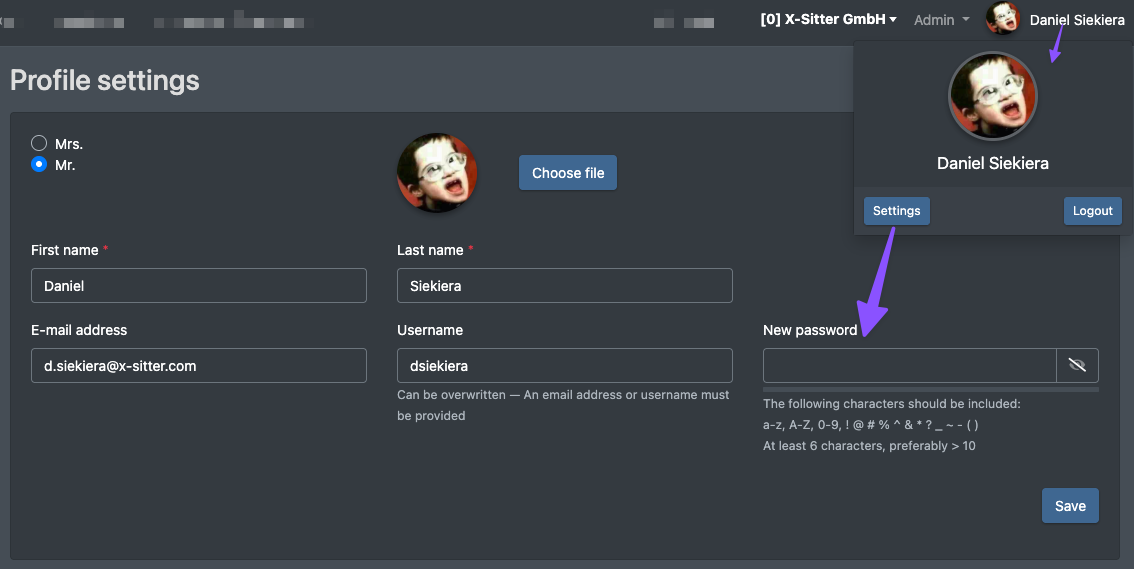
Once you are in the system, you should assign your own strong password: click your name in the top right corner, then Settings (Einstellungen), and enter it in the field New password (Neues Passwort). See Profile.