
Log in, two-factor authentication and log out
You log in to X-Sitter with your email address or username and your password. If two-factor authentication is active for your company, you also enter a six-digit code from an authenticator app (e.g. Google Authenticator) after every login.
Logging in for the very first time? Then you do not have a password yet. Follow First login first.
Before you start
- You have a user account and it is active. Your company's administrator creates and activates users, see Employees.
- You know your password. If not, use Forgot password.
- For two-factor authentication: an authenticator app on your phone. Whether two-factor authentication is required is set per company. Contact X-Sitter support if you want to switch it on for your company.
Log in
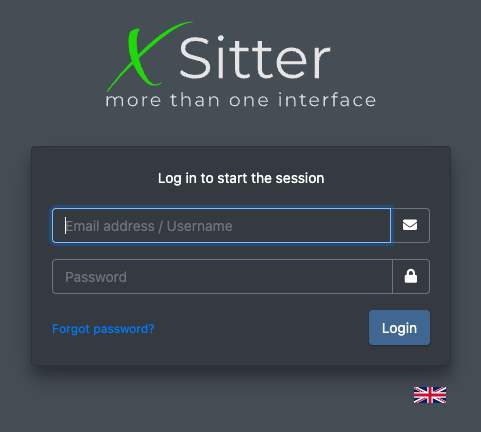
- Open https://app.x-sitter.com/login. The page shows Log in to start the session (Einloggen um die Session zu starten).
- Enter your Email address / Username (E-Mail Adresse / Benutzername). Both work – use whichever is stored in your profile.
- Enter your Password (Passwort).
- Click Login (Einloggen).
- Without two-factor authentication you land on the Dashboard right away. If you had opened a specific page before (for example from a link), X-Sitter takes you back to that page instead.
Two-factor authentication
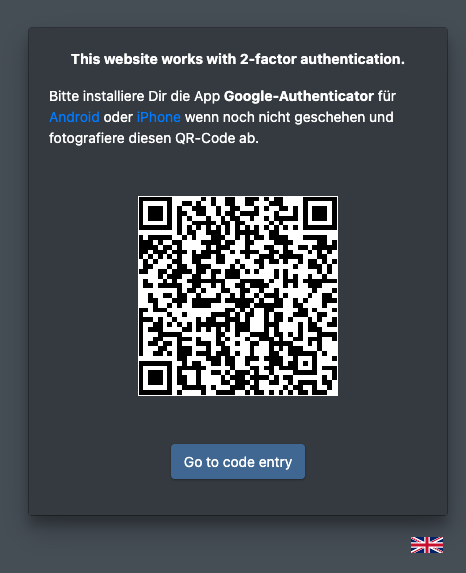
If two-factor authentication is active for your company, X-Sitter shows the page This website works with 2-factor authentication (Diese Webseite arbeitet mit der 2-Faktor-Authentifizierung.) after you have entered your password. You cannot open any other page until you have entered a valid code.
Set up the app (first login only)
- Open your authenticator app and choose to add a new account by scanning a QR code.
- Scan the QR code shown on the page. The entry appears in your app under the name X-Sitter.
- Click Go to code entry (Weiter zur Codeeingabe).
warning QR code is shown only once
After you click Go to code entry, the QR code is not shown again. Make sure the X-Sitter entry is in your app before you continue. If you lose your phone or the app entry, contact your administrator.
Enter the code
- Open your authenticator app and look up the current six-digit code for X-Sitter.
- Type it into the field Security code (Sicherheitscode).
- As soon as you have typed the sixth digit, X-Sitter checks the code automatically – there is no button to click. If the code is correct, you are logged in.
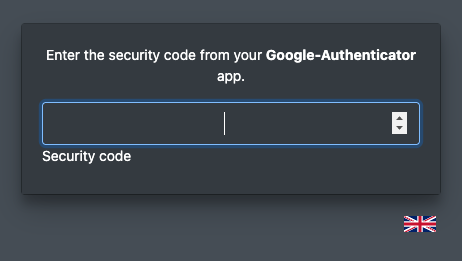
The code changes regularly; a small timer in the app shows when. Always enter the code the app is currently showing.
Data processing agreement after login
If your administrator has set that you must confirm the data processing agreement, X-Sitter takes you to the agreement right after the login. You can only continue once you have confirmed it. See Data protection (DSGVO).
Choose your workstation after login
If X-Sitter has switched on the workstation query for your company, the dialog Select a workstation (Arbeitsstation auswählen) appears after the login. See Choose your workstation.
Log out
- Click your name (with your profile picture) in the top right corner.
- Click Logout (Ausloggen).
X-Sitter ends your session and removes its cookies from your browser (except the cookie notice). You are taken back to the login page.

On shared computers, for example at a packing station, always log out when you leave. Otherwise the next person works under your name.