
Choose your workstation
After logging in, choose the packing station PC you work at, so labels, delivery notes and packing prints come out of the right printer.
A workstation (Arbeitsstation) is one of your packing table entries: a PC with its printers. X-Sitter remembers for your session which workstation you work at. Everything that is printed for you – article and pallet labels at putaway, shipping labels and delivery notes at the packing station, the delivery note at loading – goes to the printers of this workstation. The workstation also decides which picking carts and pick list templates you are offered and which storage area the relocation preselects.
Before you start
- X-Sitter has switched on the workstation query for your company. If no dialog appears after logging in and you need a workstation, contact X-Sitter support.
- Your company has at least one packing table entry. Its Packing table / PC name is the name you choose.
Choose the workstation after logging in
- Log in as usual – see Log in.
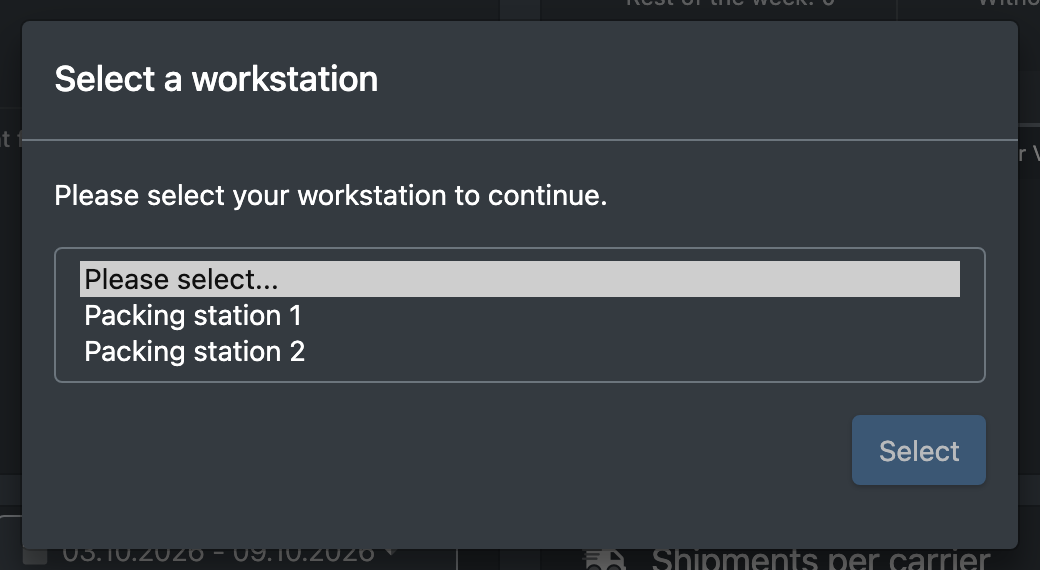
- The dialog Select a workstation (Arbeitsstation auswählen) opens with the text "Please select your workstation to continue." (Bitte wähle Deine Arbeitsstation aus, um fortzufahren.). It cannot be closed – a workstation is required to continue.
- Choose your workstation in the list and click Select (Auswählen).
- You see "Workstation successfully saved" (Arbeitsstation erfolgreich gespeichert). The footer now shows Active workstation: … (Aktive Arbeitsstation).
- If your company has only one packing table entry, X-Sitter chooses it automatically – no dialog appears.
- If your company has no packing table entry, no dialog appears – you work without a workstation. Functions that print (labels, delivery notes) then tell you that no workstation is selected.
- The dialog also appears after you switch to another company in the top bar.
- If a device at this workstation is due for its distilled-water check, the next dialog asks you to confirm it – see Forklifts and devices.
Change the workstation
Click Active workstation: … (Aktive Arbeitsstation) in the footer. The same dialog opens; choose the new workstation and click Select.

The footer line is only visible once a workstation is chosen, and only on screens wider than a phone.