
Picking carts
Set up picking carts with numbered boxes – without an active cart with boxes no picklist can be created.
A picking cart (Kommissionierwagen) is the physical cart on which a picklist is worked through. Each cart has numbered boxes. When a picklist is created, every order (or, with rolling picking, every article) is assigned to a box. At the packing station the box number is scanned later to pack the order.
warning Required for picklists
Without at least one active picking cart with boxes, no picklist can be created.
Before you start
- At least one warehouse exists. The Warehouse field only appears if you have more than one warehouse.
- Your user needs the permissions WMS and Picking carts (Kommisionerwagen) – ask your administrator.
- Optional: packing tables, if a cart may only be packed at certain packing stations – see Packing tables.
Step by step
- Open WMS › Settings › Picking carts (WMS › Einstellungen › Kommisionerwagen).
- Click New picking cart (Neuer Kommissionierwagen).
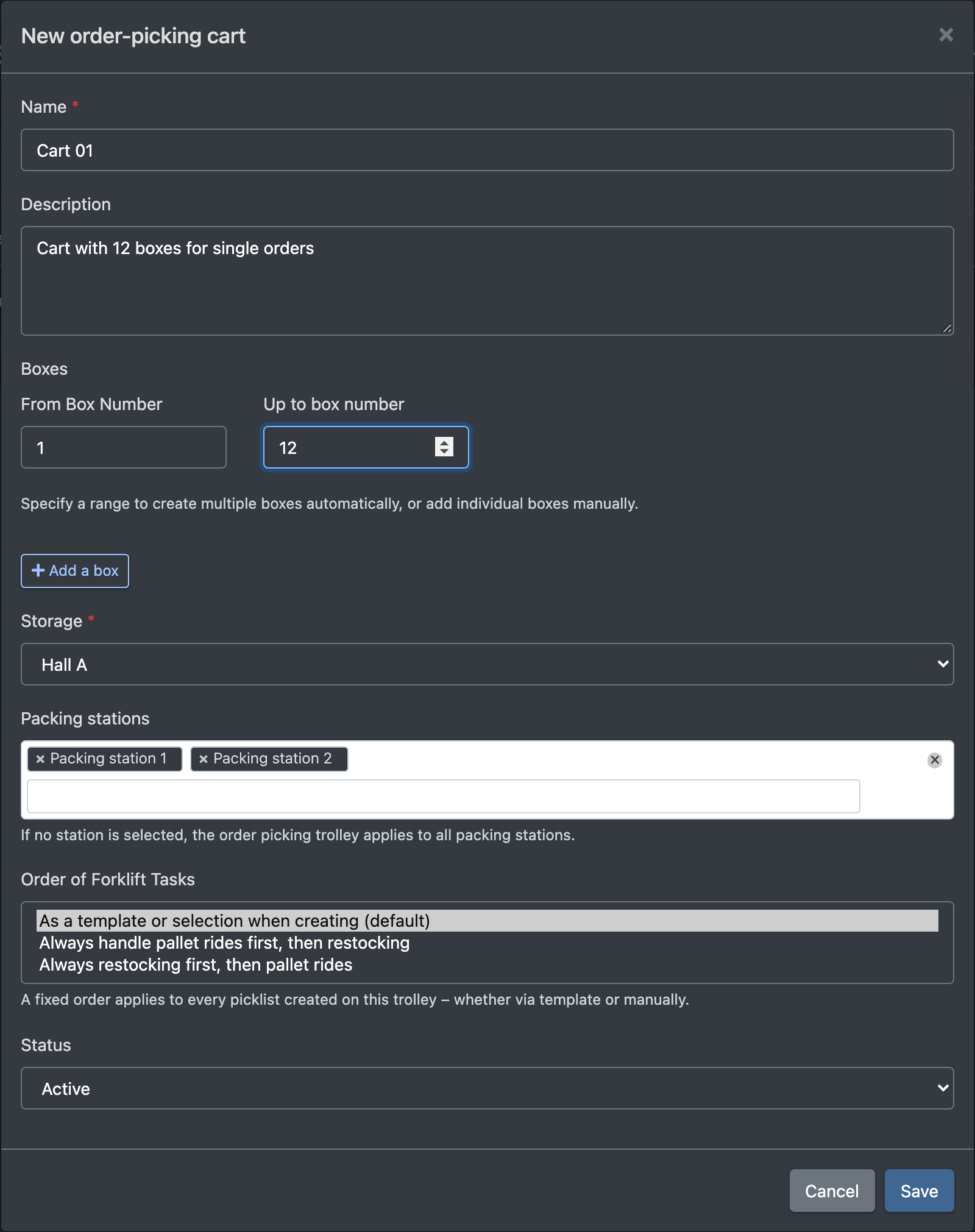
- Enter a Name (Name) and, if you like, a Description (Beschreibung). The name is scanned or typed in during picking, so choose a unique name that can be printed as a barcode.
- Create the Boxes (Boxen) – two ways:
- Range: fill in From box number (Von Box-Nummer) and To box number (Bis Box-Nummer), e.g. 1 to 12. All boxes in between are created automatically.
- Individually: click Add box (Box hinzufügen) and enter single box numbers.
- If you have several warehouses, choose the Warehouse (Lager).
- Optional: choose the Packing stations (Packstationen).
- Optional: set the Order of forklift tasks (Reihenfolge der Stapler-Aufgaben).
- Leave the Status on Active (Aktiv) and click Save (Speichern). You see "Picking cart was saved" (Kommissionierwagen wurde gespeichert).
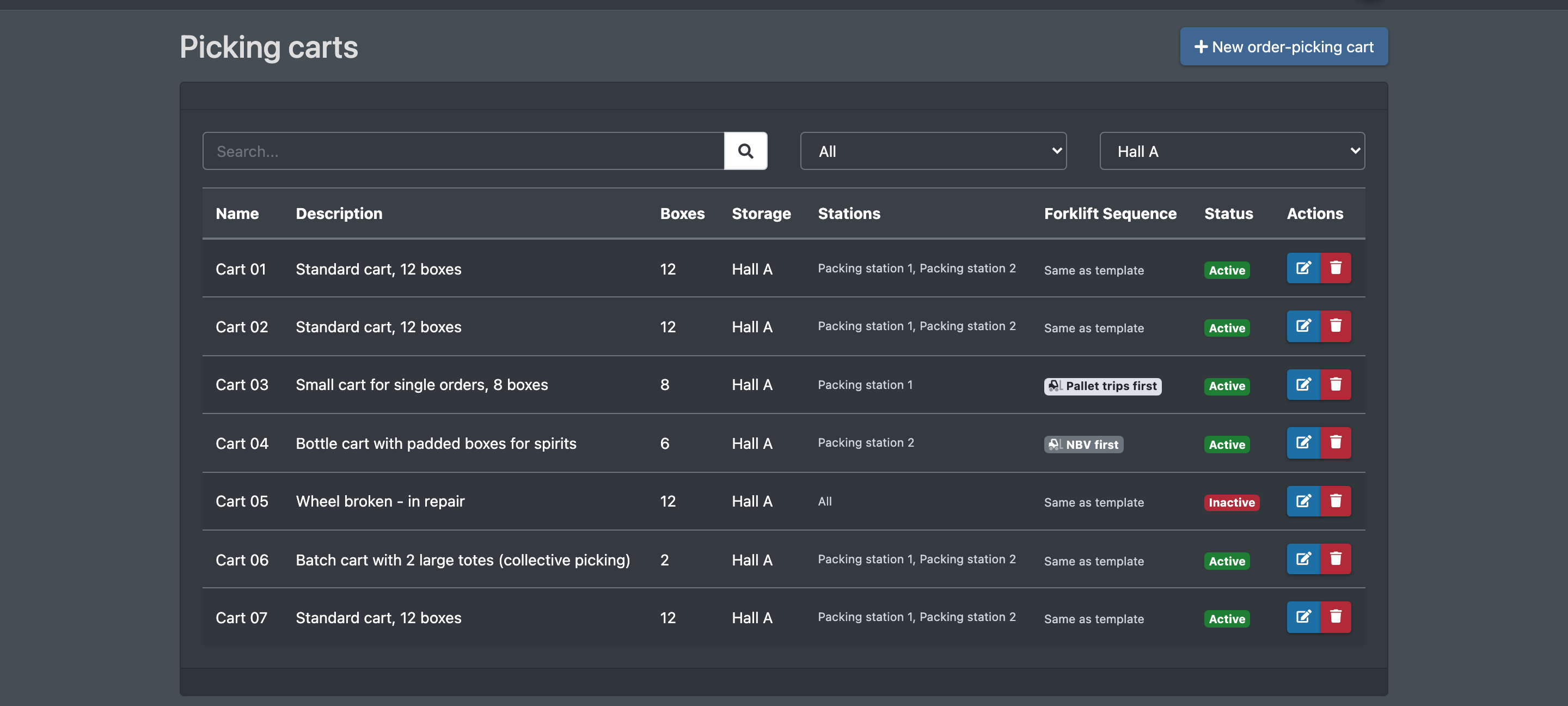
Edit and delete carts with the action buttons in the table. You can filter the list by search, status (All / Active / Inactive) and warehouse.
Fields and options
When you save a cart, all its boxes are recreated from your entries. The Boxes column shows the number of boxes – this is how many orders one picklist on this cart can hold.
Statuses
Where picking carts are used
- Create a picklist – orders are assigned to the boxes of the cart.
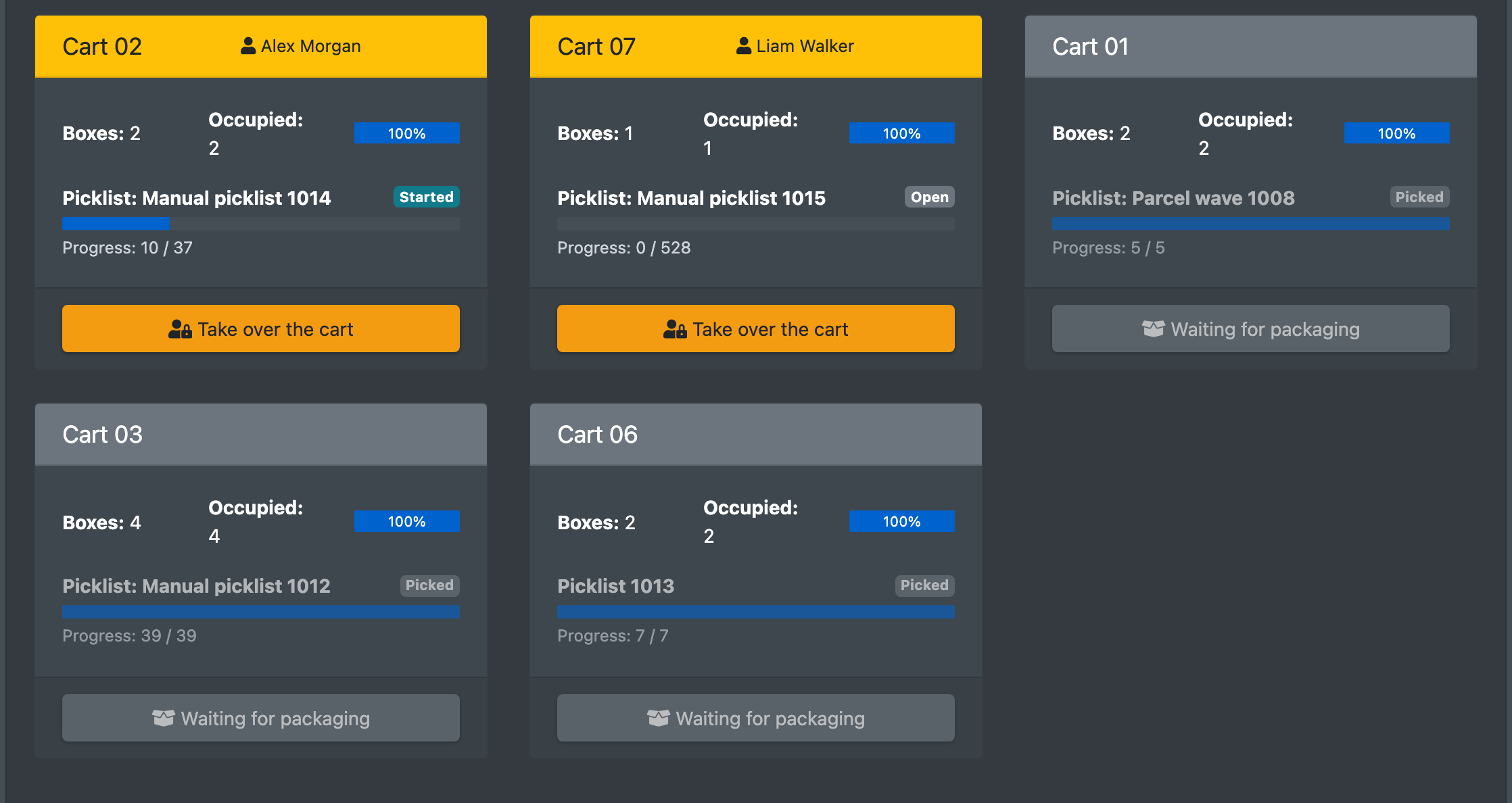
- Picking – the cart is reserved and worked through.
- Packing – the box number is scanned; the system checks whether your packing station is allowed for this cart.
- Pallet rides – order of forklift tasks.