
Packing
At the packing table you pack a picked box from the cart: scan the box, check the items, record carton, shipping method and weight, and finish packing. When you finish, X-Sitter creates one shipping label with tracking number per package (printed at your packing table), sets the order to Sent, closes the positions and – after the last box – the picklist and the picking cart. It then triggers the follow-up processes such as tracking feedback, delivery note or invoice print and return labels.
Before you start
- Your user needs the permission Packaging (Verpacken) – ask your administrator.
- A workstation / packing table is selected (dialog Select a workstation – Arbeitsstation auswählen). Packing tables are set up in Packing tables. Without a workstation no label can be created or printed.
- A picklist with the status Picked on a cart – see Picking. If the cart is bound to certain packing stations, your station must be one of them – see Picking carts.
- Shipping methods = the freight carriers of the warehouse (parcel service, freight forwarder or own delivery; optionally with a default carton).
- Cartons: articles marked as packaging, set up as storage aid types.
- A shipping provider connection (ShipCloud or directly DHL, DPD, GLS, UPS via your shipping rules) – see Shipping providers.
- For delivery notes and invoices: a PDF template for the client – see PDF documents.
Step by step
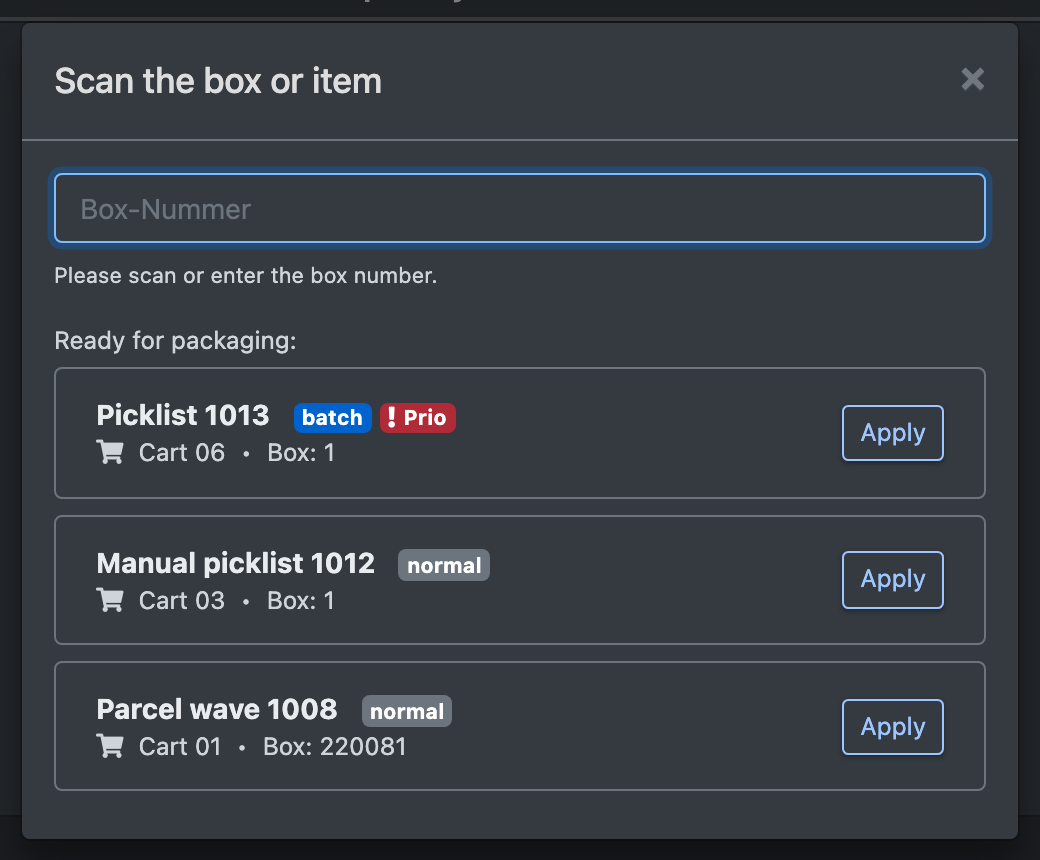
- Open WMS › Packaging (WMS › Verpacken). Under Ready for packaging: (Bereit zum Verpacken:) you see the picklists with the status picked. Lists containing a priority order are marked "Contains a priority order – pack first".
- Scan or enter the box number ("Please scan or enter the box number.") or click Apply (Übernehmen) in the list. You see the order, customer, delivery address, shipping method and the items in the order.
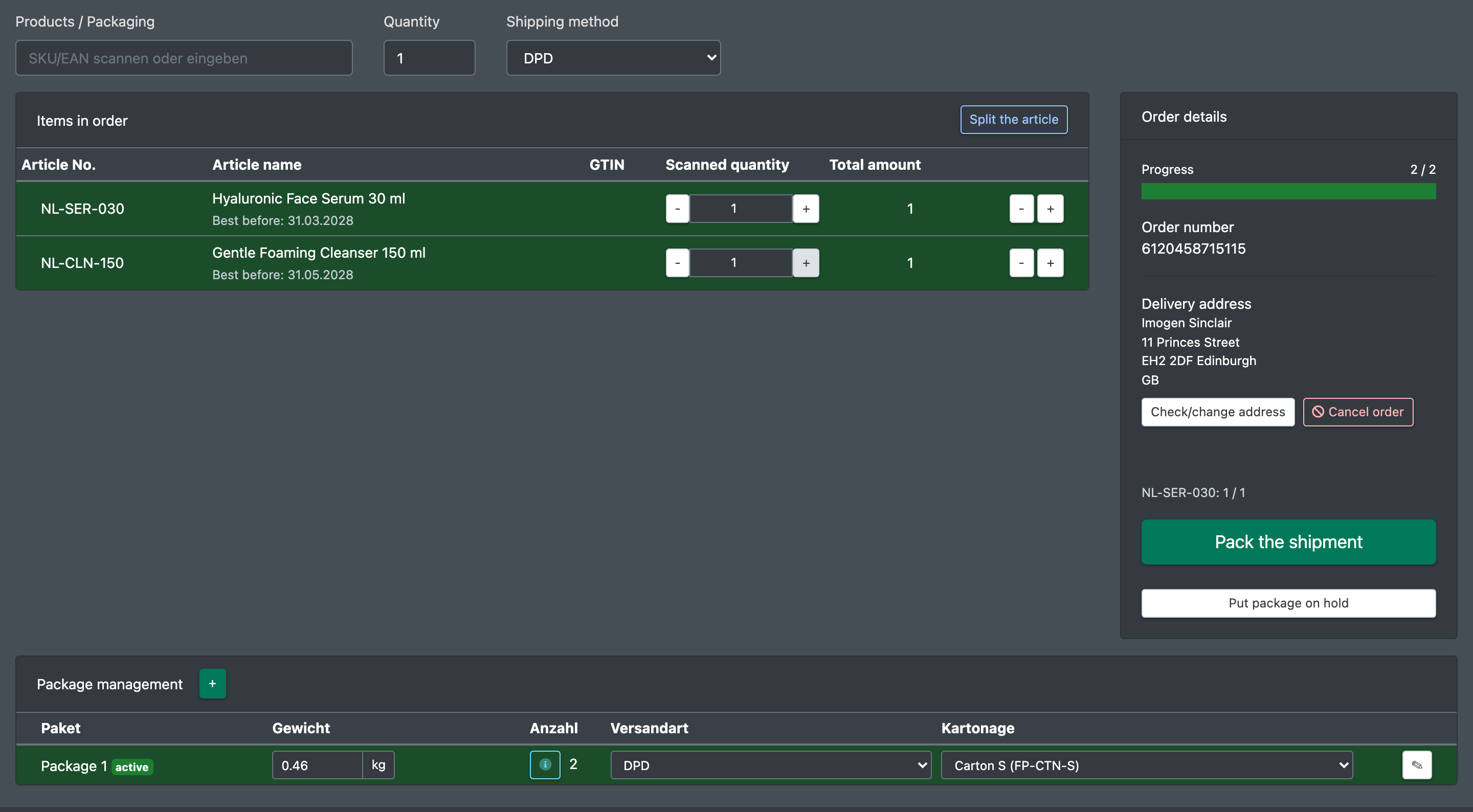
- Scan the items in the field Products / Packaging (Artikel / Kartonage). The progress shows Scanned quantity (Gescannte Menge) against Total amount (Gesamtmenge). If an item is in several boxes, you are asked "Which box do you have in front of you?".
- Optional: Check/change address (Adresse prüfen / ändern).
- Choose the carton with Select packaging (Kartonage wählen) – prefilled with the default carton of the freight carrier – and enter the shipping method and Weight (Gewicht) per package.
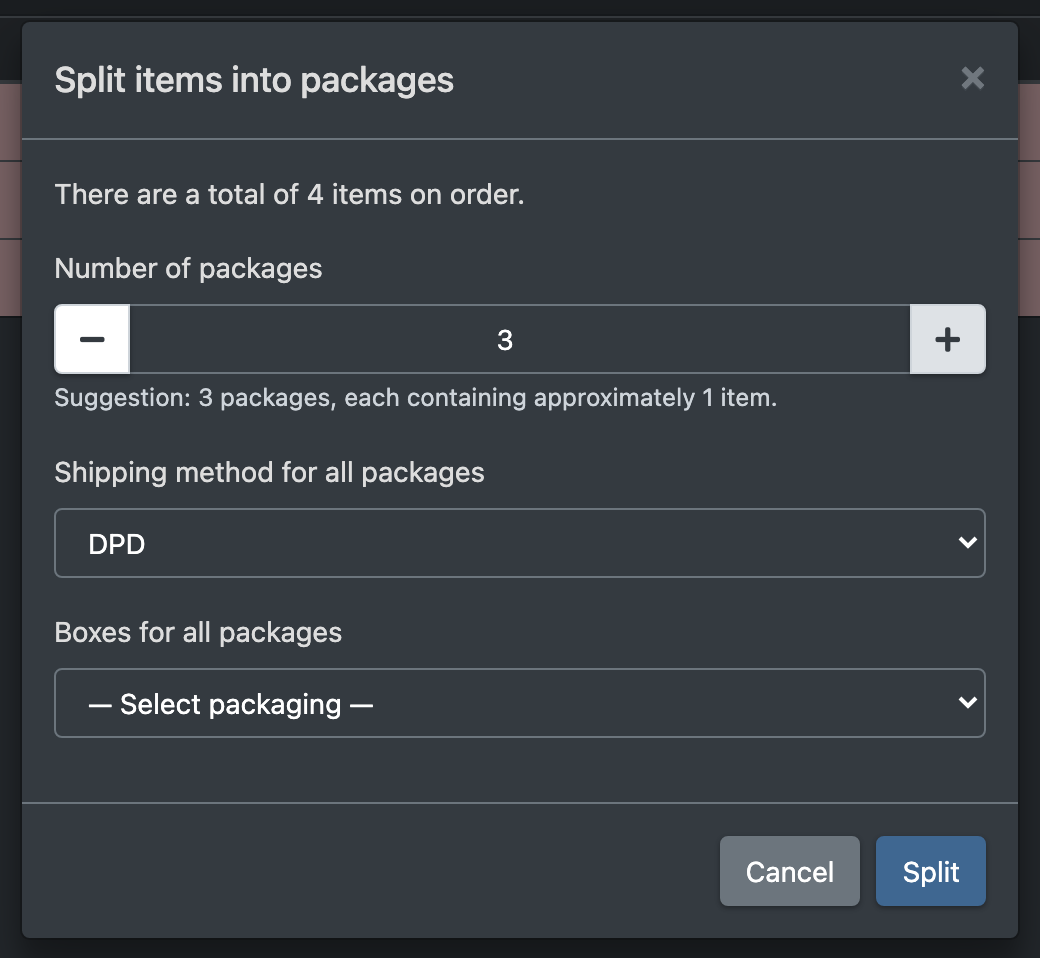
- Several packages: Split items into packages (Artikel auf Pakete aufteilen) with Number of packages, Shipping method for all packages and Boxes for all packages.
- Additional material (e.g. filling material) can be recorded per package by scanning its code.
- Finish with Packaging (Verpacken) – or Pack the partial shipment (Teillieferung verpacken) / Pack the shipment (Lieferung verpacken). Use Put package on hold (Paket zurückstellen) to put the package on hold if it should not be shipped yet.
- You see "Packaging process complete. Label: <number>" (and "Return label generated: <number>" if applicable), or for pallets "Packaging process complete. Please take it to the shipping station."
- Pack the other boxes of the cart the same way. After the last box the cart is free again.
Collective boxes
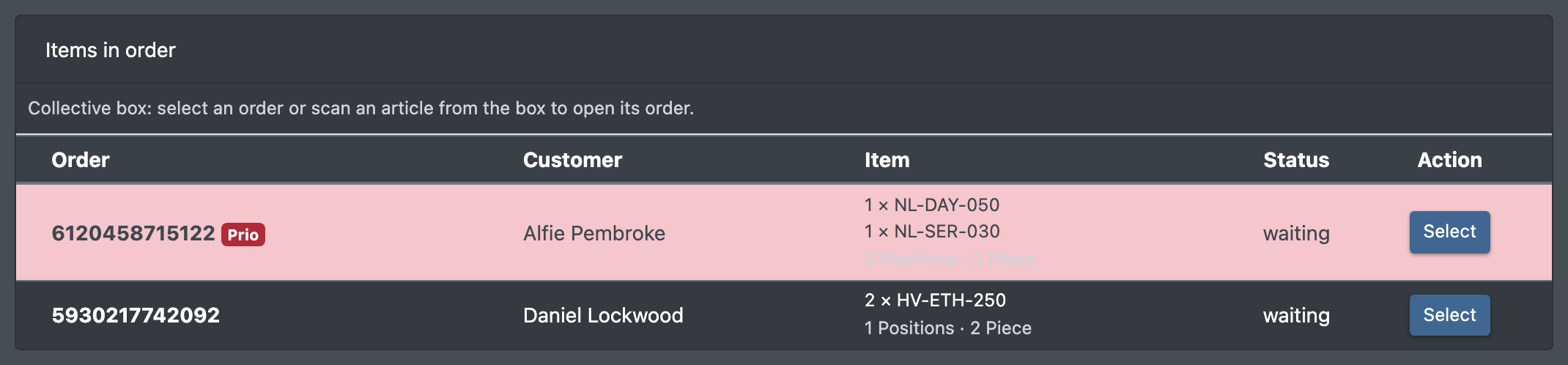
For picklists from a template with the picking type Collective, the box scan first shows all orders in the box (priority orders on top).
- Open an order with Select (Auswählen), or scan an item from the box – the order it belongs to opens.
- Back to order selection (Zurück zur Auftragsauswahl) returns to the list.
- In the order selection, package management, Check/change address and Cancel order are hidden; they always apply to the opened order only. Its packages are kept when you come back.
Serial numbers
If an article has serial number required when packing (Seriennummer-Pflicht beim Verpacken) set to yes (group Warehouse in the article), the packing table asks for the serial number of every counted piece ("Scan serial number (1 of n)") – no matter how the quantity was recorded.
- Empty numbers and numbers already recorded in this order are rejected.
- Cancel takes the piece back – without a serial number nothing is packed.
- The numbers are kept if you reload the box, saved per package when you finish, and shown in the order details under Units (Einheiten) – see Order details.
Pallets at the packing table
Goods do not always leave as parcels. At the packing table you can also pack onto pallets and combine pallets.
Pack onto a pallet
Choose a pallet as the packaging of a package with Select packaging (Kartonage wählen), e.g. Euro pallet (Europalette). The package then counts as a pallet:
- Scan the items onto it as usual. With several packages, each package can be a parcel or a pallet.
- No parcel label is created for a pallet. When you finish, the order goes to loading and you choose the shipping station (see below).
- The weight of the pallet is its own weight (tare) plus the weight of the goods on it.
A packaging article counts as a pallet if the article attribute Is a pallet (Ist Palette) is set to yes – see Storage aid types.
Pallets from pallet rides
If an order consists of full pallets brought by a pallet ride and hand-picked goods, the box shows each forklift pallet as its own pallet row with a fixed content (article and quantity of the ride). These rows cannot be removed. Hand-picked items can be scanned onto them.
Merge pallets
If the goods fit on fewer pallets than were delivered, click Merge pallets (Paletten zusammenlegen) on a pallet row. In the dialog "Which pallet should the contents of … be placed on?" you choose the target pallet; the active pallet is preselected. The content, the scanned items and the weight move to the target pallet, and the source pallet disappears. Only the tare of one pallet remains, so the order is booked and loaded with the real number of pallets.
Unpack a pallet
Unpack pallet (Palette auspacken) undoes a merge: you choose which of the merged pallets become their own pallet row again. Items you scanned onto the pallet stay on it. A pallet row from a pallet ride always keeps at least one ride.
See what is on a package or pallet
The info button Show items in this package / on this pallet (Artikel in diesem Paket / auf dieser Palette anzeigen) lists the article number, name and quantity of everything on the package or pallet.
Choose a shipping station
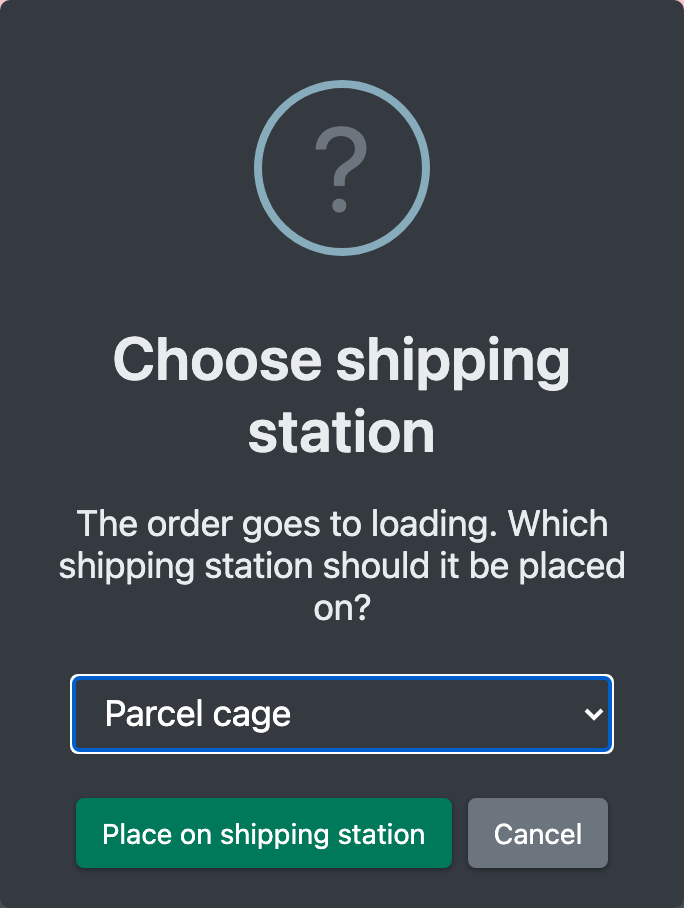
If the order goes to loading (pallet as carton, pallet position, or a shipping method of the type freight forwarder / own delivery, e.g. customer pickup) and is not yet on a shipping station, you are asked: "The order goes to loading. Which shipping station should it be placed on?"
- The deposit location of the freight carrier is preselected; all active deposit locations of the warehouse are offered.
- Place on shipping station (Auf Versandbahnhof stellen) finishes packing. You see "Please take it to shipping station <name>."
- Cancel leaves the order open ("Without a shipping station the order will not be completed.").
- If a pallet ride already brought the order to a shipping station, or you chose one for an earlier box, the question is skipped.
The chosen station is then shown in Loading.
Short quantities, cancelling and resetting
- Attention: short quantity during picking! – if fewer pieces were picked than ordered (no replenishment source), the packing table lists the affected positions. Either pack the available goods as a partial delivery, or click Reset order (Auftrag zurücksetzen) and confirm with Yes, reset: the order is removed from the picklist, the picked goods are booked back to the storage place and the order goes back to open. A dialog then tells you which goods to bring back to which place – confirm with OK, goods returned.
- Cancel order (Auftrag stornieren) removes the order from the picklist and sets it back to open. You choose where the picked goods are booked: Back to the original storage bin (pick bin) or Book to a different storage bin (scan or enter the place). Pallets always go back to their original place.
- Pallet packages can be combined with Merge pallets and separated again with Unpack pallet – see
Pallets at the packing table . - Packing notes added by a workflow appear in the middle of the screen for a few seconds when the order is opened.
What happens when you finish
Further effects:
- The stock reservation is released, the delivered quantity per order position is updated, carton usage is booked from stock, the weight is stored on package and order, and the tracking number is stored on the package and its positions (visible in Packages and tracking).
- Finishing a box that is already packed does not create a second label or booking.
- Workflows with the triggers "Packaging complete" run afterwards, e.g. tracking feedback to the sales channel, delivery note or invoice print and return labels – see Workflows.
- If the label cannot be created, nothing is changed and no follow-up process runs.