
Workflows
If-then rules that run automatically at fixed points of the order process, and the workflow logs that show what happened.
Workflows are if-then rules that X-Sitter checks and runs automatically at certain points in the order process. Examples:
- set a shipping method when an order is imported,
- add packaging material from a certain weight,
- print an insert (e.g. a flyer) when packing,
- send an email to the end customer after shipping.
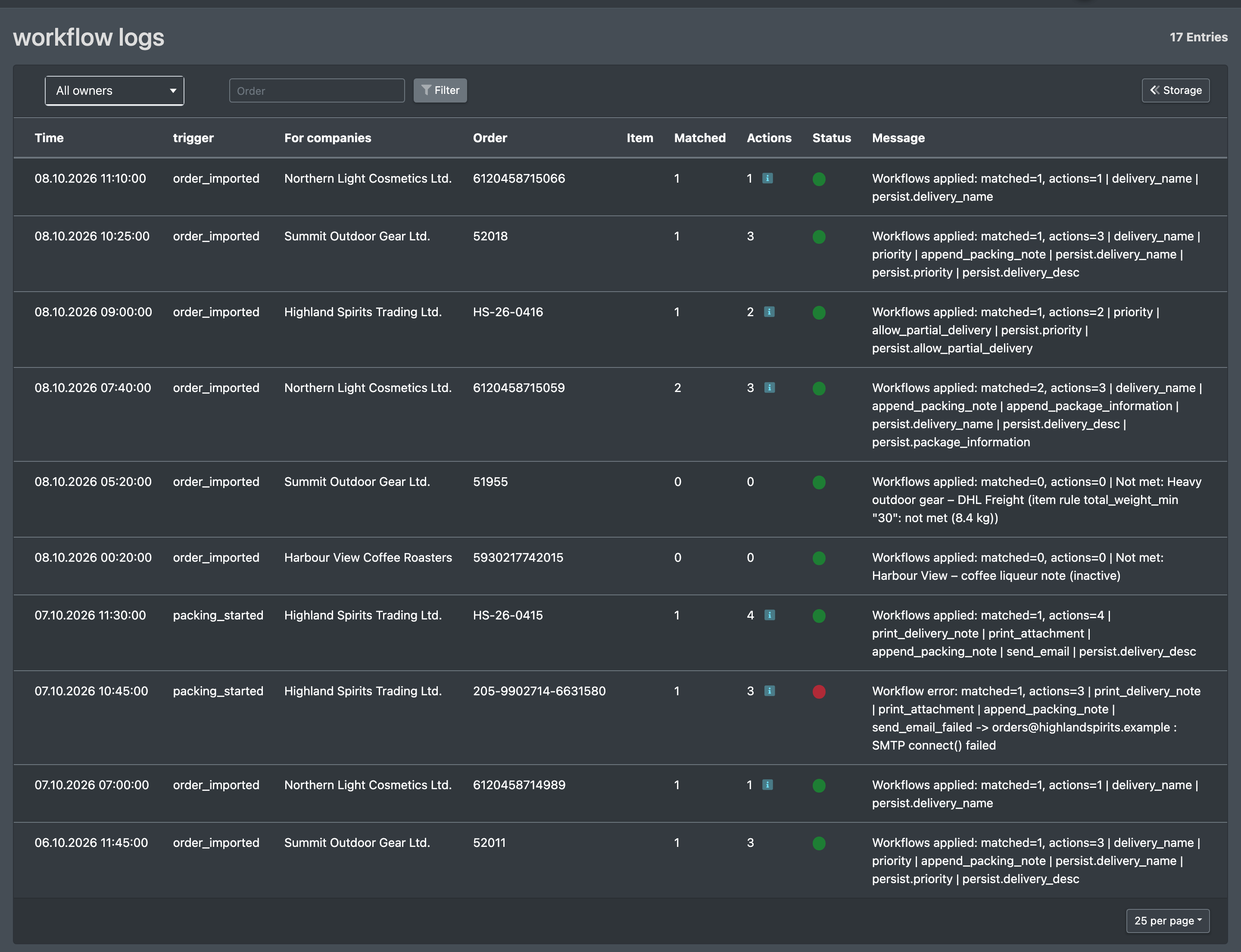
The workflow logs show which workflows applied to which order.
Before you start
- Your user needs the permissions for Settings (Einstellungen) and Workflows in the WMS menu; creating and editing is a separate permission – ask your administrator.
- At least one client – a workflow always applies to one or more clients – see Clients.
- For Send Email: an email template – see Email templates.
- For Print delivery slip / Print invoice: PDF templates – see PDF documents.
- For inserts: a PDF in the media management of your company settings – see Media.
- For Set/override shipping method: the freight carriers of your warehouse – see Freight carriers.
Create a workflow
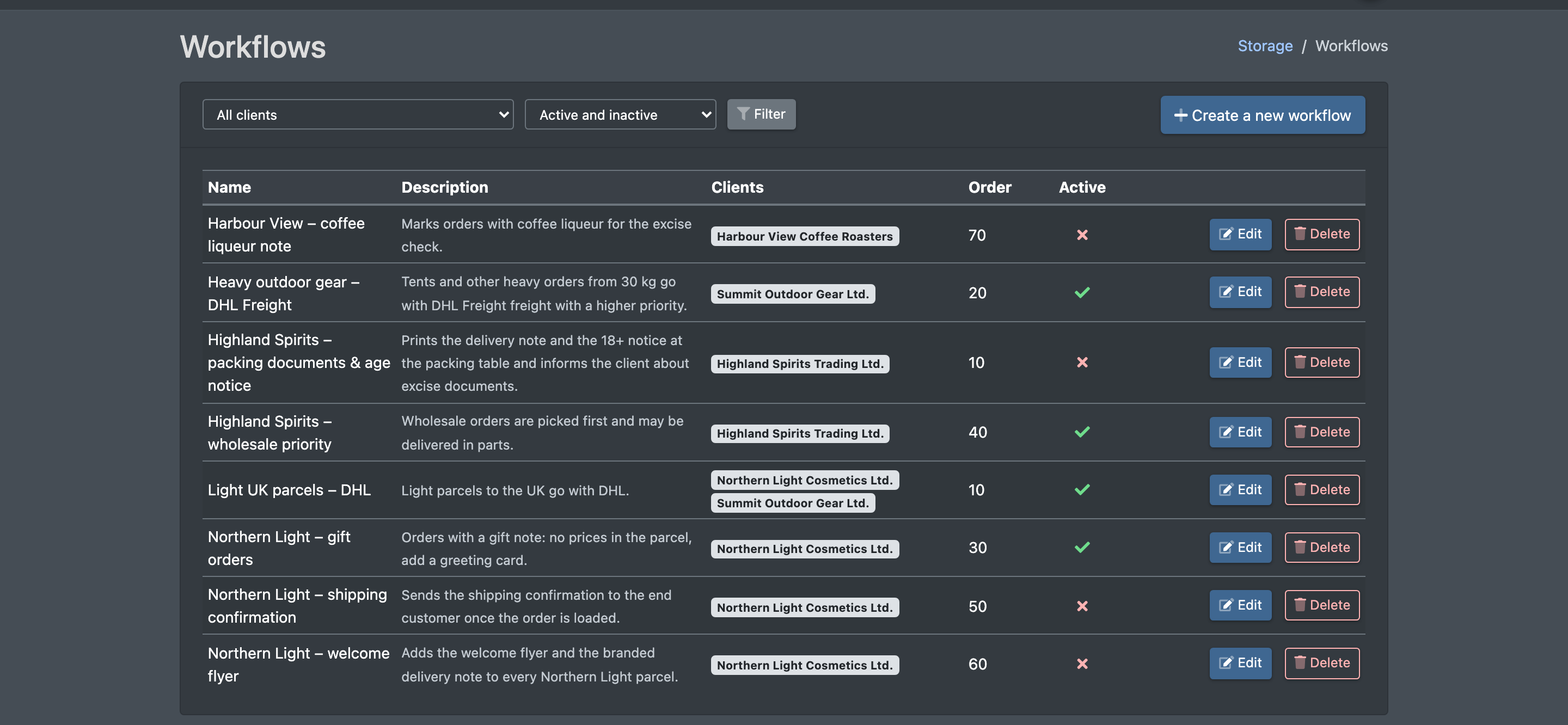
- Open WMS › Settings › Workflows (WMS › Einstellungen › Workflows). Filter with All clients (Alle Mandanten) and Active and inactive / Only active / Only inactive.
- Click Create a new workflow (Neuen Workflow anlegen). The form Create/Edit Workflow opens.
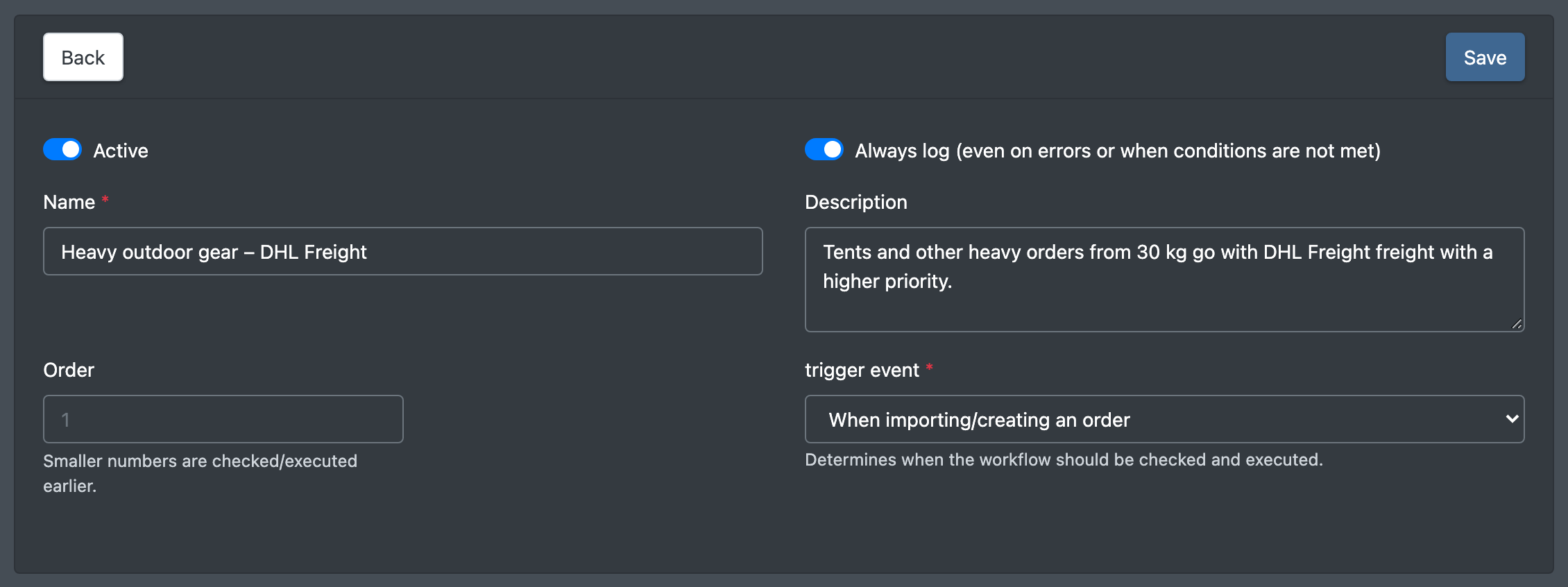
- Fill in the header:
- Active (Aktiv),
- Always log (even on errors or when the conditions are not met) (Immer loggen …),
- Name, Description (Beschreibung),
- Order (Reihenfolge) – smaller numbers are checked and executed earlier.
- Choose the Trigger event (Trigger-Ereignis) – when the workflow is checked (see table below).
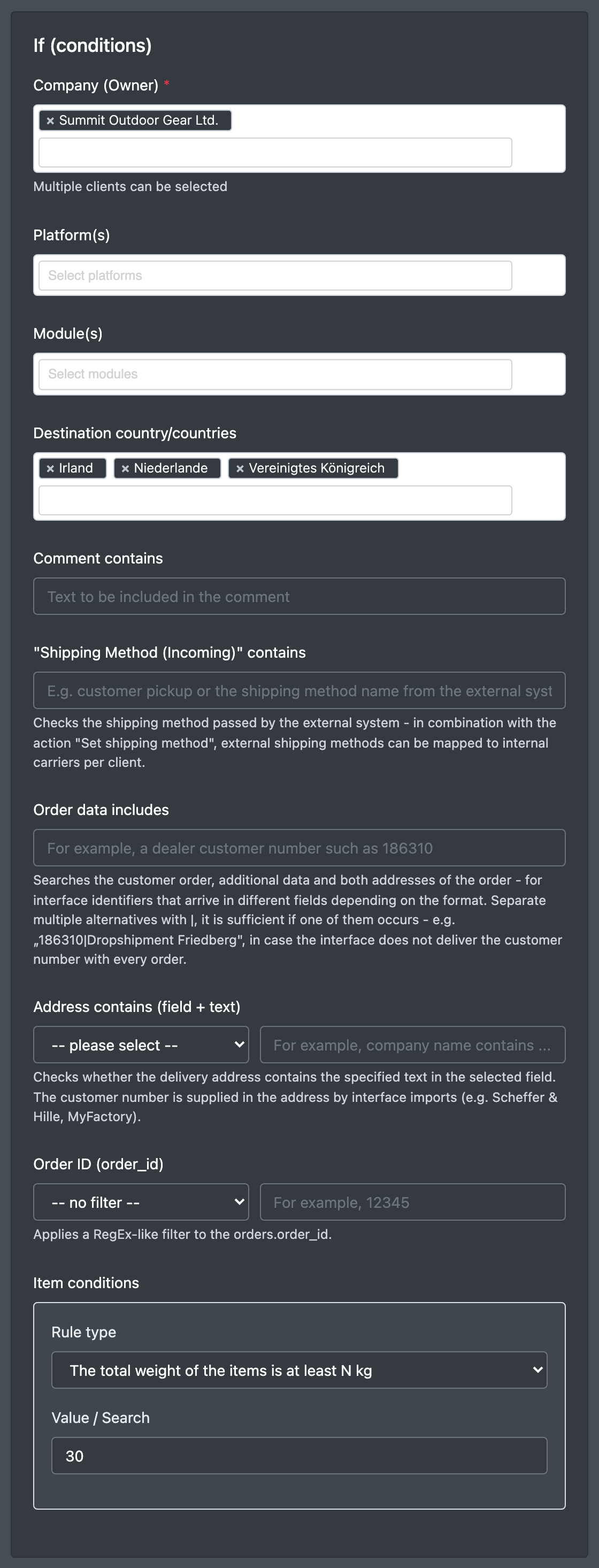
- Under If (conditions) (Wenn (Bedingungen)) define when the workflow applies.
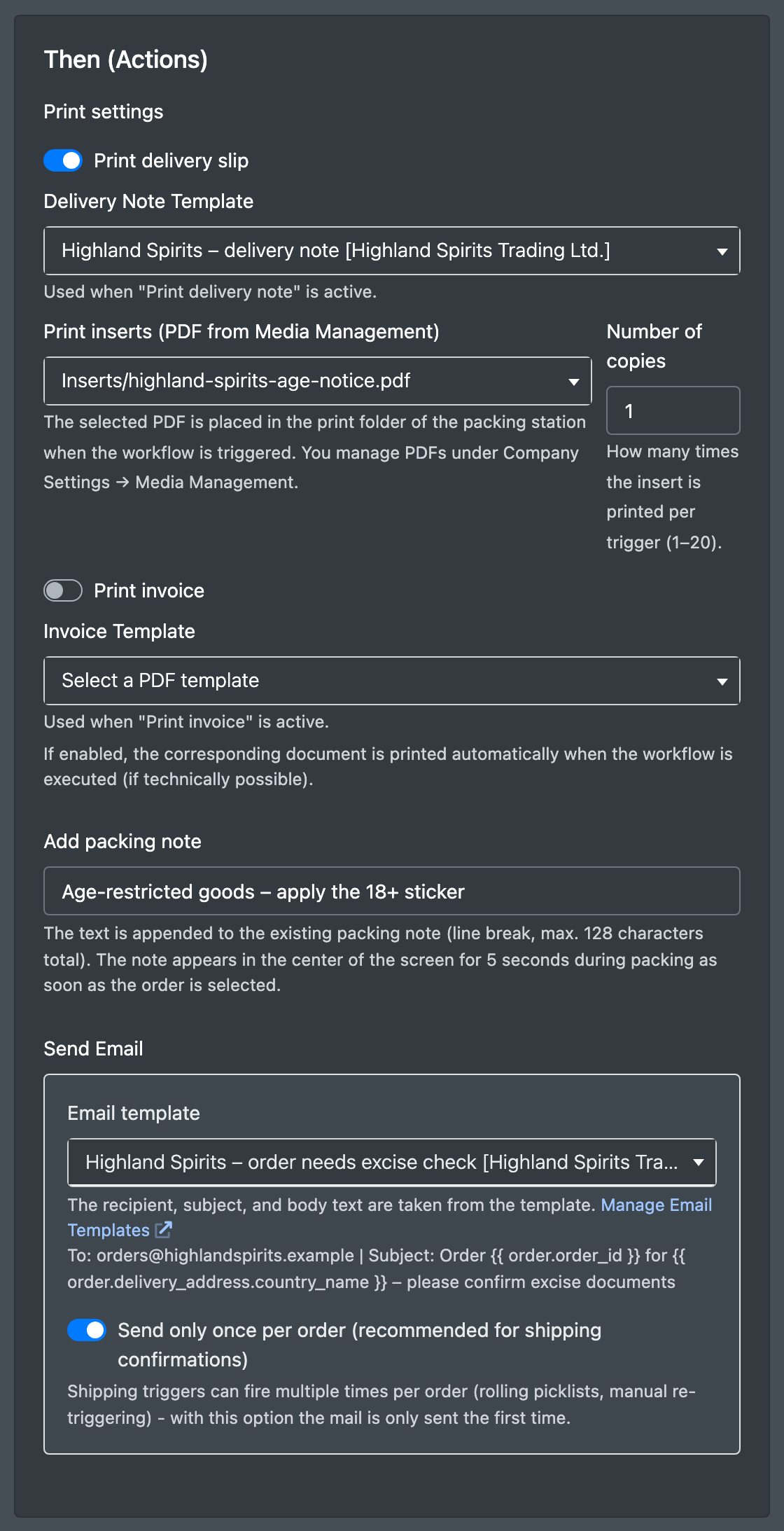
- Under Then (Actions) (Dann (Aktionen)) define what it does.
- Click Save (Speichern). You see "The workflow has been created." or "The workflow has been saved."
Trigger events
Conditions (If)
Item rule types
- Contains at least one item from category X
- Contains only items of type Y
- Contains specific item (SKU)
- Contains part of the product name
- The total number of items is at least N
- Stock of item (SKU) falls below N (value as SKU:N)
- The number of positions is N
- The total weight of the items is at least / no more than N kg
- At least one item weighs at least N kg
- Each item weighs no more than N kg
- Insufficient stock available for the item position
Actions (Then)
Which workflows run
- Only active workflows of your company with the matching trigger, whose client list contains the client of the order, sorted by Order (Reihenfolge).
- In the order details you can run the workflows again with Run workflow again (Workflow erneut ausführen). This re-runs the workflows for "Packaging complete (order complete)" – see Order details. You see "The workflow has been restarted."
- To stop a workflow, untick Active.
Workflow logs
- Open WMS › Settings › Workflow logs (WMS › Einstellungen › Workflow-Logs).
- Filter by owner (All owners – Alle Eigentümer), status and Order (Auftrag).
- The columns show Time (Zeit), Trigger, For companies (Für Firma), Item (Artikel), Matched, Actions, Status and Message (Nachricht).
Logs are kept for one month.
Troubleshooting
My workflow does not apply. Check: is it Active, is the trigger right, is the client selected in Company (Owner), are the conditions met? With Always log you also see checks in the workflow logs where the conditions were not met.