Order details
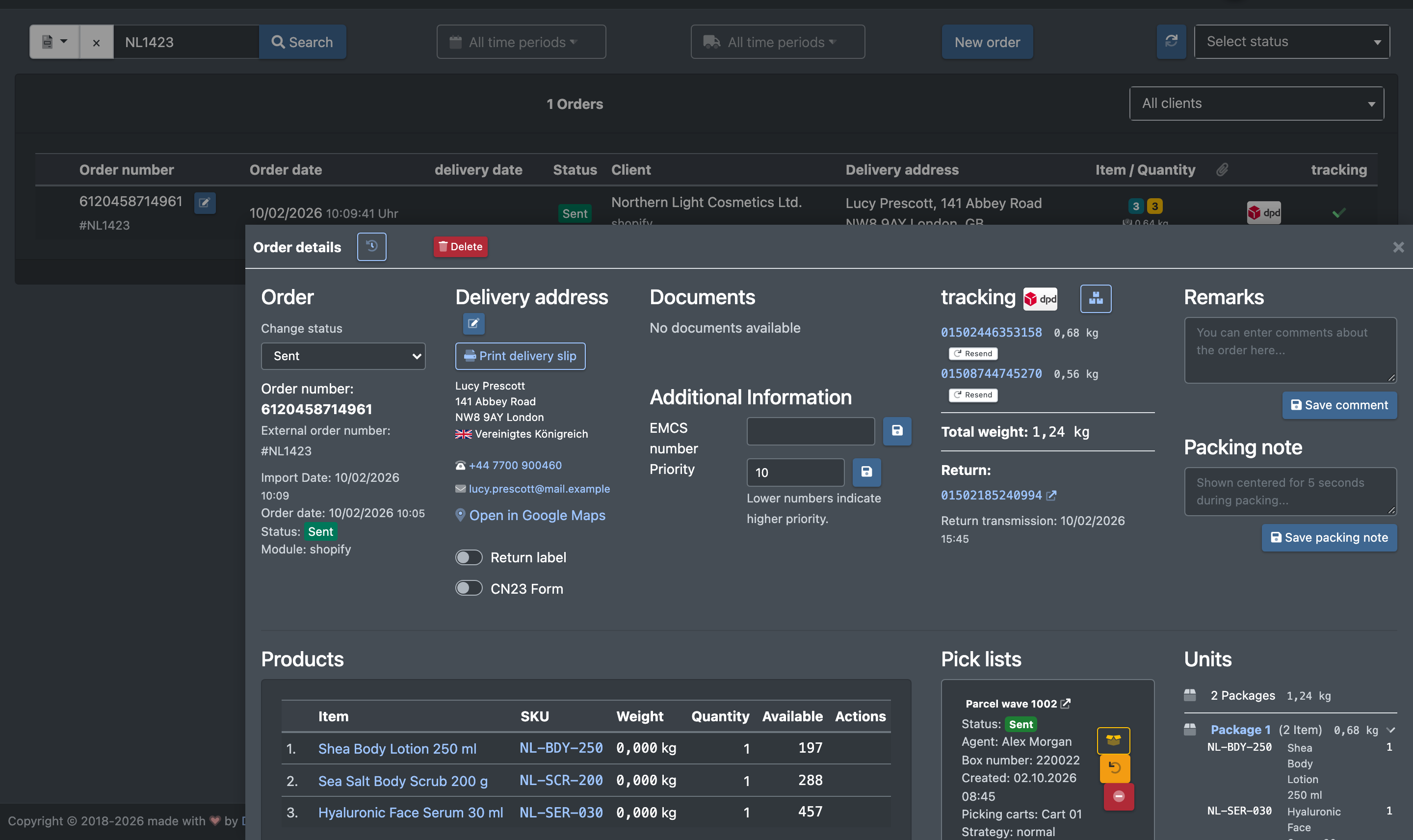
When you click on an order in the order overview, the Order details (Auftragsdetails) open as a sheet at the bottom of the page. You see the order data, delivery address, documents, tracking, products, pick lists and history in one place, and you can run single actions such as changing the priority, duplicating the order or printing the delivery note again.
Before you start
- Your user needs the permission to view orders in the warehouse (WMS orders).
- Most actions need their own permission (see the table under
Actions and permissions ). If a button is missing, ask your administrator. - For Print delivery slip (Lieferschein drucken) a delivery note template must exist for the client (see PDF documents), the order must be Sent or partially sent, and you must have selected a workstation (packing table, see Packing tables).
What you see
Order
- Order number (Auftragsnummer), External order number (Bestellnummer) and Additional number (Zusatz-Nummer).
- Import Date (Importdatum), Order date (Auftragsdatum), Status and Module (Modul). For manually created orders the employee who created the order is shown next to the module.
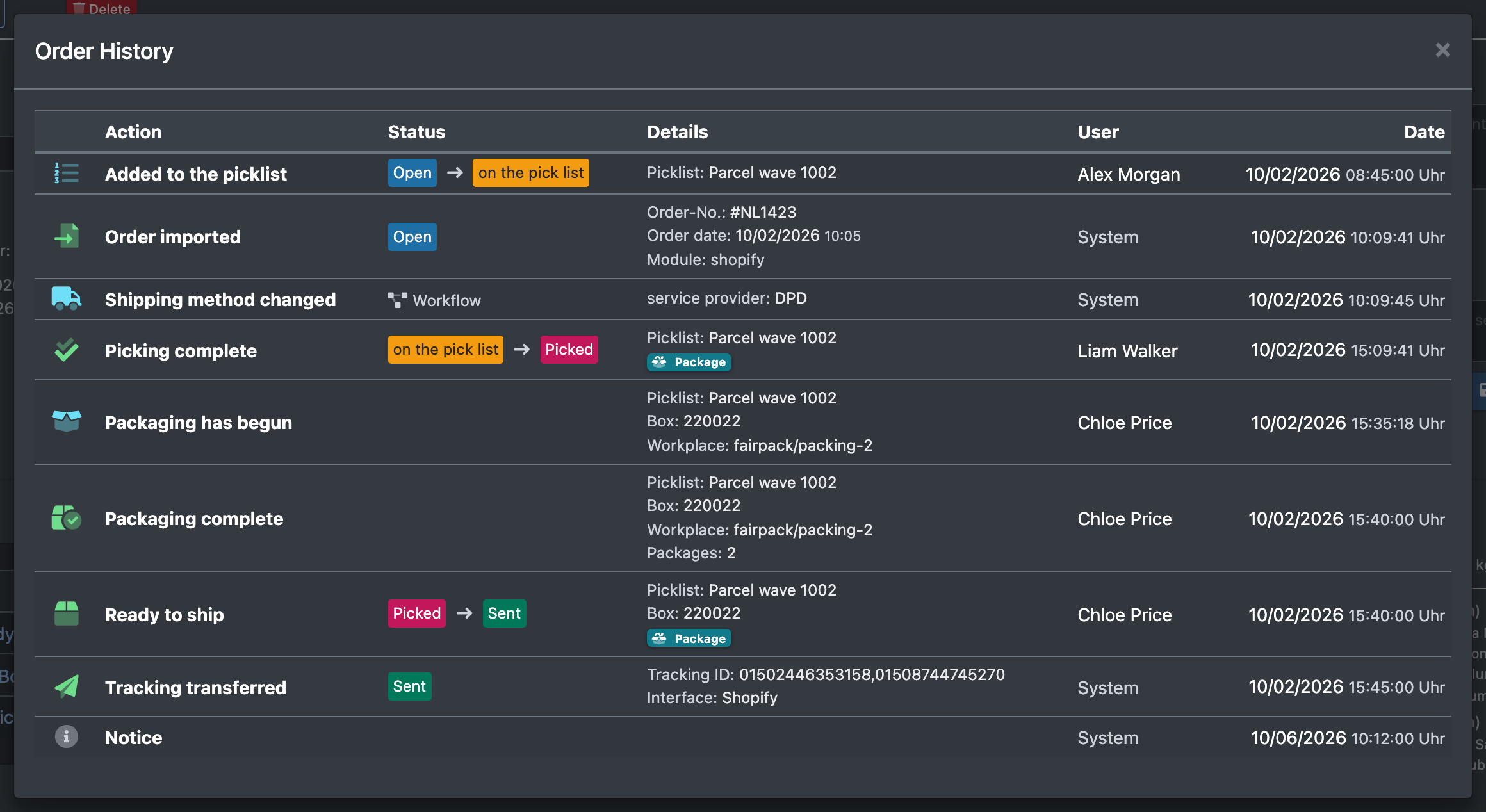
- View history (Historie anzeigen) – the clock button opens the order history (see below).
Delivery address
The recipient with e-mail address and a link Open in Google Maps (In Google Maps öffnen). Below are two switches:
- Return label (Retourenlabel) – a return label is created together with the shipping label when the order is packed.
- CN23 Form (CN23 Formular) – a customs form is needed for this order.
Documents
All PDFs attached to the order with type, name, kind (delivery note, invoice, insert, EMCS) and size. Click a name to open the PDF in a new tab. See Order documents.
Additional information
Under Additional Information (Zusatz-Infos) you find, if available: Platform (Plattform), delivery date, EMCS number (EMCS Nummer), Full pallets only (Nur volle Paletten), a different sender address (dropship, see Dropship sender addresses) and the Priority (Priorität).
Tracking
All tracking numbers with links to the carrier. See Shipment tracking and Packages and tracking.
Remarks and packing note
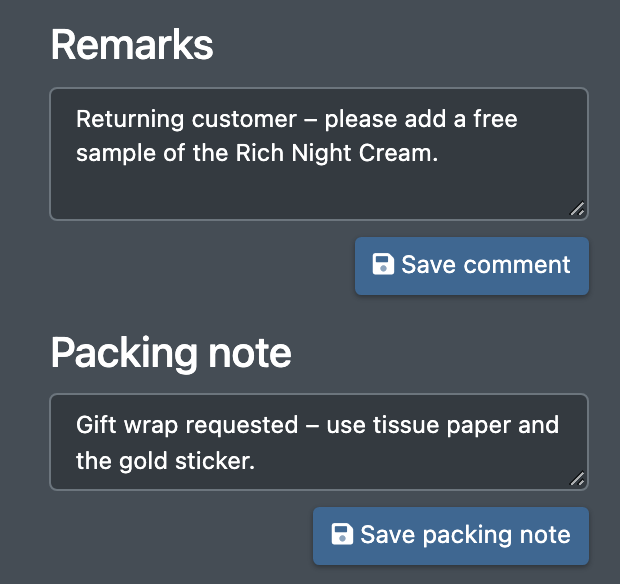
- Remarks (Bemerkungen) – internal text for the order.
- Packing note (Packhinweis) – a short text (max. 128 characters) that is shown in the middle of the screen for 5 seconds when the order is packed. See Packing.
Products, pick lists and units
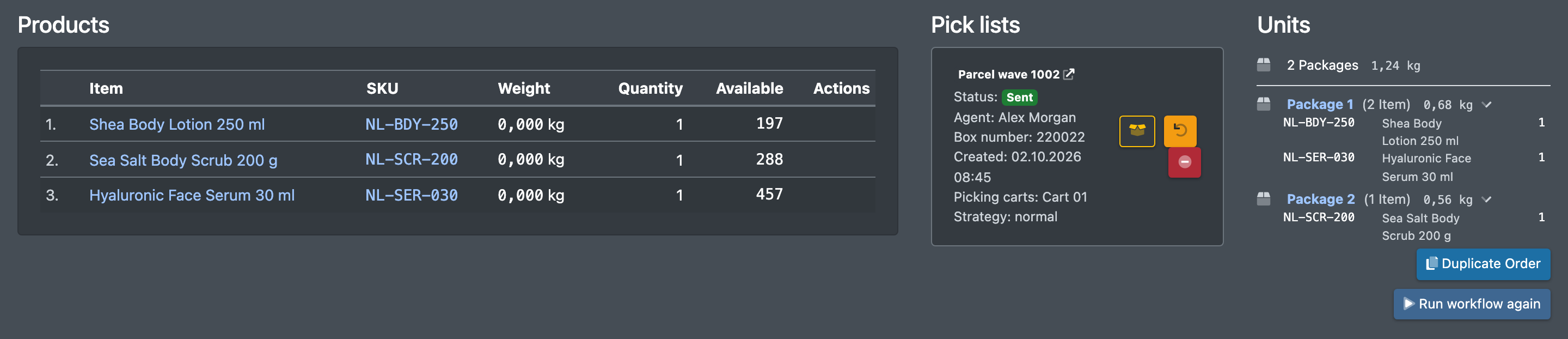
- Products (Produkte) – all order lines with quantities.
- Pick lists (Picklisten) – the pick lists the order is on.
- Units (Einheiten) – the packages and pallets of the order.
Step by step
Change the priority
- Enter a number in Priority (Priorität). Lower numbers indicate higher priority. (Kleinere Zahlen bedeuten höhere Priorität.) The default is 10.
- Click the save button next to the field.
Save a remark or packing note
- Type the text in Remarks (Bemerkungen) or Packing note (Packhinweis).
- Click Save comment (Bemerkung speichern) or Save packing note (Packhinweis speichern).
Allow partial delivery
If the order contains unknown articles, a warning Attention: Unknown items in order (Achtung: Unbekannte Artikel im Auftrag) appears. Tick Partial delivery of order permitted (Auftrag darf teilgeliefert werden) to ship the known articles anyway.
Change the status
Choose a new status in the dropdown Change status (Status ändern) below the order header. See Order statuses.
Duplicate an order
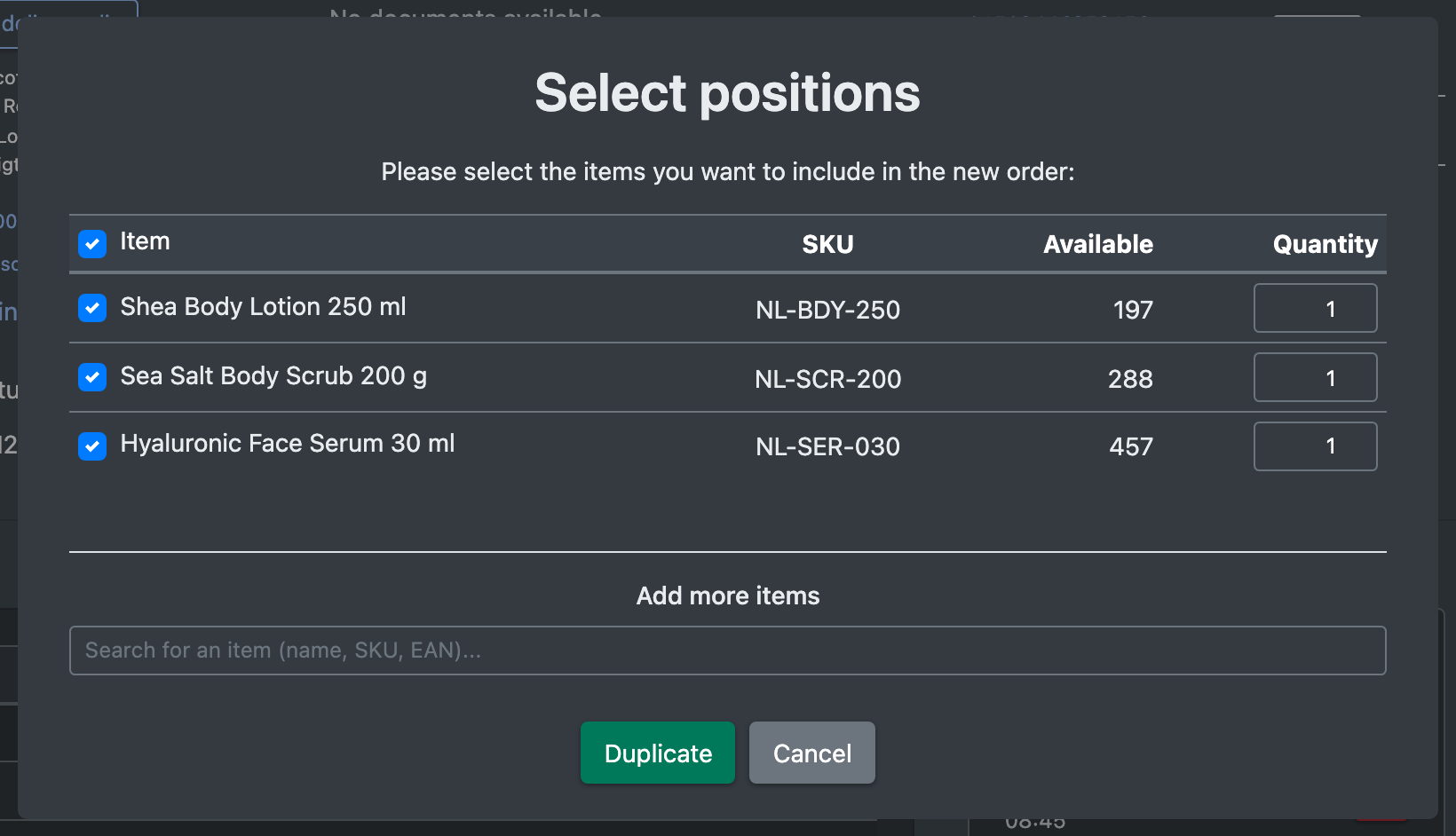
- Click Duplicate Order (Auftrag duplizieren).
- Select the lines you want to take over and adjust the quantities. With Add more items (Weitere Artikel hinzufügen) you can add further articles.
- Confirm. A new order with status Open is created. A different sender address (dropship) is copied as well.
X-Sitter checks the stock on the picking locations. If there is not enough stock, you see a message listing the affected lines – reduce the quantity or replenish the picking locations first.
Run the workflow again
Click Run workflow again (Workflow erneut ausführen). The workflows that normally run when shipping is completed are started again, for example printing delivery notes or invoices or reporting the tracking number back to the sales channel – depending on how your workflows are set up. You see The workflow has been restarted. (Workflow wurde erneut gestartet.)
Print the delivery note again
Click Print delivery slip (Lieferschein drucken). The delivery note is generated again from the client's template and sent to the printer of your selected workstation.
Edit address, numbers or documents
Click the pencil next to Delivery address (Lieferadresse). See Create or edit an order. For orders in status waiting for shipping there is also a button Edit Address (Adresse bearbeiten).
Remove an order from a pick list
In the pick list area you can reset the packing status, set the pick list back to picked or remove the order from the pick list. In the product area you can use Remove from pick list (Von Pickliste entfernen) for lines that have not been picked yet.
Delete the order
Click Delete (Löschen) in the order header. See Cancel or delete an order.
Actions and permissions
Ask your administrator to assign these permissions in your role. See Roles.
History
Every change is written to the order history, for example Priority changed, Remark changed, Partial delivery allowed, Order duplicated, Delivery note reprint started or Workflow restarted. Open it with View history (Historie anzeigen).