Shipment tracking
For every order X-Sitter shows all tracking numbers – packages, pallets and returns – with carrier, weight and, where possible, a link to the carrier's tracking page. For many shipments you can also see the shipment events (for example "picked up", "in transit", "delivered") directly in X-Sitter, because they are fetched automatically from the carrier.
Before you start
- Your user needs the permission to view order details.
- A link to the carrier is only possible if the shipping method of the order or label is a known carrier (see the table below).
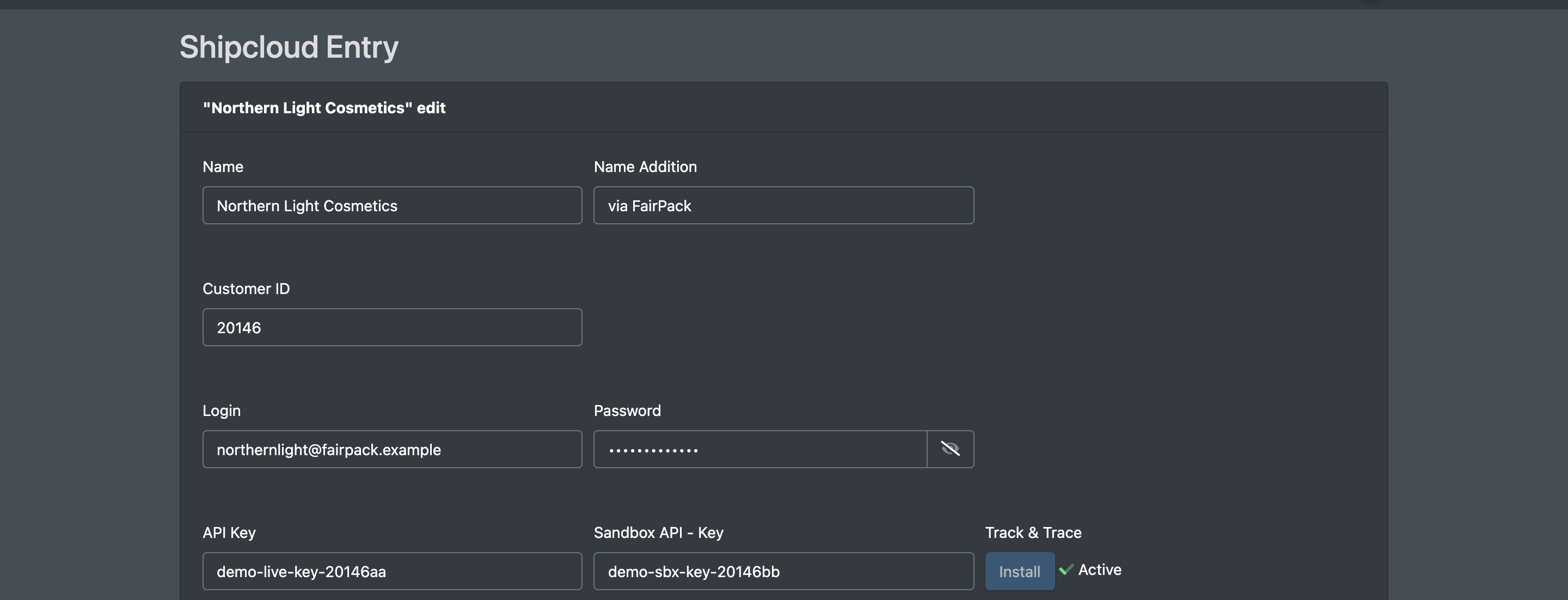
- Tracking numbers come from labels created at the packing table (see Packing and Shipping labels), from manually entered numbers (see Packages and tracking) or from your sales channel or JTL.
Step by step
Find orders with tracking
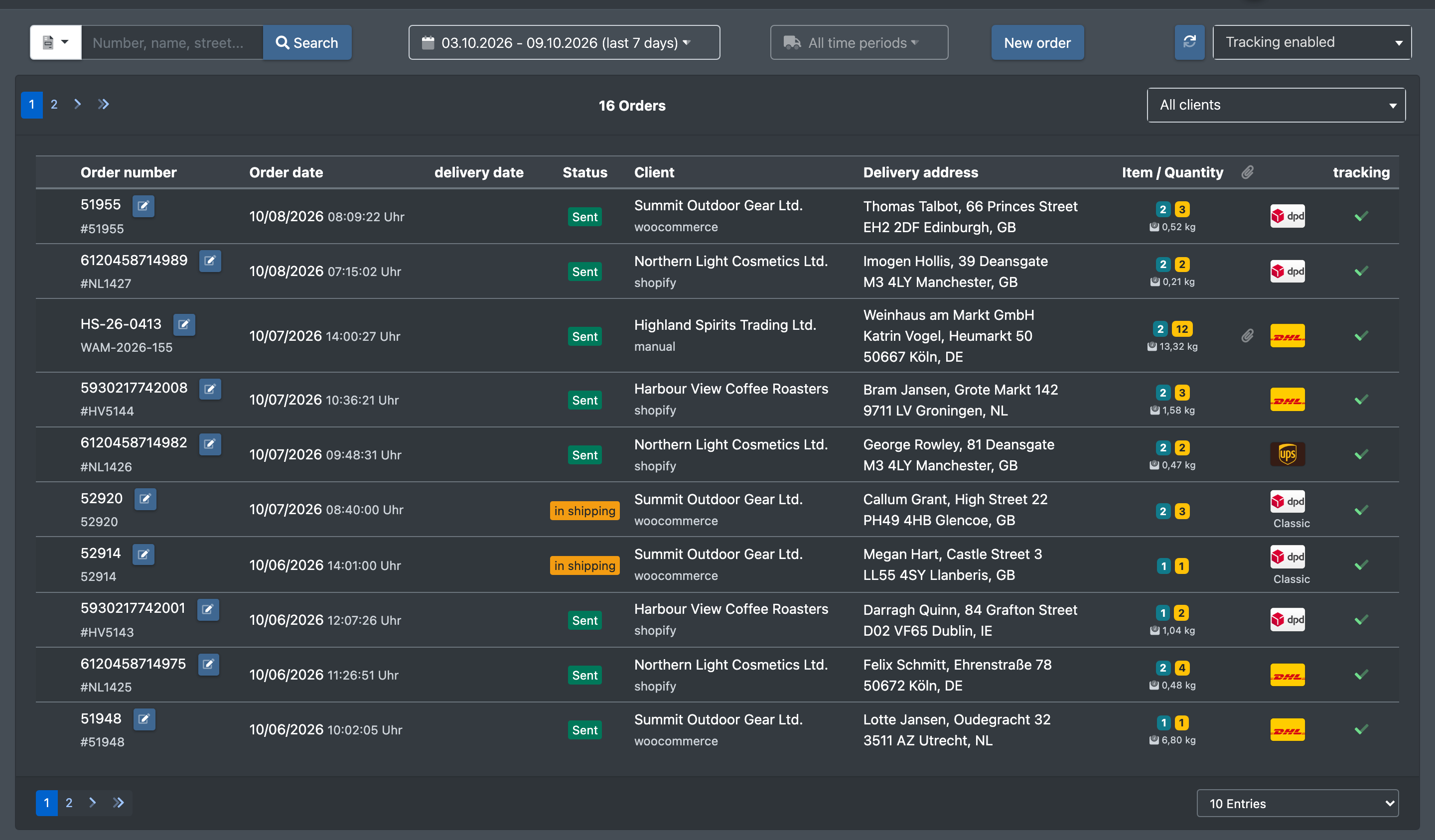
- Open Orders › Overview (Aufträge › Übersicht).
- The column Tracking shows a tick when a tracking number and a shipping method are set. To list only these orders, choose Tracking enabled (Tracking gesetzt) in Select status (Status auswählen).
Open the tracking of an order
- Click on the order to open the order details.
- Go to the area Tracking. Each tracking number is shown in one of three ways:
- Blue text with an external link icon – opens the carrier's tracking page in a new tab.
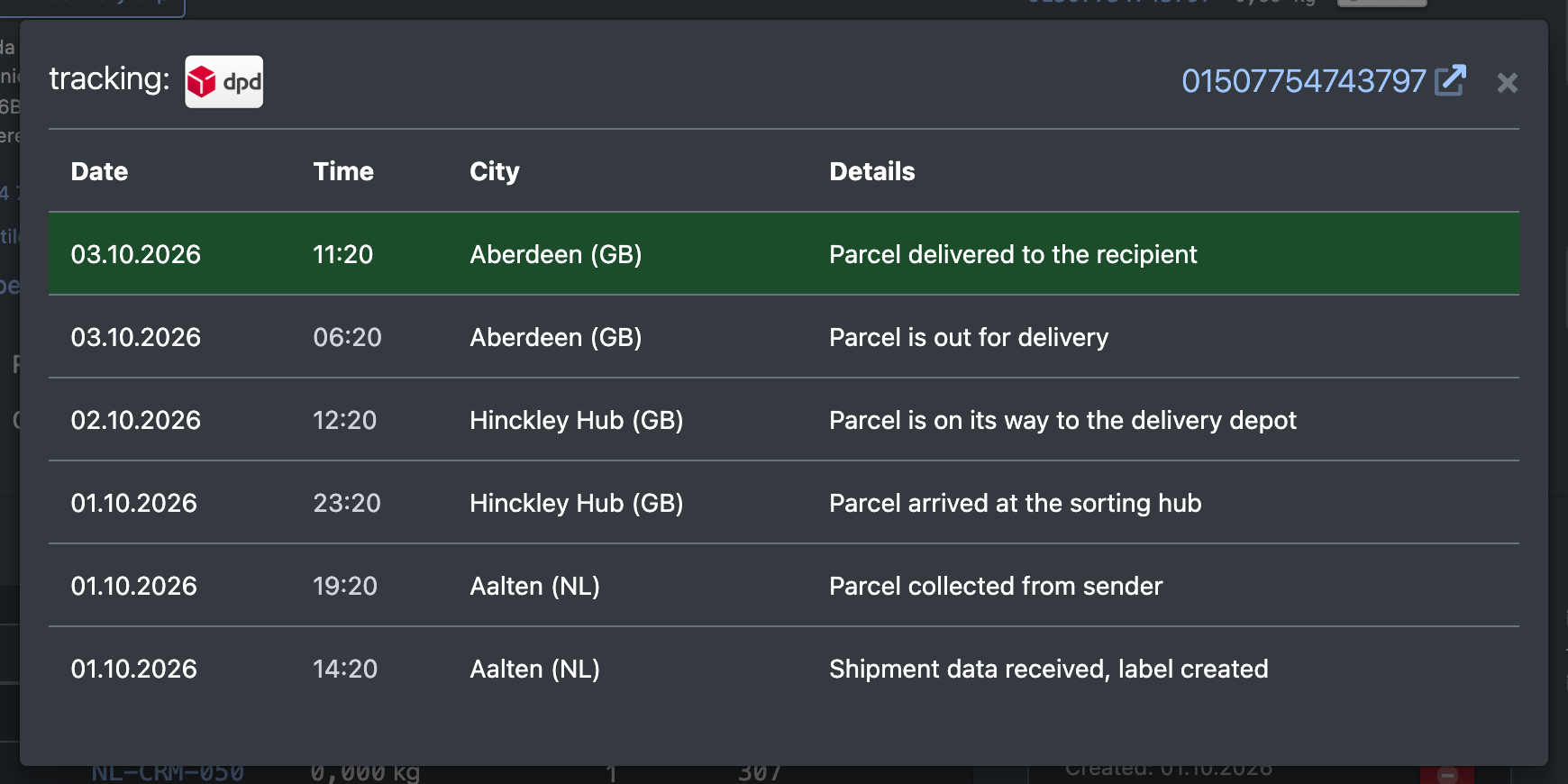
- Clickable number without link icon – shipment events are available in X-Sitter. Click to open the event list with date, time, location and details.
- Plain text – no link is known, for example for freight forwarder (Spedition) or self-collection (Selbstabholer).
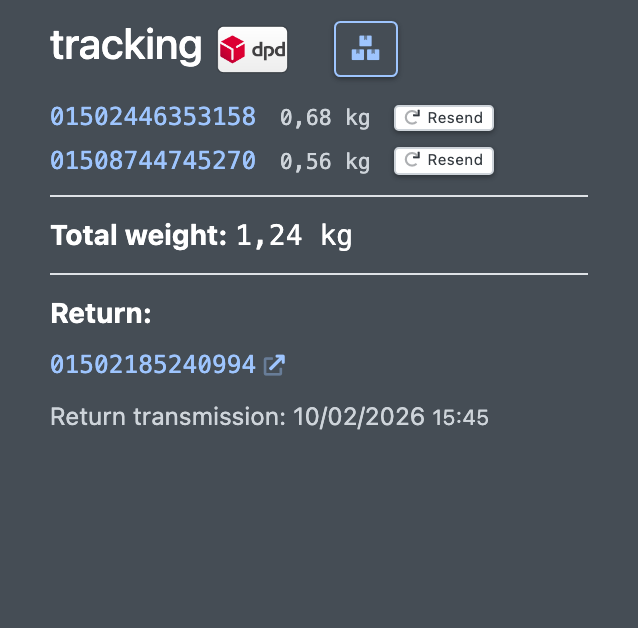
- Below the numbers you see:
- Total weight (Gesamtgewicht) if there are several packages,
- Return (Retoure) with the tracking numbers of return labels (see Returns),
- Return transmission (Rückübermittlung) – the time when the tracking number was reported back to the sales channel.
- Without any tracking data you see No tracking available (Kein Tracking vorhanden).
Carriers with tracking links
The link is based on the shipping method of the order. If an order has an unusual shipping method name (for example a channel-specific name), X-Sitter may not be able to build a link. The tracking number is still shown as text.
Where the tracking data comes from
X-Sitter collects the tracking numbers of an order from several sources, in this order:
- Labels created through ShipCloud.
- Labels created directly with DHL, DPD, GLS, UPS or Hermes.
- Pallet and freight forwarder tracking from Packages and tracking; the carrier name comes from your freight carriers.
- The tracking number stored on the order (for example from your sales channel or JTL). Several numbers separated by commas are possible.
- Return labels and return tracking numbers.
Automatic shipment status updates
Shipment events are fetched automatically – you do not have to do anything:
As soon as events exist, the tracking number in the order details becomes clickable.
warning
Shipment events do not change the order status. An order stays Sent even when the carrier reports it as delivered.