
Order statuses

What each order status means, who sets it, and how you change the status of one or many orders.

Every order has a status. It shows where the order is in the process and decides whether the order can still be fully edited, picked or deleted. Most statuses are set automatically – by the import, the pick list, the packing table or the tracking. If necessary, you can change the status manually.
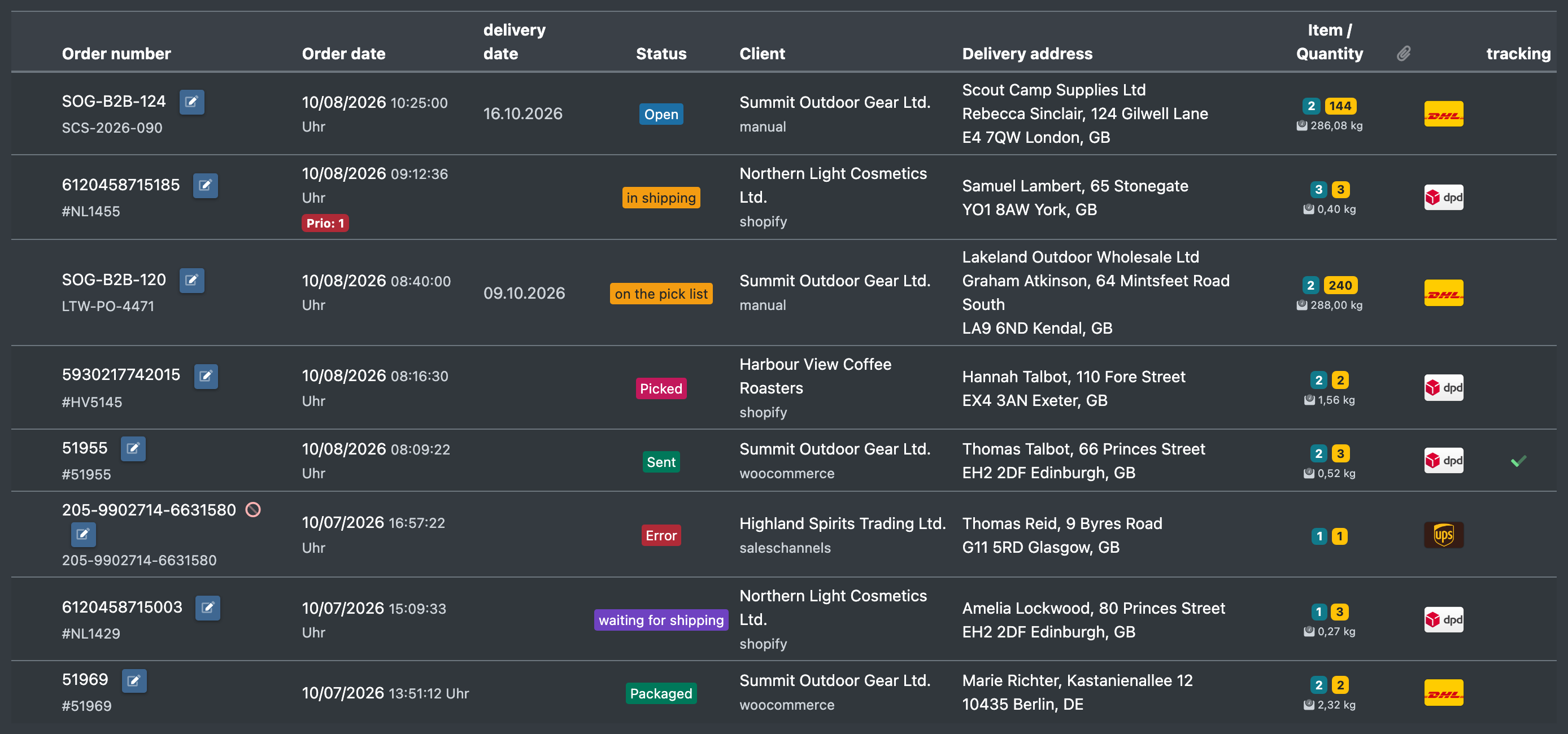
Screenshot: Order overview with several coloured status badges

Before you start

  • To change the status of a single order in the order details, your user needs the permission to change the order status.
  • To change several orders at once in the order overview, you need the orders permission.

Step by step

Change the status of one order

  1. Open the order in Orders › Overview (Aufträge › Übersicht).
  2. In the order details choose the new status in Change status (Status ändern).
  3. You see The status has been changed (Der Status wurde geändert).
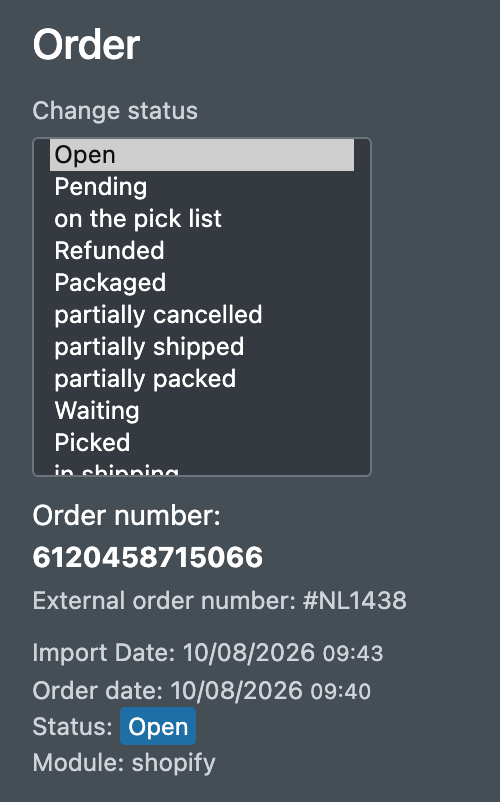
Screenshot: Status dropdown "Change status" opened in the order details

Change the status of several orders

  1. In Orders › Overview tick the orders.
  2. Click Actions (Aktionen) › Change status (Status ändern).
  3. In the dialog Change the status of selected orders (Status für ausgewählte Aufträge ändern) choose the New status (Neuer Status).
  4. Click Refresh status (Status aktualisieren). You see The status has been updated. (Status wurde aktualisiert.)
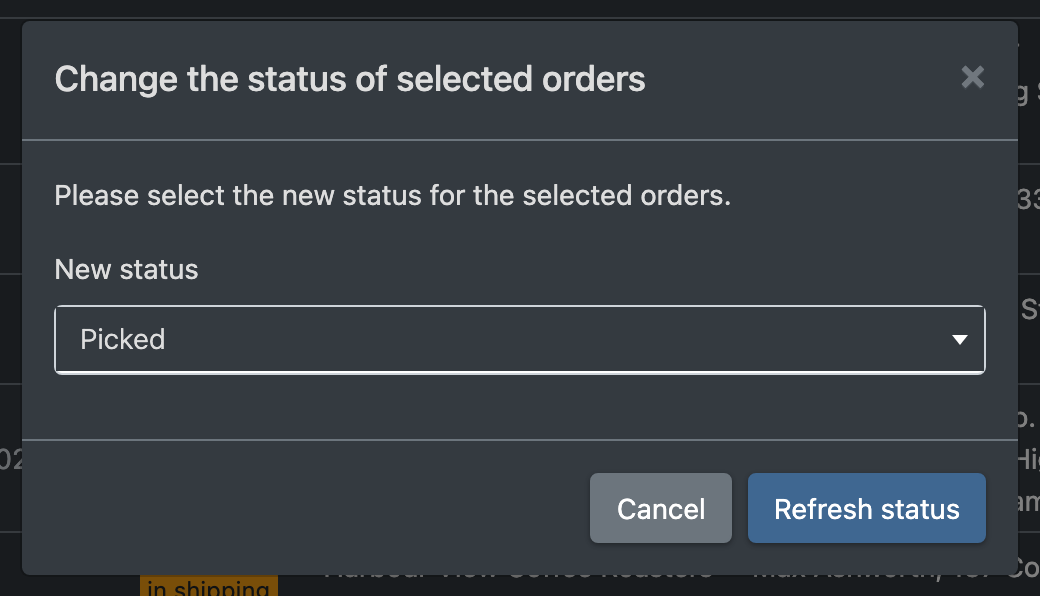
Screenshot: Bulk dialog "Change the status of selected orders" with the new status dropdown

Filter by status

In the order overview use Select status (Status auswählen). Two special filters exist:

  • Tracking enabled (Tracking gesetzt) – orders with a tracking number and a shipping method.
  • on the pick list (auf Pickliste) – orders that are on a pick list (logisticians only).

Statuses

Status (English) German UI Meaning / set by
Open Offen New order: imported, created manually or duplicated.
Waiting Wartet The order is waiting.
Pending Wartend The order is held back.
Awaiting payment Zahlungseingang Waiting for payment.
Accepted Akzeptiert Accepted by the sales channel.
Stock check Lager Prüfung Stock is being checked (JTL).
Stock checked Lager geprüft Stock check finished (JTL).
Error Fehler The import of the order failed.
API error API Fehler Error while transferring the order.
In shipping im Versand Handed over to a service provider or JTL.
In progress In Arbeit The order is being processed.
On pick list auf Pickliste The order was put on a pick list.
Waiting for replenishment wartet auf Nachbevorratung No picking location with stock; replenishment is needed.
Pallet ride Paletten-Fahrt Waiting for a pallet ride.
Picked Gepickt The last line has been picked.
Partly packed teilweise verpackt One part of a split pick list is finished, the other part is still open.
Packed Verpackt The order has been packed.
Waiting for shipping wartet auf Versand Packed, but held back at the packing table.
Waiting for loading wartet auf Verladung Pallet order picked and finished, waiting for loading.
Sent Versendet Label and tracking number were created, or a tracking number was entered manually.
Partially sent teilweise versendet Finished with a shortfall.
In transit In Transit Booked by scan in the transit process.
Booked in Eingebucht Booked in.
Done Erledigt Completed.
Closed Geschlossen Closed.
Cancelled Storniert Cancelled.
Partially cancelled teilweise storniert Partly cancelled.
Refunded Erstattet Refunded.
Screenshot: Status filter dropdown in the order overview showing all statuses

Which orders can be edited?

  • Orders in status Open, Error or In shipping can be fully edited – positions, client and order number included.
  • All other orders can only be edited in a restricted way: address, numbers, shipping options and documents. See Create or edit an order.

What happens when you change the status manually

New status Effect
Open The handover date to the service provider is removed and the shipped quantity of all lines is set back to 0.
In shipping The handover date to the service provider is set to now.
Cancelled The order is removed from all pick lists. With a JTL connection, the order is also cancelled line by line in JTL (only when you change a single order). See Cancel or delete an order.
Any status The stock of the articles is recalculated, and an entry is written to the order history (Status changed manually or Status change (bulk action)).

Good to know / Troubleshooting

Message Cause Solution
No status was passed. (Kein Status übergeben.) You did not choose a new status. Choose a status.
No orders were transferred. (Keine Aufträge übergeben.) No order is ticked. Tick the orders first.
No order could be updated. (Kein Auftrag konnte aktualisiert werden.) None of the selected orders could be changed. Check your permissions and the client of the orders.