
Cancel or delete an order
The difference between cancelling and deleting an order, and how to do both.
There are two ways to get rid of an order you no longer want to ship:
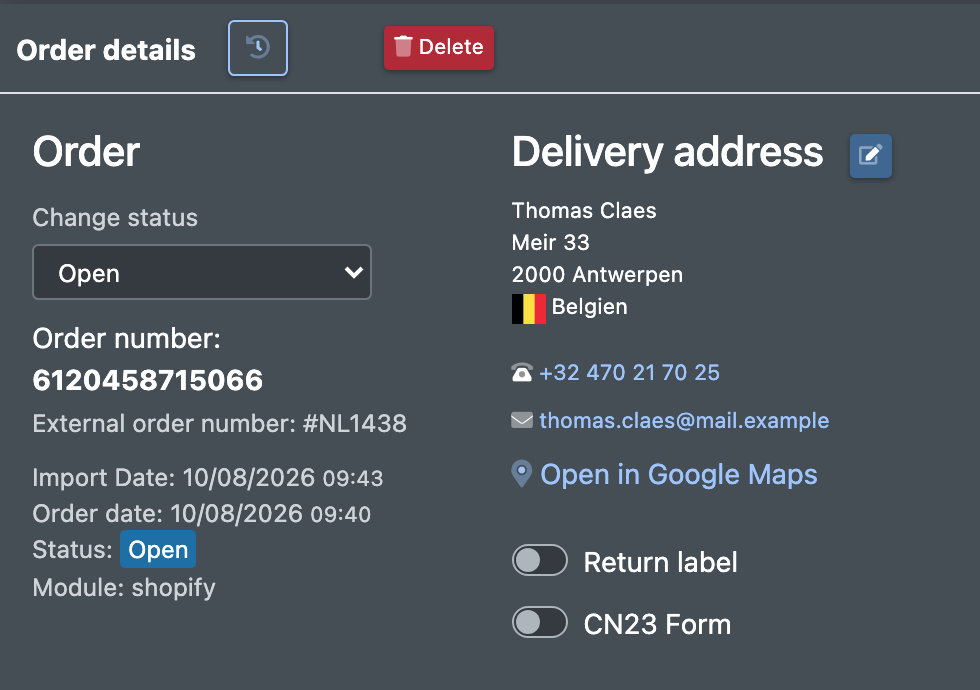
- Cancel sets the status to Cancelled and takes the order off all pick lists. The order stays in X-Sitter and remains traceable.
- Delete removes the order and all its lines permanently. This is only possible as long as the order is not on a pick list.
Before you start
- To cancel, your user needs the permission to change the order status.
- To delete, your user needs the permission to delete orders.
- To take an order off a pick list, your user needs the permission to delete pick lists.
Ask your administrator if a button is missing.
If you are not sure, cancel instead of deleting. A cancelled order keeps its history; a deleted order cannot be restored.
Step by step
Cancel an order
- Open the order in Orders › Overview (Aufträge › Übersicht).
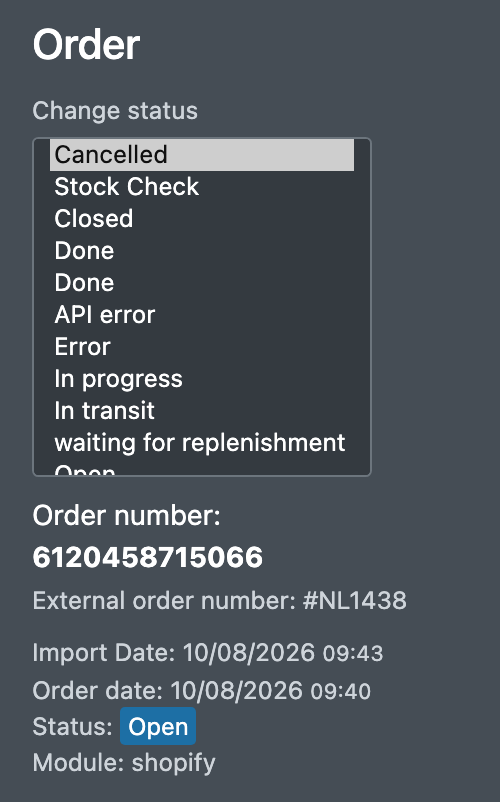
- In the order details choose Cancelled (Storniert) in Change status (Status ändern).
To cancel several orders, tick them in the overview and use Actions (Aktionen) › Change status (Status ändern). See Order statuses.
Take an order off a pick list
If deleting fails because the order is on a pick list:
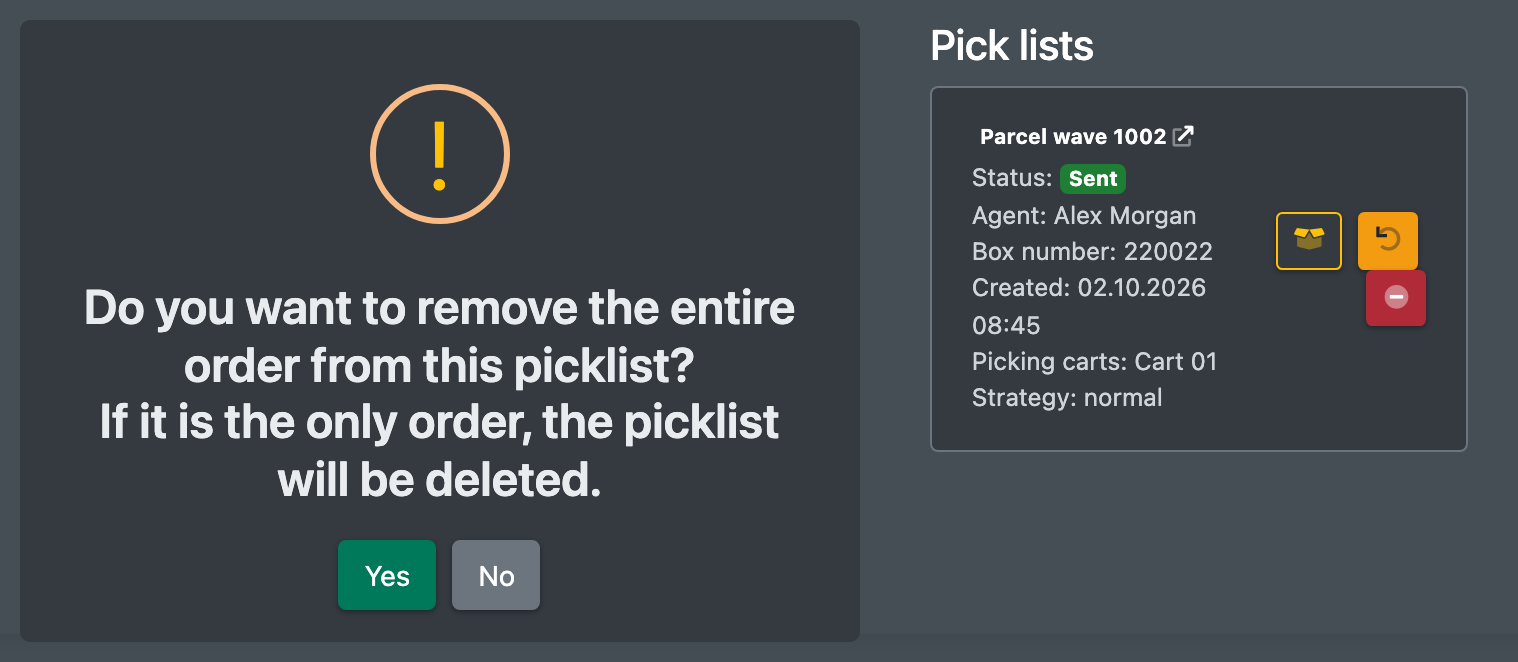
- Open the order details and go to the Pick lists (Picklisten) area.
- Remove the order and confirm Remove the entire order from this pick list? (Kompletten Auftrag von dieser Pickliste entfernen?).
If it was the only order on the pick list, the pick list is deleted as well.
Delete one order
- In the order details click Delete (Löschen).
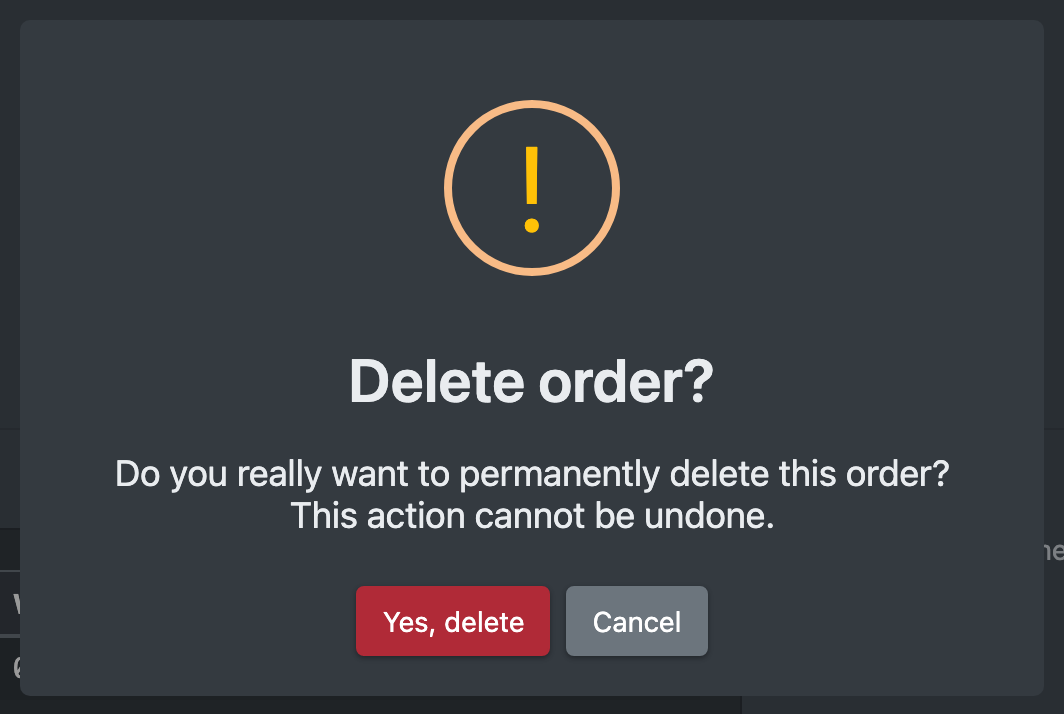
- Confirm the question Delete order? (Auftrag löschen?) – "Should this order really be deleted permanently? This action cannot be undone."
- You see The order has been deleted. (Auftrag wurde gelöscht.)
Delete several orders
- In Orders › Overview tick the orders.
- Click Actions (Aktionen) › Delete (Löschen) and confirm.
What happens
In all cases, stock reserved for the order is released again.