
Order documents
Attach delivery notes, invoices, inserts or EMCS documents to an order and print the delivery note again.
You can attach PDF documents to an order – for example a delivery note supplied by the customer, an invoice, an insert or an EMCS document. Attached PDFs can be printed automatically at the packing table. You can also generate the delivery note again from the client's template and print it.
Before you start
- To upload documents, your user needs the permission to create orders. Uploading also works for orders that are already being picked (button Edit address / documents, Adresse / Dokumente bearbeiten).
- To print the delivery note again:
- the order must be in status Sent or partially sent,
- a delivery note template must exist for the client (see PDF documents),
- you must have selected a workstation with a packing table (see Packing tables).
Step by step
Upload a document
- Open the order form: in the order overview or order details click the pencil button.
- In PDF upload (PDF Upload) choose the PDF file.
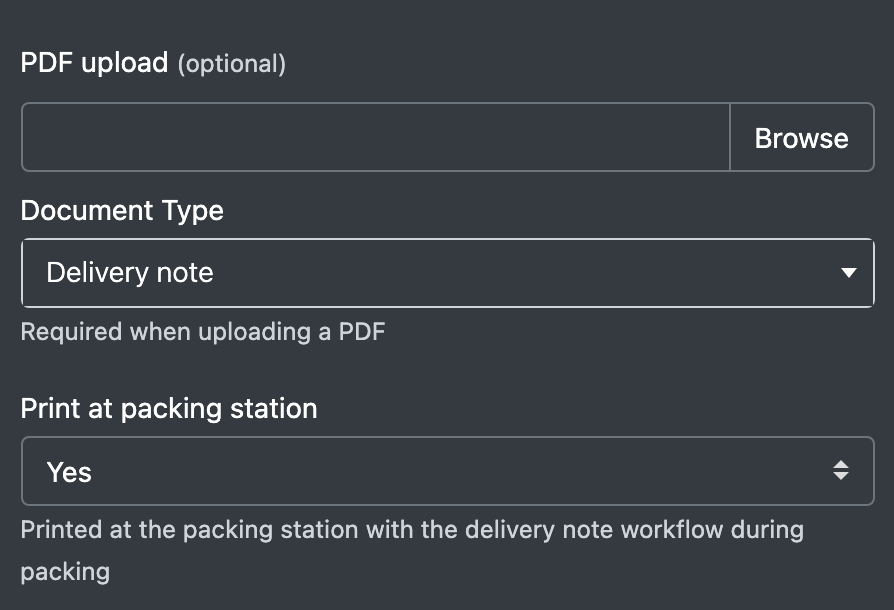
- Choose the Document Type (Dokument-Art): Delivery note (Lieferschein), Invoice (Rechnung), insert (Beileger) or EMCS Document (EMCS-Dokument).
- Choose in Print at packing station (Am Packtisch drucken) whether the document should be printed with the delivery note workflow at the packing table (default: yes).
- Click Save Order (Auftrag Speichern).
Change or remove an existing document
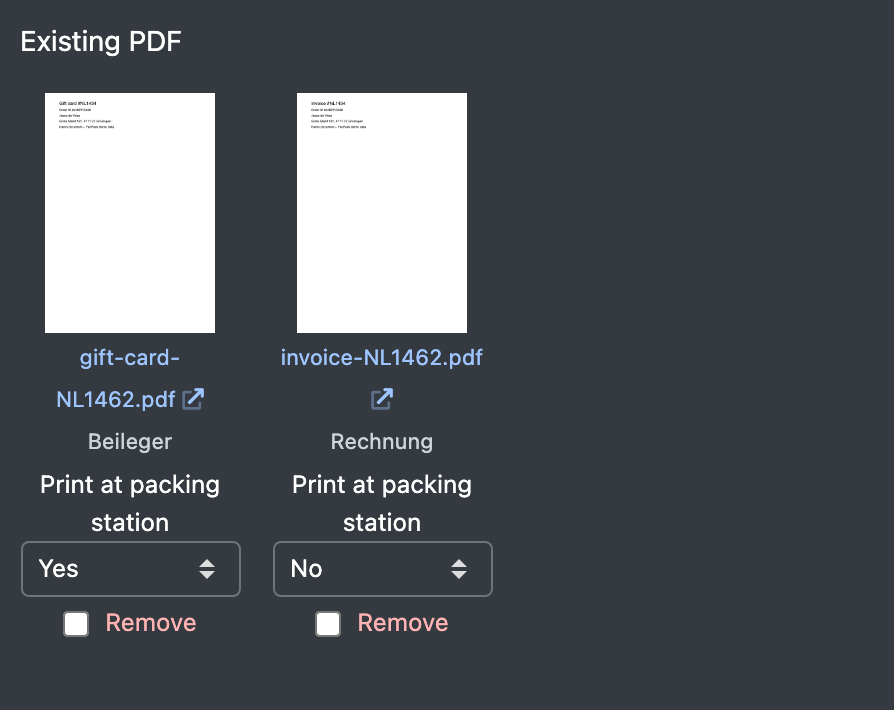
- Open the order form. Existing documents are shown under Existing PDF (Vorhandene PDF) with a small preview.
- Change Print at packing station per document if needed.
- To remove a document, tick Remove (Entfernen) under it.
- Click Save Order. Removed documents are deleted together with their file.
View documents
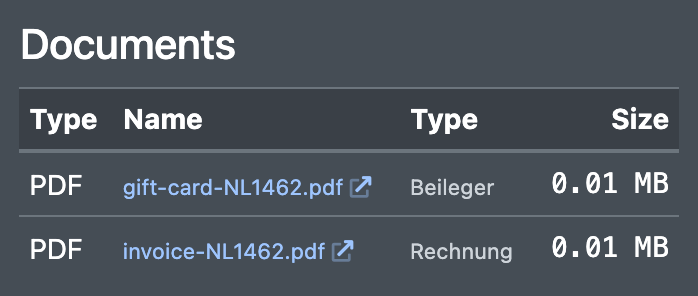
- In the order details, area Documents (Dokumente), click a document name. The PDF opens in a new tab. The table shows type, name, kind and size.
- In the order overview a paperclip icon shows Documents available (Dokumente vorhanden).
Print the delivery note again
- Open the order details.
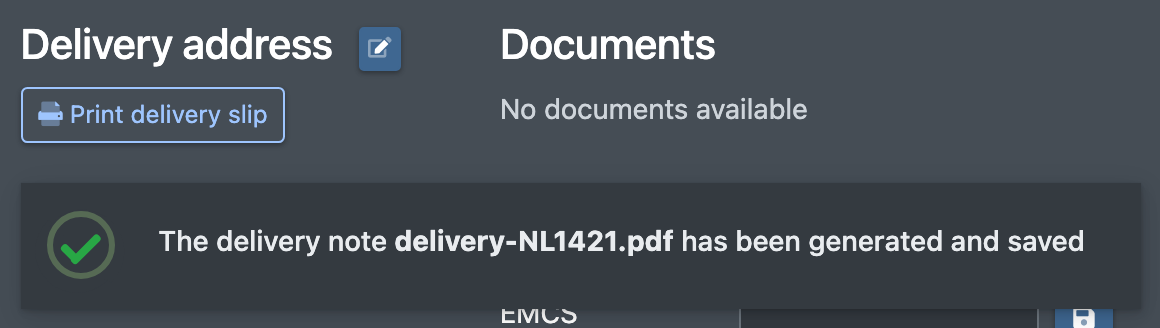
- Click Print delivery slip (Lieferschein drucken).
- The delivery note is generated again from the client's template and sent to the printer of your workstation. You see a message that the delivery note was generated and stored.
Fields and options
Good to know / Troubleshooting
Normally the delivery note and invoice are created automatically by the workflow when the order is finished at the packing table – provided a delivery note template exists for the client. See Workflows and Packing.