
Packing tables
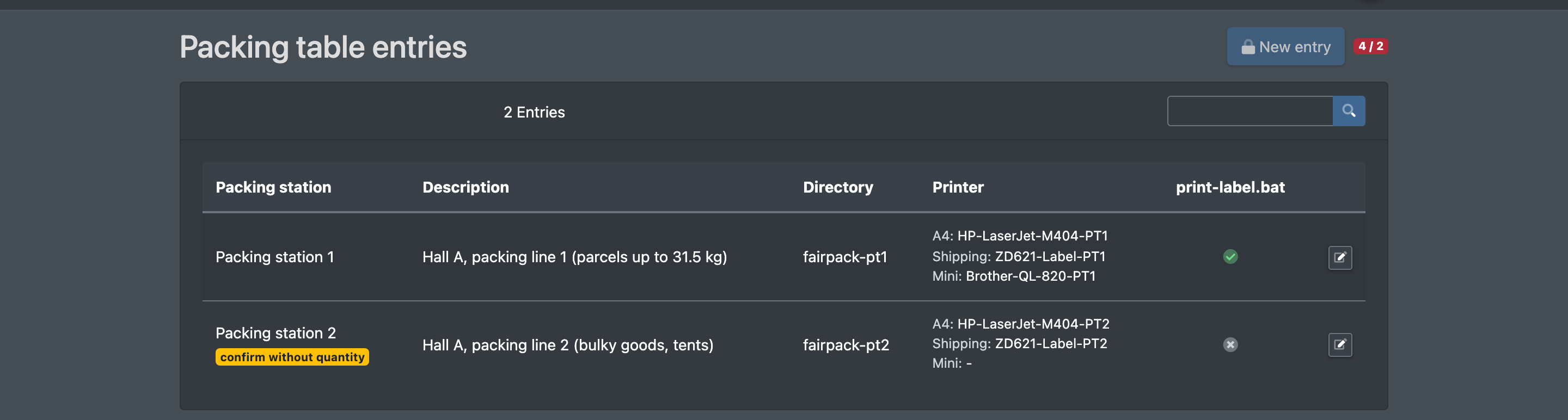
A packing table entry describes one packing station PC: its name, its folder on the X-Sitter server and up to three printers. When you save the entry, X-Sitter puts a small print script (print-label.bat) into that folder. The packing PC connects to the folder as a network drive and prints everything that arrives there automatically – delivery notes, shipping labels and small article labels. This is what makes printing at the packing station work without any clicks.
Before you start
- Your user needs the permission Company Settings › Packing Table Connections to see the list and the edit permission to create or change entries. Ask your administrator.
- Your package must still have room for another packing station. Packing stations of your clients count against your package as well. If the limit is reached, contact X-Sitter support.
- The internal directory and the FTP access of a new packing station are set up by X-Sitter. If the fields are read-only for you, contact X-Sitter support for a new packing station.
- You know the exact Windows printer names on the packing PC (as shown under Printers & scanners in Windows).
Step by step
Create a packing table entry
- Open Company Settings › Packing Table Connections (Firmen Einstellungen › Packtisch Verbindungen). You see the list of Packing table entries (Paktisch Einträge).
- Click New entry (Neuer Eintrag).
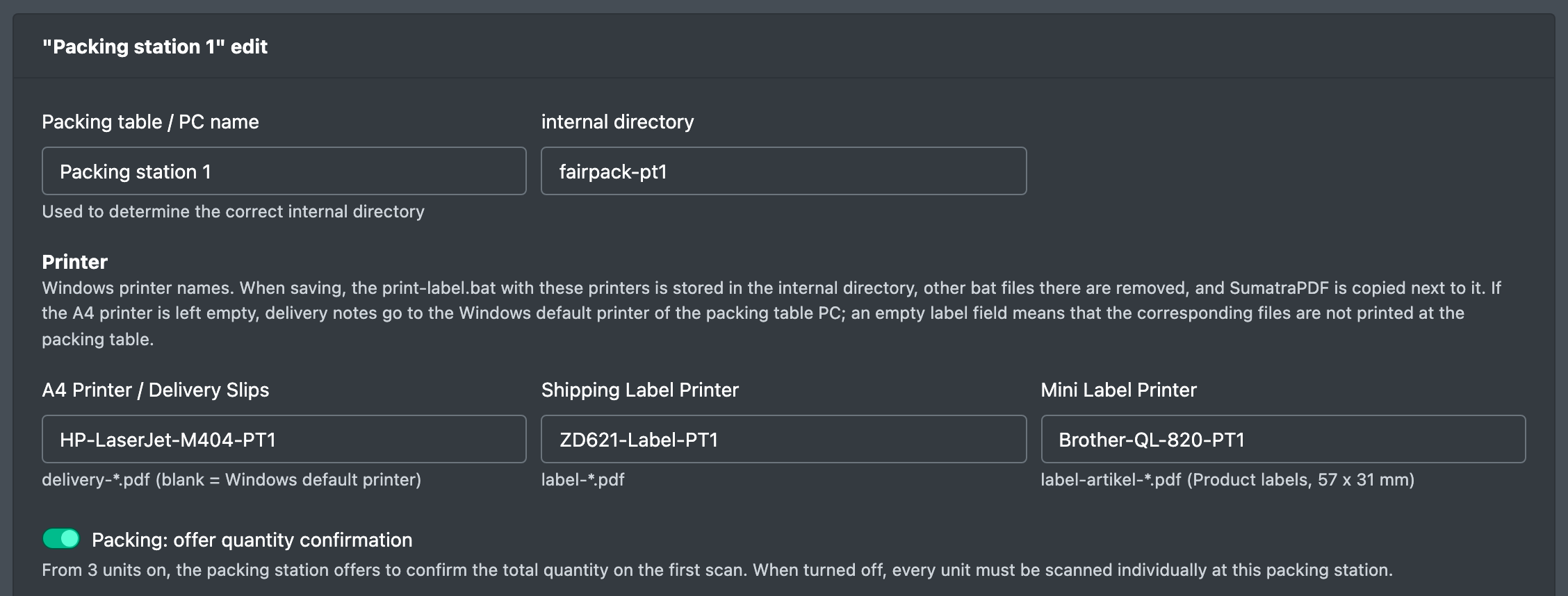
- Enter the Packing table / PC name (Packtisch- / PC Name). It is used to determine the correct internal directory and is the name your staff choose as their workstation.
- Check the Internal directory (internes Verzeichnis).
- Enter the Windows names of the Printers (Drucker) – see the table below.
- Decide whether Packing: offer quantity confirmation (Verpacken: Menge bestätigen anbieten) should be on.
- Optionally add a Free-form label (Freie Bezeichnung), e.g. "Hall 2, left".
- Click Save (Speichern). You see "The entry has been saved" (or "… updated") together with the result of creating the print script.
Connect the packing PC
- On the packing PC, connect the internal directory as a network drive using the FTP - Login and FTP - Password shown in the form (FTPS connection).
- The form links to a free tool for mounting the remote directory as a drive (RaiDrive). Download and install it on the packing PC if you do not have a suitable tool yet.
- Start the
print-label.batfrom the connected folder on the packing PC. It watches the folder and prints new files.

Check the print script
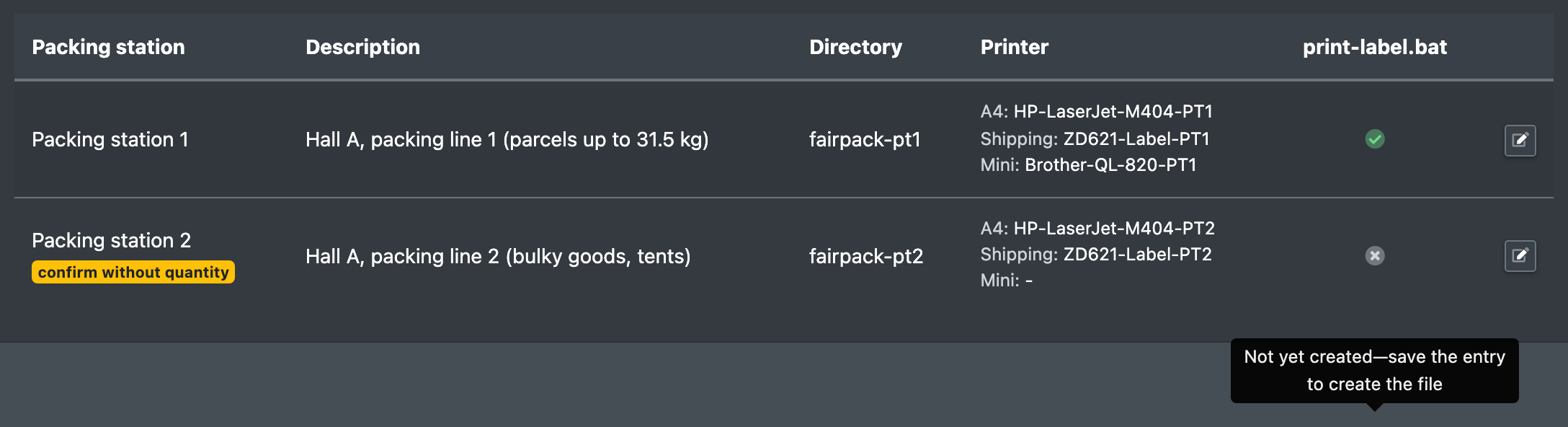
In the list, the column dispatch (Versand) shows whether the print script exists in the directory. "Not yet created – save the entry to create the file" (Noch nicht erzeugt - Eintrag speichern, um die Datei anzulegen) means you only need to open the entry and save it once.
Fields and options
When you save, any other .bat files in the directory are removed and the PDF print program is copied next to the script, so the folder always contains exactly one current print script.
Good to know / Troubleshooting
Devices like forklifts can be linked to packing stations as workstations, see Forklifts and devices.