Fee allocation (additional costs)

Assign platform fees and shipping costs to your JTL orders by platform name or order number, so the JTL monthly report shows the real net profit

With the fee allocation (Gebühren-Zuweisung) you tell X-Sitter which platform fees and shipping costs belong to which JTL orders – for example the commission a marketplace charges and what a parcel really costs you. X-Sitter recognises the orders by their platform name or by their order number and uses these values in the JTL monthly report to calculate the net profit per order item.
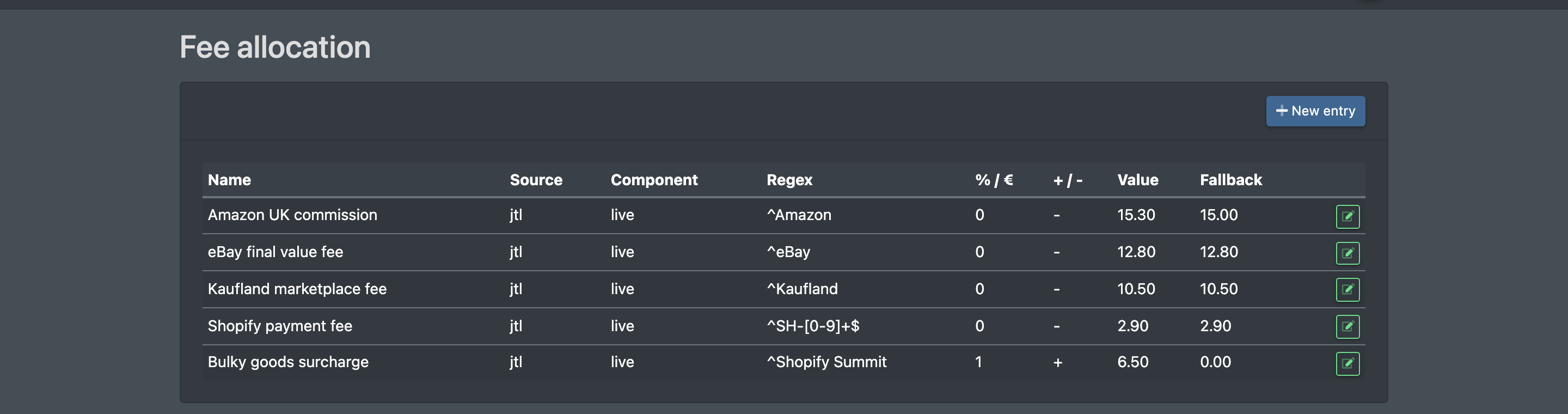
Screenshot: Fee allocation overview with several entries (display name, source, regular expression, value)

Before you start

  • Your company needs a JTL connection, see Connect JTL-Wawi.
  • Your user needs the permission Company settings › Additional costs settings – ask your administrator.

Step by step

  1. Open Company Settings › Additional costs settings (Firmen Einstellungen › Nebenkosten Einstellungen). The page is titled Fee allocation (Gebühren-Zuweisung).
  2. Click New entry (Neuer Eintrag).
  3. Fill in the fields (see below). Leave Source (Quelle) on JTL.
  4. Click Save (Speichern). X-Sitter confirms with "The entry was saved" (Der Eintrag wurde gespeichert).
  5. To change an entry, open it from the overview, adjust the fields and save again.

Screenshot: Form "New entry" with display name, component, source, regular expression and field to check
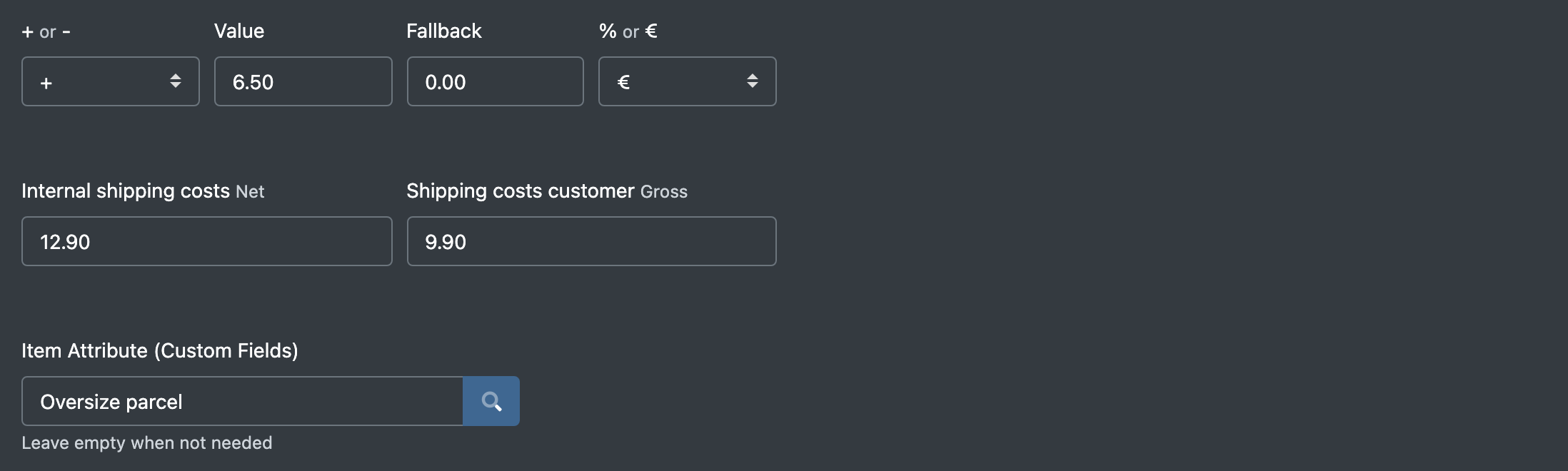
Screenshot: Lower part of the form with fallback, internal shipping costs, customer shipping costs and the article attribute field

Fields and options

Field Meaning
Display name (Anzeigename) Name of the entry, e.g. "Marketplace X commission". If the entry matches by order number, this name is shown as the platform in the monthly report.
Source (Quelle) Always JTL.
Regular expression (Regulärer Ausdruck) Pattern that identifies the orders, e.g. Kaufland or ^302-. Upper and lower case must match exactly.
Which field to check? (Auf welches Feld prüfen?) Platform name (Plattform Name) = the platform of the order in JTL. External order number (Bestellnummer) = the external order number.
Fallback Fee in percent of the gross item price. It is used when no fee is stored at the article (see Article attribute).
Internal shipping costs (Interne Versandkosten, net) What the parcel costs you. It is split evenly across the items of the order and reduces the profit.
Customer shipping costs (Versandkosten Kunde, gross) What the customer pays for shipping. It is converted to net, split across the items and increases the profit.
Article attribute (custom fields) (Artikel Attribut (Eigene Felder)) Optional: a JTL custom field at the article that holds an article-specific fee in percent (e.g. different commission per category). Start typing the name and pick it from the list. Leave it empty if you do not need it.

How the monthly report uses the entries

For every order item of the report period, X-Sitter checks the entries one after the other:

  1. If the regular expression matches the platform name or order number, the entry applies.
  2. The fee in percent comes from the article attribute in JTL; if the article has no value there, the Fallback is used.
  3. Net profit = net sales price − fee − share of internal shipping costs + share of customer shipping costs (net) − net purchase price.

Troubleshooting

Problem Cause Solution
Fees or shipping stay at 0 in the monthly report No entry matches the order Check the regular expression and the field to check; upper and lower case must match the platform name in JTL exactly
"There are no entries yet" (Es sind noch keine Einträge vorhanden) No entry created Click New entry
Changes do not show up in the report Entries are read once per login session Log out and log in again