
System email templates
X-Sitter sends some emails by itself, for example the login details of a new employee or the link to reset a forgotten password. Under Company Settings › Email Templates (Firmen Einstellungen › E-Mail-Vorlagen) you decide what these system emails look like for your company. You take over a template from the X-Sitter email library and adapt subject, sender name and text. As long as you have no own template, X-Sitter sends its standard email.
System emails or workflow emails?
This page is only about the system emails. The emails your workflows send (shipping confirmations, order confirmations, internal notifications) are maintained under WMS › Settings › Email Templates – see Email templates for workflows.
Before you start
- Your user needs the permission Email Templates (E-Mail-Vorlagen) in the area Settings (company) (Einstellungen (Firma)) of the permissions tree. Ask your administrator.
- Sender address, logo and footer of the emails are not set here, but under Administration › Settings › Email - sending – see Company settings. Without your own SMTP server, X-Sitter sends the emails, and your address is the reply-to address.
Which emails are there?
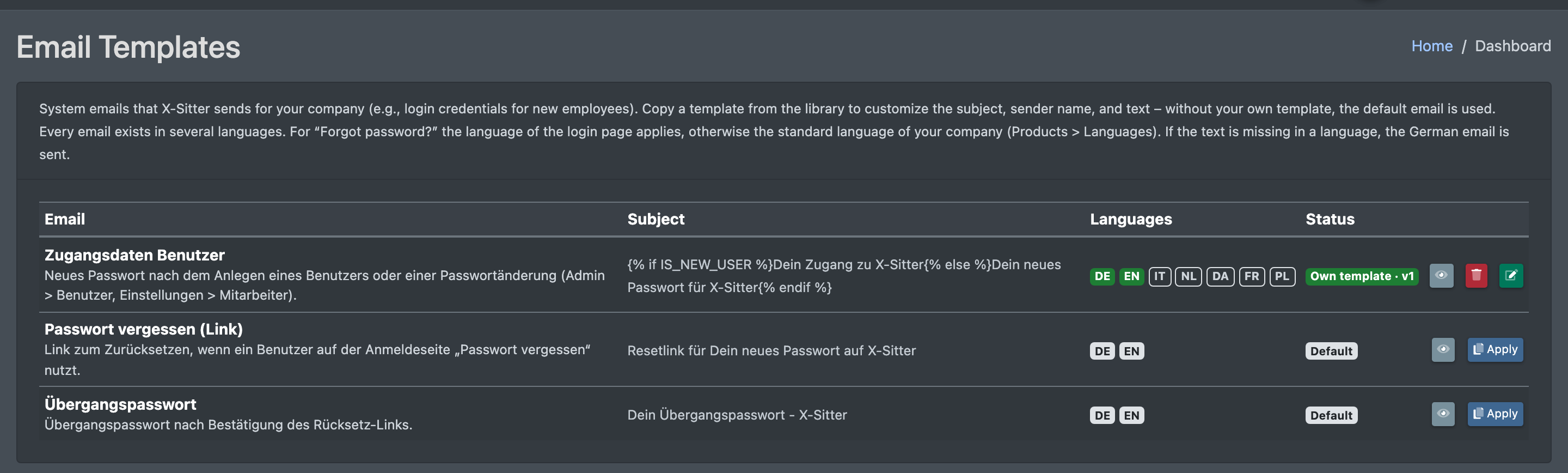
The list shows every system email the email library offers. Currently these are:
Your templates apply to the users of your company. As a logistician they also apply to the users of your clients, as long as a client has no own template for the same email.
Columns of the overview
Step by step
1. Take over an email from the library
- Open Company Settings › Email Templates (Firmen Einstellungen › E-Mail-Vorlagen).
- Optional: click the eye icon (Preview of the library version, Vorschau der Bibliotheks-Version) to see the standard text with sample data.
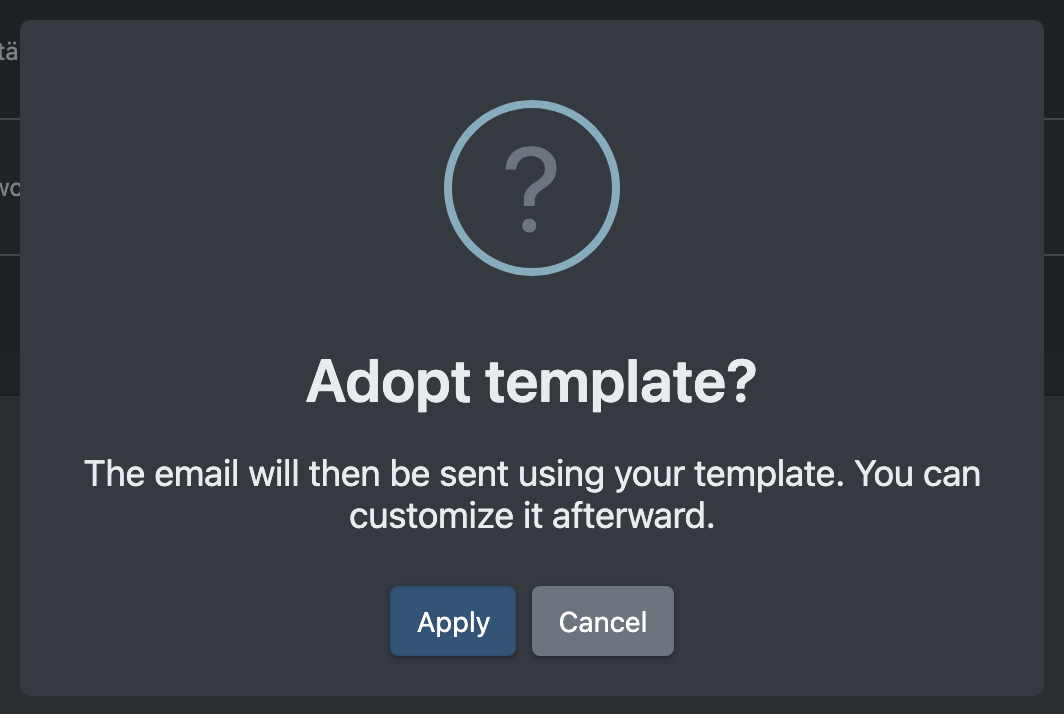
- Click Apply (Übernehmen). X-Sitter asks Adopt template? (Vorlage übernehmen?) – "The email will then be sent using your template. You can customize it afterward."
- Confirm with Apply. You see "The template was adopted and now applies to your company." (Die Vorlage wurde übernommen und gilt ab sofort für Deine Firma.) and the editor opens.
X-Sitter copies the German text and every translation the library has – you get one own template per language.
2. Adapt the template
- In the overview click the edit icon of the email – or a language badge.
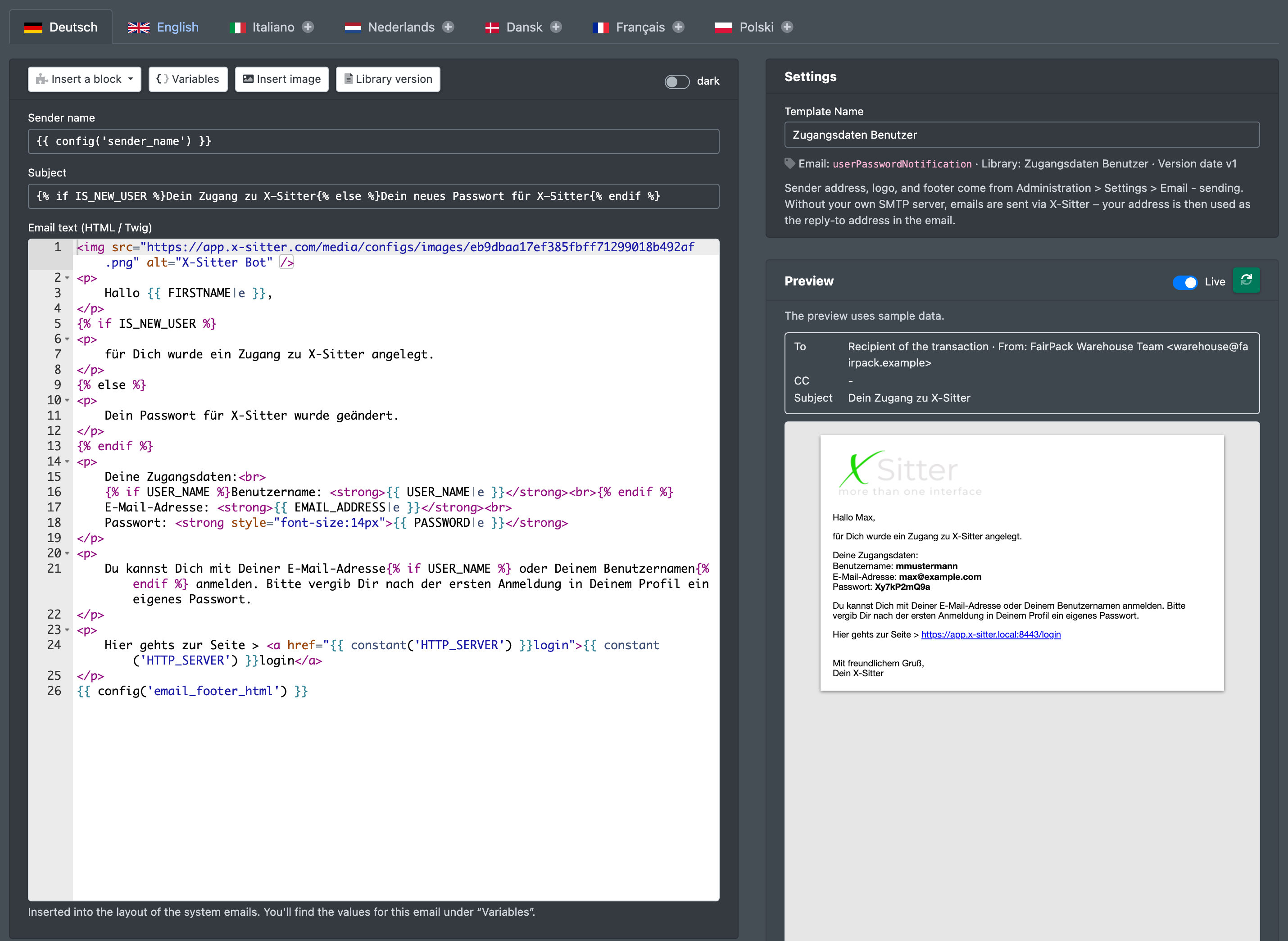
- Choose the language at the top. The tabs show a flag and the language name, plus an icon:
- warning triangle – a newer version of the text is available,
- book – no own template, the standard text of this language applies,
- plus – no text yet, the German text applies.
- Change the Template Name (Name der Vorlage), the Sender name (Absender Name) and the Subject (Betreff) as needed.
- Write the Email text (HTML / Twig) (Mailtext (HTML / Twig)). It is inserted into the layout of the system emails. Helpers in the toolbar:
- Insert a block (Baustein einfügen) – Logo (X-Sitter Bot), Login link (Link zur Anmeldung), Button with link (Button mit Link) and Default footer (Standard-Fußzeile).
- Variables (Variablen) – the values of this email and general values, see below. A click inserts the code at the cursor position.
- Insert image (Bild einfügen) – a logo or image from the media management.
- Library version (Bibliotheks-Version) – puts the current library text of this language back into the editor.
- Check the Preview (Vorschau) on the right. It uses sample data and refreshes automatically while Live is switched on; otherwise click Refresh Preview (Vorschau aktualisieren).
- Click Save (Speichern) – or press Ctrl/Cmd + S. You see "The email template has been saved" (Die E-Mail-Vorlage wurde gespeichert).
As long as there are unsaved changes, the title shows the badge changed (geändert), and your browser warns you before you leave the page.
3. Add another language
- Open the template and click the tab of a language without own template.
- The editor starts with the library text of this language – or, if the library has no text in this language, with your German text. A note above the fields tells you which one.
- Translate or adapt the text and click Save. From now on users of this language get your text.
To remove an own template in one language, open that language and click Delete this language (Diese Sprache löschen). After the confirmation Delete own template in this language? (Eigene Vorlage in dieser Sprache löschen?) the X-Sitter standard email applies again in this language. The German template cannot be deleted on its own – it belongs to the template itself.
4. Take over a new library version
When X-Sitter publishes a new version of a library email, your template shows New version available. You decide:
- Use new version (Neue Version übernehmen) – after the question Adopt new version? (Neue Version übernehmen?) the subject and text of your template are replaced by the current library version. Name and sender stay. You see "Version 2 from the library was adopted." (Version 2 aus der Bibliothek wurde übernommen.)
- Keep (Behalten) – your version stays, the notice disappears: "Your version is kept and the notice is hidden." (Deine Version bleibt, der Hinweis wird ausgeblendet.)
Both buttons are in the overview and in the editor.
5. Back to the standard email
Click the delete icon in the overview. After the question Delete your own template? (Eigene Vorlage löschen?) your templates of this email are deleted in all languages, and X-Sitter sends its standard email again: "Your own template was deleted; the default email applies again."
Fields and options
The sender address cannot be changed per template; it always comes from your company settings.
Variables
The Variables panel has two groups:
Which language does the user get?
For Passwort vergessen the language of the login page applies, for all other emails the default language of your company (Products › Languages, Produkte › Sprachen). If there is no text in this language, the German email is sent.