
Media management
Store your company's images and files in folders – upload, rename, crop and delete them.
Media Management (Medien-Verwaltung) is your company's file storage in X-Sitter. You organise files in folders, upload new ones, rename them, crop images and delete what you no longer need. Images you store here are available, for example, when you insert pictures in the e-mail editor of your e-mail templates.
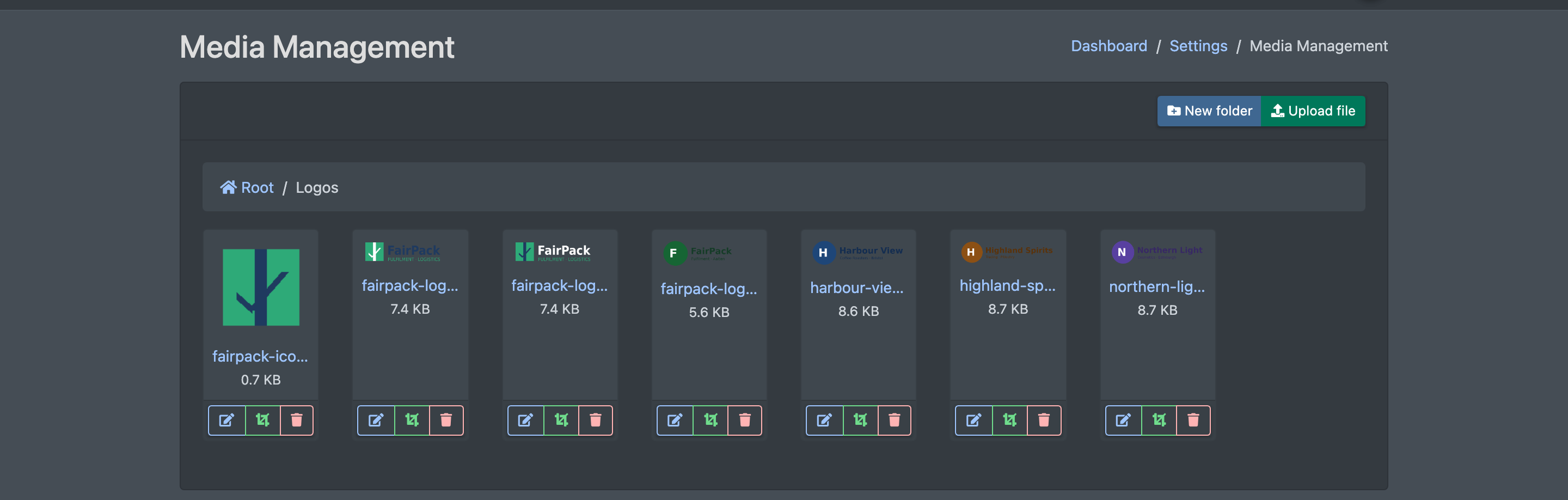
Before you start
- Your user needs the permission Company Settings › Media - Administration. Ask your administrator.
Step by step
Create a folder
- Open Company Settings › Media - Administration (Firmen Einstellungen › Medien - Verwaltung). You start in the top folder Root.
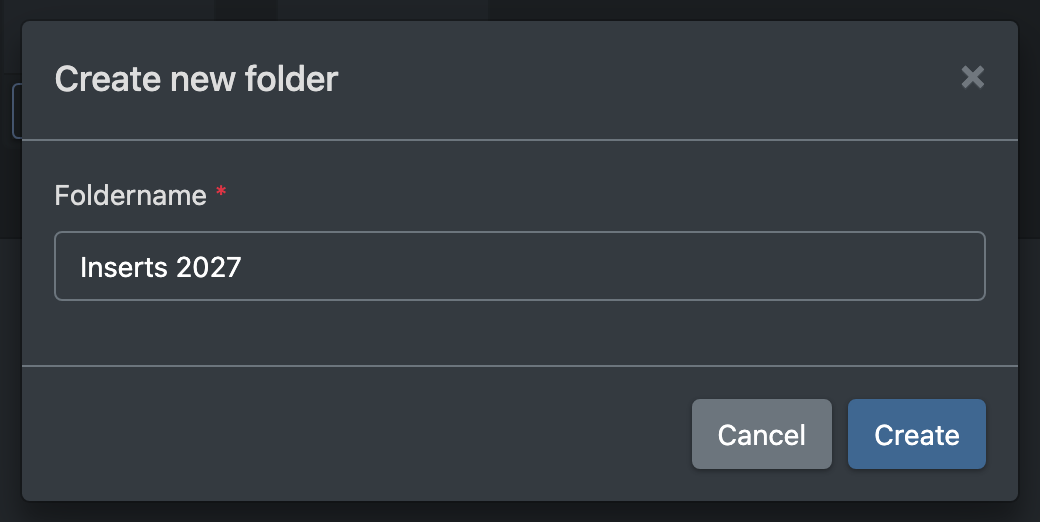
- Click New folder (Neuer Ordner).
- Enter the Folder name (Ordnername) and click Create (Erstellen).
- Click a folder to open it.
Upload a file
- Open the folder you want to upload into.
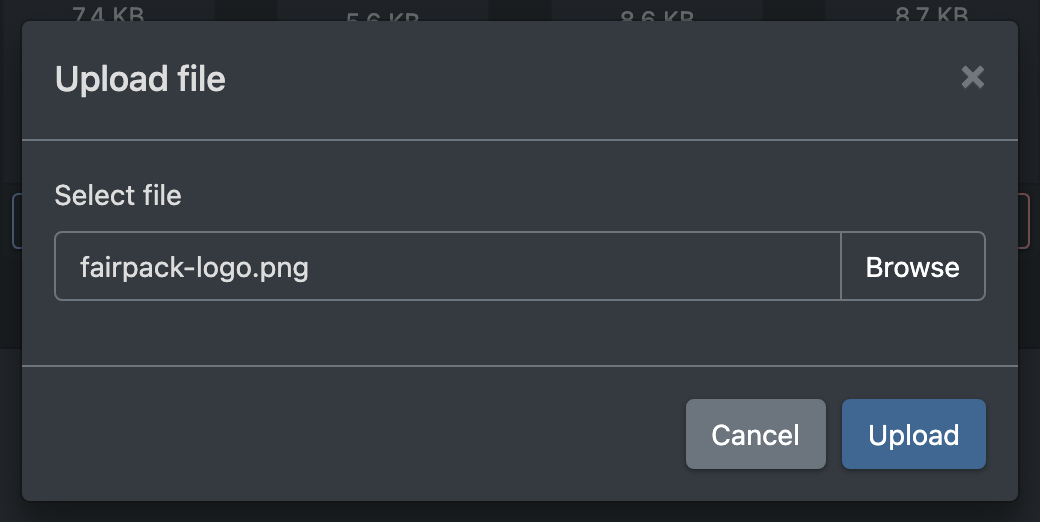
- Click Upload file (Datei hochladen).
- Click Select file (Datei auswählen), choose the file and click Upload (Hochladen).
If a file with the same name already exists, X-Sitter saves the new file with a version number instead of overwriting it.
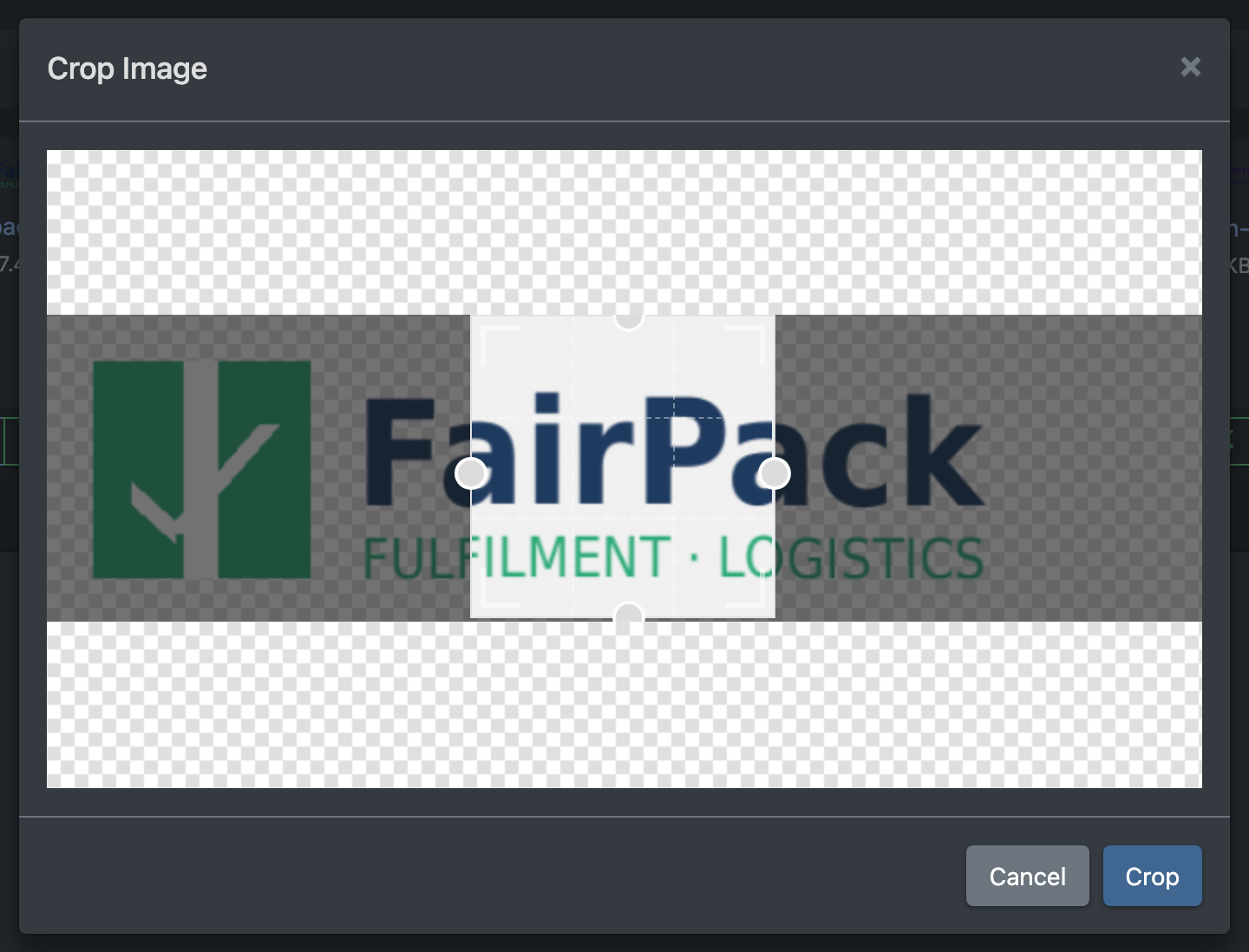
Rename, crop, preview or delete
Each file and folder has its own actions:
Good to know
- An empty folder shows "This folder is empty." (Dieser Ordner ist leer.) – upload a file or go back to a different folder.
- Deleting a file cannot be undone. If the file is used in an e-mail template, the image no longer appears there.
- Use clear folder names (e.g. "Logos", "Mail images"), so your colleagues find files quickly.