
Forklifts and devices
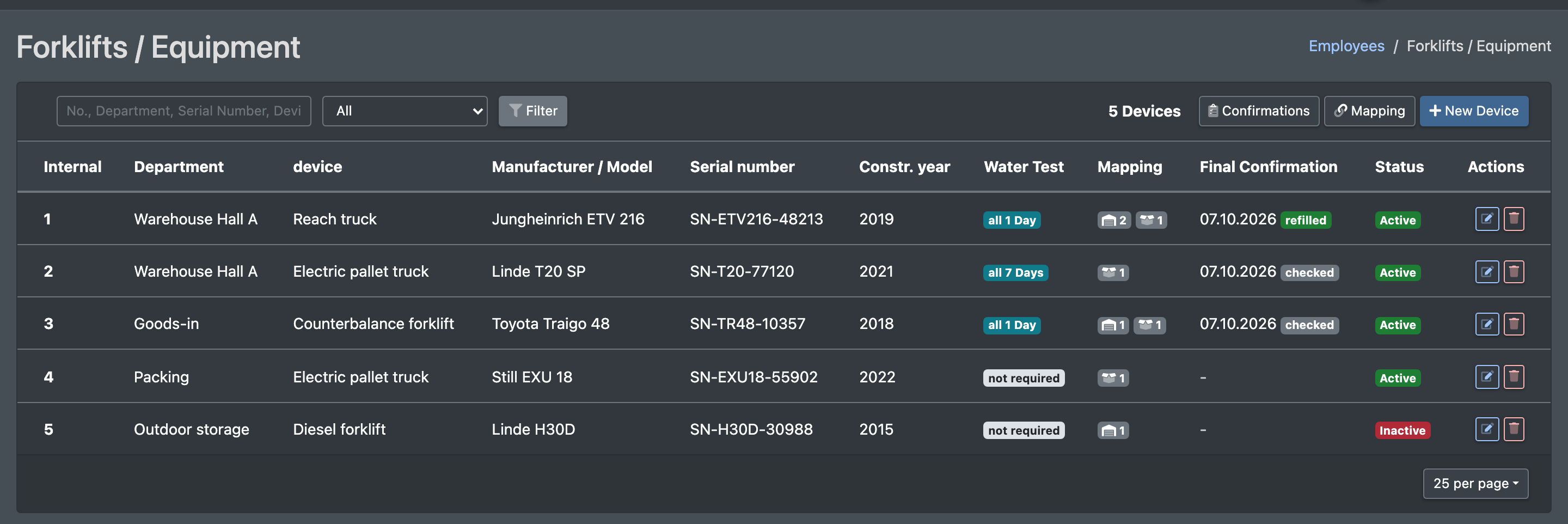
Under Forklifts / Equipment (Stapler / Geräte) you keep a list of your industrial trucks and other devices – for example forklifts with lead-acid batteries that need distilled water regularly. For such devices X-Sitter asks the first employee at an assigned workstation to confirm that the distilled water was refilled or checked. Every confirmation is logged, so you can prove the checks at any time.
Before you start
- Your user needs the permission Forklifts / Equipment in the Administration area of the permissions tree. Ask your administrator.
- Workstations are your packing tables and/or the workstations stored in the rows of your storage areas.
Step by step
1. Create a device
- Open Administration › Forklifts / Equipment (Administration › Stapler / Geräte). The tab Devices (Geräte) shows the list.
- Click New Device (Neues Gerät).
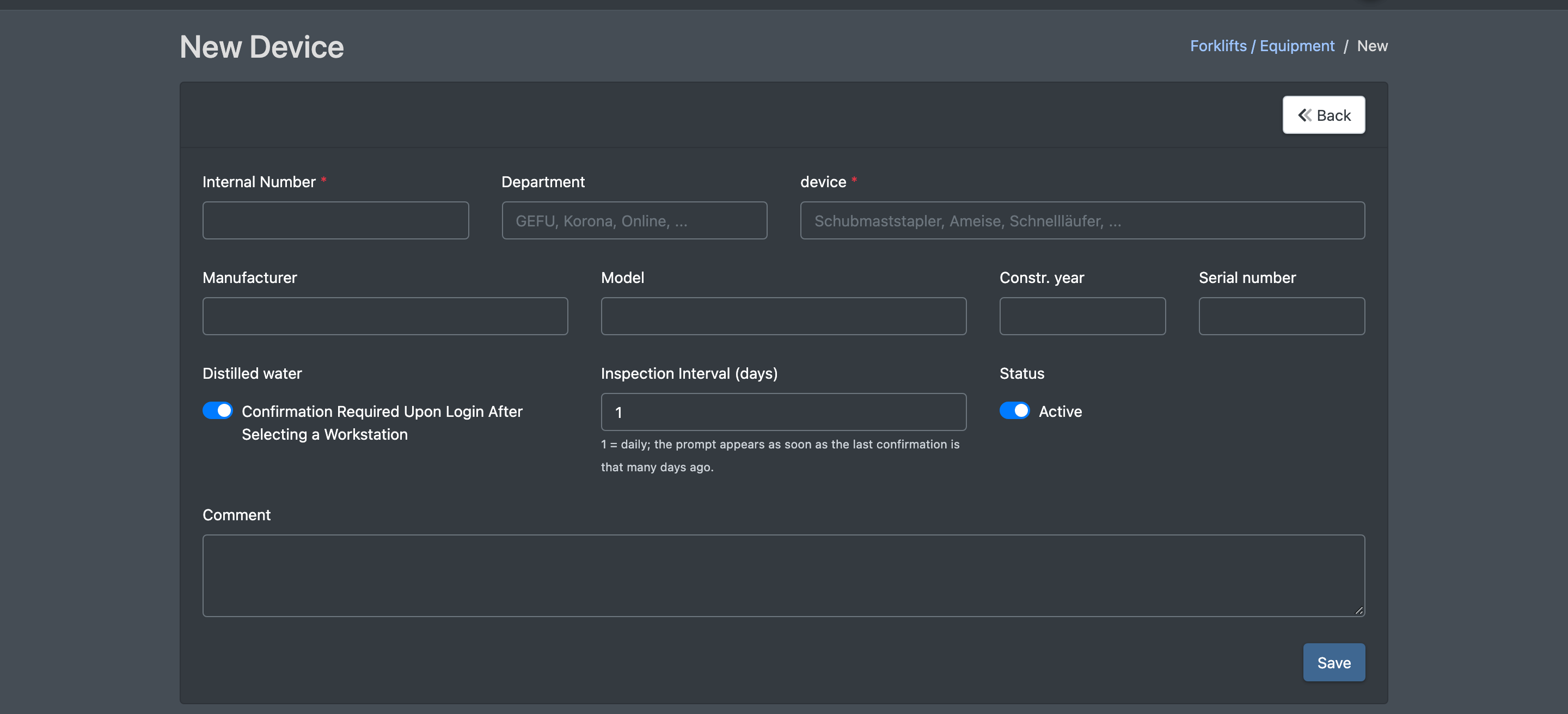
- Enter at least the Internal Number (Interne Nummer) or the Device name (Gerät), plus department, manufacturer, model, year of construction and serial number as needed.
- Tick Distilled water (Destilliertes Wasser) if the device needs the water check at login.
- Set the Inspection Interval (days) (Prüfintervall (Tage)): 1 = daily.
- Set Status to active and optionally add a Comment (Bemerkung).
- Click Save (Speichern).
To change a device, click Edit (Bearbeiten) in the list; Delete (Löschen) removes it. If you only want to stop the water check temporarily, set the device to inactive instead.
2. Assign the device to workstations
Without an assignment, the device is not requested at any workstation.
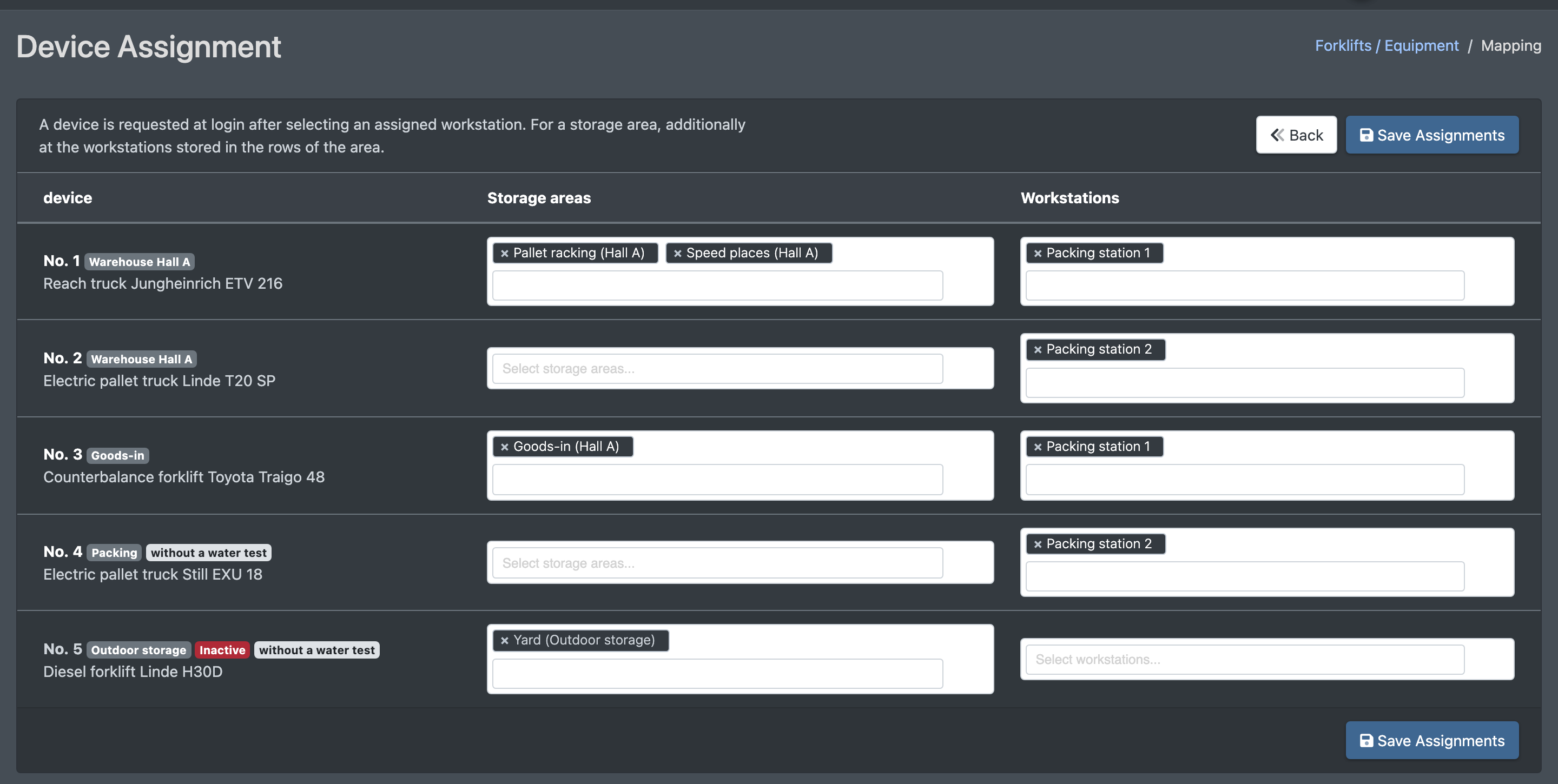
- Open the tab Mapping (Zuordnung, page Device Assignment / Geräte-Zuordnung).
- For each device, choose the Storage areas (Lagerbereiche) and/or Workstations (Arbeitsstationen).
- Click Save Assignments (Zuordnungen speichern). You see "Mappings saved (… links)".
A device is requested after login when an employee selects one of its workstations. If you assign a storage area, the device is also requested at all workstations stored in the rows of that area.
3. What your employees see
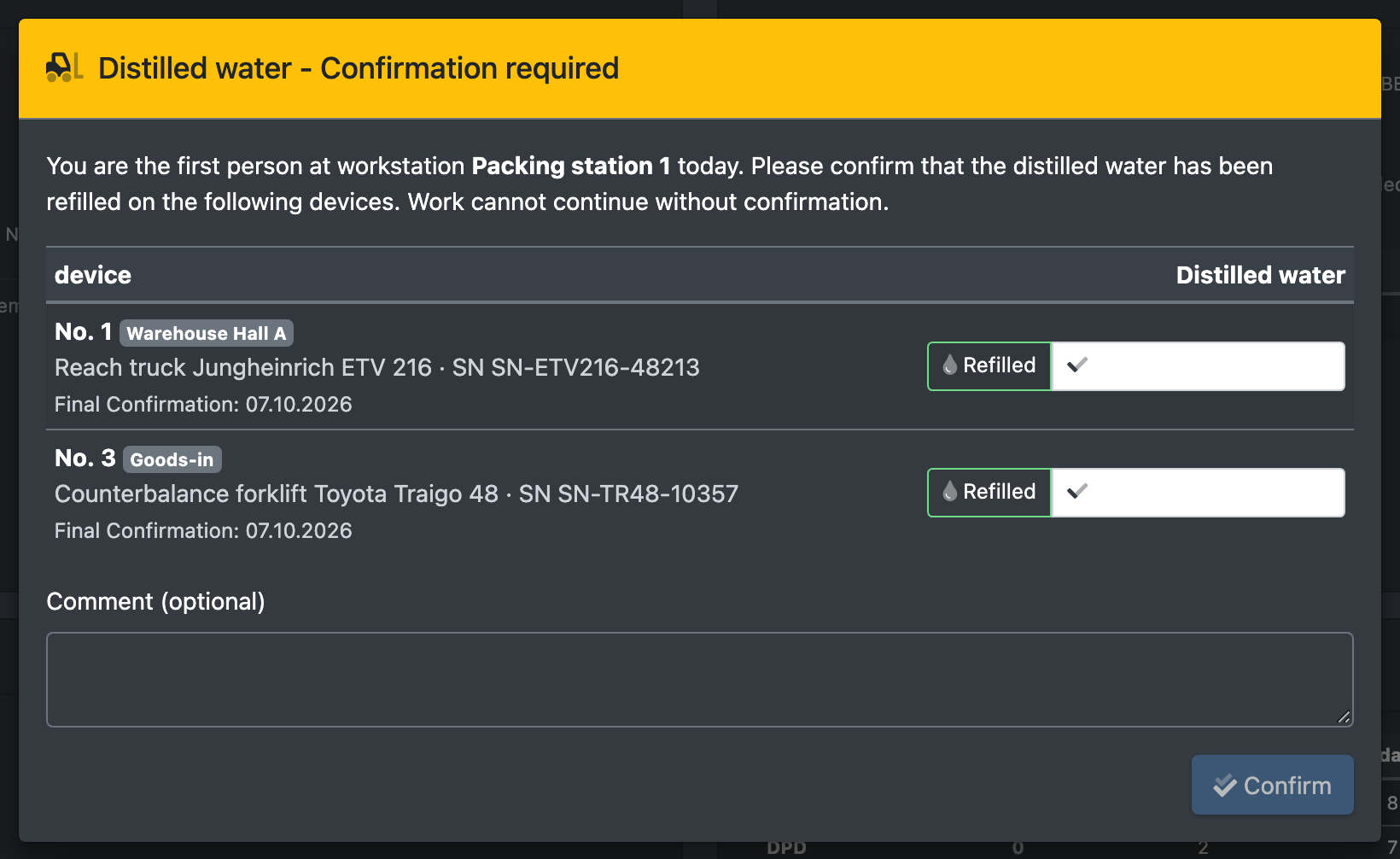
When an employee selects a workstation after login and an assigned device is due, the dialog Distilled water – confirmation required (Destilliertes Wasser - Bestätigung erforderlich) appears: "You are the first person at workstation … today. Please confirm that the distilled water has been refilled for the following devices." For each device the employee chooses:
- Refilled (Aufgefüllt), or
- Checked, not necessary (Geprüft, nicht nötig),
optionally adds a comment and clicks Confirm (Bestätigen). Work can only continue after the confirmation.
4. Review the confirmations
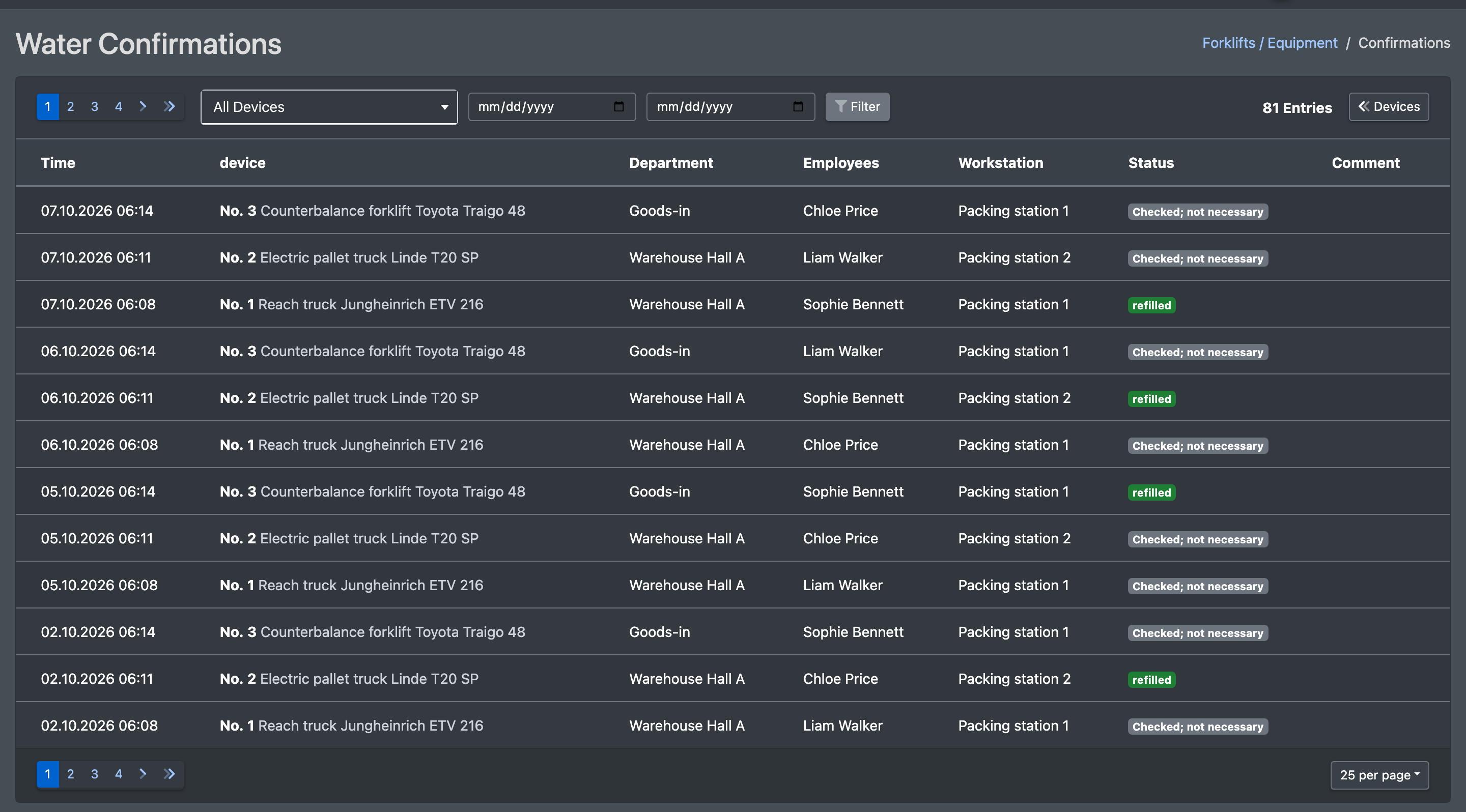
- Open the tab Confirmations (Bestätigungen, page Water confirmations / Wasser-Bestätigungen).
- Filter by Device (Gerät, or All Devices) and the period From / Until (Von / Bis).
- The list shows time, device, department, employee, workstation, status and comment of each confirmation.
Fields and options
Use the search field (number, department, serial number, device, manufacturer, model) and the Active / Inactive filter to find devices quickly.