
Import orders from a file
Upload a CSV or Excel order file with an import template and follow the import jobs.
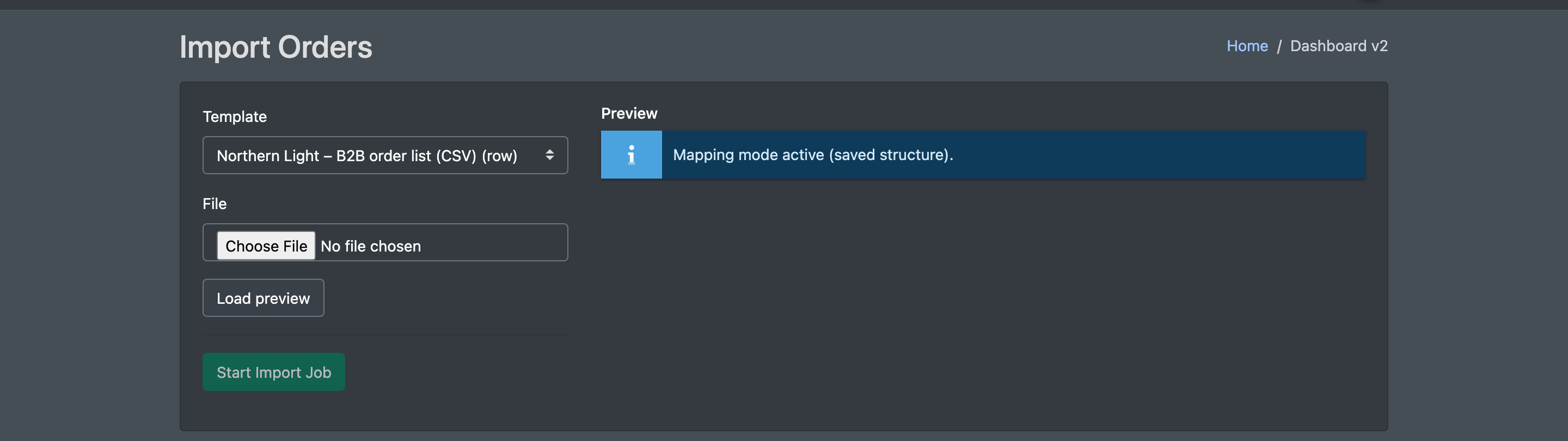
If a customer sends orders as a file, you can import them into X-Sitter. You upload a CSV or Excel file together with an import template. The upload creates an import job that creates or updates the orders and their lines in the background. Under Import - Jobs you see the progress of all imports.
Before you start
- Your user needs the order importer permissions: Upload to import files, Import - Jobs to see the job list. Ask your administrator.
- A saved import template for this file format. See Order import templates.
- The SKUs in the file must exist as articles for the client, otherwise the lines cannot be picked. See Article overview.
Step by step
Upload a file
- Open Orders › Upload (Aufträge › Upload). Alternatively click Use (Benutzen) next to a template in Orders › Import - Templates.
- Choose the Template (Vorlage).
- Choose the File (Datei) – .csv, .xls or .xlsx.
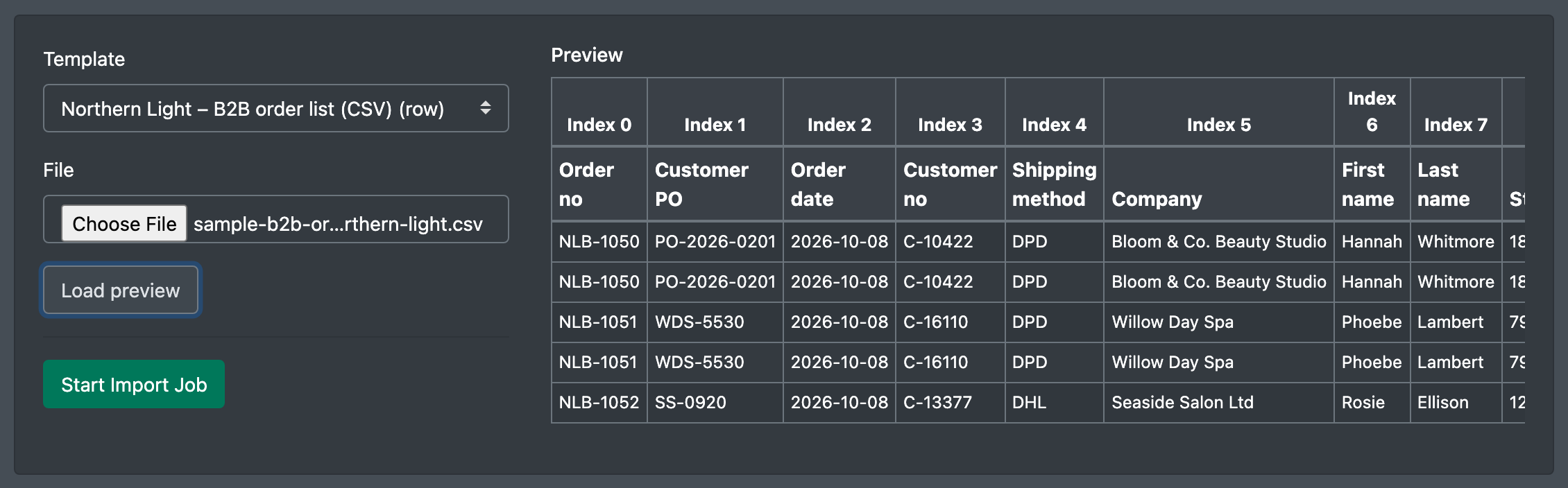
- Click Load preview (Vorschau laden) and check the Preview (Vorschau) on the right: are the columns mapped correctly?
- Click Start Import Job (Import-Job starten). You see Job erstellt (job created) and the status In Warteschlange ... (queued).
Follow the import jobs
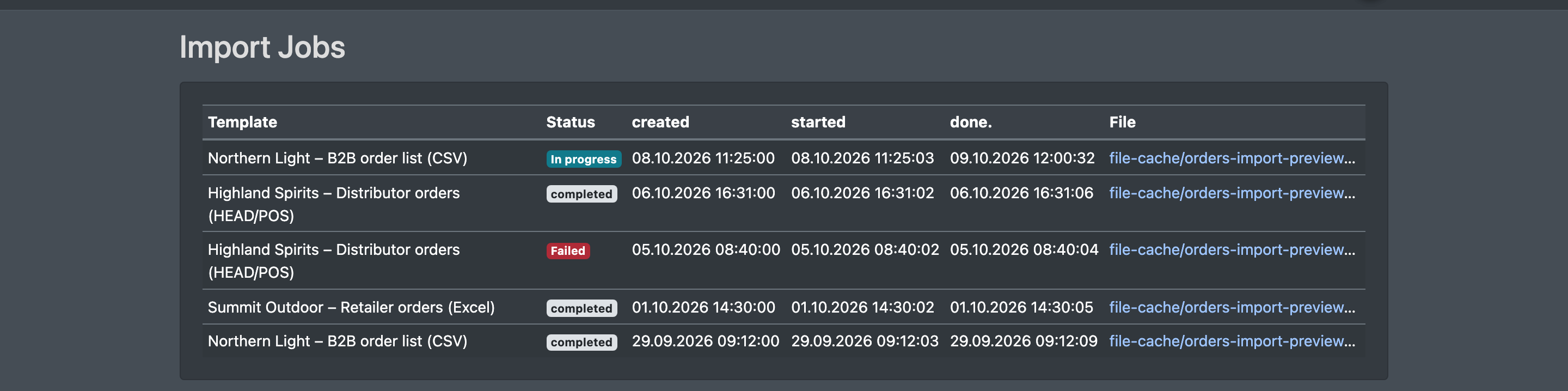
- Open Orders › Import - Jobs (Aufträge › Import - Jobs).
- The list shows per job: Template (Vorlage), Status, created (erstellt), started (gestartet), done (fertig) and File (Datei).
Statuses
What the import does
- The file is read and its structure (rows or blocks) is recognised.
- The field mapping of the template is applied.
- For each order number, an order is created for the client assigned to the template (or your own company if the template has no client). New orders get status Open.
- If an order with the same order number already exists for this client as a manual/imported order, it is updated instead.
- The stock of the affected articles is recalculated.
New and updated orders appear in the order overview right away. From there you continue with creating a picklist.
Good to know / Troubleshooting
Rows without an order number are skipped. Make sure the order number column is mapped in the template.