
Create a picklist
A picklist combines one or more open orders into one picking job on a picking cart. When the list is created, X-Sitter reserves the orders exclusively for it (status on the pick list), assigns a storage place and a cart box to every position, reserves the stock and – if the pick place does not hold enough – automatically orders a restocking run for the forklift.
There are three ways to create a picklist:
- A) via a picklist template in the picking process,
- B) for a single order in the picking process,
- C) with the bulk action in the order overview.
Before you start
- Your user needs the permission Order picking (Kommisionierung) for ways A and B, and the WMS permission for way C – ask your administrator.
- At least one active picking cart with boxes that is free (no open, running or waiting-for-packing picklist) – see Picking carts.
- A warehouse must be selected.
- For way A: at least one picklist template with matching orders.
- Open orders of your clients that are not on another active picklist yet – see Order overview.
- Order positions must be linked to an article. Positions without an article link are skipped – see Edit an article.
- Stock on storage places (pick place, and reserve stock for restocking) – see Putaway and Storage places.
- Orders with items whose attribute "quality assurance" is set to yes are not offered.
A) Create a picklist from a template
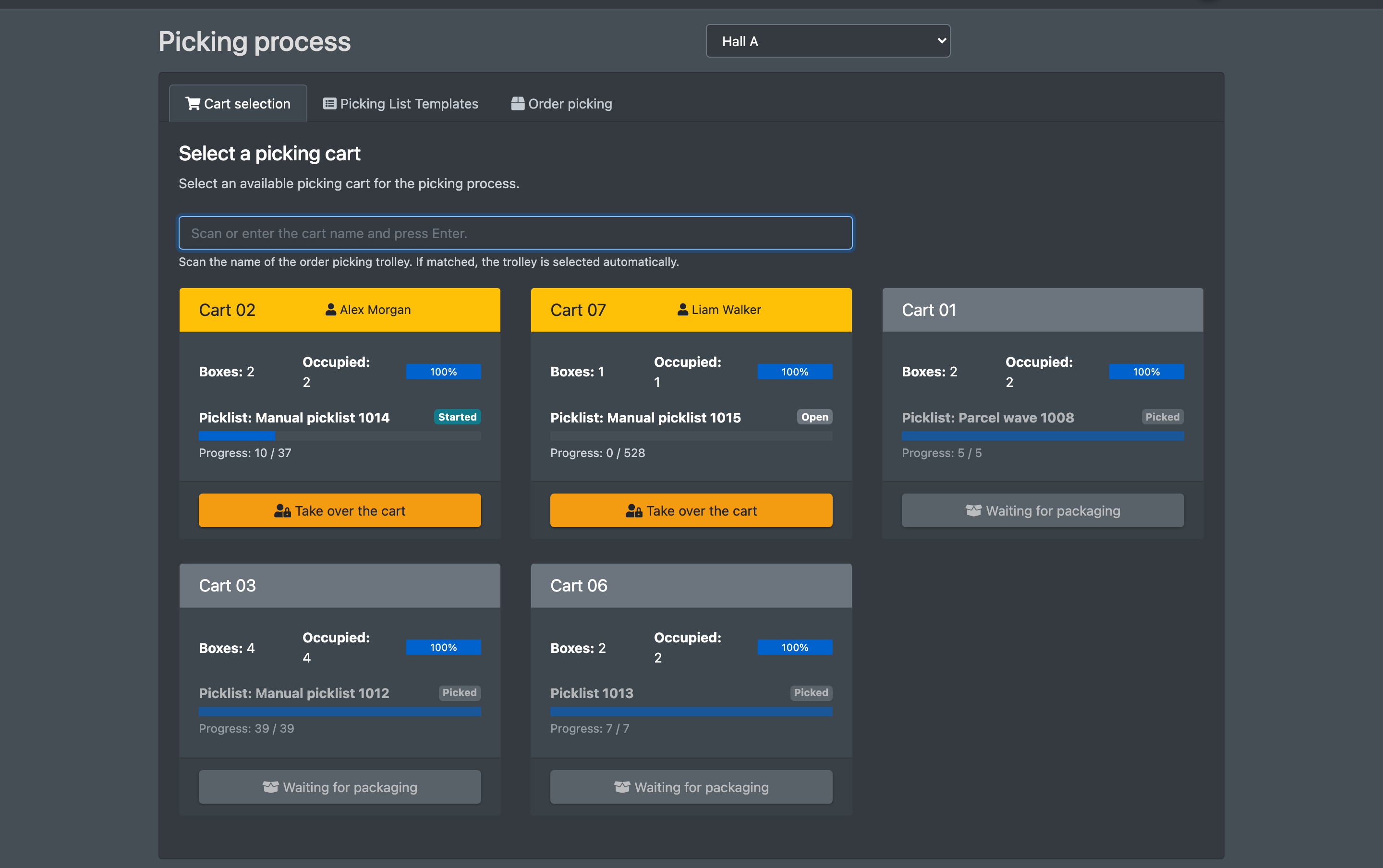
- Open WMS › Order picking (WMS › Kommisionierung). You start at the cart selection.
- Scan or type the cart name in Scan or enter the cart name (Wagenname scannen oder eingeben), or pick it in the list Select a cart (Wagen auswählen) and confirm with Reserve (Reservieren).
- Carts that are busy ("Waiting for packaging") are greyed out.
- A cart that already has a running picklist takes you straight into that list.
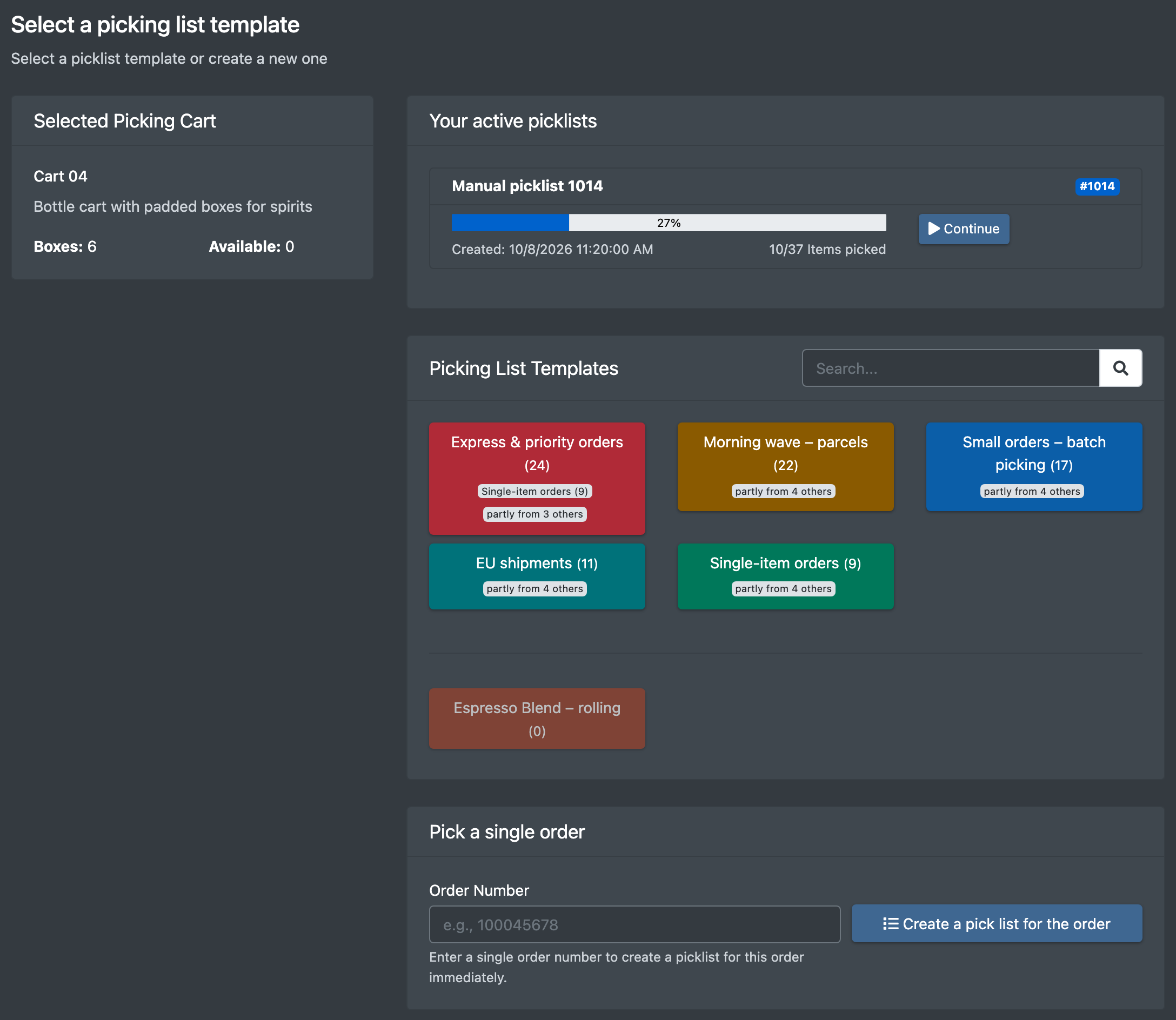
- In the step Picking List Templates (Picklisten-Vorlagen) you see
- Your active picklists (Deine aktiven Picklisten) with Continue (Fortsetzen) and Share & Delete (Freigeben & löschen – releases the cart and deletes the list), and
- the template tiles with their number of matching orders.
- Click a template. The picklist is created immediately ("The pick list has been successfully created") and the step Order picking opens – continue with Picking.
B) Create a picklist for a single order
- Reserve a cart as in steps 1–2 above.
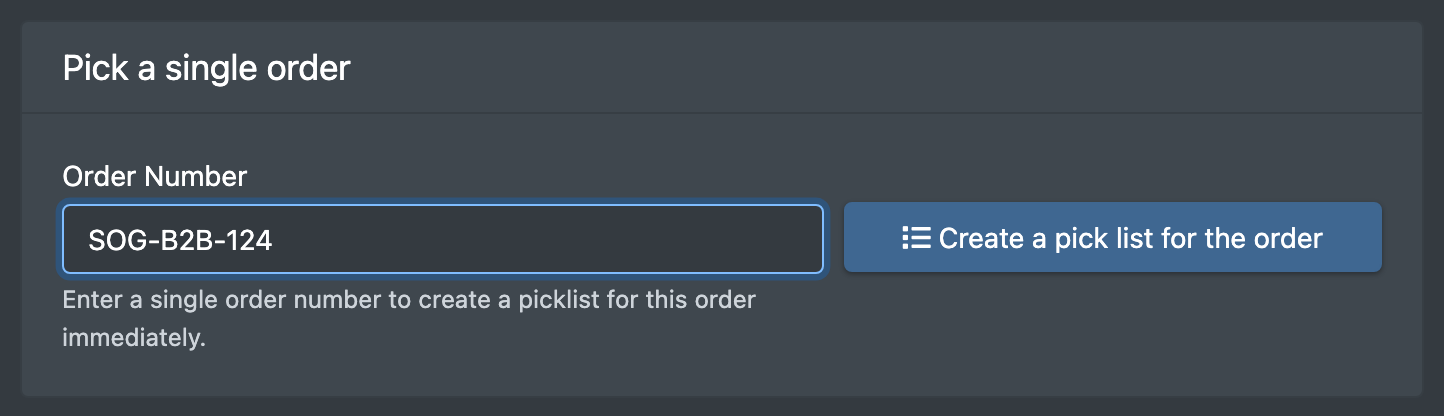
- In the card Pick a single order (Einzelauftrag kommissionieren) enter the Order Number (Auftrags-Nummer). You can use the order number, the external order ID or the internal ID.
- Click Create a pick list for the order (Pickliste für Auftrag erstellen). The list is called "Single order <number> (<picklist number>)".
C) Create a picklist from the order overview
- In the order overview select the orders.
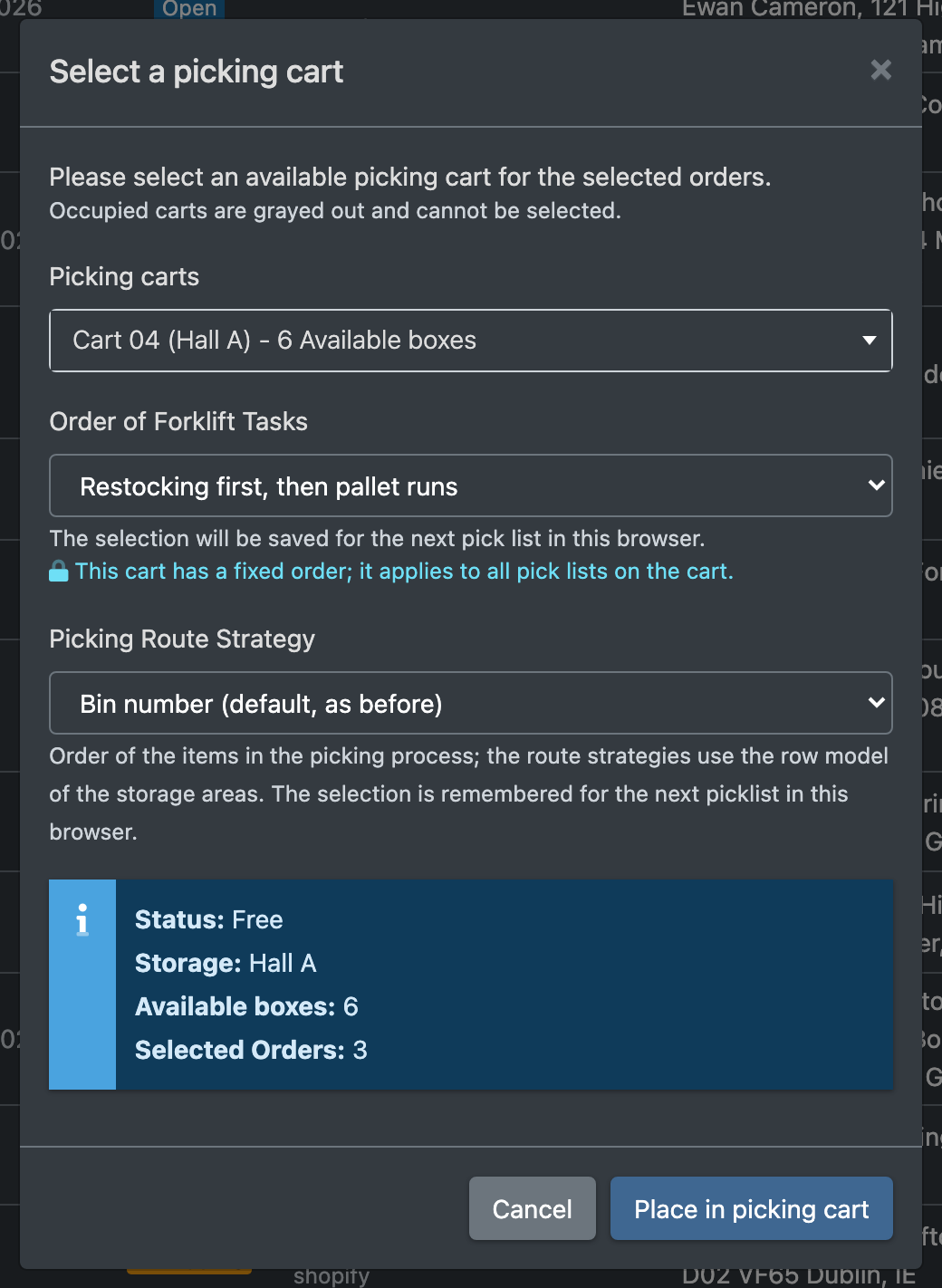
- Choose Actions › Place in picking cart (Aktionen › In Pickwagen legen).
- Choose the picking cart (Kommissionierwagen). "Occupied carts are grayed out and cannot be selected."
- Optionally choose the Order of Forklift Tasks (Reihenfolge der Stapler-Aufgaben) and the Picking Route Strategy (Pickwege-Strategie).
- Confirm with Place in picking cart. These lists always use normal picking and are called "Manual picklist <number>".
Shortage dialog
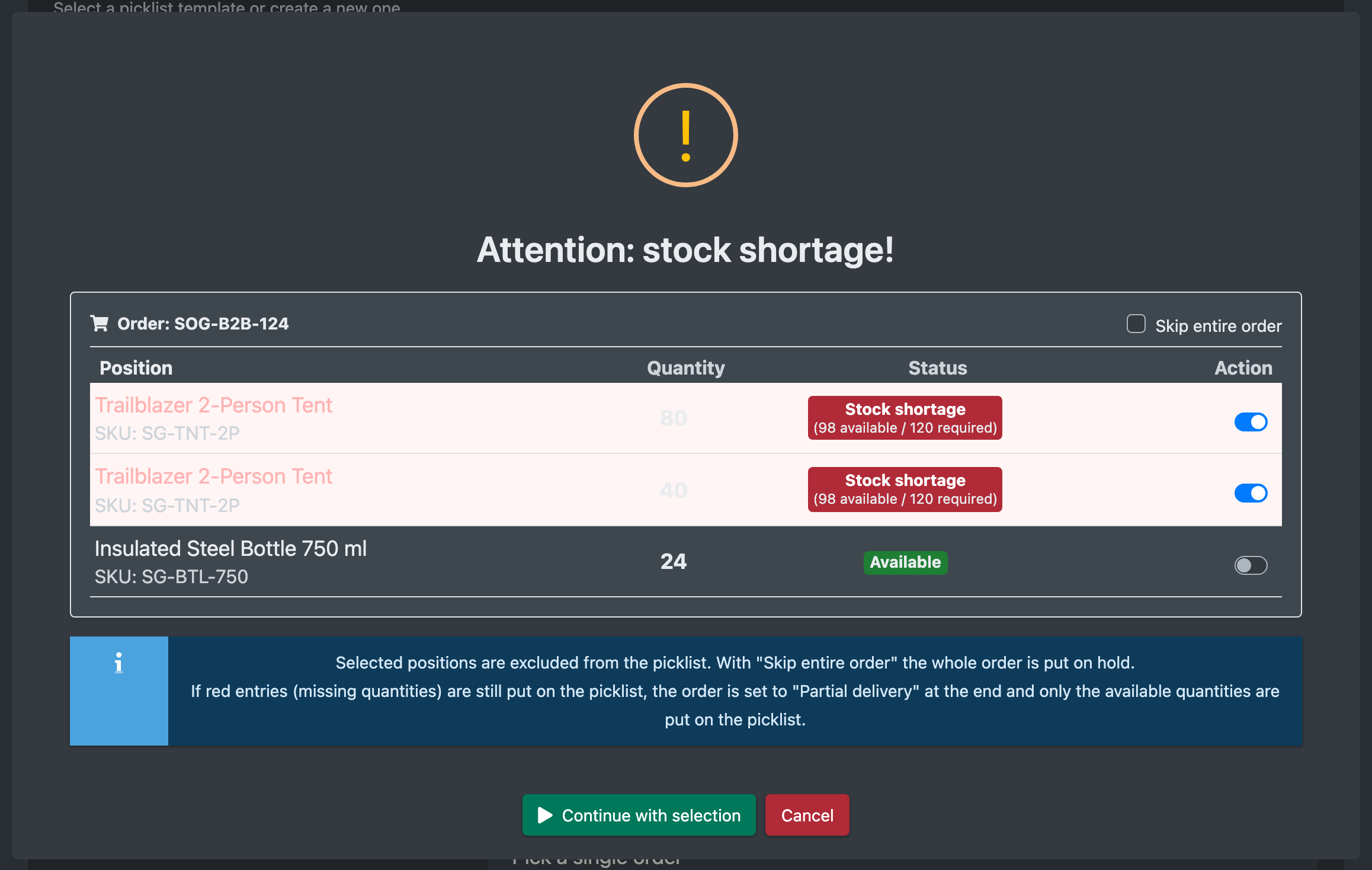
If the available stock is not sufficient, the dialog Stock shortage detected (Fehlbestand erkannt) appears. It lists every affected position with the required and the available quantity. You can skip the whole order or single positions; X-Sitter then creates the list again without them. A skipped order stays open.
What happens when a picklist is created
If an order has no pickable position at all, it is reset to its previous status. If no order remains, the picklist is deleted again. Only one picklist can be created per warehouse at a time.
For order statuses see Order statuses.