
Storage places
Storage places are the physical locations where stock is booked. Every stock entry belongs to exactly one place. A place has a type (e.g. pallet place, shelf place, speed place, transit), a kind (e.g. picking place, restocking), a loading unit, dimensions, a quality-assurance switch and, optionally, a subdivision into compartments (shelf). These properties control where goods are put away, where they are picked from and where they may be relocated to.
Before you start
- A warehouse and at least one storage area exist – see Warehouses and Storage areas.
- The lists Storage place types, Storage place kinds and Loading units are filled in the Warehouse settings. Otherwise the fields show "Currently not configured" (Derzeit noch nicht konfiguriert).
- For the number assistant: the place number structure on the tab Storage place numbering of the warehouse settings.
- Your user needs the permission Places (Plätze); creating, editing and bulk editing, deleting, unlinking articles and switching quality assurance each need their own permission – ask your administrator.
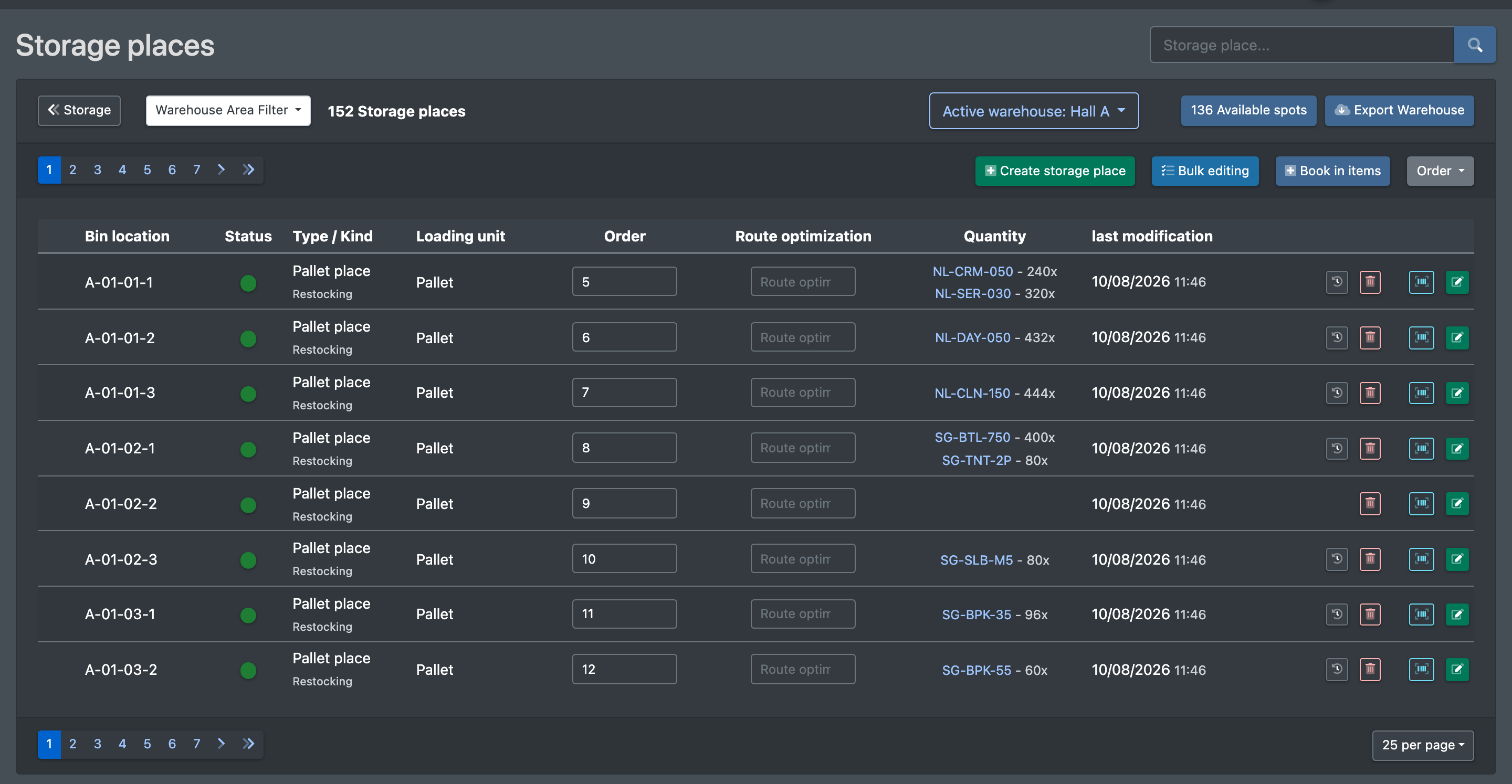
The list of places
Open WMS › Warehouse › Places (WMS › Lager › Plätze). You can:
- search with Storage place... (Lagerplatz...), filter by area (Storage area filter, Lagerbereichs Filter) and show Free places (Freie Plätze) or All places (Alle Plätze),
- sort occupied first (belegte zuerst) or empty first (leere zuerst),
- enter a Sorting (Sortierung) and a Route optimization (Wegeoptimierung) number directly in the list – both are used to order picking and restocking.
Create or edit a single place
- Click Create storage place (Lagerplatz anlegen) or open an existing place (Edit storage place, Lagerplatz bearbeiten).
- Fill in the fields (see table below).
- Optional – Compartment subdivision (Fächerunterteilung): click Add compartment (Fach hinzufügen) and enter Compartment no. (Fach Nr.), width and Sorting (Sortierung) for each compartment. Stock is then kept per compartment.
- Click Save (Speichern). You see "The storage place was created" (Der Lagerplatz wurde angelegt) or "… was updated" (… wurde ge-updated).
The saved place number is <area short code>-<name>.
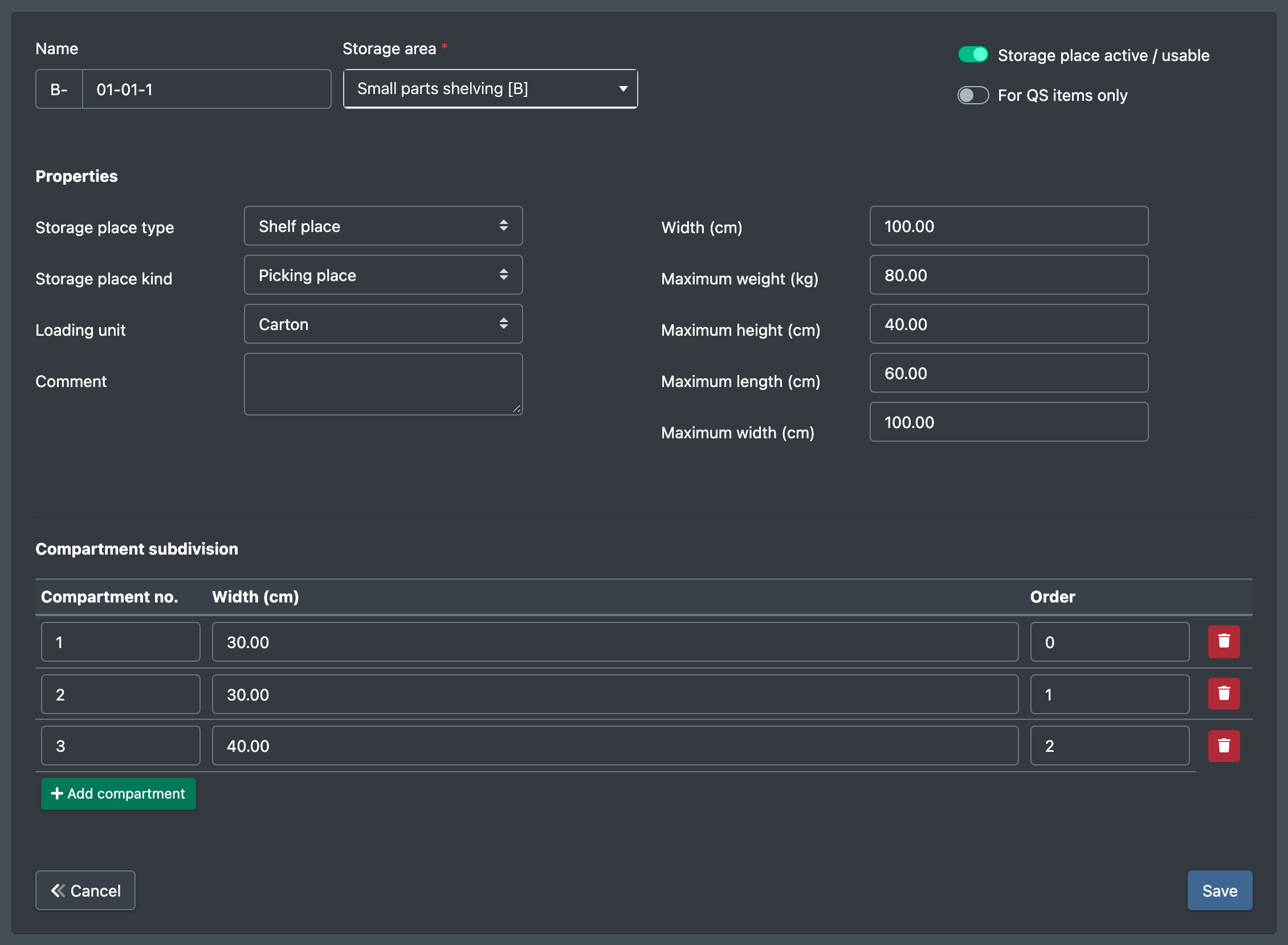
Whether a place counts as a speed place or transit place depends only on the role of its place type in the Warehouse settings (Rolle je Platztyp), not on the name of the place.
Articles on the place
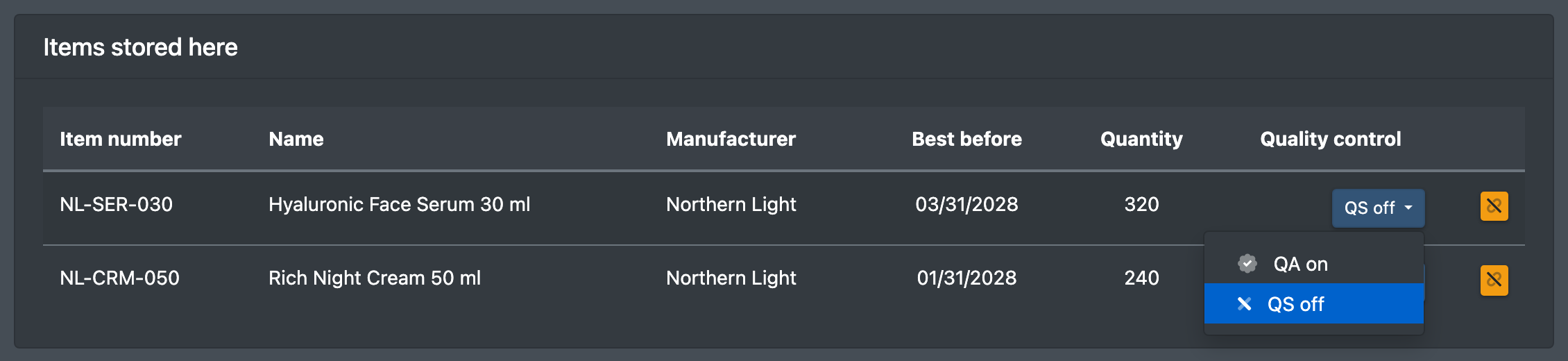
Below the form you see the Articles stored here (Hier eingelagerte Artikel) with article number, manufacturer, quantity and best-before date. Per article you can:
- switch quality assurance QA on / QA off (QS an / QS aus),
- Unlink article from storage place (Artikel von Lagerplatz lösen).
Fields and options
Create many places at once (Number assistant)
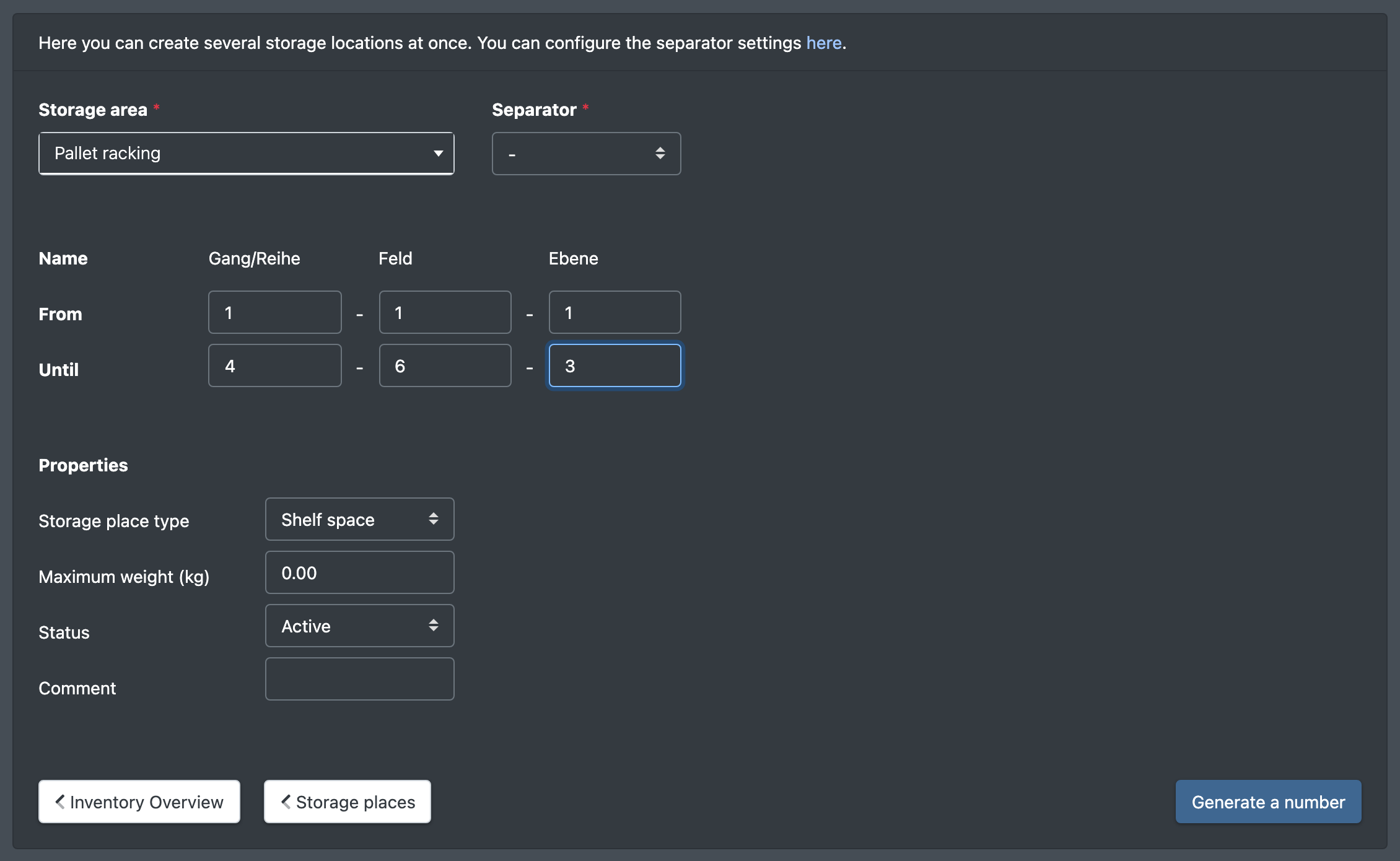
- In the list of places or in the warehouse overview, click Number assistant (Nummern Assistent). The page Storage number assistant (Lagernummern Assistent) opens.
- Choose the Storage area (Lagerbereich) and the Separator (Trenner).
- Enter From (Von) and To (Bis) for every active segment.
- Set Storage place type (Lagerplatztyp), Maximum weight (Maximal Gewicht), Status (Status, Active / Deactivated) and a Comment (Kommentar).
- Click Generate number (Nummer generieren). All combinations are created. You see "The storage places were created" (Die Lagerplätze wurden angelegt).
Change many places at once (Bulk editing)
- Click Bulk editing (Sammelbearbeitung) – "Change storage places by filter in one step".
- Filter the places: storage area, Storage place contains (Lagerplatz enthält,
*stands for any characters, e.g.ABPL-*-1-1), Storage place from / to (Lagerplatz von / bis), status, occupancy, compartment subdivision, type, kind, loading unit, only for QA articles, comment. A preview shows the first matches. - Under Set values for all matches (Werte für alle Treffer setzen) tick the fields you want to change and enter the new value. Only ticked fields are written; an empty value removes the previous entry.
- For shelves you can also set the Number of compartments (Anzahl Fächer), the Compartment width (Fachbreite, empty = width ÷ number) and what happens to Existing compartments (Bestehende Fächer): replace (ersetzen), keep – only places without compartments (behalten – nur Plätze ohne Fächer) or remove all compartments (alle Fächer entfernen).
- Click Apply to … storage places (Auf … Lagerplätze anwenden) and confirm.
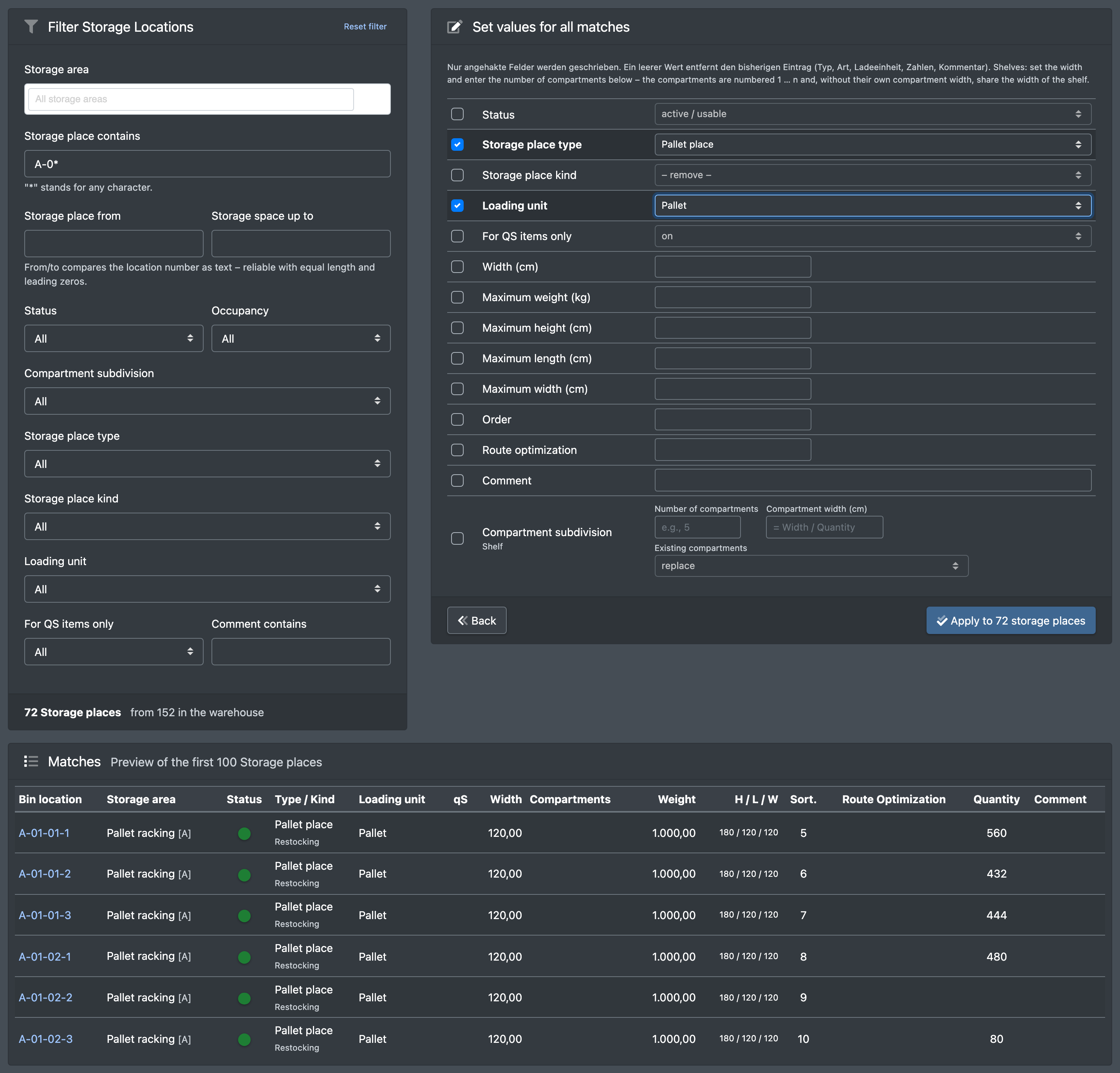
"From / to" compares the place number as text. It works reliably when all numbers have the same length with leading zeros.
More actions in the list
- Set type/kind (Typ/Art setzen) and Delete (Löschen) for the selected places.
- Print barcode (Barcode drucken) and Show history (Historie anzeigen).
- Book in articles (Artikel einbuchen) – see Stock overview.
- Warehouse export (Lager Export).
How the place properties are used
- Putaway only chooses active places without compartments in the selected area: first empty places or picking places with the same article, then neutral free places (not picking or speed places). QA places are only used for goods marked for quality assurance. Places reserved for other articles are skipped – see Putaway.
- Picking and restocking follow the storage place kind (picking place) and type – see Picking.
- Transit places are needed for the Transit warehouse.
warning Deleting a place
A place that is still in use – it holds stock, has an open replenishment task or an open pick line – is not deleted, neither one by one nor in a bulk delete. Relocate or book out the stock first.
Good to know / Troubleshooting
- Why doesn't putaway find my shelf? Places with compartments are never chosen automatically. Scan the place directly and choose the compartment.
- How do I create 500 shelf places? Use the Number assistant.