
Stock overview
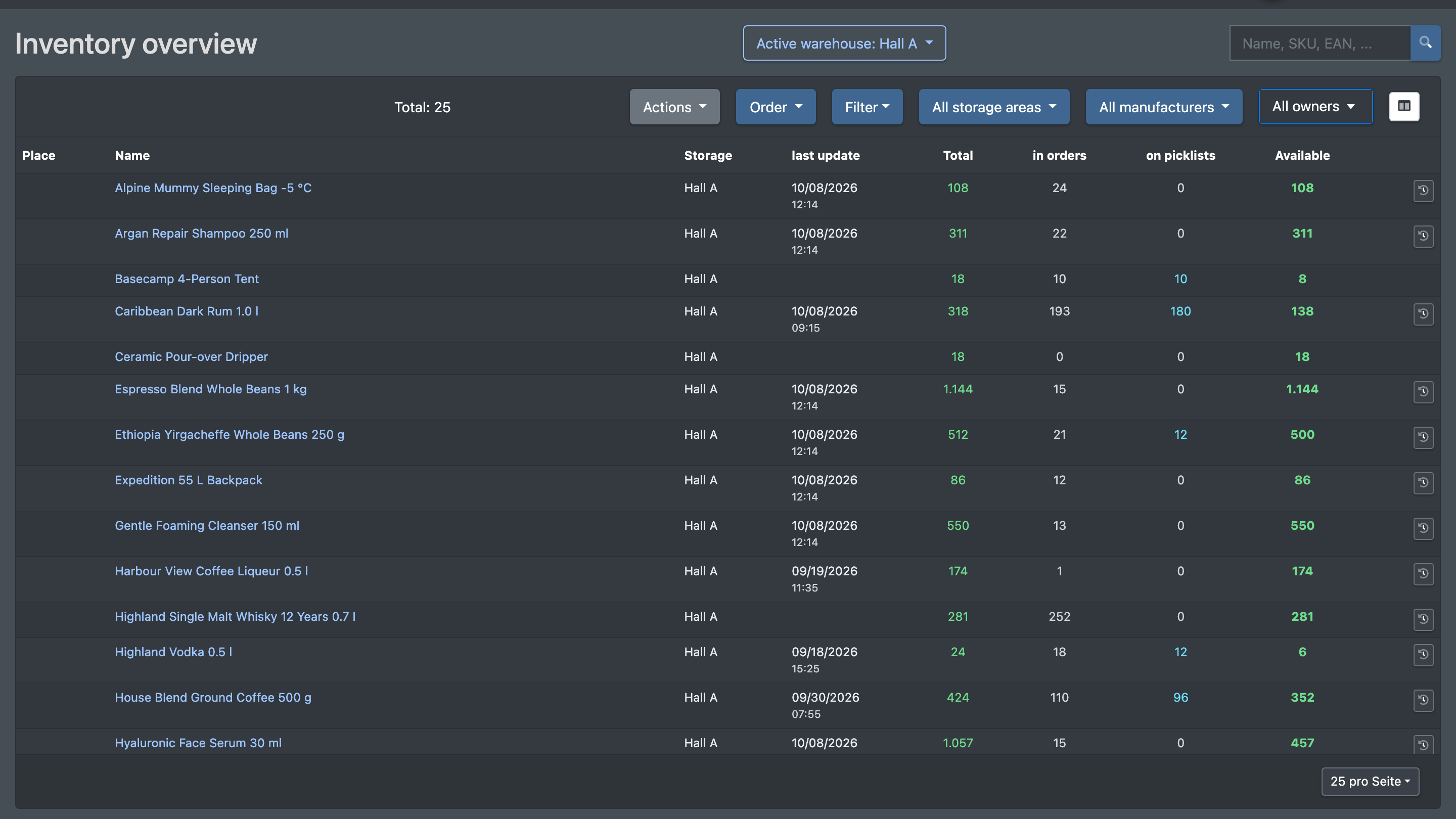
The stock overview shows the stock of the current warehouse per article and – in the detail window – per storage location, pallet, batch and best-before date. From here you correct stock, move partial quantities, add a missing batch or best-before date, lock or release goods for quality checks, print labels and book articles in by hand.
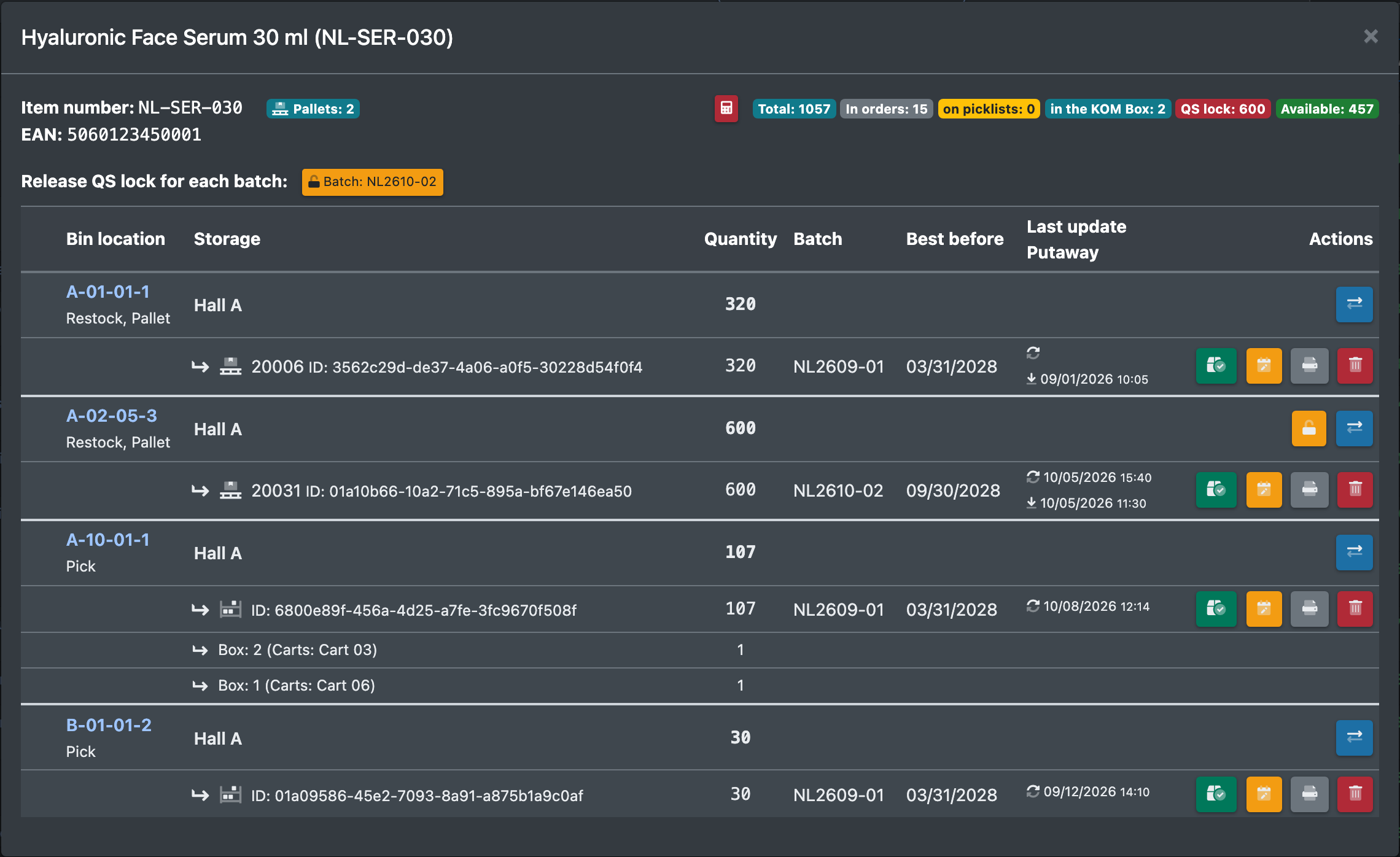
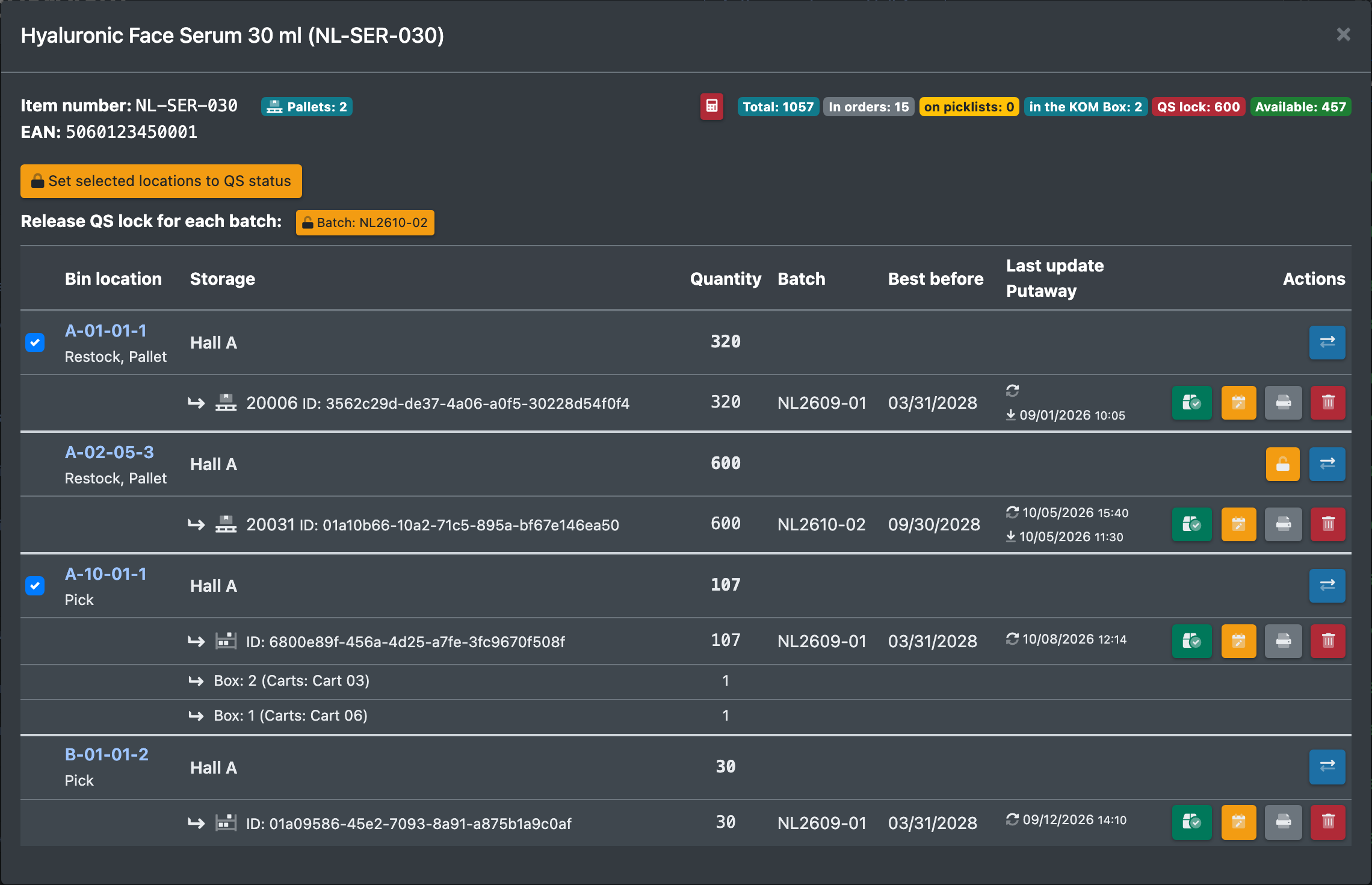
For every article you see how much is in stock in total, how much is tied up in orders, on picklists, in picking boxes or locked, and how much is really available.
Before you start
- Your user needs the permission for Inventory overview (Bestandsübersicht). Correction postings, recalculating stock, removing entries, QS locks and pallet transfers are separate permissions – ask your administrator if a button is missing.
- Stock comes from putaway or from Book items (see below). The locations are set up under Storage places.
Clients
As a client you can see your stock at your logistician read-only, and only the articles you own. This view must be switched on: X-Sitter switches the setting "Show stock" (Lagerbestand zeigen) on at your logistician's request – please talk to your logistician. The same setting also allows the stock query via the API.
Article view and storage place view
The list can show the stock in two ways. You choose the view per warehouse under Warehouse settings › Configurations › Stock overview › View type (Lagereinstellungen › Konfigurationen › Bestandsübersicht › Ansichtstyp), see Warehouse settings.
The article view gives you a quick overview of each article, the storage place view shows at a glance where the stock lies. Everything else on this page (search, filters, detail window, corrections) works the same in both views.
Step by step
Find stock
- Open WMS › Inventory overview (WMS › Bestandsübersicht).
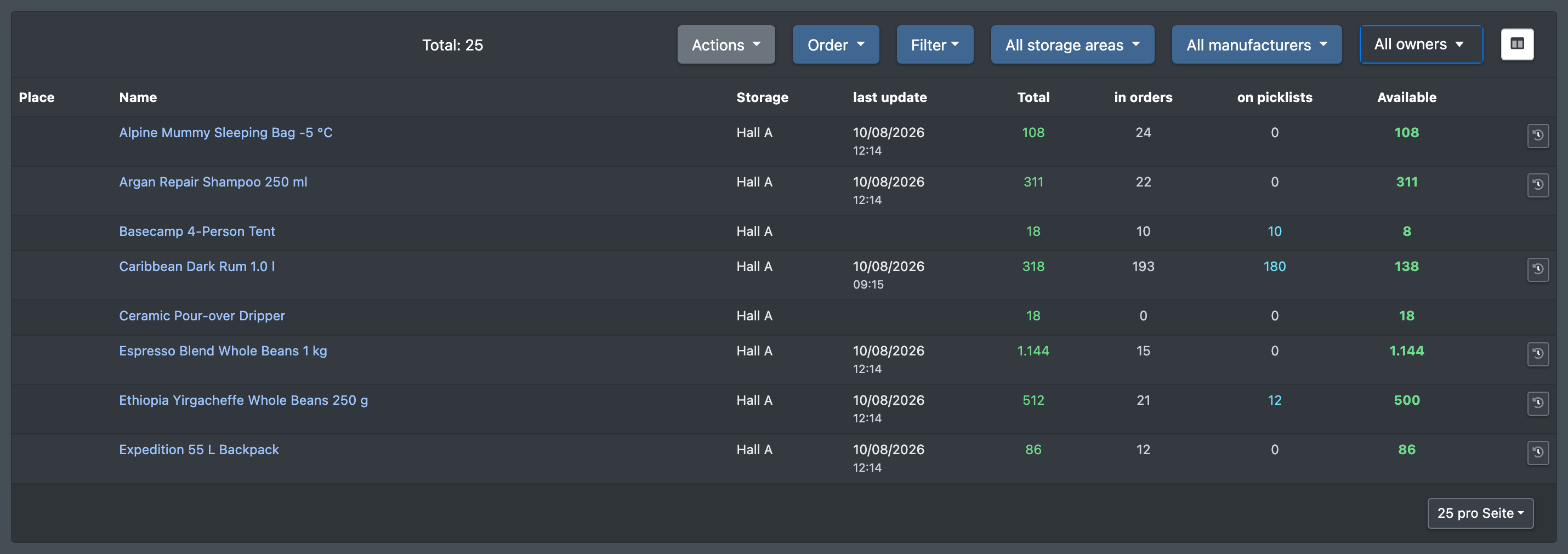
- Search in the field Name, SKU, EAN, ... and filter by All storage areas (Alle Lagerbereiche), All manufacturers (Alle Hersteller) and Storage (Lager, the warehouse).
- Adjust the columns with Launch the Column Editor (Spalten Editor starten).
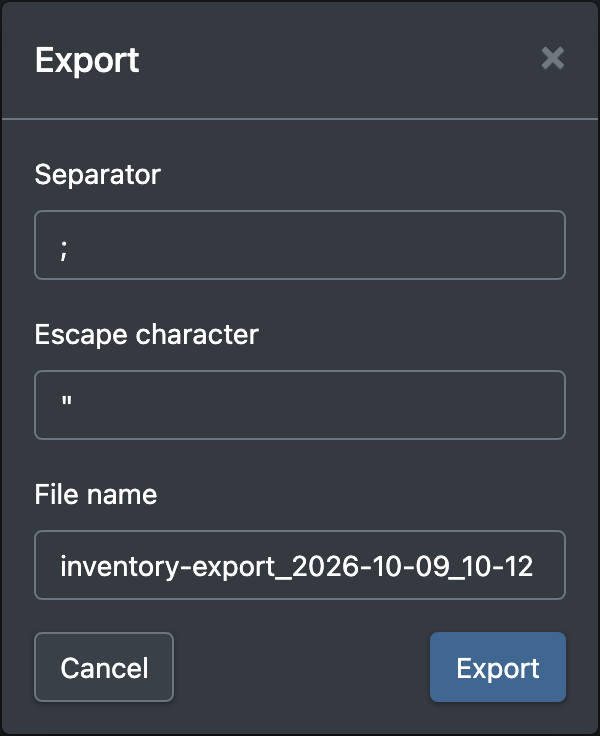
- Export (Exportieren) downloads the list as a CSV file. You can choose separator, escape character and file name.
Open the stock of an article
Click an article row. A window opens with all storage locations of the article: location, warehouse, quantity, batch, best-before date, last update, putaway date and the type (pallet, box or picking cart). At the top you see the breakdown:
Correct the stock
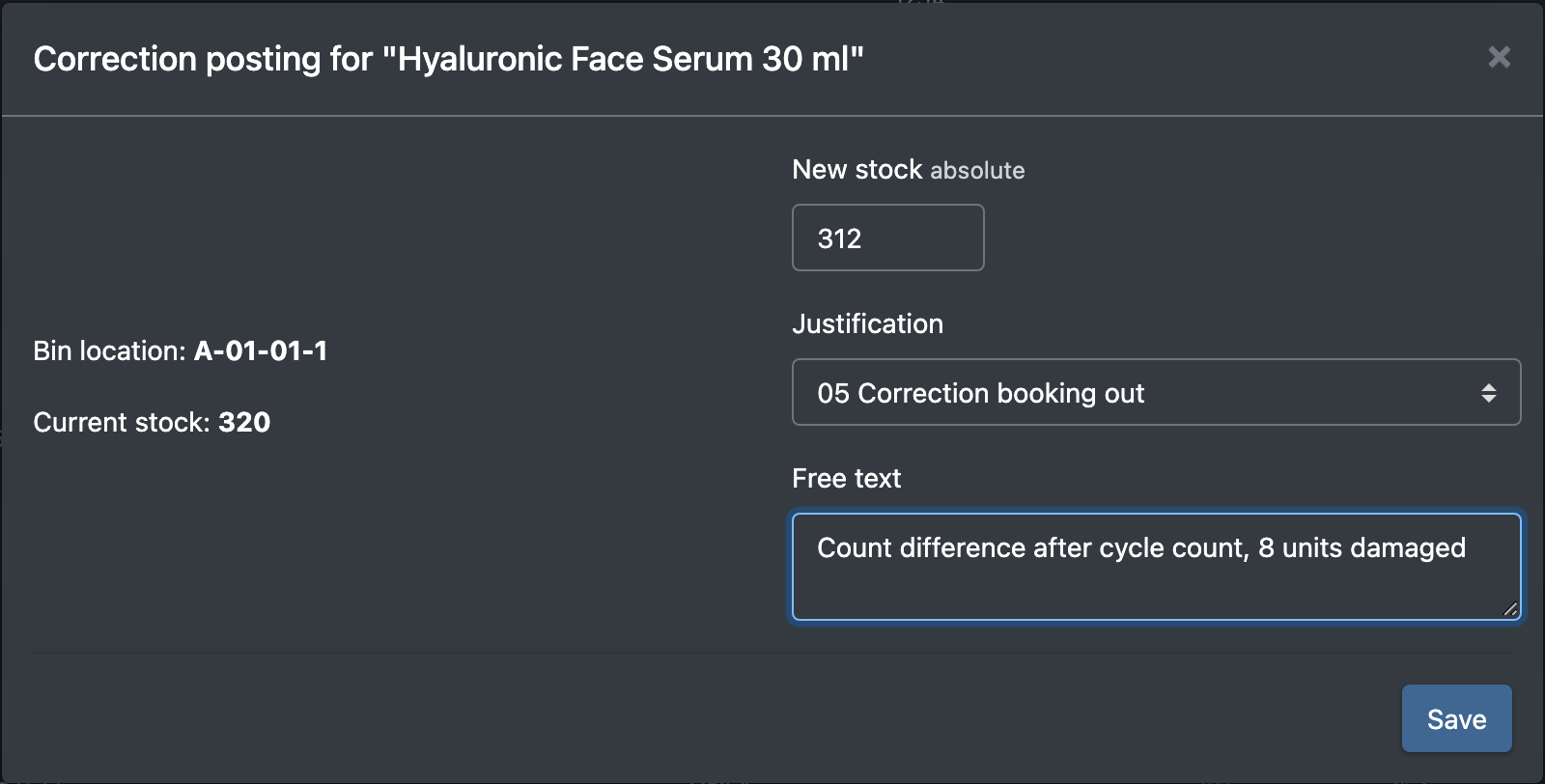
- In the article window, click Adjustment entry (Korrekturbuchung) in the row of the location.
- Enter the New stock (Neuer Bestand) – the absolute quantity, not the difference.
- Choose a Reason (Begründung) and, if needed, add a Free text (Freitext).
- Save. X-Sitter confirms with "The correction posting has been made" (Die Korrekturbuchung wurde durchgeführt). If the location is empty afterwards, you also see "The storage place has been released." (Der Lagerplatz wurde freigegeben.)
Several pallets at once: tick the pallets, click Change quantity of the selected pallets (Menge der ausgewählten Paletten ändern) and set the new stock per pallet. X-Sitter confirms how many pallets were corrected.
Move stock to another location
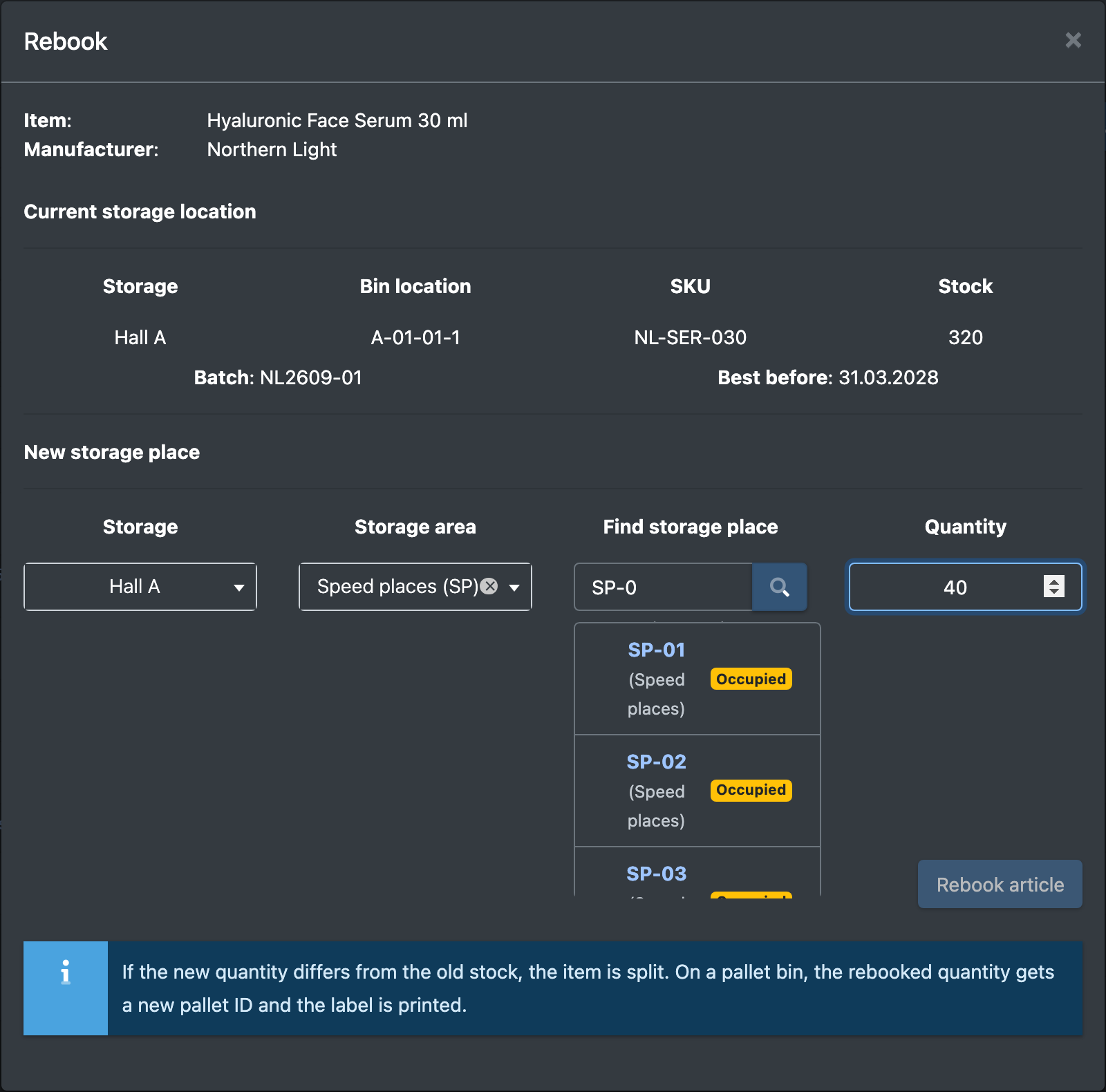
- Click Rebook (Umbuchen) in the row of the location. The dialog Artikel Umbuchen opens.
- Choose the New storage place (Neuer Lagerplatz): select the storage area and search the location (at least 3 characters). Tick Show only available spots (Nur freie Plätze anzeigen) if you only want empty locations.
- Enter the Quantity (Menge). If it is less than the stock, the stock is split.
- Save.
To move whole pallets by scanning, use Pallet Transfer (Paletten-Umlagerung) on the overview page or the relocation screen.
Add batch and best-before date
- Click Add Batch Number / Best-By Date (Charge / MHD nachtragen).
- Enter the batch and the best-before date in the format YYYY-MM-DD and save.
If the same batch and best-before date already exist on this location, the quantities are merged.
Lock and release goods for quality checks (QS)
- Tick locations and click Set selected locations to QS status (Ausgewählte Plätze in QS-Status versetzen).
- Release a single lock with Release QS lock (QS-Sperre lösen).
- Release all locks of a batch with Release all QA locks for this batch (Alle QS-Sperren dieser Charge lösen).
Locked stock is not available for orders.
More actions per location
- Print pallet labels (Paletten-Label drucken) and Print Product Label (Artikeletikett drucken)
- View history (Historie anzeigen) – opens the article history filtered to this article
- Recalculate inventory (Bestand neu berechnen) – recalculates the reserved and available quantities
- Remove Entry (Eintrag entfernen) – removes the location entry
Book articles in by hand
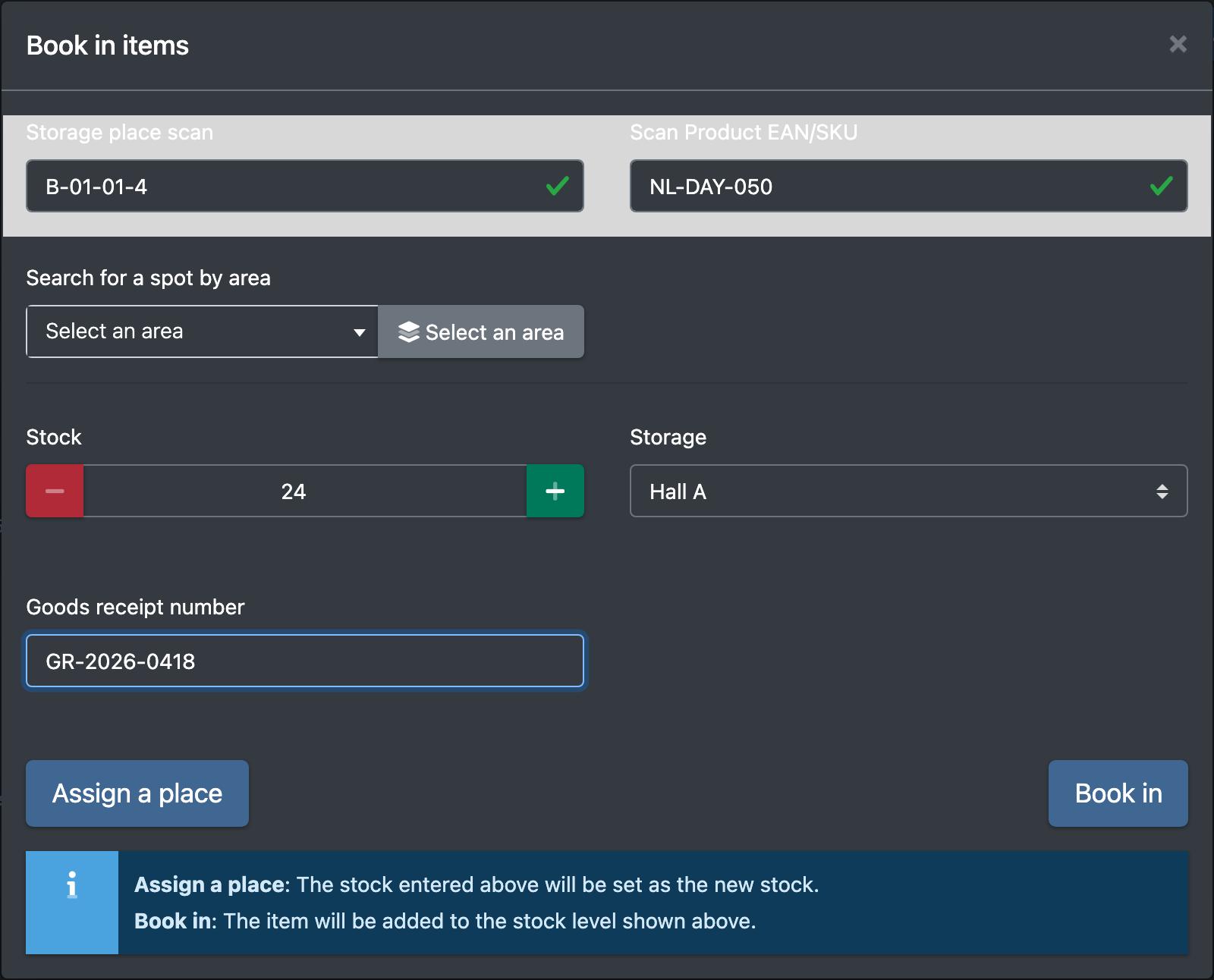
- On the overview page, click Book in items (Artikel einbuchen).
- Scan the storage location (Lagerplatz Scan) or search a location by area (Platz über Bereich suchen).
- Scan the article EAN or SKU (Artikel EAN / SKU Scan) and choose the customer (Kunde auswählen).
- Enter the Stock (Bestand) and, if required, the Goods receipt number (Wareneingangsnummer).
- Click the book button (Einbuchen). X-Sitter confirms with "The item has been posted" (Der Artikel wurde gebucht). You can either set the stock to the new value or add the quantity to the existing stock.
Good to know
- Every correction and every move is written to the article history with its reason (default "Reallocation" / Umlagerung, or the reason you chose).
- Pallets reserved for a picklist can neither be the source nor the target of a move.
- When you move stock onto a location with the same article, the stock is merged. The pallet label moves along, is merged or dissolved.
- If Can items be split during putaway or transfer? (Artikel bei Einlagerung / Umbuchung splittbar?) is set to "No" in the warehouse settings, partial quantities are not allowed.
- The warehouse settings can also hide entries with stock 0.
- When searching a target location, only the storage areas assigned to you are offered, see Employee assignment.
- Why is "Available" smaller than "Total"? Quantities in orders, on picklists, in picking boxes and locked quantities are subtracted.
- Why can I not change anything as a client? The client view of the logistician's stock is read-only.