
Transit warehouse
Some goods only stay in your warehouse for a short time: they come in and go out again quickly. You store them normally on storage locations of the type Transit. When the order comes, you capture it as usual and put it on a picklist. The pallets in the transit warehouse are reserved as pallet rides. Instead of moving every pallet to the shipping station with a forklift scan, one button books all transit pallets of the picklist onto the shipping station you choose.
The bookings are the same as with the scan, so the billing of your clients keeps working unchanged.
The transit warehouse is a normal storage area with real pallets, picklists and pallet rides – only the forklift scan to the shipping station is skipped.

Before you start
- In the warehouse settings under Spot types (Platztypen), the type "Transit" exists. Its pick behaviour (Pick-Verhalten) must be "Pallet" (the default), otherwise no pallet rides are created.
- At least one active storage location of the type "Transit" exists, see Storage places.
- One single virtual transit location for many pallets is possible: set Multiple pallets per bin (Mehrere Paletten je Platz) to "yes" for the type "Transit", or maintain Pallets per bin (block storage) (Paletten je Lagerplatz (Blocklager)) in the storage area, see Storage areas.
- In the storage area form you can switch a whole area to the type "Transit" with Allen Plätzen in diesem Bereich zuweisen (assign to all locations in this area).
- At least one active shipping station exists in the warehouse of the picklist, see Deposit locations.
- Your user needs the permissions for the Picking Lists Overview (or the extra icons in the order overview) and for Order picking (Kommisionierung). Ask your administrator if the button is missing.
Step by step
-
Goods receipt: store the pallets as usual at the scanner on a transit location, see Putaway. Goods from several deliveries may lie on the same transit location.
-
Capture the order and put it on a picklist – as a single order, with the bulk action for picking carts, or with a template, see Create a picklist. For each pallet in the transit warehouse a pallet ride (transport) is created on the list. In the order form, the forklift icon of the item row turns green if the chosen pallet lies in the transit warehouse (purple = normal pallet ride).
-
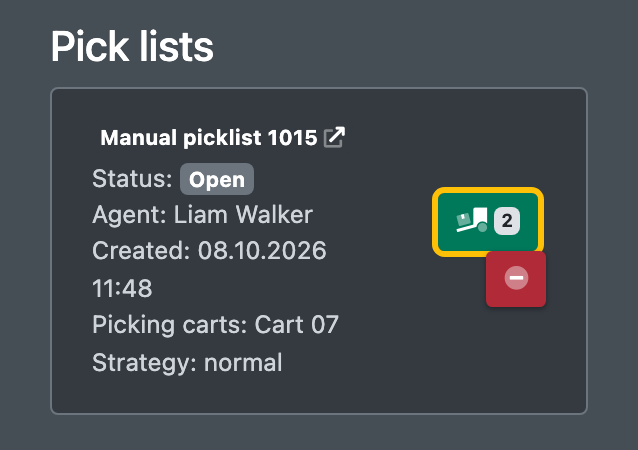
Open WMS › Storage › Picking Lists Overview (WMS › Lager › Picklisten Übersicht). In the Actions (Aktionen) column you see the green button with the forklift icon and the number of transit pallets. Alternatively, use the same button on the picklist in the order window under Pick lists (Picklisten).
-
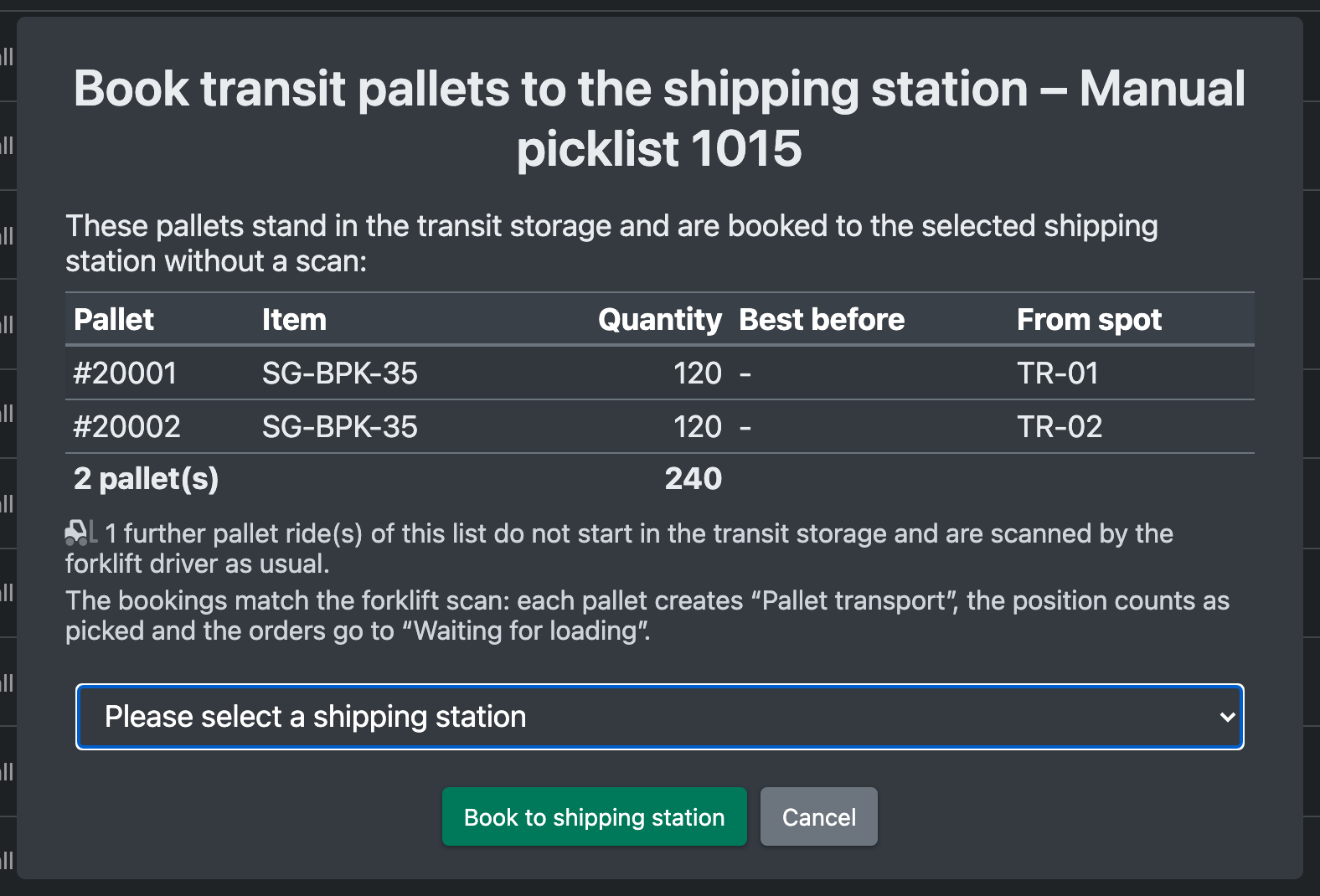
The dialog Transit-Paletten auf den Versandbahnhof buchen (book transit pallets onto the shipping station) shows pallet, article, quantity, best-before date and source location.
-
Choose the shipping station under Please select a shipping station (Bitte Versandbahnhof wählen) and click Book to shipping station (Auf Versandbahnhof buchen).
-
X-Sitter confirms how many pallets were booked from the transit warehouse onto the station. The orders now appear in Loading with the selected shipping station.

Fields and options
How the pallets are chosen
- Only open transport rides of the list without a target, whose source is a transit location, are included.
- For each ride X-Sitter chooses a labelled pallet on that location: first one with exactly the ride quantity, otherwise the one with the oldest best-before date.
- Pallets without stock, with a QS lock or already at the shipping station are skipped.
- Pallet rides from other locations stay open and are scanned by the forklift driver as usual. Only goods in the transit warehouse can be booked this way.
- Transit locations are locked per pallet, not as a whole. Several orders can therefore be served from one single transit location at the same time.
What happens after booking
- Each pallet leaves the transit location and is parked at the shipping station. The stock and pallet history are written with the reason for pallet transport, which is relevant for article costs.
- The pallet rides are completed, see Pallet rides, and the picklist items are marked as picked.
- As in normal picking, pure pallet lists are set to packed, and pallet orders to Waiting for loading (Wartet auf Verladung).
- Nothing happens automatically. The booking is always started by hand.