
Putaway
At the scanner, your team assigns the delivered goods to a concrete storage location. You load the advance notice, choose an item, enter the quantity and the storage area. X-Sitter finds a suitable free location, books the stock with batch and best-before date, creates a pallet label (on pallet locations), writes the stock history and counts the progress of the advance notice. Only after putaway is the stock available for picklists.
Before you start
- Your user needs the permission for Goods Receipt / Putaway (Wareneingang / Einlagerung). Without it you see "No authorization" (Keine Berechtigung).
- An advance notice with items exists, see Advance notices. Without a notice you can use Manual SKU Entry.
- Storage areas with active, free storage locations exist, see Storage areas and Storage places.
- The articles are maintained, see Edit an article: units per pallet, owner, default storage area, best-before date flag and – for alcoholic drinks – the alcohol attributes. If an article has no default storage area, the default putaway area of the client is used, see Clients.
- Booking reasons and label templates are set up in the warehouse settings.
- To print labels, an active workstation is selected. It is shown in the footer as Active workstation (Aktive Arbeitsstation) – see Choose your workstation.
- Goods that only pass through go onto storage places of the type Transit – later they are booked onto the shipping station without scanning, see Transit warehouse.
Step by step
1. Load the advance notice
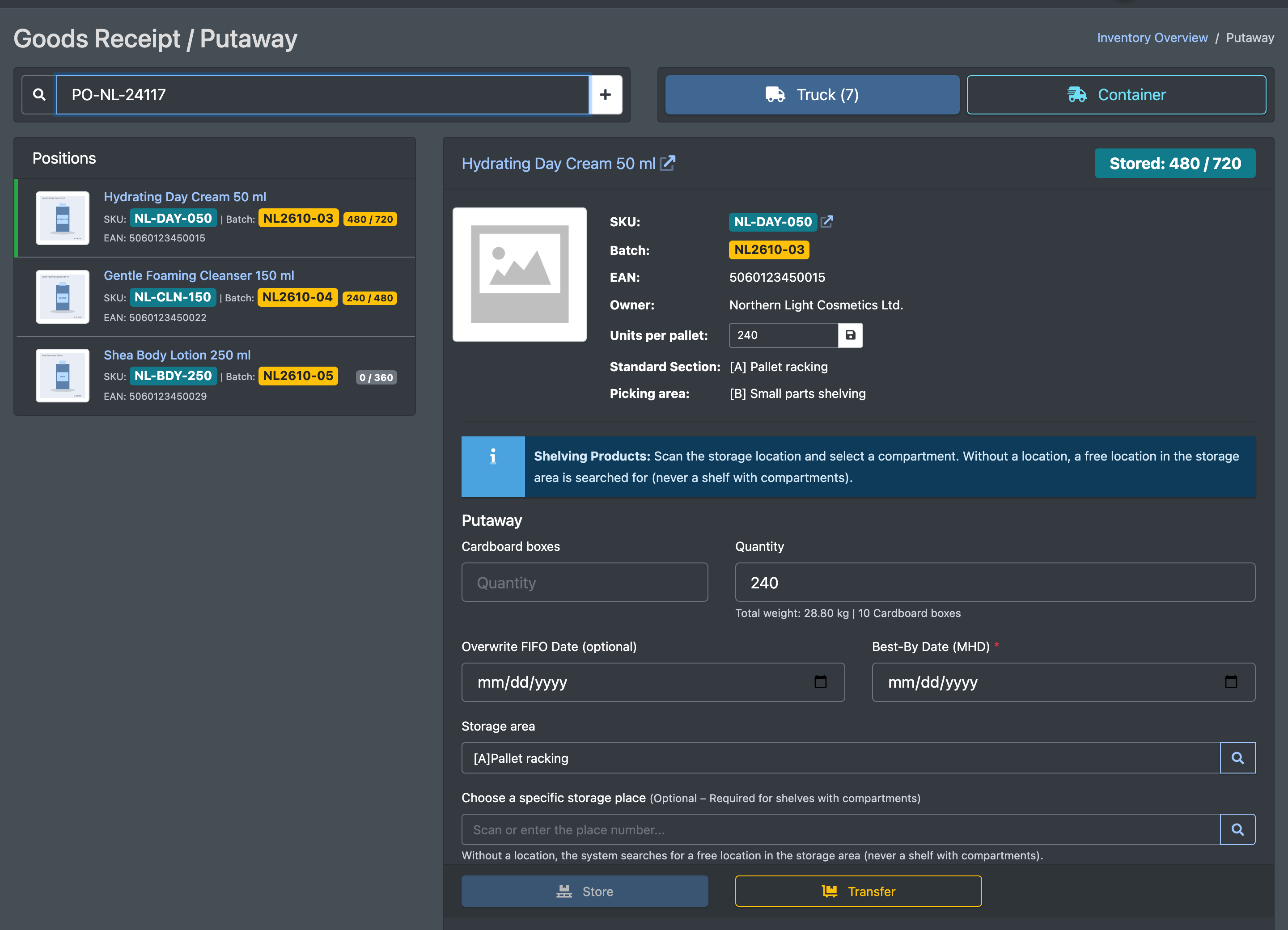
- Open WMS › Storage (WMS › Einlagerung). The page Goods Receipt / Putaway (Wareneingang / Einlagerung) opens.
- In the field Bestellnummer / Avisnummer oder Artikel (EAN) scannen... (scan order / notice number or article EAN), scan the delivery note, order or container number.
- Under Positions (Positionen) you see all items with item number, name, EAN, batch and the progress "stored / expected".
No notice number at hand? Some clients do not send their notice number, or the goods arrive without a delivery note. Simply scan an article of the delivery – EAN (also box or unit EAN) or item number:
- If only one open notice still expects this article, it opens directly with the matching item, and its number is filled into the search field.
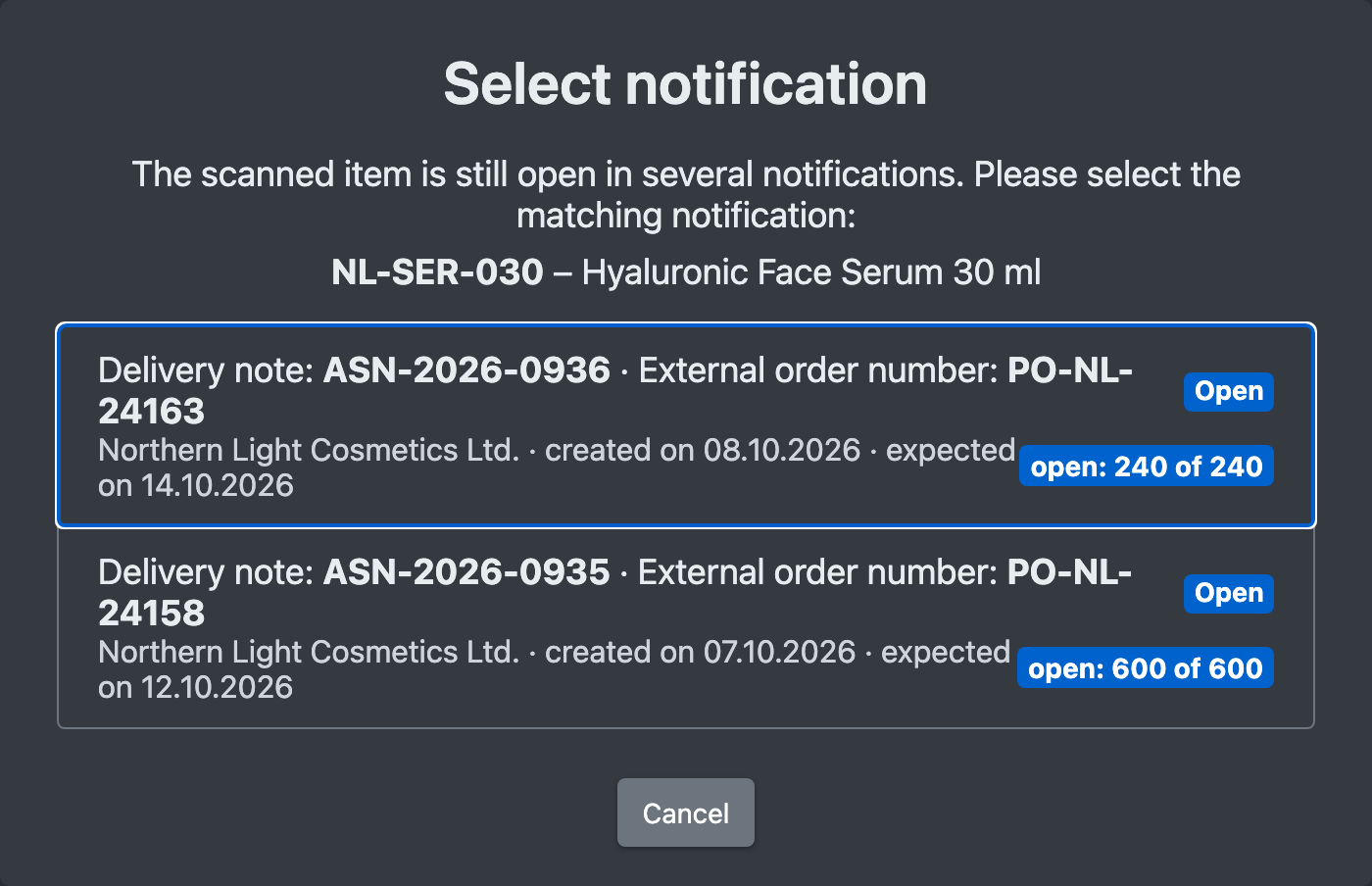
- If several notices expect it, the dialog Avisierung auswählen (select advance notice) shows delivery note / order number, client, created or expected date, status and "open: x of y". Choose the right one.
- Only notices that are not closed (Open, Unloaded, In progress) are searched. Items that are already fully stored do not count. Notice numbers always take precedence over the article search.
2. Confirm unloaded pallets (optional)
Click Truck (LKW) or Container (Container) and confirm the number of actually unloaded pallets ("Please specify the number of pallets that were actually unloaded:").
3. Add missing articles to the master data
If some articles of the notice do not exist in the article master yet (for example after an import), X-Sitter shows a hint. Click Import Items into Master Data (Artikel in die Stammdaten übernehmen).
4. Enter the putaway data
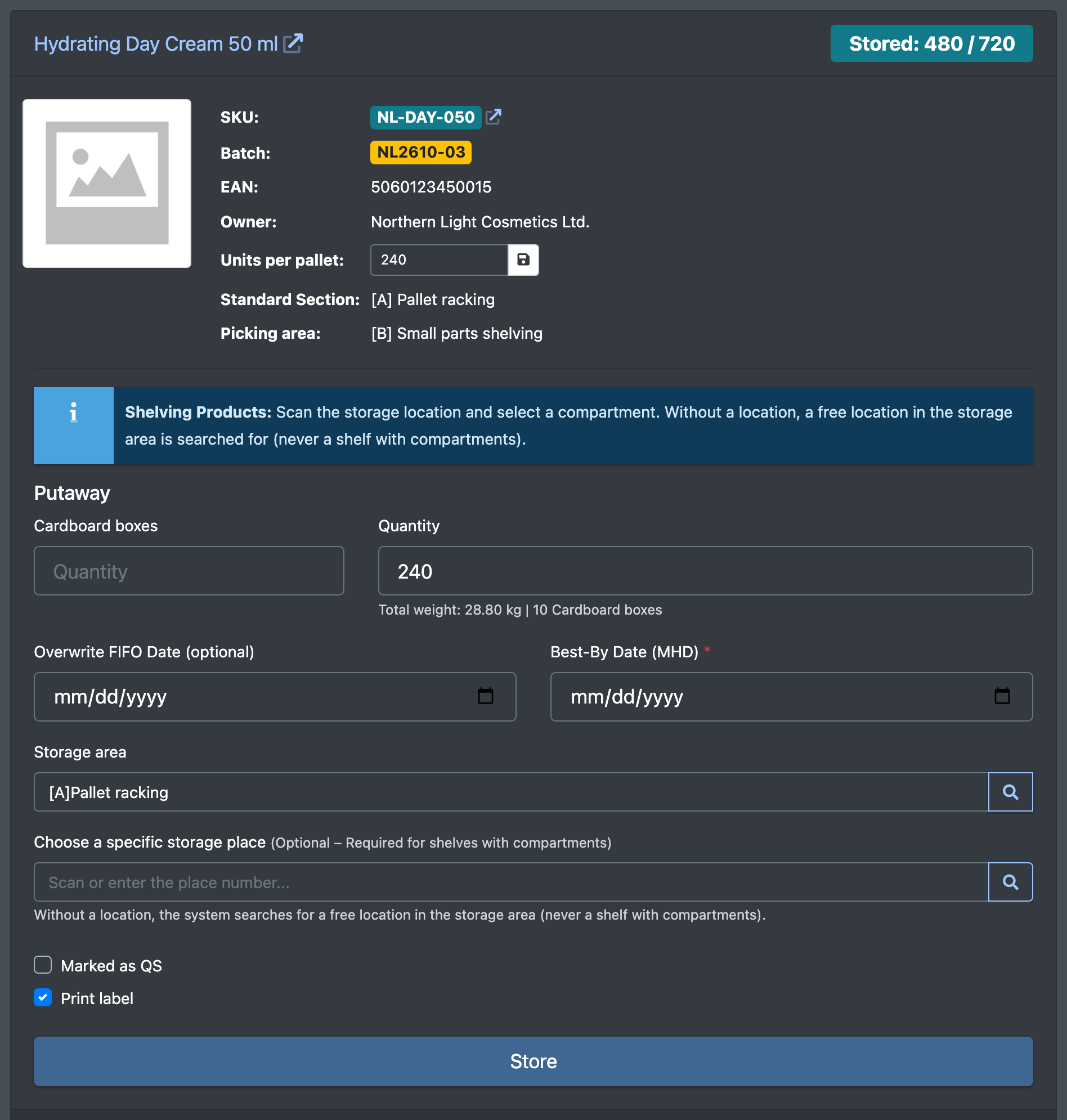
- Choose an item. Product Details (Artikel-Details) opens with Stored: (Eingelagert:) x / expected and a preset Storage area (Lagerbereich).
- Fill in the fields (see
Fields and options ).
The values for FIFO date, best-before date, taxed/untaxed, EVD number, QS and print label stay filled when you switch between Store, Multiple storage and Transfer, when you change the storage area and after a booking. Quantity, boxes and location apply per mask. Choosing another item clears everything.
5. Book
Choose one of the three actions:
- Store (Einlagern) – one booking. X-Sitter confirms with "Storage successful" (Einlagerung erfolgreich).
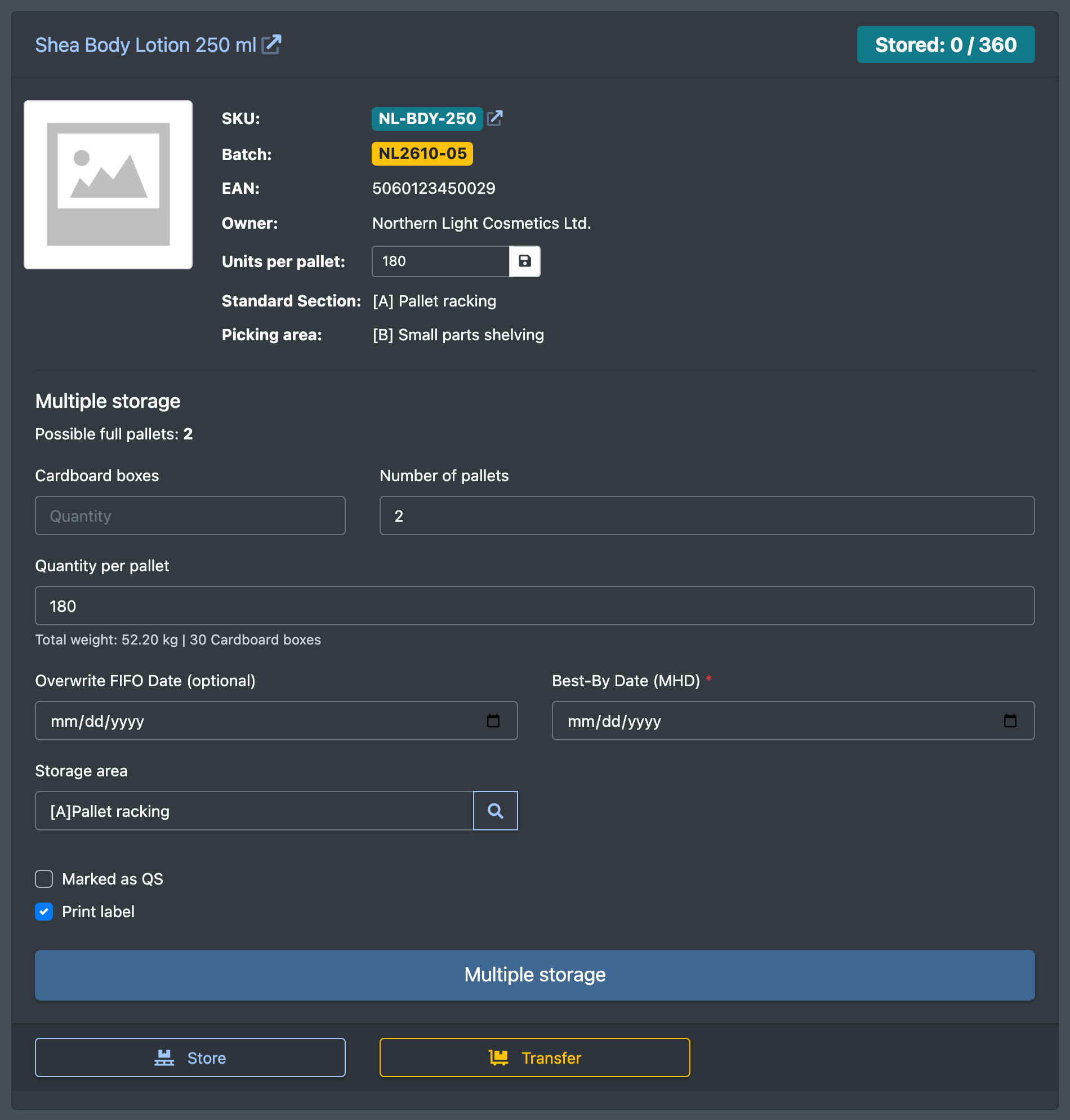
- Multiple storage (Mehrfacheinlagerung) – enter Number of pallets (Anzahl Paletten) × Quantity per pallet (Menge pro Palette). Each pallet gets its own booking and its own label, at most up to the announced quantity. A remaining quantity is offered for transfer: Put away remaining quantity (Restmenge nachlagern) or Later (Später). Not possible for shelves with compartments.
- Transfer (Nachlagern) – book onto a location where this article already lies. You choose from the list of existing locations.
If the quantity exceeds the remaining expected quantity, X-Sitter asks Excess quantity detected (Übermenge erkannt). Confirm with Yes, put away (Ja, einlagern).
6. Correct or reprint
The putaway section lists the booked pallets. For each one you can:
- Print Label Again (Label erneut drucken)
- Print Product Label (Artikeletikett drucken)
- Undo Storage (Einlagerung rückgängig machen) – the quantity is taken off the location again. If the pallet is empty afterwards, the stock row and the pallet label are removed. The article history shows "Notification cancellation: …" (Storno Avisierung: …). For alcoholic articles the taxed/untaxed quantity of the article goes down again and the alcohol tax ledger gets a correction line with the negative quantity.

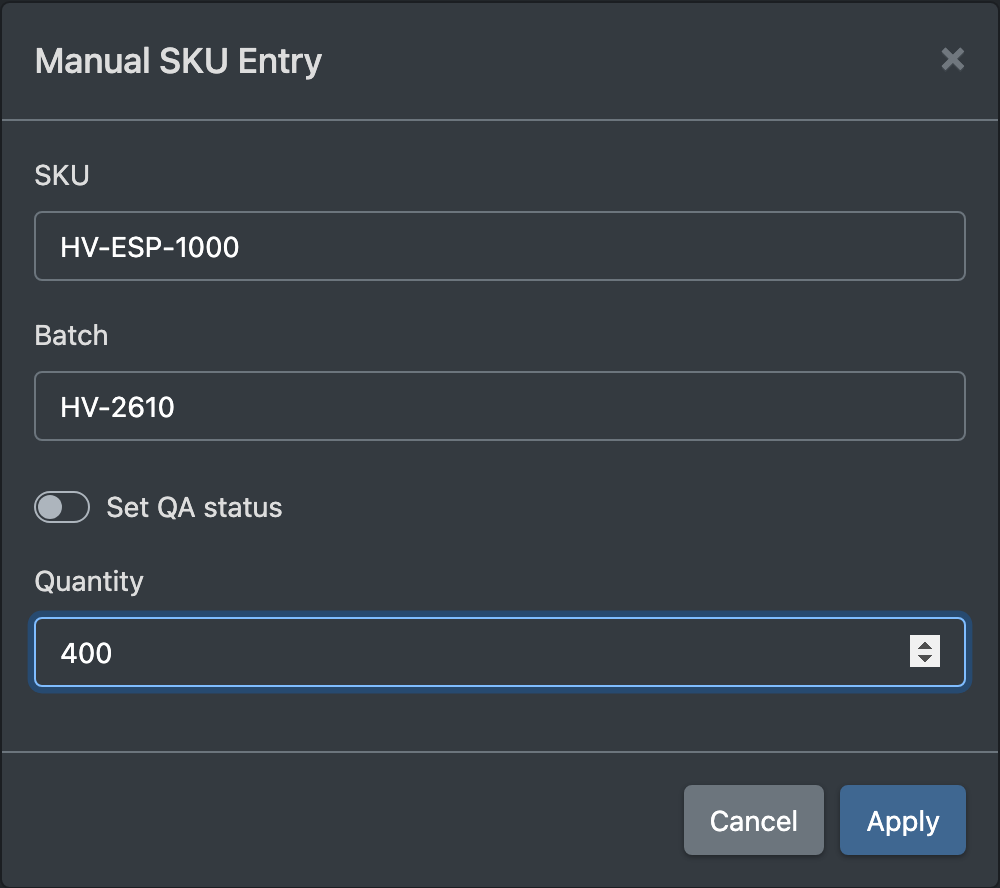
Manual SKU entry without an advance notice
- Click Manual SKU Entry (Manuelle SKU Erfassung).
- Enter SKU, choose the Owner (Eigentümer), and fill in Batch (Charge), Best before (MHD), Set QA status (QS-Status setzen) and Quantity (Menge).
- Click Apply (Übernehmen). The goods are stored under a manual reference without an advance notice.
Fields and options
How X-Sitter chooses the location
If you do not choose a location yourself, X-Sitter only considers active locations without compartments in the selected area:
- First an empty picking location that is already assigned to this article.
- Otherwise a free neutral location (not a picking or speed location).
Locations reserved for another article are skipped. Without Marked as QS, QS locations are excluded. The locations are sorted by number in the putaway direction set for the storage area, see Storage areas.
What a booking does
- Pallet location: stock as a pallet, a pallet label with a running pallet number, pallet history and stock history with the reason "Pallet storage" (Paletteneinlagerung) and the note of the advance notice.
- Shelf location (item pick only): no pallet and no pallet label, reason "Shelving Storage" (Fachboden-Einlagerung); with Print label you get a product label.
- The available stock is recalculated, see Stock overview.
- The progress per item is counted. With the first booking the notice becomes In progress; once all items are complete it is Closed.
- Alcoholic articles: the taxed/untaxed quantities are updated and a goods receipt line is written to the alcohol tax ledger. The note in the article history and the pallet history carries the tax status, e.g. "Notification: 4711 – of which 0 taxed / 120 untaxed".
- Every booking appears in the article history, and the pallets in the pallet overview.
Good to know
- "No suitable available storage space was found in the area." – what now? The area is full, only QS locations are free (and the goods are not marked as QS), or all free locations are reserved for other articles. Choose another area or scan a location directly.
- The client did not send a notice number. Scan an article of the delivery. If it appears in several open notices, pick the right one by date, client and open quantity.
- Why does the notice not close? At least one item is not fully stored yet.