
Edit an article
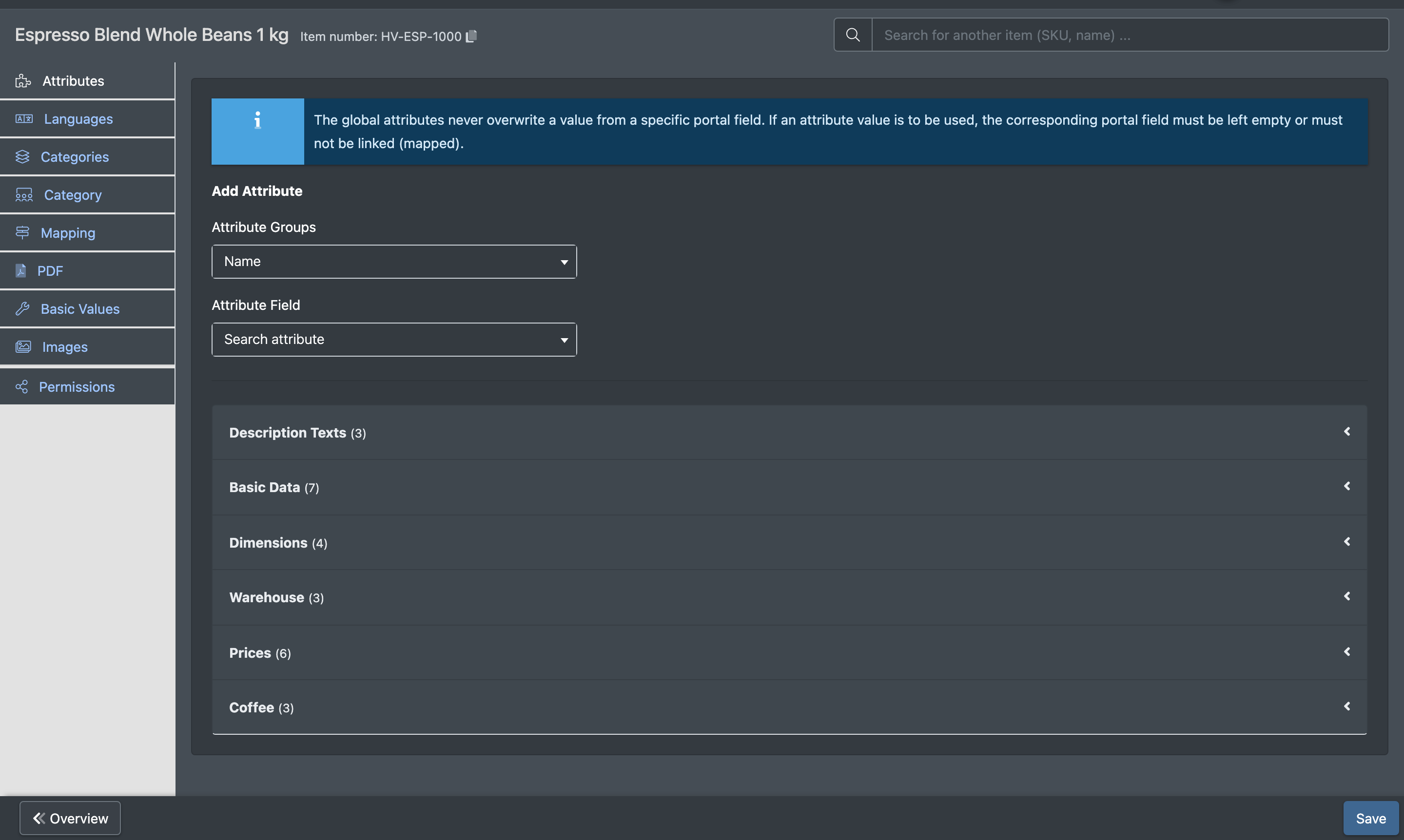
Every article has its own edit page. It is split into tabs on the left. Here you maintain all article data: attribute values such as name, EAN, prices, texts, dimensions and warehouse fields, texts per language, categories, product group and PDFs.
The tabs Images, Mapping and Permissions (shares) have their own pages, see the links below.
Before you start
- Your user needs the permission to edit articles (the green pencil in the overview). Some tabs need extra permissions – for example product group, mapping, PDF and core values. Ask your administrator if a tab is missing.
- Attribute groups and fields exist, see Attribute groups and Attribute fields.
- For the category and product group tabs: Categories and Product groups.
Open an article
- Go to Catalogue › Overview (Katalog › Übersicht).
- Click the green pencil in the row of the article.
The header shows Item number (Artikelnummer) with a copy symbol (Copy Item Number). Use the field Search for another item (SKU, name) ... (Anderen Artikel suchen (SKU, Name) ...) to jump straight to another article. Overview (Übersicht) brings you back to the list.

Tabs
Attributes tab
- The fields are ordered by attribute group. Change the values you need.
- Click Save (Speichern) at the bottom. You see "The attributes have been saved" (Die Attribute wurden gespeichert).
Changed articles are automatically marked so that connected marketplaces receive the new data.
Add an attribute to the article
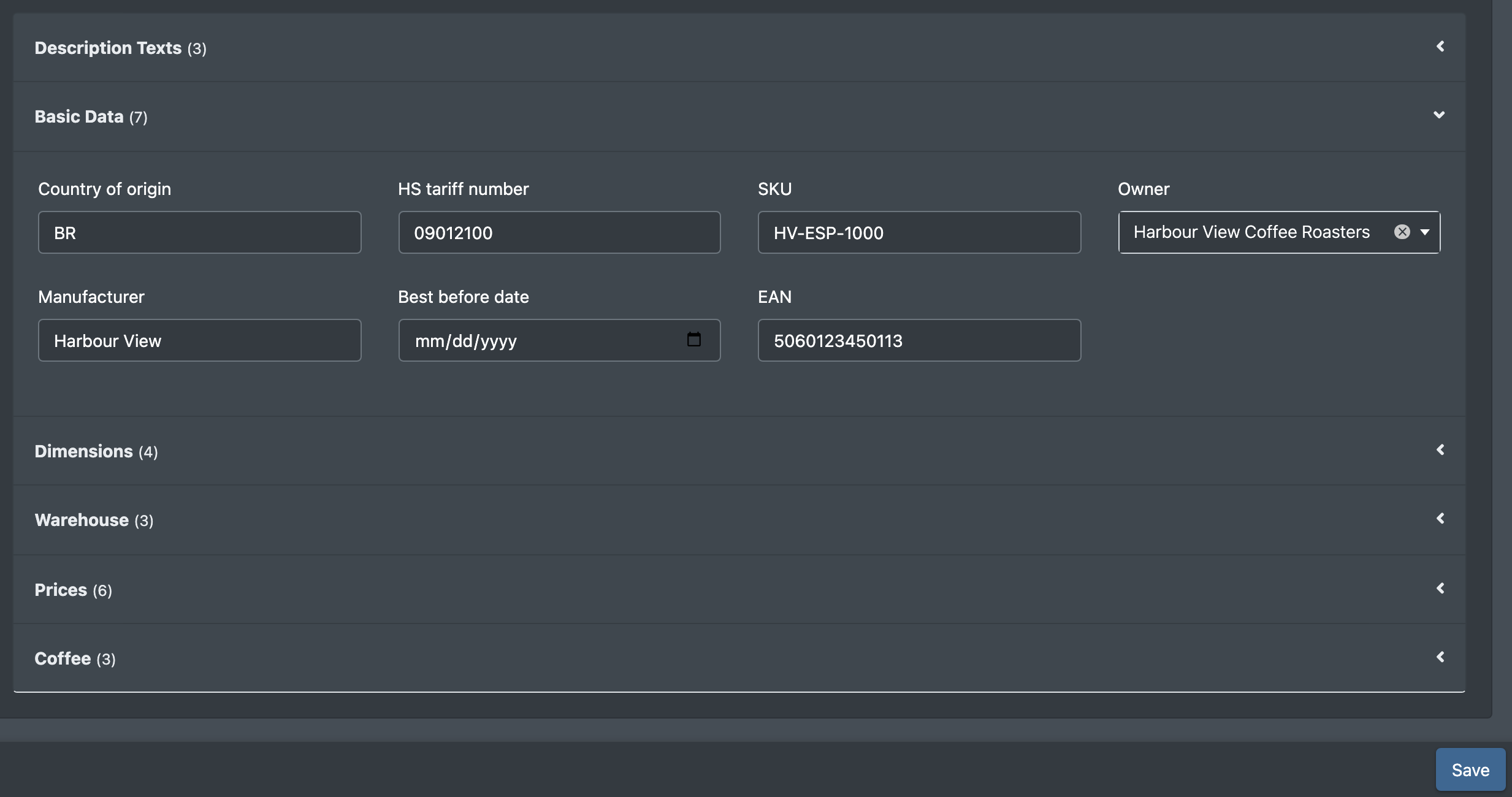
- Click Add Attribute (Attribut hinzufügen).
- Pick a group (-- first select a group --), then choose an Attribute Field (Attribut Feld) – or create a new field with New values (Neue Werte).
- Enter a value if you like and save.
An attribute you add stays on the article even without a value. You remove it from the article only with its remove symbol.
Example: activate the best-before date
Add the attribute Best-by date (Mindesthaltbarkeitsdatum) to the article, leave it empty and save. From now on, the scanner asks for the best-before date whenever this article is put away or restocked. See Putaway.
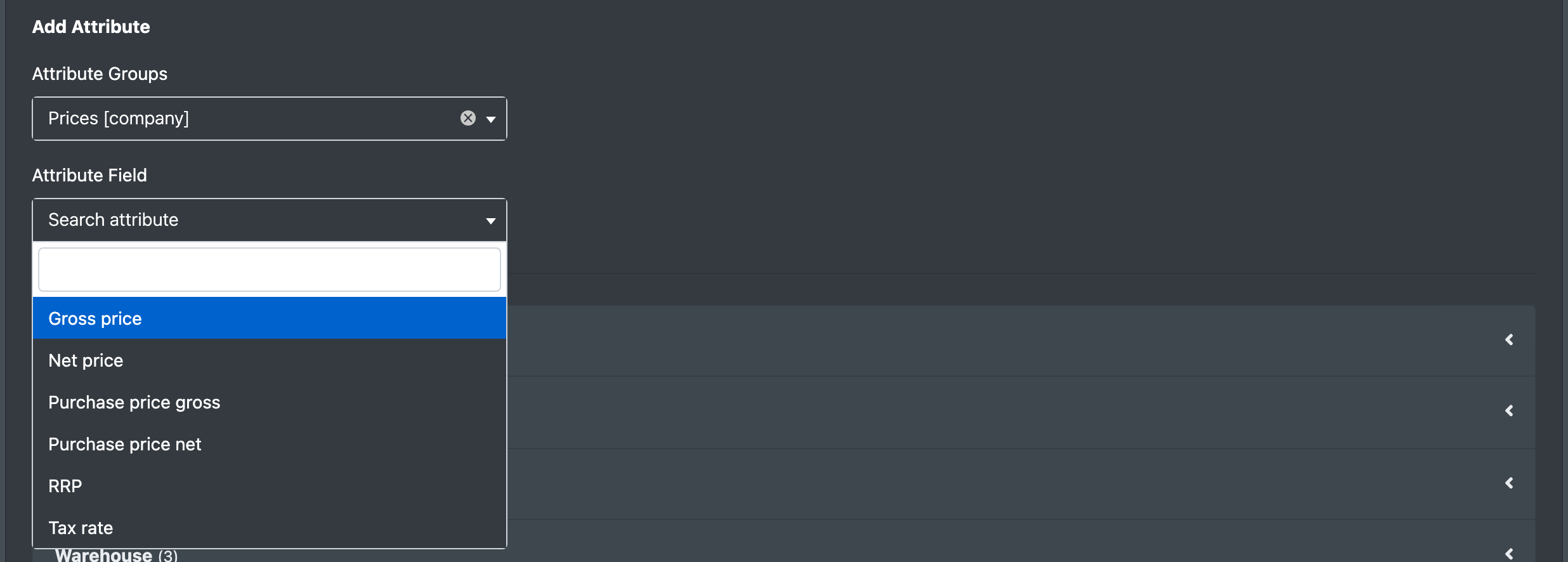
The global attributes never overwrite a value from a special marketplace field. If an attribute value should be used for a marketplace, leave the marketplace field empty or do not map it.
Field types
Languages tab
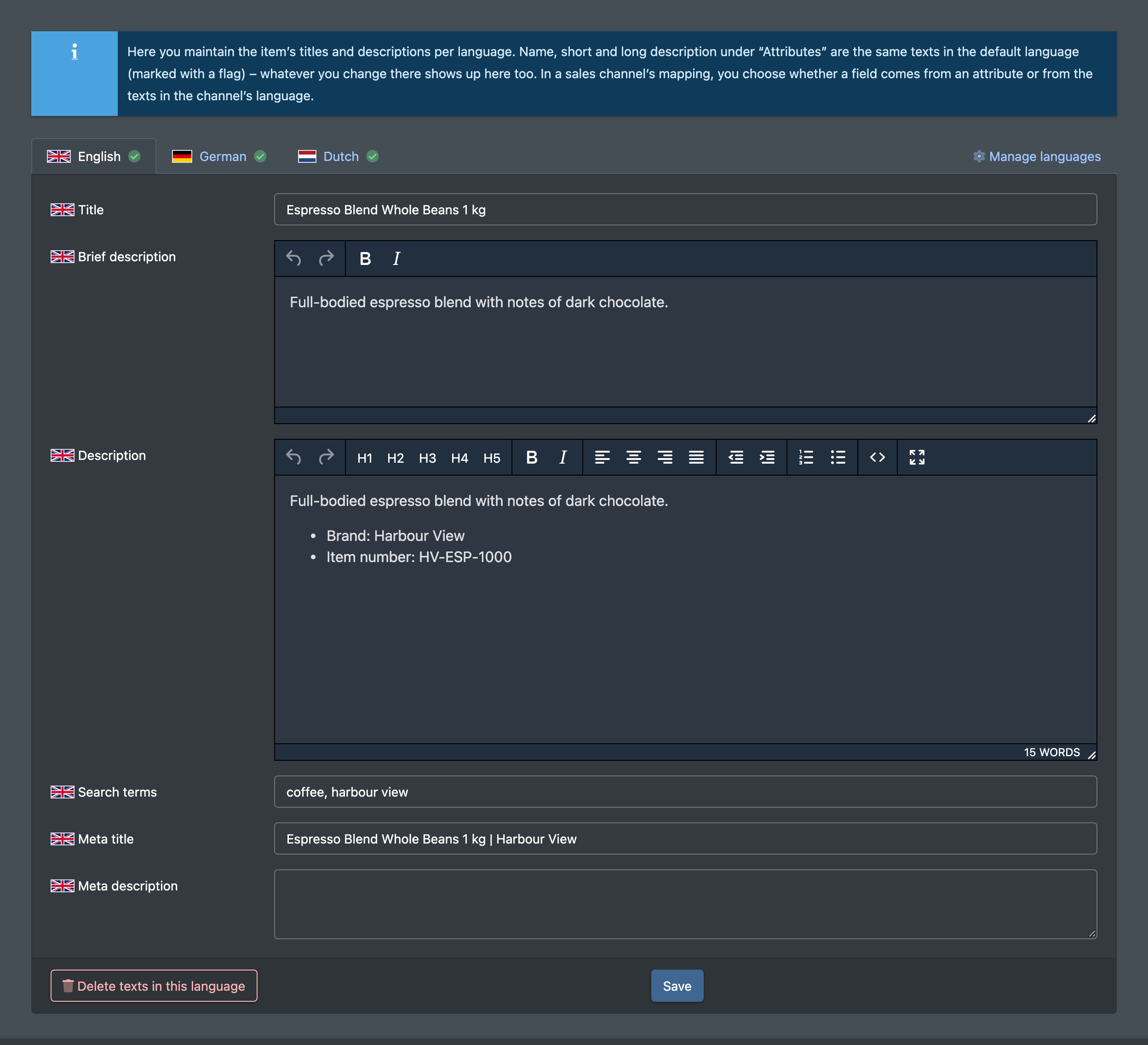
Here you maintain the texts of the article per language: Title (Titel), Brief description (Kurzbeschreibung), Description (Beschreibung), Search terms (Suchbegriffe), Meta title (Meta-Titel) and Meta description (Meta-Beschreibung).
- Name, short and long description in the Attributes tab are the same texts as the standard language (marked with a flag). What you change there also shows here.
- If no language exists yet, you see No language created yet (Noch keine Sprache angelegt). Create languages via Manage languages (Sprachen verwalten), see Article languages.
- Delete texts in this language (Texte dieser Sprache löschen) removes the texts of one language.
- In the mapping of a sales channel you choose whether a field comes from an attribute or from the texts in the channel's language.
Categories tab
- Use Assign a new category (Neue Kategorie zuweisen) to add a category.
- If the article has several categories, click Define as main category (Als Hauptkategorie definieren) on one of them. You see "The main category has been assigned" (Die Hauptkategorie wurde zugewiesen).
- Remove an assignment with its remove symbol.

Product group tab
The tab is labelled Category (Warengruppe) in the English interface.
- Pick a group under Assign Goods Group (Warengruppe zuweisen) and click Save. You see "The new product group has been saved" (Die neue Warengruppe wurde gespeichert).
- Or create a new group right here with Create a new product group (Neue Warengruppe anlegen).
More in Product groups.
PDF tab
Shows the PDFs stored for the article. If there are none, you see No PDFs stored (Keine PDFs hinterlegt).
Basic Values tab
Shows the SKU of the article.
Changing the SKU can lead to unwanted changes in reports and in history views.