
Set up channels, categories and mapping
With sales channels you offer your articles on marketplaces directly from X-Sitter. For each booked channel you decide in which categories your articles appear and where every field of the channel gets its value from – one of your attributes, a text in the channel's language, an image or a fixed value. X-Sitter then sends your articles to the marketplace with these values and keeps them up to date.
The setup has five steps: book the channel, enter the credentials, choose categories, map the fields, activate the channel. After that you choose per article whether it is offered on the channel.
Before you start
- Sales channels are activated for your company. Contact X-Sitter support to activate them. The menu then shows Catalogue › Sales channels (Katalog › Saleschannels).
- Your user needs the permissions for the sales channel pages (overview, booking, mapping, products) – ask your administrator.
- You have a merchant account on the marketplace and its credentials.
- Your attribute fields and languages are set up. See Attribute fields and Article languages.
- For image fields: your company uses the S3 image storage and your images are uploaded in full size. See
Images for sales channels .
Step by step
1. Book channels
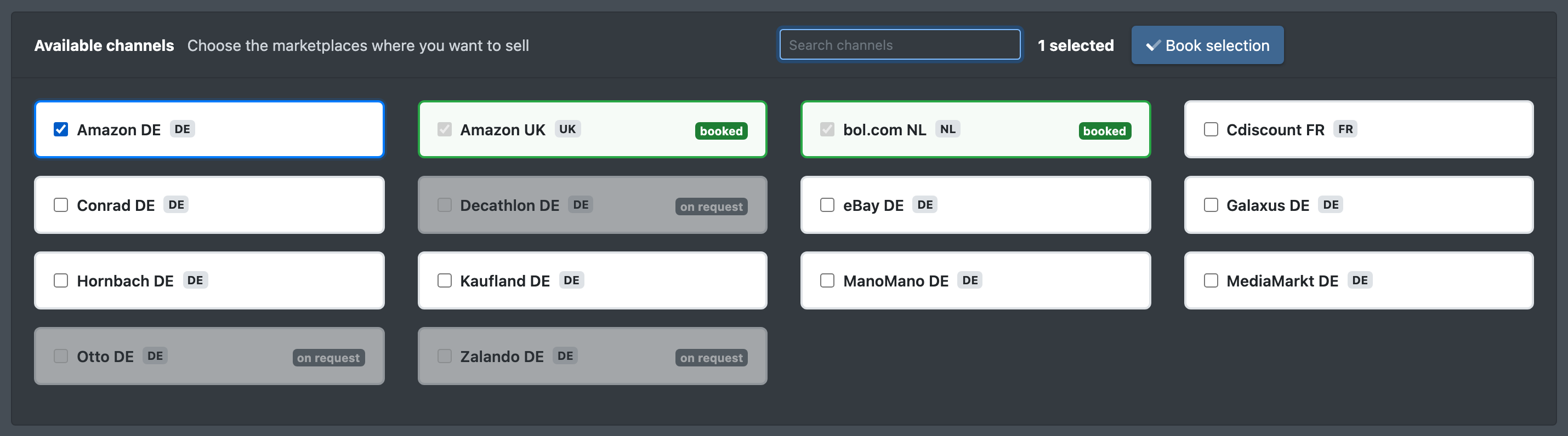
- Open Catalogue › Sales channels › Book channels (Katalog › Saleschannels › Kanäle buchen).
- Under Available channels (Verfügbare Kanäle), tick the marketplaces you want to sell on. Use Search channels (Kanal suchen) to find one. Channels marked on request (auf Anfrage) are set up on request – contact X-Sitter support.
- If your plan limits the number of channels, the header shows Included in your plan (In Deinem Paket enthalten), booked and free. See Billing and package.
- Click Book selection (Auswahl buchen) and confirm with Yes, book (Ja, buchen). The booking is binding; the order retrieval is switched on for every booked channel.
2. Enter the credentials
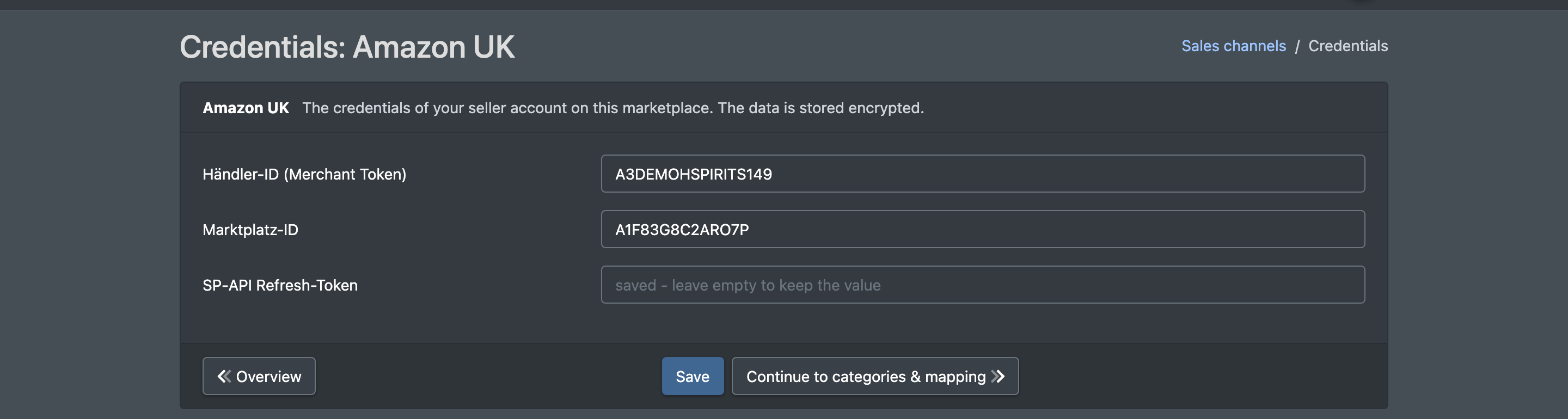
- Under My channels (Meine Kanäle), click Credentials (Zugangsdaten) on the channel card.
- Enter the credentials of your merchant account on this marketplace. They are stored encrypted. Saved secret fields show "gespeichert - leer lassen, um den Wert zu behalten" – leave them empty to keep the value.
- Click Save, then Continue to categories & mapping (Weiter zu Kategorien & Mapping).
3. Choose the language and the categories
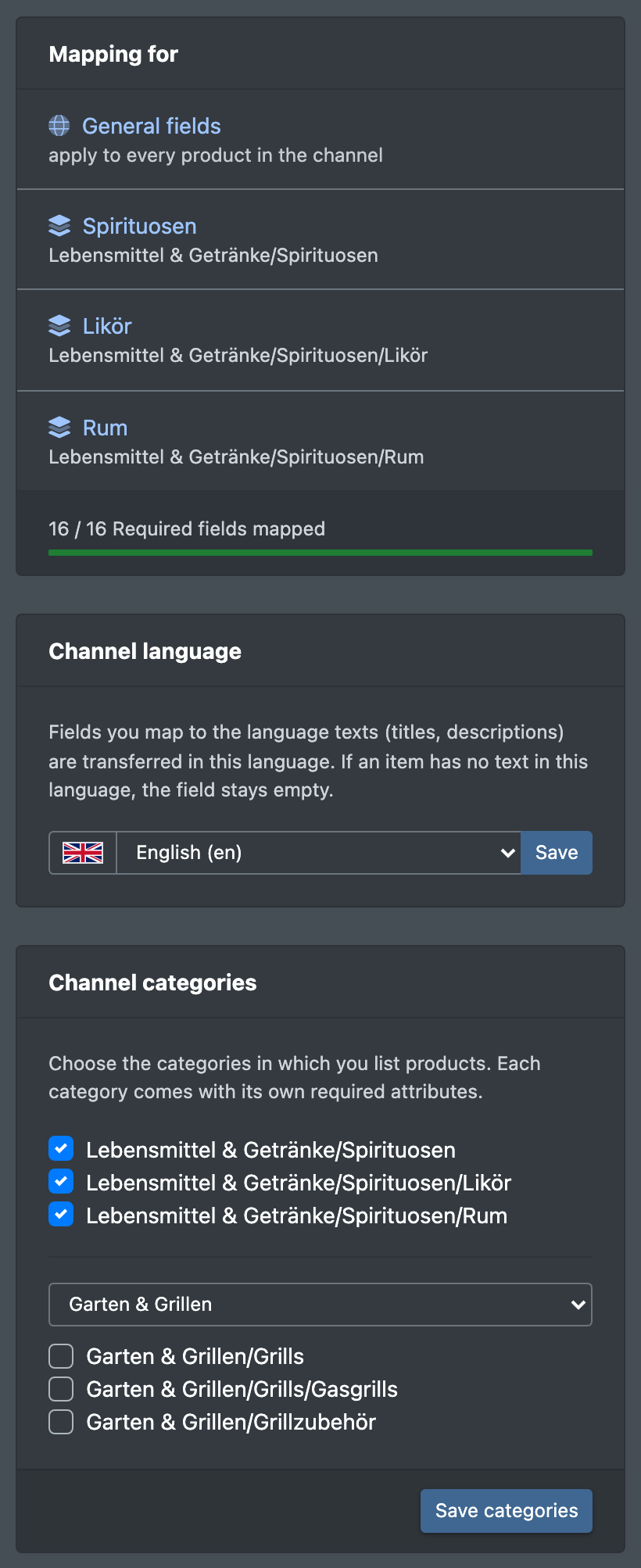
- On the page Categories & mapping (Kategorien & Mapping), choose the Channel language (Sprache des Kanals) and click Save. Fields you map to language texts (title, descriptions) are sent in this language.
- In the box Channel categories (Kategorien des Kanals), pick a main category under Select main category ... (Hauptkategorie wählen ...), filter the list and tick the categories in which you want to list products. Each category brings its own required attributes.
- Click Save categories (Kategorien speichern).
4. Map the fields
- Under Mapping for (Zuordnung für), choose General fields (Allgemeine Felder) – they apply to every product of the channel – or one of your categories for its additional fields.
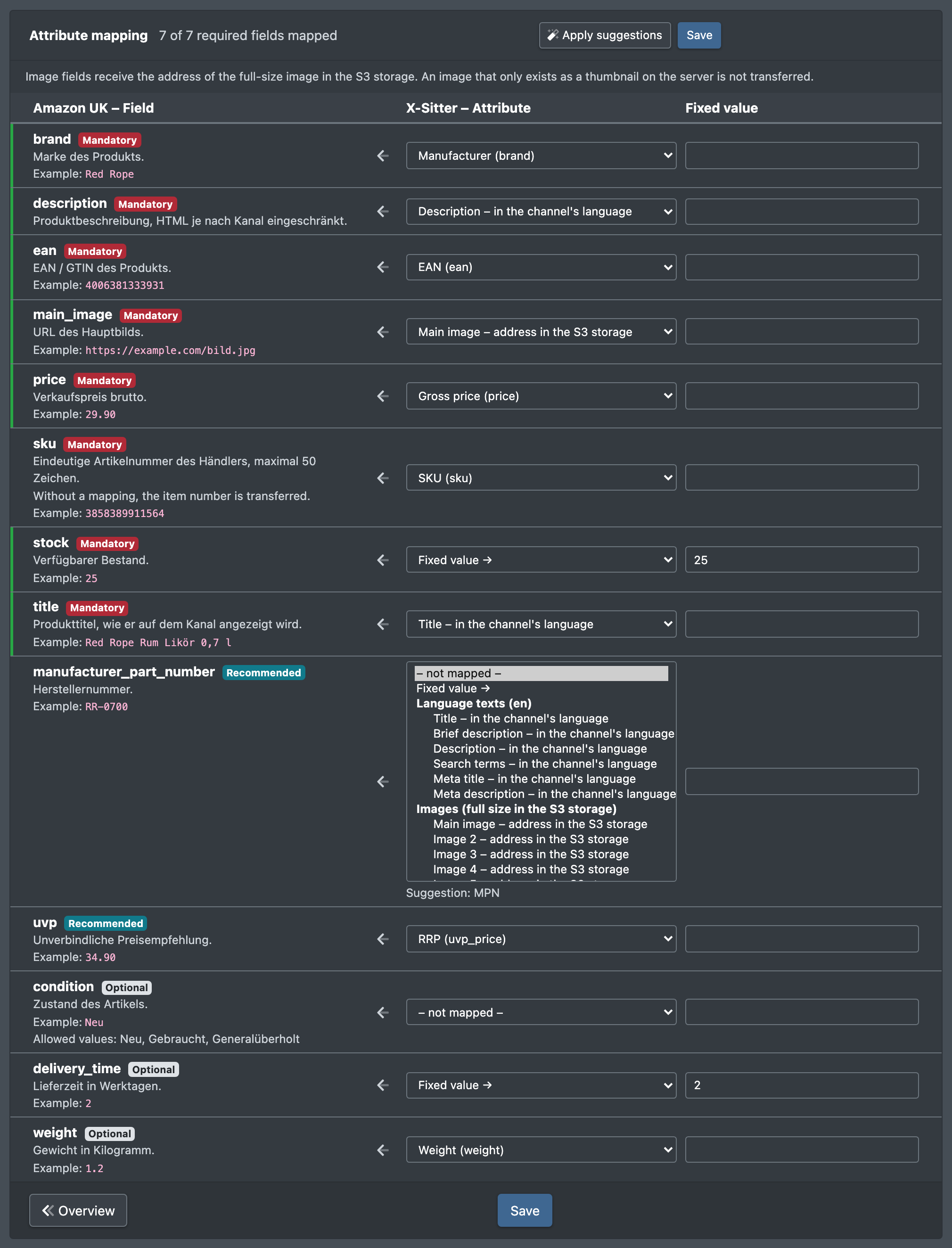
- In the table Attribute mapping (Attribut-Mapping), choose a source for every field of the channel:
- one of your attribute fields (grouped by attribute group),
- Fixed value (Fester Wert) – then enter or select the value in the right column,
- Language texts (Sprachtexte) – title, descriptions … in the channel language,
- Images (full size in the S3 storage) (Bilder (volle Größe im S3-Speicher)) – main image or image 2 to 10.
- Click Apply suggestions (Vorschläge übernehmen) to fill empty fields: image fields get the matching image, all other fields the attribute field with the same name.
- Click Save. The message "… Felder zugeordnet" shows how many fields are mapped.
- Repeat for every category. The progress bar shows how many required fields are mapped.
5. Activate the channel
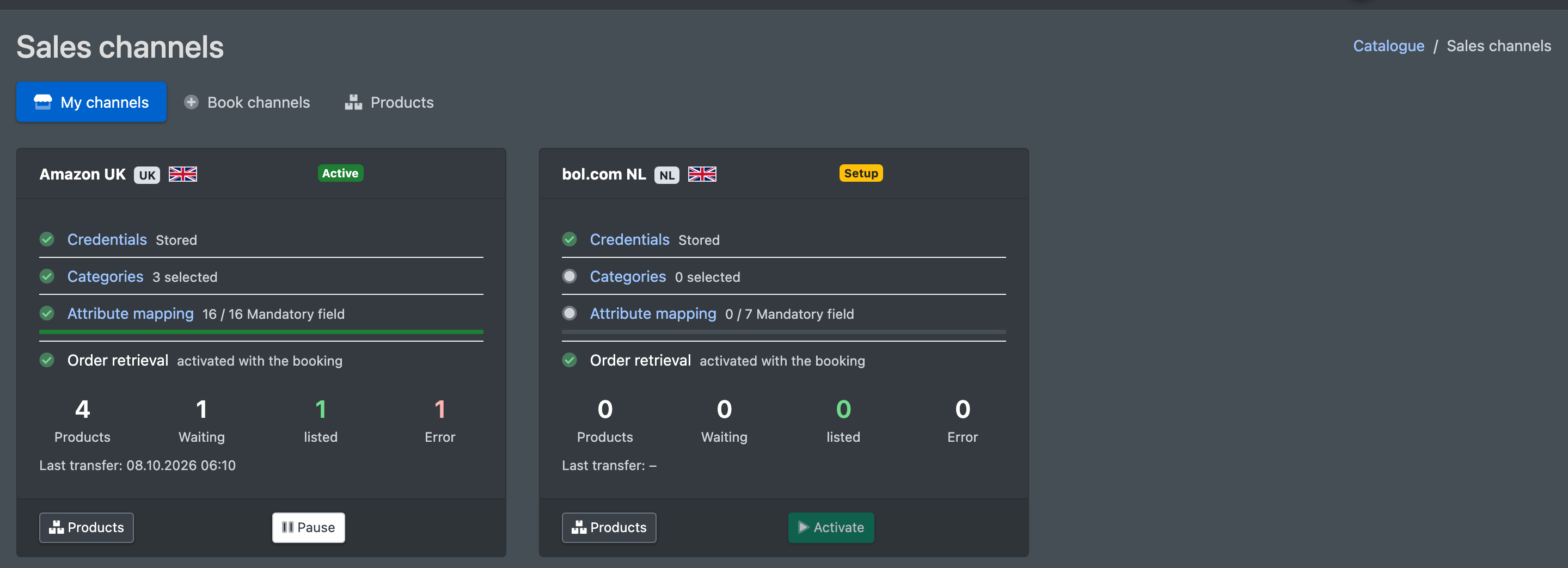
- Go back to My channels. The card shows a checklist: Credentials, Categories, Attribute mapping (with required fields mapped) and Order retrieval.
- As soon as everything is ticked, click Activate (Aktivieren). You can Pause (Pausieren) the channel at any time.
6. Offer articles on the channel
- Open an article and switch to the tab with the channel's name. The tab is green when the article is listed.
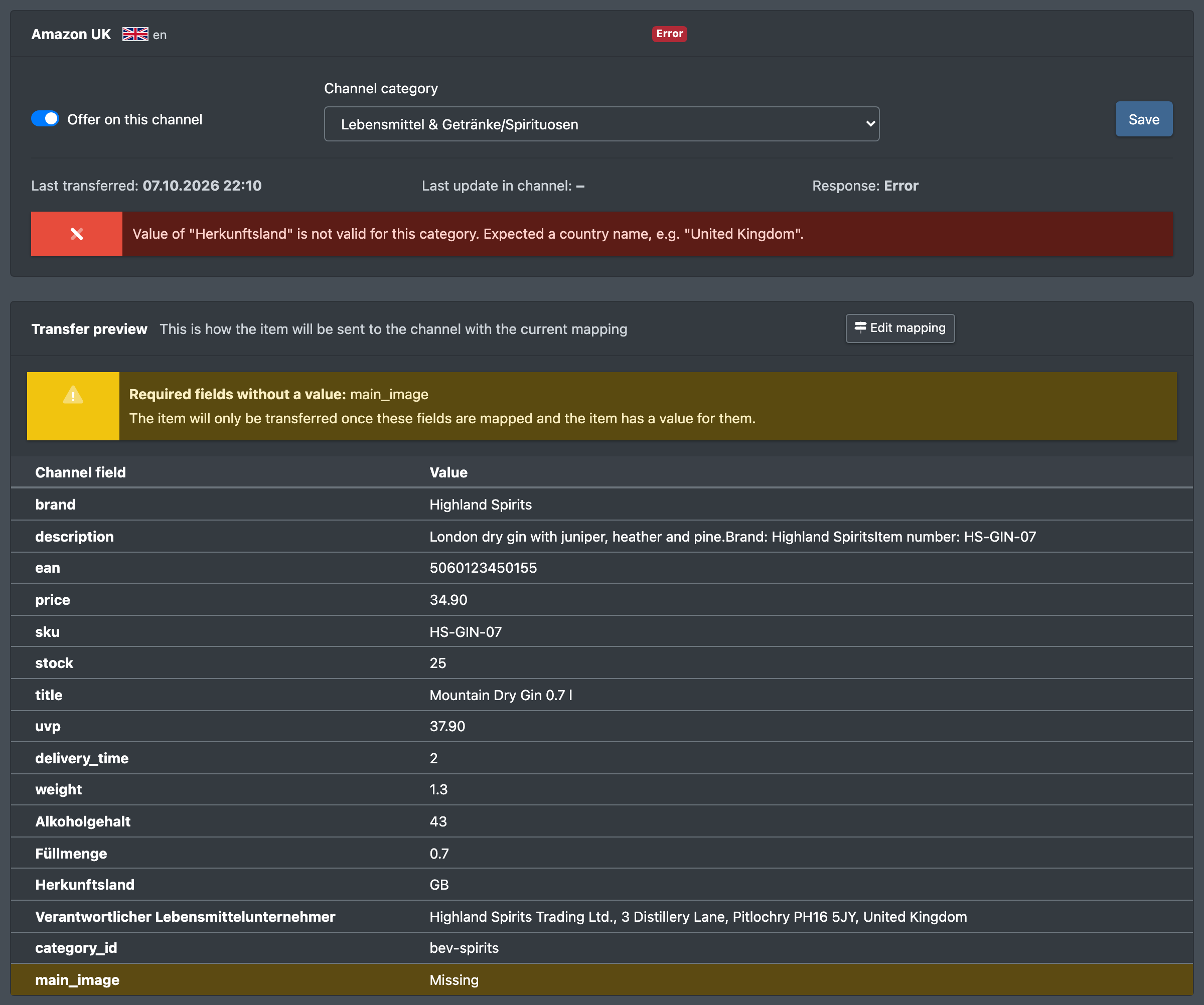
- Switch on Offer on this channel (Auf diesem Kanal anbieten) and choose the Channel category (Kategorie des Kanals).
- Click Save. The message "Gespeichert. Der Artikel wird mit der nächsten Übertragung gesendet." confirms that the article will be sent with the next transfer.
- Check the Transfer preview (Vorschau der Übertragung): it shows every channel field with the value that will be sent. Fields marked Missing (fehlt) still need a mapping or a value at the article. Use Edit mapping (Mapping bearbeiten) to jump to the mapping.
7. Check all products of a channel
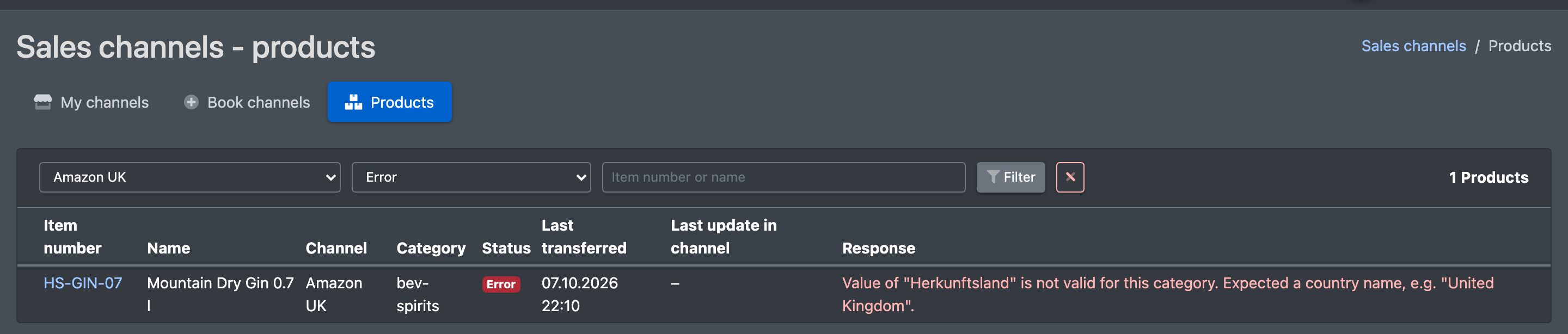
Open Catalogue › Sales channels › Products (Produkte). Filter by channel, status or item number/name. The list shows item number, name, channel, category, status, Last transferred (Zuletzt übertragen), Last update in channel (Letztes Update im Kanal) and the channel's Response (Rückmeldung) or error. Click the item number to open the channel tab of the article.
Fields and options
Where a field gets its value from
Some required fields show "Ohne Zuordnung wird die Artikelnummer übertragen." – without a mapping, the item number is sent.
Requirement badges of the channel fields
Fields may also show a description, an Example (Beispiel) and the Allowed values (Erlaubte Werte).
Statuses
Images for sales channels
Image fields receive the address of the image in full size in the S3 storage. The marketplace fetches the image from there.
- The S3 storage is set up by X-Sitter. Contact X-Sitter support if image fields stay empty.
- Upload the images in full size: Catalogue › Import › Upload product images (Produktbilder hochladen) with the option "volle Größe zu S3 (Original bis 1400 px) + Thumbnail". See Article images.
- Images that only exist as thumbnails (max. 400 px) are never sent.
- Only images of your own company or your logistician are used.
- A new image in full size, a deleted or replaced image automatically makes the article due again – it is sent with the next transfer.
Good to know
- Changes to an article (attributes, texts, images) are picked up automatically: the article is sent again with the next transfer.
- If a mandatory field has no value, the article is held back and the missing fields are shown in the article's channel tab.
- Remove booking (Buchung entfernen) under Book channels deletes the credentials, categories, mapping and the product list of this channel.
- How orders from the channel arrive and what is reported back: Marketplace orders.
- Prices for the channel come from the attribute you map to the channel's price field: Prices.