
Article languages
On the page Languages (Sprachen) you set up the languages in which you maintain the texts of your articles: title, descriptions, search terms and meta texts. You add as many languages as you need. One of them is your default language.
The languages are used in several places of the catalogue:
- In the Languages tab of an article you write its texts per language, see Edit an article.
- Every sales channel is served in one of these languages, see Categories & mapping.
- Import and export templates show one section Texts & categories per language, see Import templates and Export templates.
- Categories and product groups get a name field per language, see Categories and Product groups.

Before you start
- Your user needs the permission Languages (Sprachen) in the catalogue permissions. The menu item sits in the Attributes (Attribute) submenu, so you also need the permission for the attribute management. Ask your administrator if the entry is missing.
- The languages belong to the company you are logged in with. Every company – logistician and each client – keeps its own list.
Step by step
Open the page
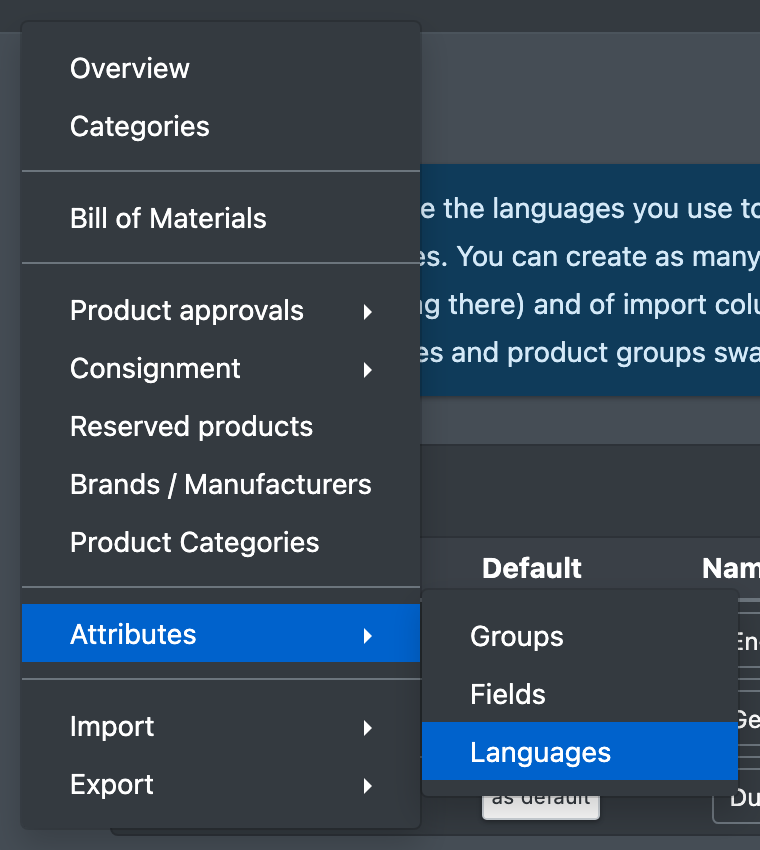
Open Catalogue › Attributes › Languages (Katalog › Attribute › Sprachen). You can also click Manage languages (Sprachen verwalten) or Create languages (Sprachen anlegen) in the Languages tab of an article.
Add a language
- Go to the box Add language (Sprache hinzufügen).
- Choose a Suggestion (Vorschlag), for example French (fr). X-Sitter fills in code, name and flag for you. For a language that is not in the list, leave – custom language – (– eigene Sprache –) and fill in the fields yourself.
- Check the Code (ISO) (Kürzel (ISO)) and the Name. Both are required.
- Choose a Flag (Flagge) if you like. A preview appears next to the list.
- Check the Order (Reihenfolge). It is pre-filled with the next number.
- Click Add (Anlegen). You see "The language was saved" (Die Sprache wurde gespeichert).
The first language you add automatically becomes your default language.

Change a language
- In the table Your languages (Deine Sprachen), change the Name, the flag under Select flag (Flagge wählen) or the Order in the row of the language.
- Click Save (Speichern) in the same row. You see "The language was saved".
The code of a language cannot be changed. If you add a language with a code that already exists, X-Sitter updates the existing language instead of creating a second one.
Set the default language
Click as default (als Standard) in the Default (Standard) column of the language. You see "The default language has been set" (Die Standardsprache wurde gesetzt). The default language now shows the green Default badge.
Remove a language
Click Remove (Entfernen) in the row of the language. You see "The language was removed" (Die Sprache wurde entfernt).
No confirmation
The language is removed immediately, without a confirmation dialog. The texts your articles have in this language are kept: if you add the language again with the same code, they show up again.
Fields and options
Good to know
- What the default language means:
- The name, short and long description in the Attributes tab of an article are the texts of the default language (marked with its flag).
- Import columns without a language go into the default language.
- The names of categories and product groups are written in the default language.
- Switching the default language: categories and product groups swap their name for the name in the new language wherever there is one. In the Attributes tab of an article, name and descriptions now show the texts of the new default language.
- Articles of a client use the default language of their owner as their main language.
- Removing the default language: the first remaining language in the order becomes the new default language.
- In the mapping of a sales channel you can only choose languages from this list. A field mapped to Language texts (Sprachtexte) stays empty if the article has no text in the channel language.