
Export templates (CSV & Excel)
Export article data as a CSV or Excel file with the columns, order and headings you define in an export template.
With export templates you download article data as a CSV or Excel file (.xlsx). A template stores which columns the file contains, in which order and with which heading, the file format and which articles are exported – all articles of your warehouse, only those of one client, or only active ones.
The fields have the same names as in the article import: a file you export can be read in again with an import template. Every row of the file is exactly one article.
Before you start
- Your user needs the permissions for the import menu, the export menu and the export templates – the Export menu is shown inside the import block. Ask your administrator.
- The attribute fields you want to export exist. The template offers only fields your company really has.
- For stock columns: your warehouses exist. See Stock overview.
- For texts and categories in several languages: the languages of your company (Catalogue › Attributes › Languages, Katalog › Attribute › Sprachen).
A client always exports only their own articles. Only the logistician can choose a client in the template.
Step by step
Create a template
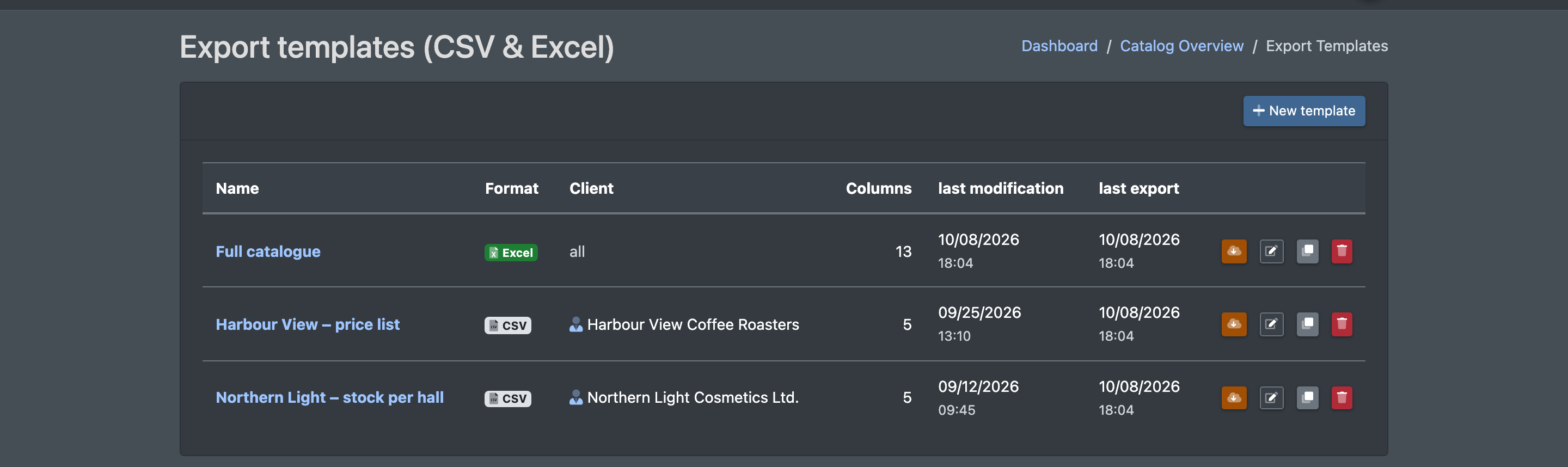
- Open Catalogue › Export › Templates (Katalog › Export › Vorlagen) and click New template (Neue Vorlage). A new template starts with Item Number (SKU) and Name in your default language.
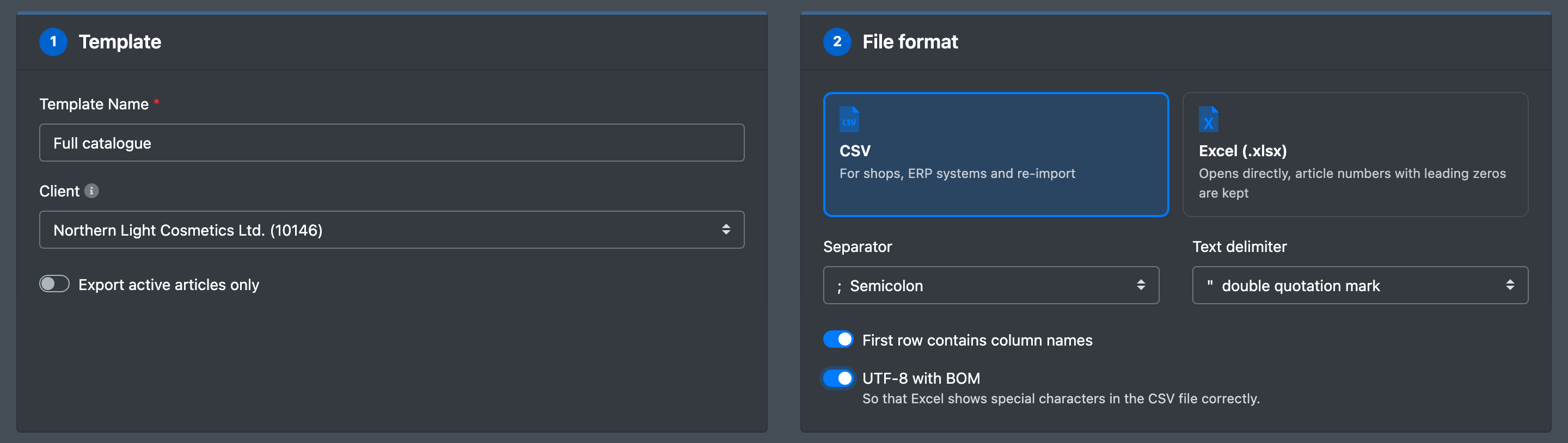
- 1 · Template (Vorlage): enter the Template Name (Name der Vorlage). Choose the Client (Mandant): — all articles — (— alle Artikel —) exports all articles of your warehouse, your own company under Logistician (Logistiker) exports only your own articles (articles without an owner), and a company under Clients (Mandanten) only that client's articles. The dropdown is shown to the logistician only. Switch on Export active articles only (Nur aktive Artikel exportieren) if inactive articles should be left out.
- 2 · File format (Dateiformat): click the card CSV or Excel (.xlsx).
- For CSV, also choose the Separator (Trennzeichen: semicolon, comma, tab or pipe) and the Text delimiter (Textbegrenzer). Switch on UTF-8 with BOM (UTF-8 mit BOM) if the file is opened in Excel – otherwise Excel shows umlauts and other special characters wrongly.
- First row contains column names (Erste Zeile enthält Spaltennamen) applies to both formats.
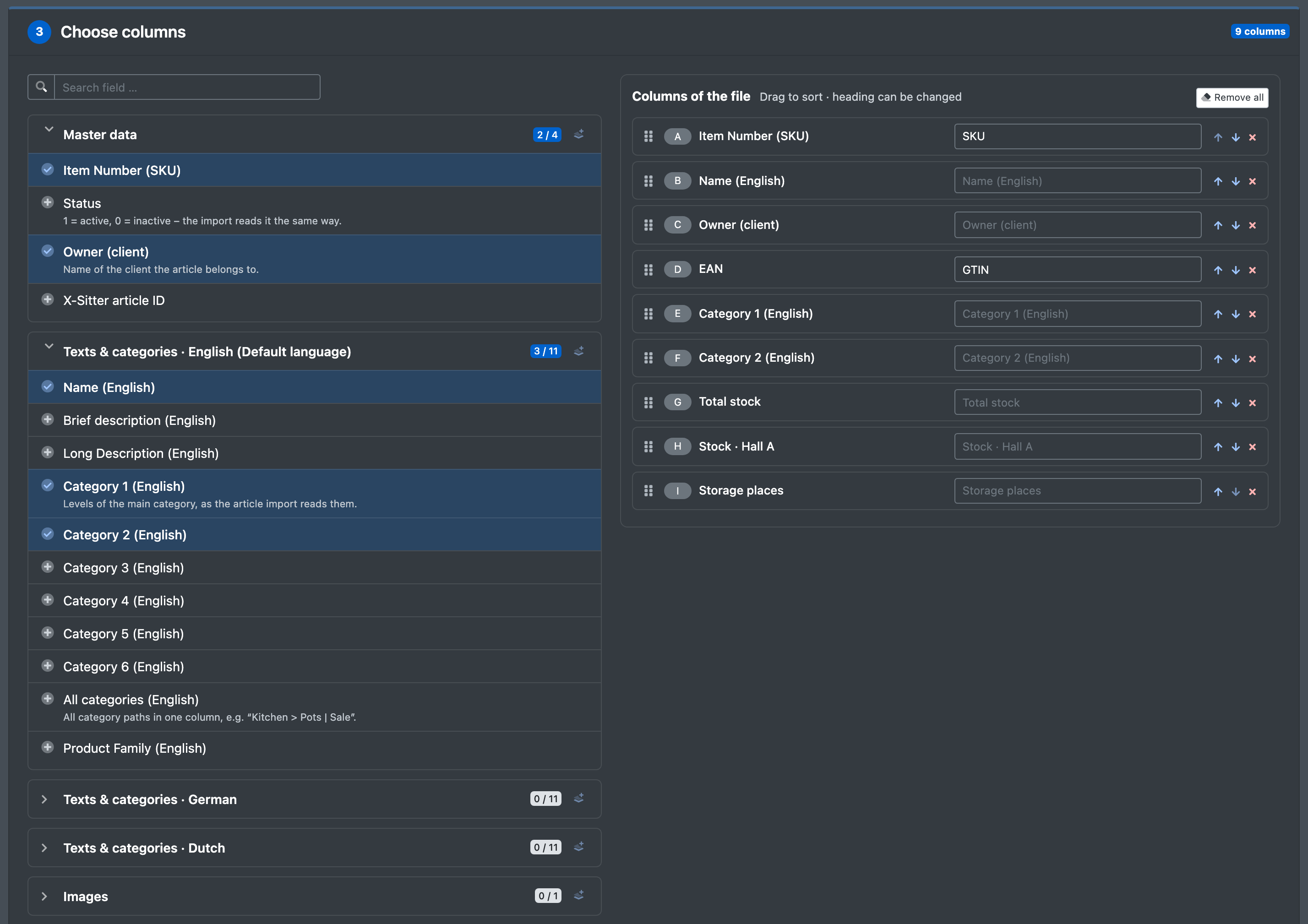
- 3 · Choose columns (Spalten wählen): on the left you see the fields in sections you can expand – Master data, Texts & categories · [language] (default language first), Images, Stock & storage places and Attributes · [group]. Each section shows how many of its fields are chosen ("x / y").
- Click a field to add it as the last column of the file; click it again to remove it.
- The icon in the section header adds all fields of the section (with a search, all fields found).
- Search field … (Feld suchen …) filters the fields by name.
- On the right, Columns of the file (Spalten der Datei) lists the columns with their letter as in Excel (A, B, C …):
- Drag a column by its handle or use the arrows to change the order.
- Type your own heading (Überschrift) into the field next to the column. Left empty, the column gets the name of the field.
- Remove a column with ×, or all columns with Remove all (Alle entfernen).
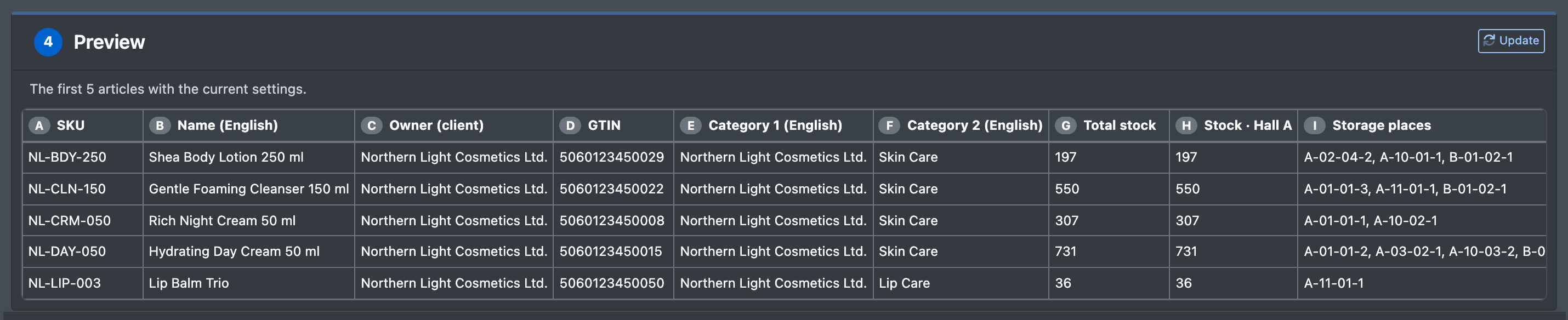
- 4 · Preview (Vorschau) shows the first 5 articles with the current, not yet saved settings. It updates with every change; Update (Aktualisieren) loads it again.
- Click Save template (Vorlage speichern) or Save & download (Speichern & herunterladen) in the bar at the bottom. If something is missing, Still needs to be filled in lists it (template name, at least one column).
Download a file
- In the overview, click Download file (Datei herunterladen, cloud icon) next to the template.
- You get the file
<template name>-<YYYY-MM-DD_HH-MM>.csvor.xlsx. The column last export (letzter Export) shows when it was downloaded last.
Duplicate (Duplizieren) creates a copy named "
Fields and options
Good to know
- The export runs immediately when you click the download – there is no waiting time and no background job. Even large catalogues with tens of thousands of articles are exported in a few seconds.
- CSV: line breaks inside a value become spaces, so every article stays on one line. Excel: texts stay texts – item numbers with leading zeros (e.g.
099340) are kept –, stock values are numbers, and the heading row is bold and stays visible when you scroll. - Templates created before October 2026 keep working without changes. Their fields are mapped to today's fields when you open or download them; categories now come as Category 1–6 of the main category in one row (earlier, the export wrote one row per category). Save the template once to store it in the new format.
- The client of a template is checked again with every download. If the client no longer belongs to your company, the template opens with a message and you can choose another client.
- To read article data automatically from your own system, the API may suit you better than a file download.