
Import templates (CSV & Excel)
Import templates let you read CSV and Excel files into X-Sitter. A template stores the import type, optionally the client, the file format and the mapping "column of the file → field in X-Sitter". Once saved, you can import any number of files with the same layout in a few clicks.
The most common use is the article import: create or update articles with attributes, categories, main image, product family and owner. The same tool also imports categories, manufacturers, bills of materials, storage places, stock and tracking numbers.
Before you start
- Your user needs the permissions for the import, the template list and creating templates – ask your administrator.
- For an article import, set up first:
- Attribute groups and attribute fields. The template shows your fields sorted by attribute group, plus the standard fields your company does not have yet ("Wird beim ersten Import für die Firma angelegt" – created for your company with the first import).
- Dropdown attributes with their values. Texts in the file are matched to the dropdown values (exact name first, then the first partial match, otherwise the raw value is stored).
- Clients, if you import for a client.
- The languages of your company (Catalogue › Attributes › Languages, Katalog › Attribute › Sprachen), if you import names and descriptions in several languages.
- Categories with an external ID, if you use the field External category ID. Categories in the fields Category 1–6 (Kategorie 1–6) are created automatically.
- File format: CSV (
.csv,.txt,.tsv) or Excel (.xls,.xlsx).
For Excel files, X-Sitter reads the active sheet – the one that was open when the file was last saved. Formulas are read as their result, date cells as YYYY-MM-DD, whole numbers without decimals (so EANs stay complete).
Step by step
Create a template
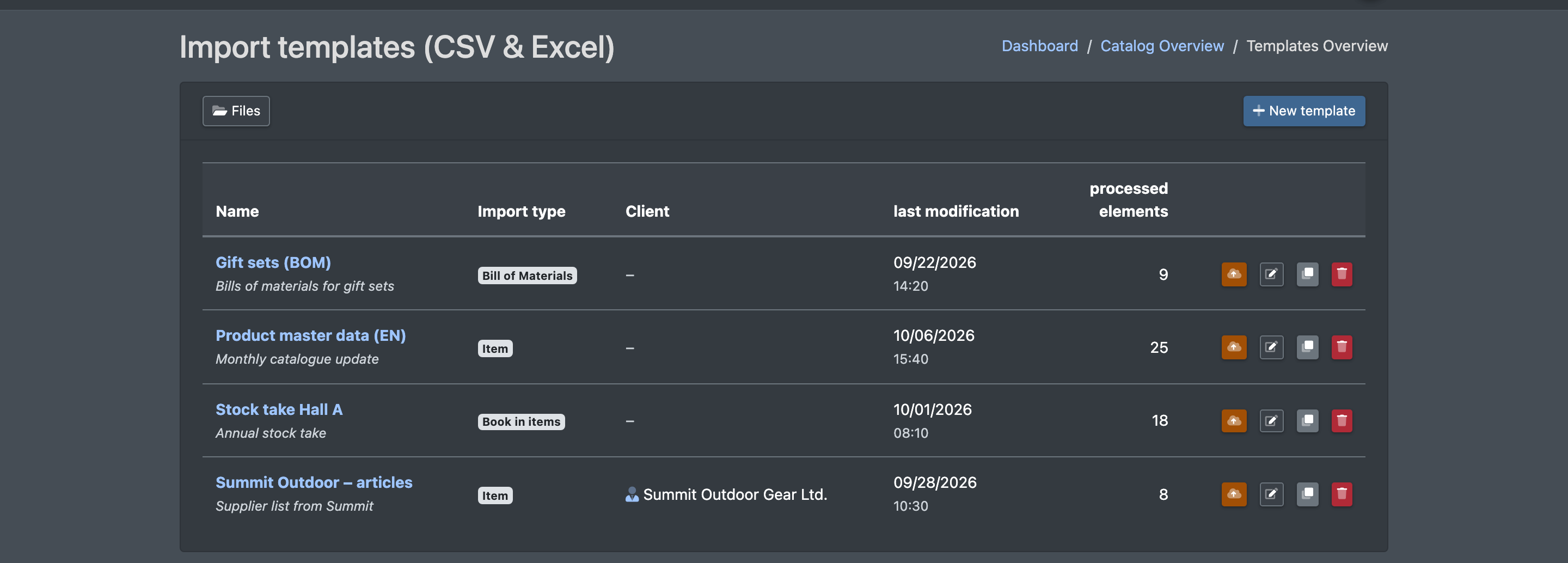
- Open Catalogue › Import › Templates (Katalog › Import › Vorlagen) and click New template (Neue Vorlage). Or go directly to Catalogue › Import › Create template (Vorlage erstellen).
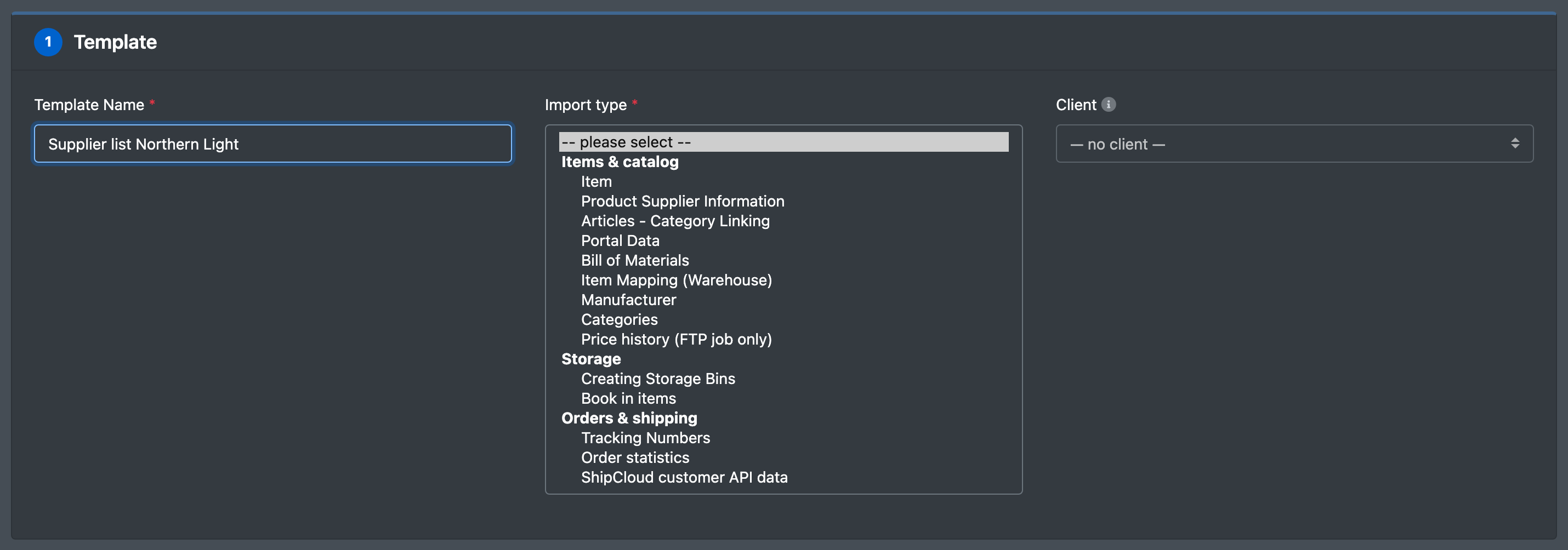
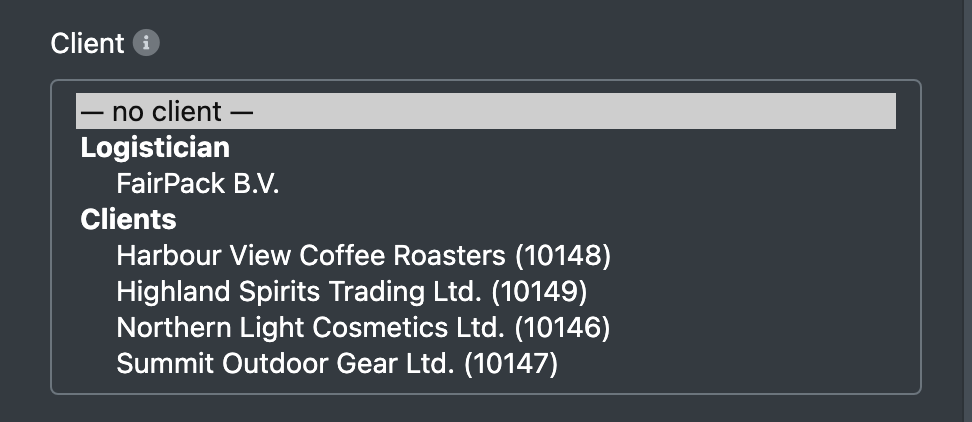
- 1 · Template (Vorlage): enter the Template Name (Name der Vorlage), choose the Import type (Import-Typ) and the Client (Mandant). The client dropdown is shown to the logistician only: it lists your own company under Logistician (Logistiker) and your active clients under Clients (Mandanten) – see
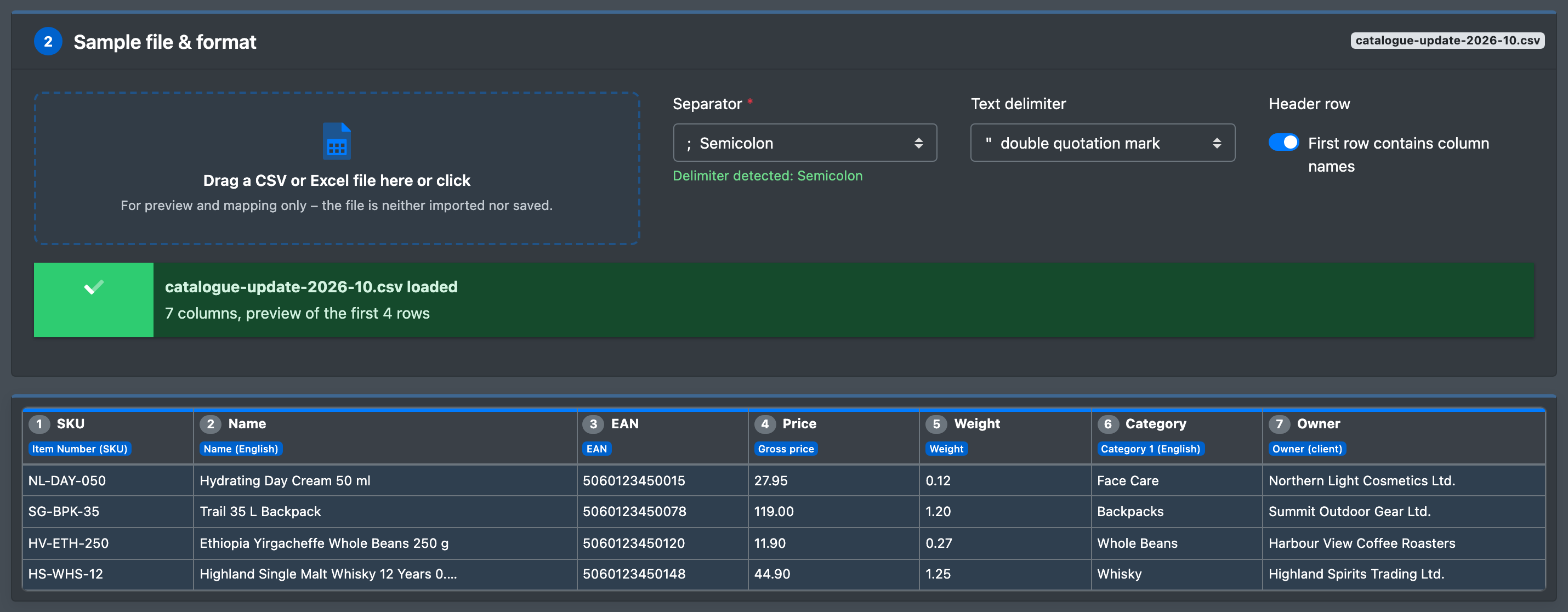
The client of a template . The types are grouped into Items & catalog (Artikel & Katalog), Storage (Lager) and Orders & shipping (Aufträge & Versand); a short text under the dropdown explains what the selected type does. - 2 · Sample file & format (Beispiel-Datei & Format): drag a sample file into the field Drag a CSV or Excel file here or click (CSV- oder Excel-Datei hierher ziehen oder klicken). It is only used for the preview and the mapping – it is neither imported nor stored. For CSV, X-Sitter detects the Separator (Trennzeichen) automatically; you can adjust it, the Text delimiter (Textbegrenzer) and First line contains column names (Erste Zeile enthält Spaltennamen).
- Check the preview. Mapped columns are highlighted in blue and show the name of their field. The preview stays at the top while you scroll through the mapping.
- 3 · Map columns (Spalten zuordnen): the fields are grouped in sections you can expand – Master data (Stammdaten), Images (Bilder), Texts & categories · [language] (Texte & Kategorien · [Sprache], default language first) and Attributes · [group] (Attribute · [Gruppe]). Each section shows a counter "x / y". For every field, choose the column of your file; an example value from the file is shown next to it.
- 4 · Import settings (Einstellungen des Imports) – only for some import types, see below.
- Click Save template (Vorlage speichern) in the bar at the bottom. If something is missing, Bitte noch ergänzen lists it (name, import type, separator, required fields). Otherwise you see The CSV import template has been successfully saved.
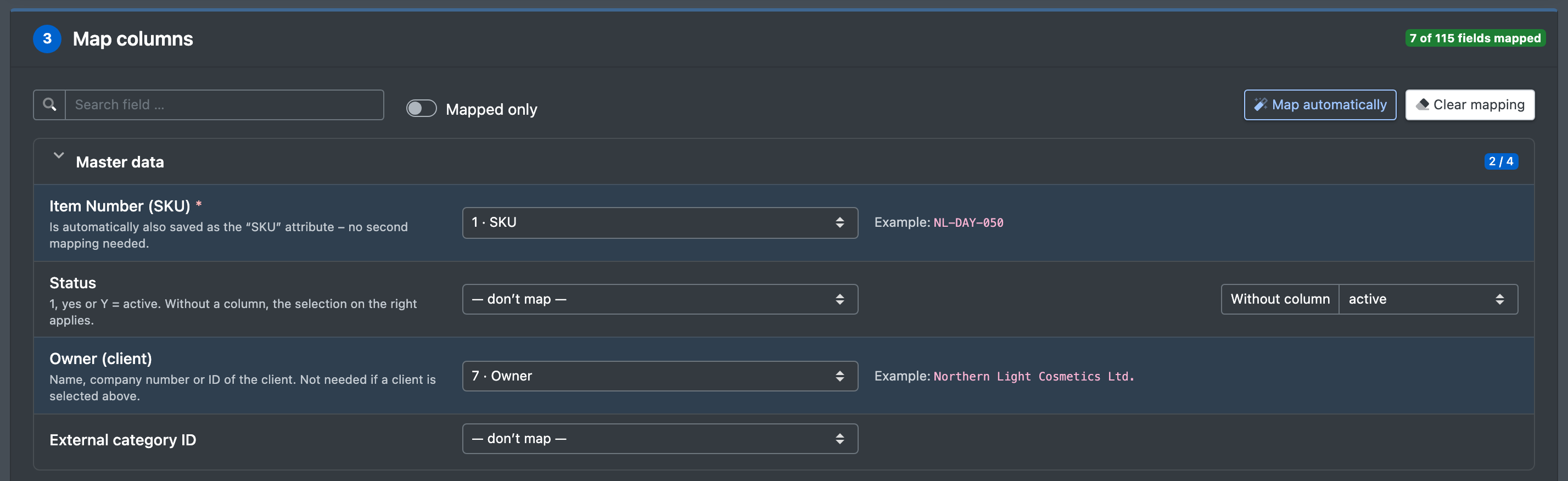
Helpers for the mapping:
- Auto-assign (Automatisch zuordnen) maps columns whose heading matches a field (e.g. "SKU" → Item Number (SKU)). For a new template this happens automatically when you load the file.
- Search field … (Feld suchen …), Only mapped (Nur zugeordnete) and Clear mapping (Zuordnung leeren).
- If one column is mapped to several fields, the field shows "Spalte auch zugeordnet zu: …" (column also mapped to …).
Import a file
- In the template overview, click Import File (Datei importieren, cloud icon) next to the template.
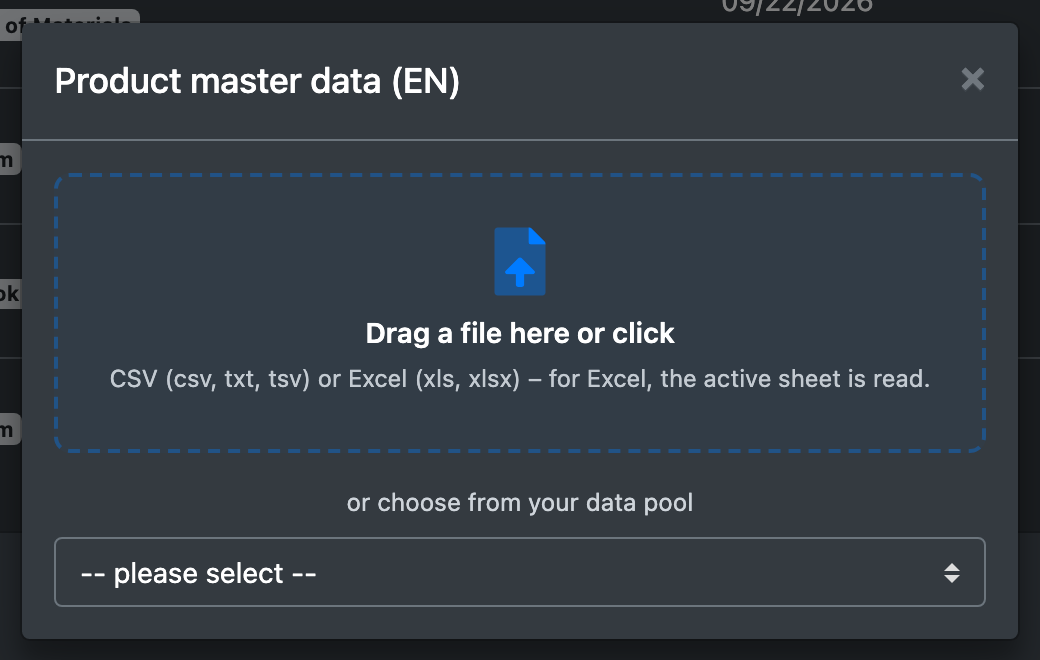
- Drag the file into the dialog or select it – or choose from your data pool (wähle aus Deinem Datenpool). The data pool lists your CSV and Excel files, newest first. You can upload files to it beforehand under Catalogue › Import › Files (Dateien).
- When the import is done, X-Sitter reports how many records were processed. For Book in items (Artikel einbuchen), the message also shows the pallet labels created and printed. The column verarbeitete Elemente (processed items) in the overview shows the number of the last run.
Edit, duplicate or delete a template
- Click the name or Edit (Bearbeiten) to change a template.
- Duplicate (Duplizieren) creates a copy "[name] (Kopie)" and opens it right away so you can rename it.
- Delete (Löschen) asks Should the template really be deleted? and then confirms The template has been deleted.
Load a new file into an existing template
When you load a new sample file into a saved template, the mappings follow their column by column name. If the new file has a different column order or extra columns, the mappings move along; empty fields with an exactly matching column name are filled in. Fields whose column no longer exists are listed under "Ohne passende Spalte, bitte zuordnen: …" (no matching column, please map). This only works with a header row – without column names, the column numbers stay.
One template works for both formats: the same template can read a CSV or an Excel file. Separator and text delimiter only apply to CSV.
Import types
For Creating Storage Bins and Book in items, the section Bin name from parts (Platzname aus Teilen) lets you build the place name from up to eight columns. The parts are joined with "-"; parts from the second one on are padded with leading zeros to the number of digits you choose.
The client of a template
The dropdown offers two groups: Logistician (Logistiker) with your own company and Clients (Mandanten) with your active clients.
- — no client — (— kein Mandant —): the column Owner (client) decides; without that column, the articles belong to your own company.
- Logistician: every row belongs to your own company – only your own articles (articles without an owner) are found or created. The owner column is ignored as well.
- A client: as in the table above.
The dropdown is shown to the logistician only – a client who is logged in always imports for themselves. See also Article owner and client access.
Fields for the article import
Older templates show their mappings at the new fields when you open them (for example "SKU" as attribute → Item Number (SKU), names and descriptions without a language → the field of the default language). Save the template to store them there.
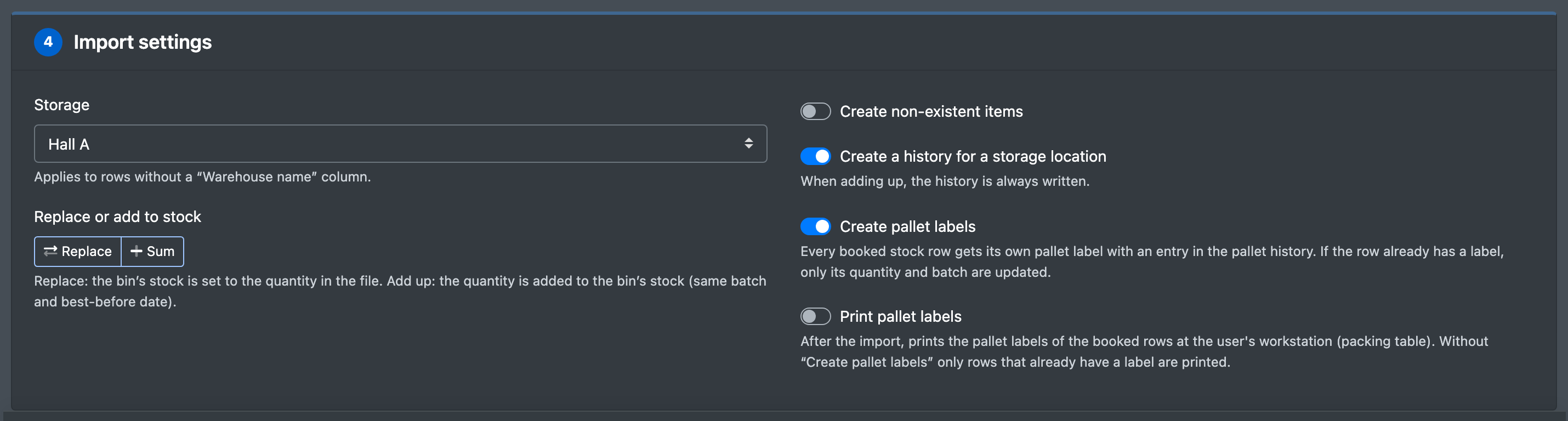
Settings for "Book items"
Labels are printed only after the whole import has been saved. If the import fails, no label is created or printed. See also Pallet overview.
Settings for "Portal Mapping"
The import type Portal Mapping (Portal-Mapping) writes the same values as the Portal Mapping card in the article's Mapping tab (see Article mapping) – for many articles at once. One row of the file is one article.
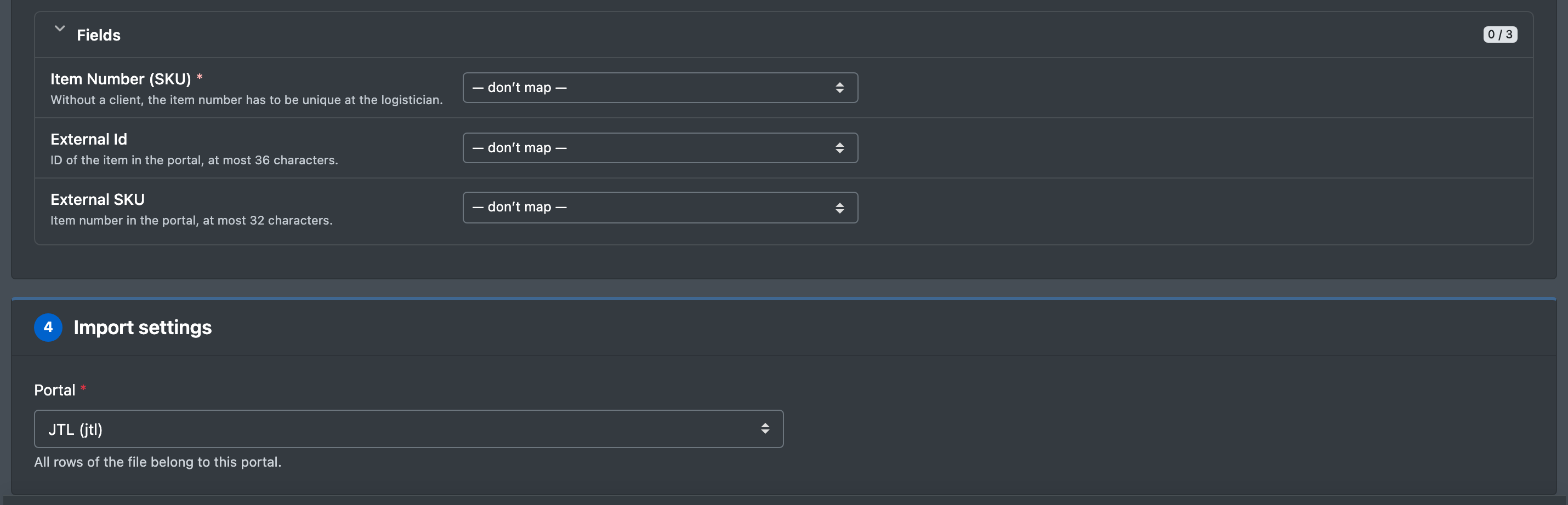
- Empty cells keep the current value. An existing mapping of the article in this portal is updated only in the columns you filled in; nothing is deleted.
- Unknown item numbers are skipped. If an item number exists for several owners and the template has no client, the import stops and names the row – choose the client in the template.
- Item numbers made of digits with a decimal separator are searched in both spellings: a file with
122.68(as a JTL export or a spreadsheet writes it) also finds the article122,68– the spelling X-Sitter and JTL use. Item numbers with letters (B6.2) are searched exactly as written. - A new portal mapping always belongs to the logistician, also for a client's article.
Good to know
- An import is all or nothing: if one row fails, nothing is saved and the message names the row ("Zeile N: … Es wurde nichts gespeichert.").
- The import runs directly in your browser – keep the page open until the message appears.
- Article numbers are unique per company and owner. A different owner creates a separate article with the same SKU.
- The template stores the first rows of the sample file so that columns and example values are visible again the next time you open it.
- For order files, use the separate order import templates.
- After an article import, you may want to add images or book stock (Putaway).