
Article owner and client access
Set which client an article belongs to so that it appears in that client's catalogue.
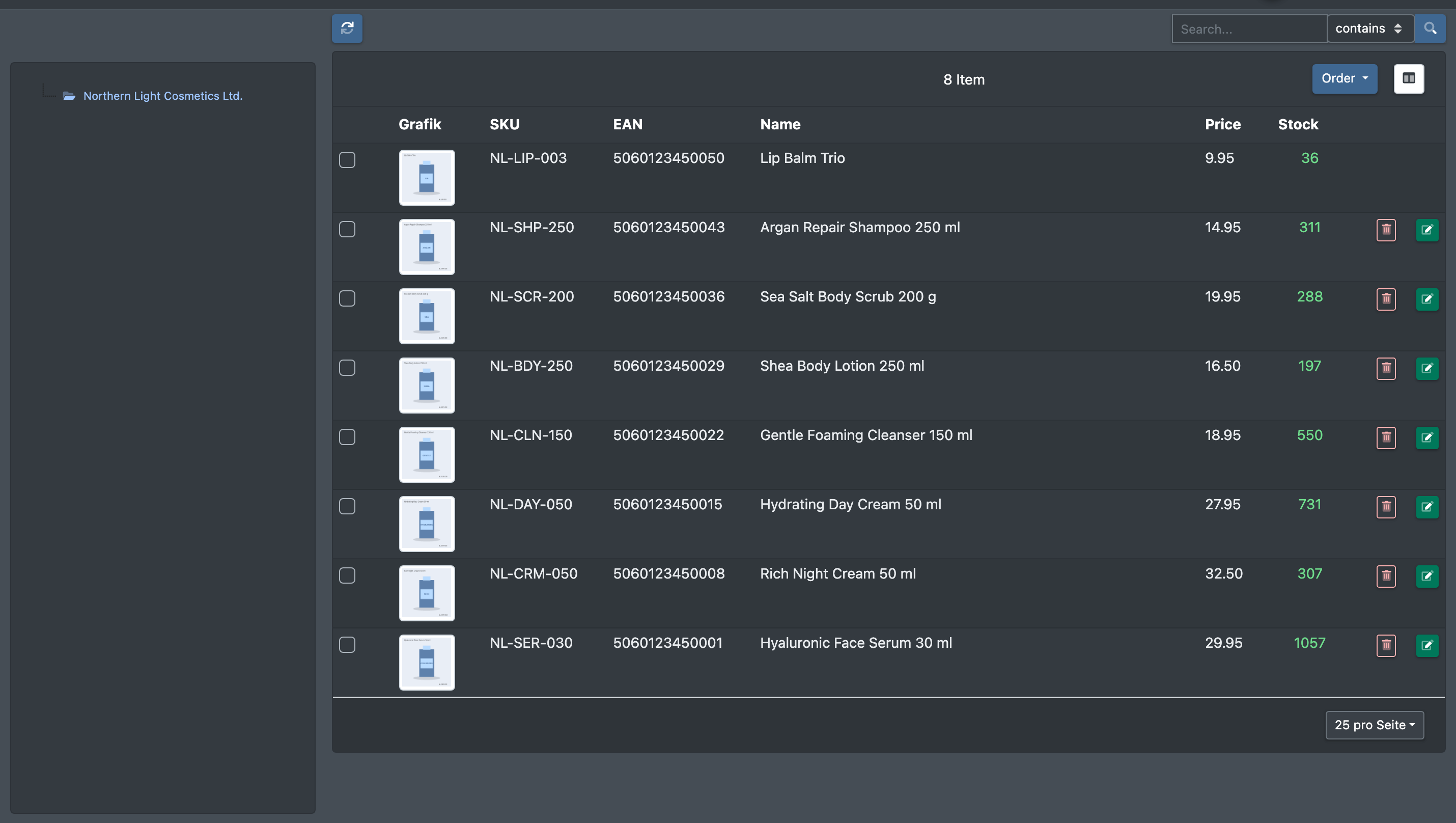
As a logistician you keep the articles of many clients in one catalogue. Every article can have an owner – the client it belongs to. Your clients see exactly the articles they own in their own catalogue, read-only. Articles without an owner are your own articles and are not visible to any client.
You can set the owner in three ways: in the article itself, through the attribute Owner (Eigentümer), or when importing articles.
Before you start
- Your company has at least one client. Without clients, the tab Permissions (Freigaben) is not shown. See Clients.
- Your user needs the permission for the share settings of articles (in the Products section of the rights tree) – ask your administrator.
- For the attribute or import route: an attribute field with the slug
ownerexists. See Attribute fields.
Step by step
Option A: Set the owner in the article
- Open the article from Catalogue › Overview (Katalog › Übersicht). See Edit an article.
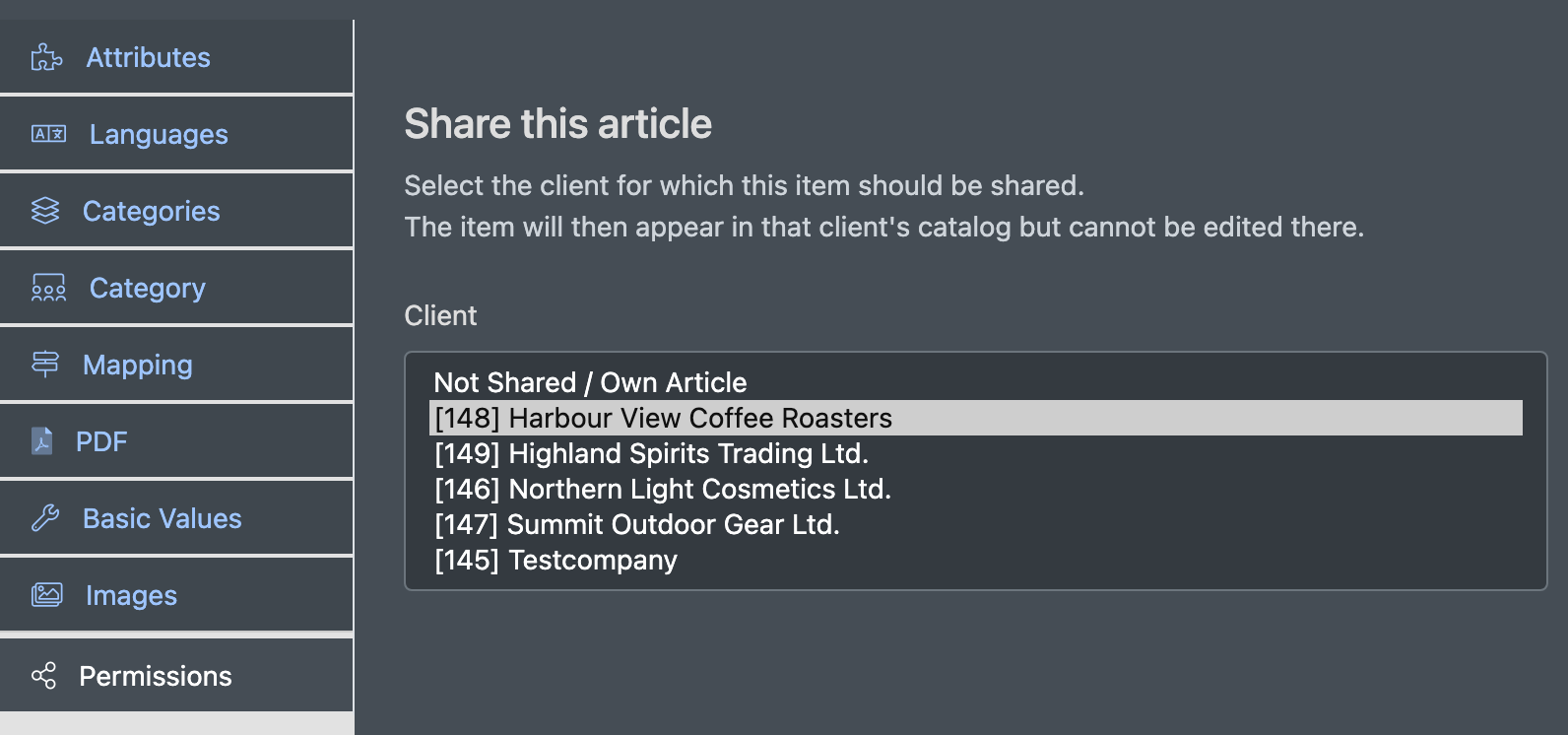
- Switch to the tab Permissions (Freigaben).
- Under Client (Mandant), choose the client the article belongs to. Choose Not Shared / Own Article (Keine Freigabe / Eigener Artikel) if the article is your own.
- Click Share this article (Artikel freigeben).
- The message Approval has been saved (Freigabe wurde gespeichert) confirms the change.
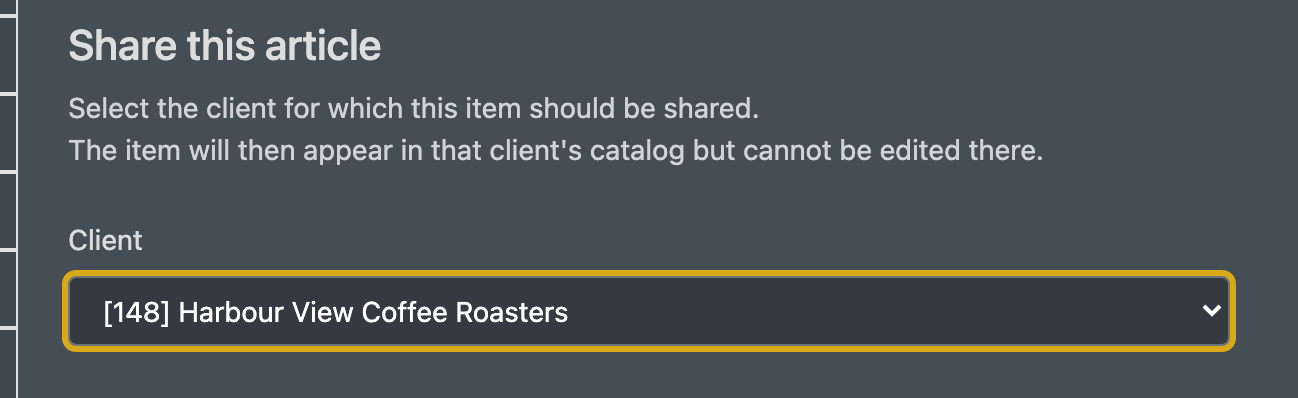
The hint in the tab sums it up: the article appears in the client's catalogue, but the client cannot edit it.
Option B: Set the owner through the attribute
- Open the article and switch to the tab Attributes (Attribute).
- Set the field Owner (Eigentümer) to the client.
- Click Save. The article now belongs to this client.
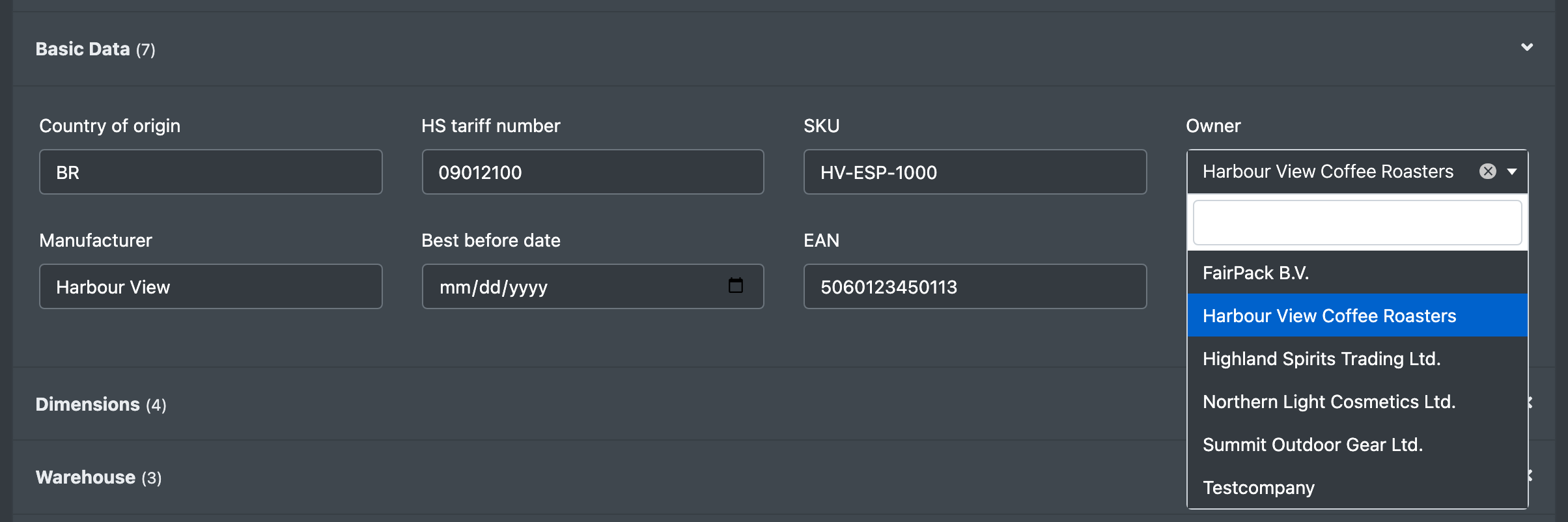
You can set the same field when you create an article.
Option C: Set the owner during the import
In an article import template you have two choices:
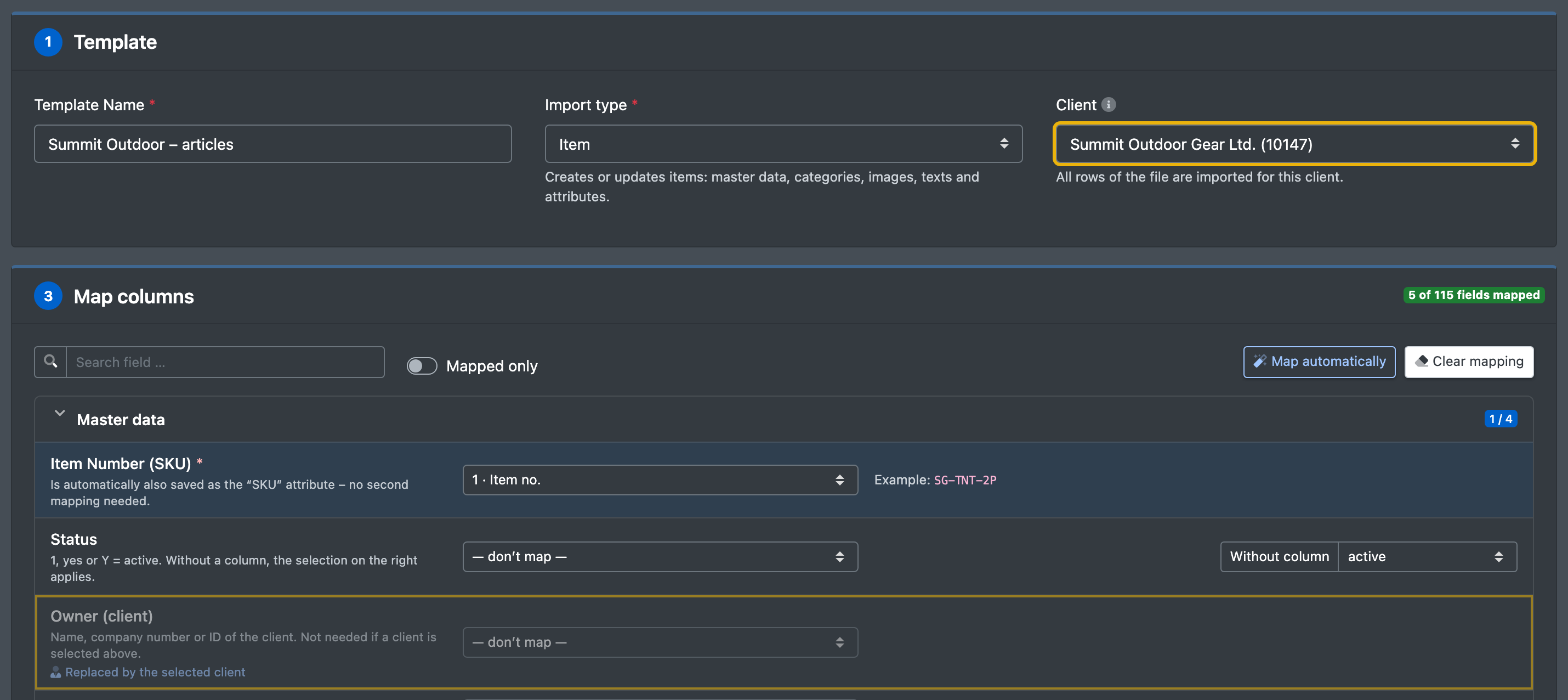
- Choose a Client (Mandant) for the whole template – every row of the file becomes an article of this client.
- Or map a column to Owner (client) (Eigentümer (Mandant)). The column may contain the client's company ID, company number or company name.
Details: Import templates.
Fields and options
Who sees what
Good to know
- Article numbers (SKU) are unique per company and owner. Two clients can therefore have an article with the same SKU – they are two separate articles.
- The owner also decides whose stock it is in the warehouse, and it is used by export templates with a client filter (Export templates) and by consignment.
- If you see duplicate articles after an import, check whether the owner differs: the same SKU with a different owner creates a separate article.