
Article shares
Share your own articles with partner companies, keep a minimum stock for yourself and set a selling price per partner.
With article shares you make your own articles available to other companies – for example a partner who sells your goods on a consignment basis. For every shared article you decide how much stock you keep for yourself, whether the share is active and at which price each partner gets the article.
The other way round, All approvals (Alle Freigaben) shows you the articles that connected companies have shared with you, together with their available stock and price.
Before you start
- Your user needs the permission for article shares; to change a share, also the permission to edit shares (both in the Products section of the rights tree) – ask your administrator.
- The partner connection between your company and the other company must exist. It is set up by X-Sitter – contact X-Sitter support if you want to start sharing articles with a partner.
- The articles exist in your catalogue. See Create an article.
Shares are about other companies. If you, as a logistician, want a client to see an article in their catalogue, set the article owner instead: Article owner and client access.
Step by step
See your own shares
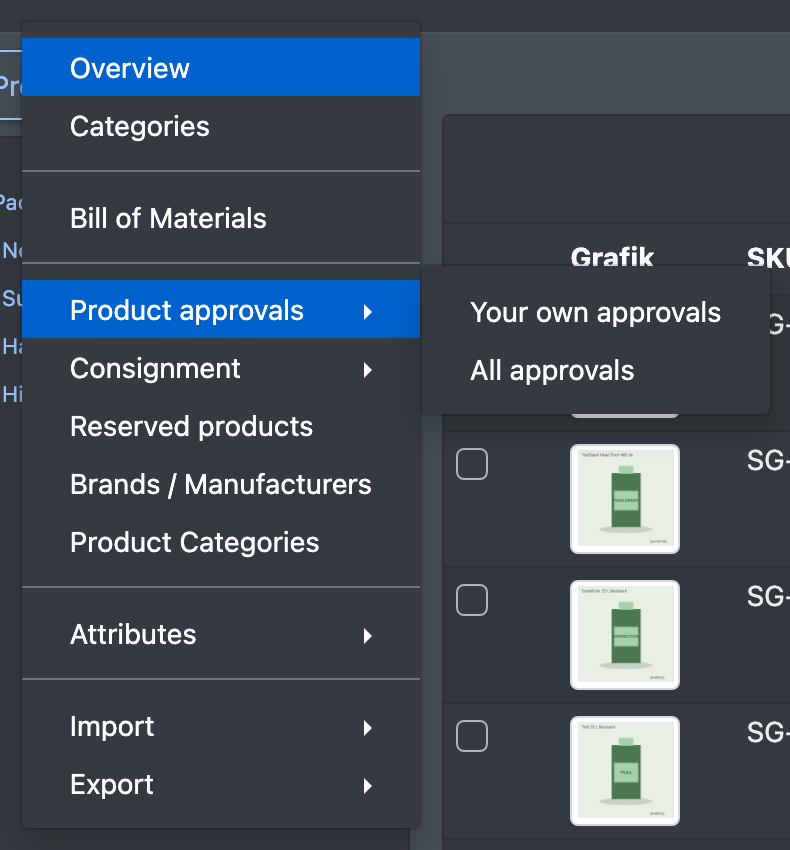
- Open Catalogue › Product approvals › Your own approvals (Katalog › Artikelfreigaben › Eigene Freigaben).
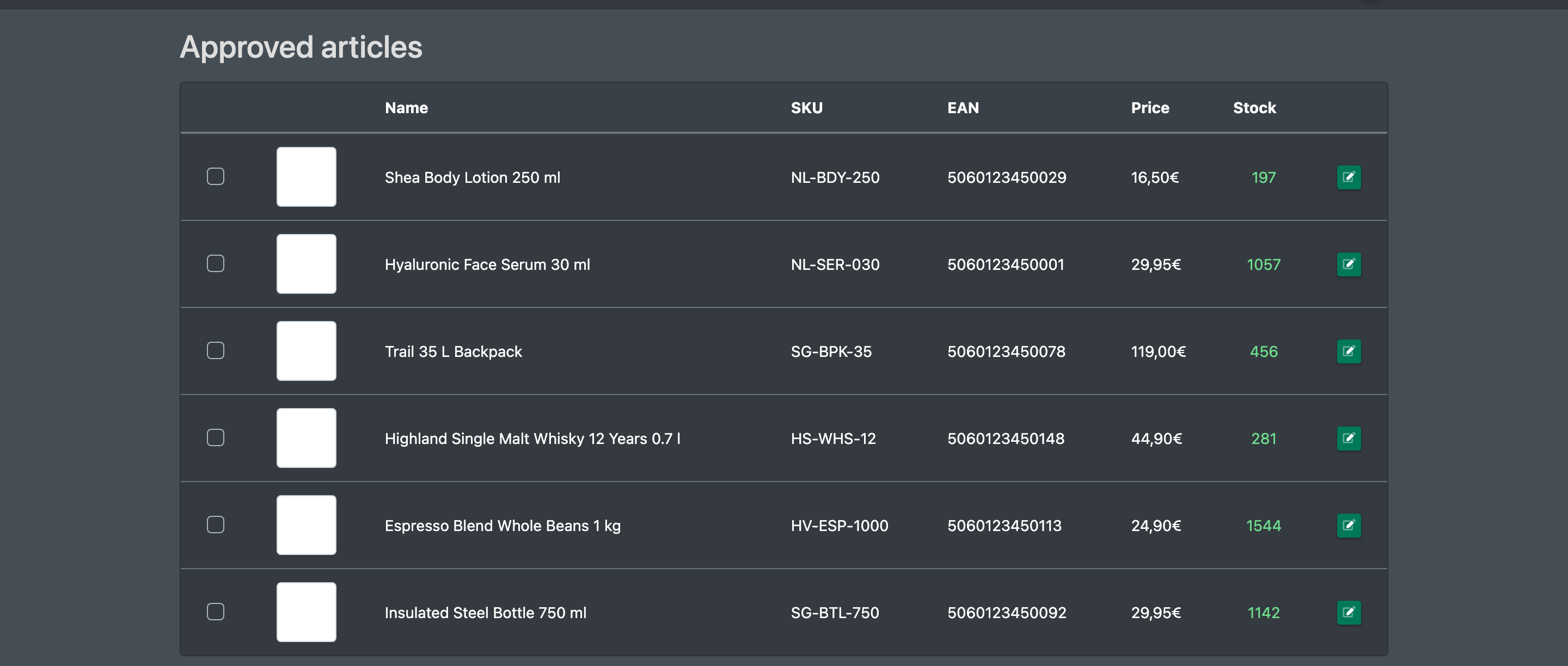
- The list Approved articles (Freigegebene Artikel) shows SKU, EAN, name, price and stock of every article you share.
- Shared articles also carry the badge approved (freigegeben) in the article overview.
Edit a share
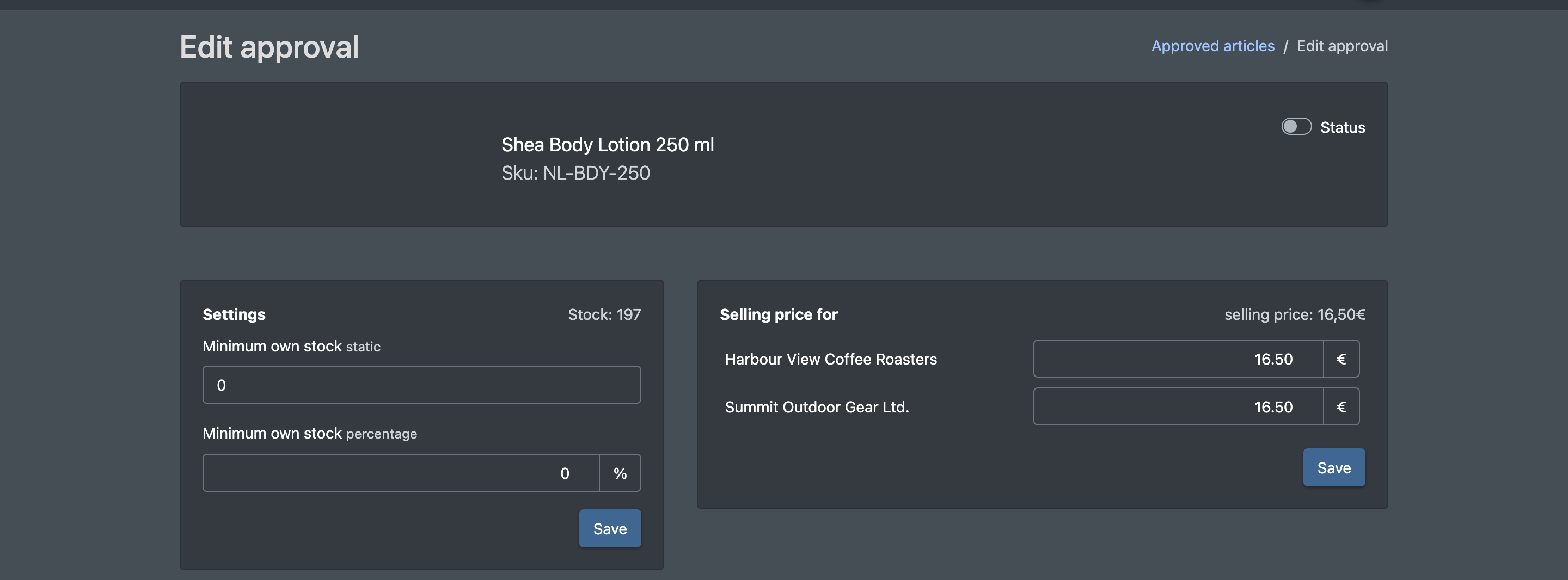
- In Your own approvals, click the edit button of the article. The page Edit approval (Freigabe bearbeiten) opens.
- In the Settings (Einstellungen) box, enter the Minimum own stock (Mindest-Eigen Bestand) you want to keep for yourself – as a fixed quantity (static, statisch) and/or as a percentage (prozentual). If you fill in both, the higher of the two quantities is kept.
- Click Save. The message All values have been saved (Alle Werte wurden gespeichert) appears.
- Switch the Status on to activate the share. The message The new status has been set (Der neue Status wurde gesetzt) appears.
- For every partner company, enter the Selling price for (Verkaufspreis für) … and click Save.
See what others share with you
- Open Catalogue › Product approvals › All approvals (Katalog › Artikelfreigaben › Alle Freigaben).
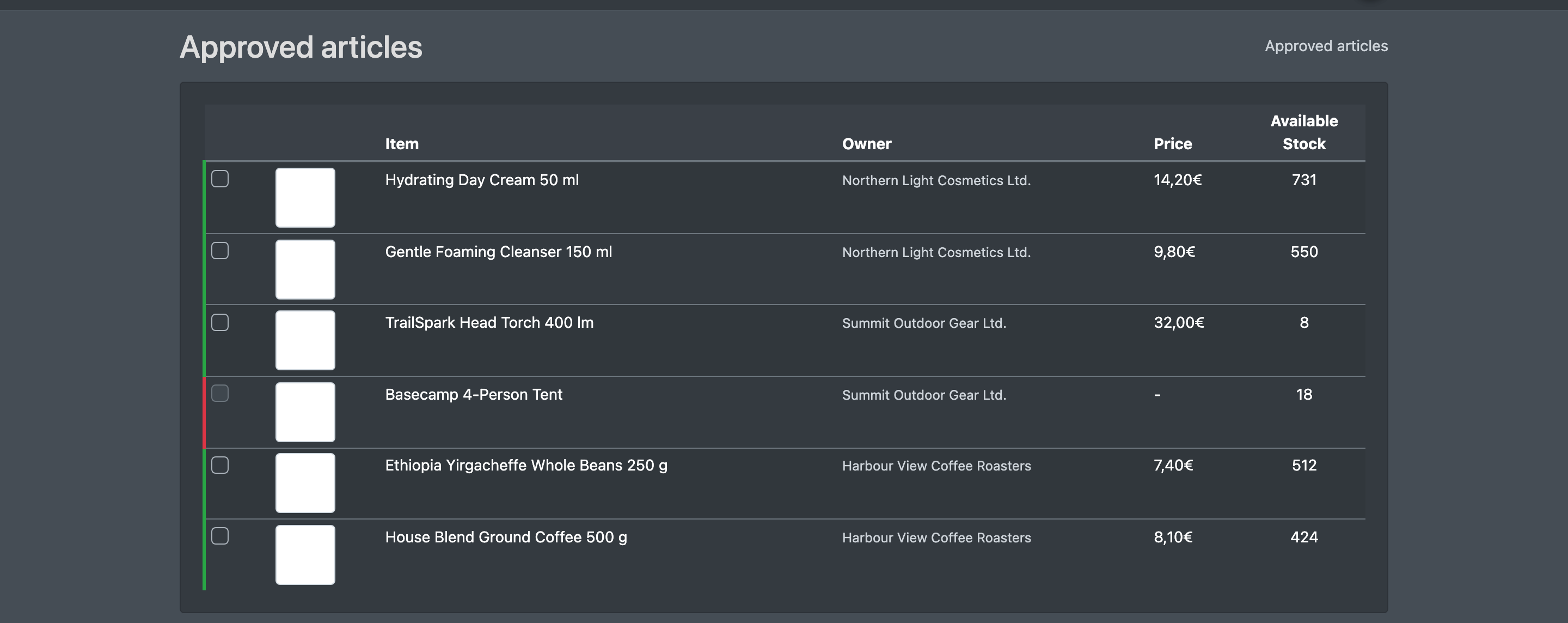
- You see every article that a connected company shares with you: article, Owner (Eigentümer), Price (Preis) and Available stock (Verfügbarer Bestand).
- Inactive shares are marked red. They cannot be selected, and neither can articles without a price for your company.
Fields and options
Good to know
- An article can be shared with each company only once.
- In All approvals you only see the price set for your own company, not the prices of other partners.
- A new share is inactive until you switch the Status on.
- If your partner sells your goods through their own JTL-Wawi and bills you per customer group, use Consignment for the prices and the monthly billing.
- The partner prices are not the same as the selling prices in your article attributes. See Prices.