
Prices
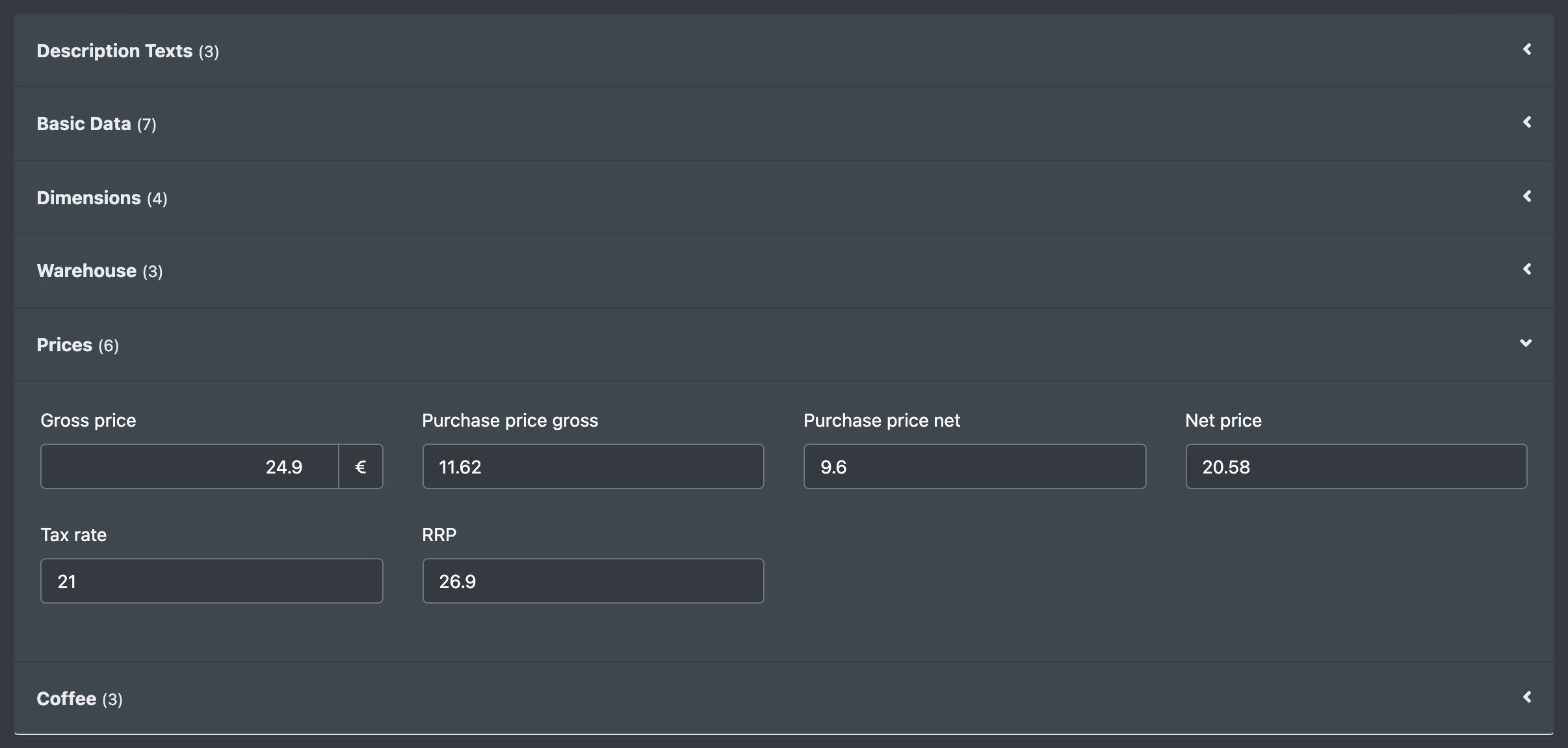
In X-Sitter, prices are not fixed columns of an article. They are attributes, usually in the attribute group Prices (Preise). This gives you the freedom to keep as many prices as you need – purchase price, selling price, recommended retail price and so on – and to change them the same way as any other attribute.
Before you start
- The price attribute fields exist in your company. See Attribute groups and Attribute fields.
- Your user needs the permission to edit articles; for many articles at once also the permission for bulk processing – ask your administrator.
The standard price fields
When X-Sitter sets up your attributes from the standard template, the group Prices contains these fields:
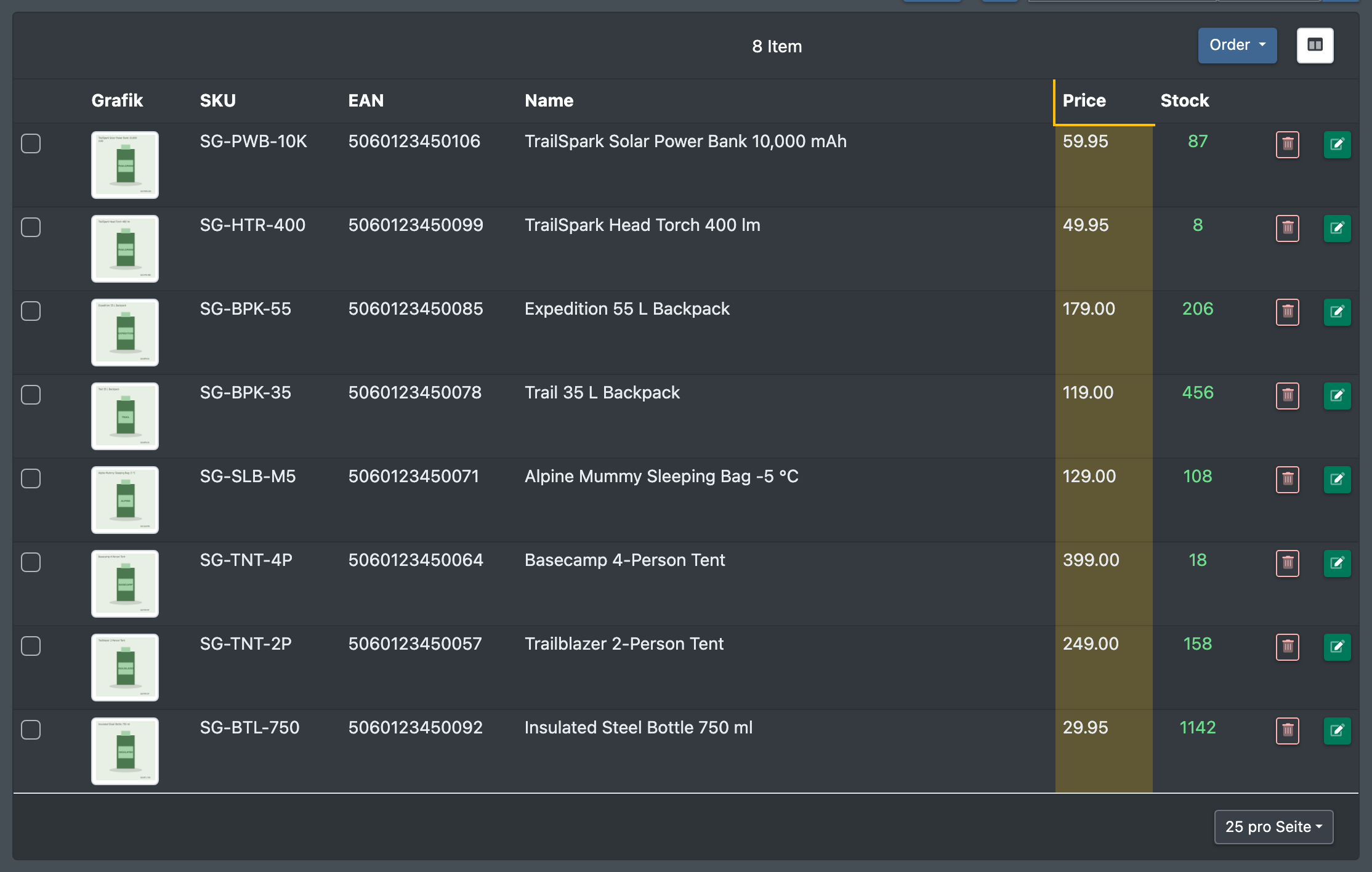
You can rename these fields or add more. The slug price is special: its value is the one the article overview shows as Price.
Step by step
Change the price of one article
- Open the article from Catalogue › Overview (Katalog › Übersicht).
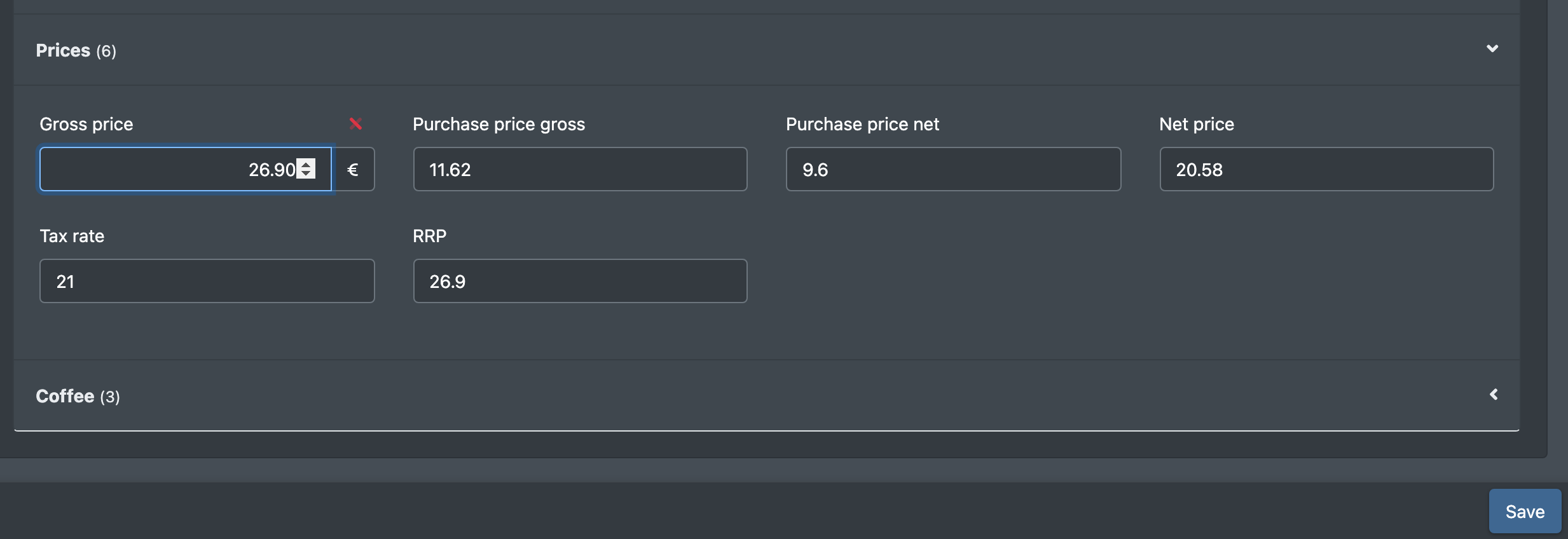
- Go to the tab Attributes (Attribute) and expand the group Prices.
- Change the values.
- Click Save.
Change many prices at once
Use Catalogue › Overview › Product Actions › Bulk Processing (Produkt Aktionen › Massenverarbeitung):
- Filter the articles, for example "Brutto-Preis greater than 10" and "Category is one of …".
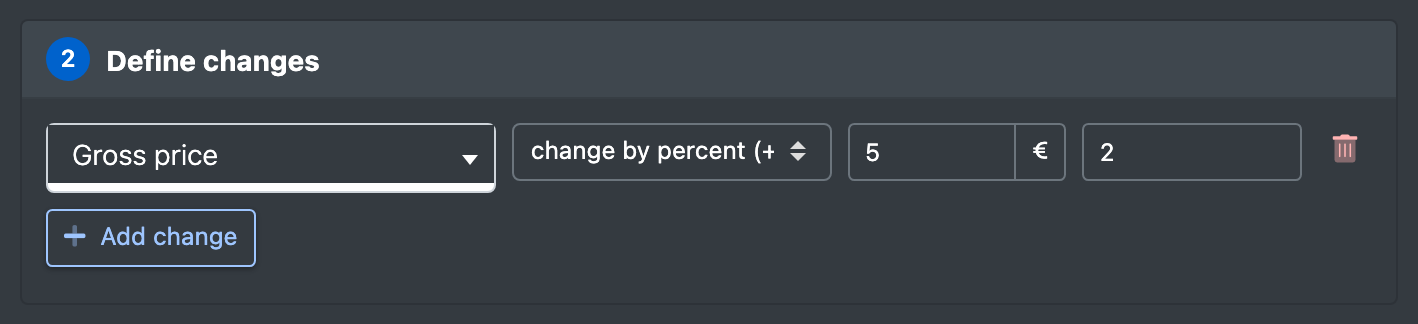
- Add a change for the price field and choose an action:
- change by percent (+ / - %) (prozentual ändern) – e.g.
5for +5 % or-10for −10 % - add (+ / -) (addieren) – add or subtract a fixed amount
- round to decimal places (runden auf Nachkommastellen)
- set to (setzen auf) – one value for all
- change by percent (+ / - %) (prozentual ändern) – e.g.
- Check the preview and run it.
Details: Bulk processing.
Import prices from a file
Create an import template of the type Product Supplier Information (Artikel Lieferanten Daten) – it writes attributes into existing articles without creating new ones – or use the type Article (Artikel). Map the price columns of your file to the price fields. Details: Import templates.
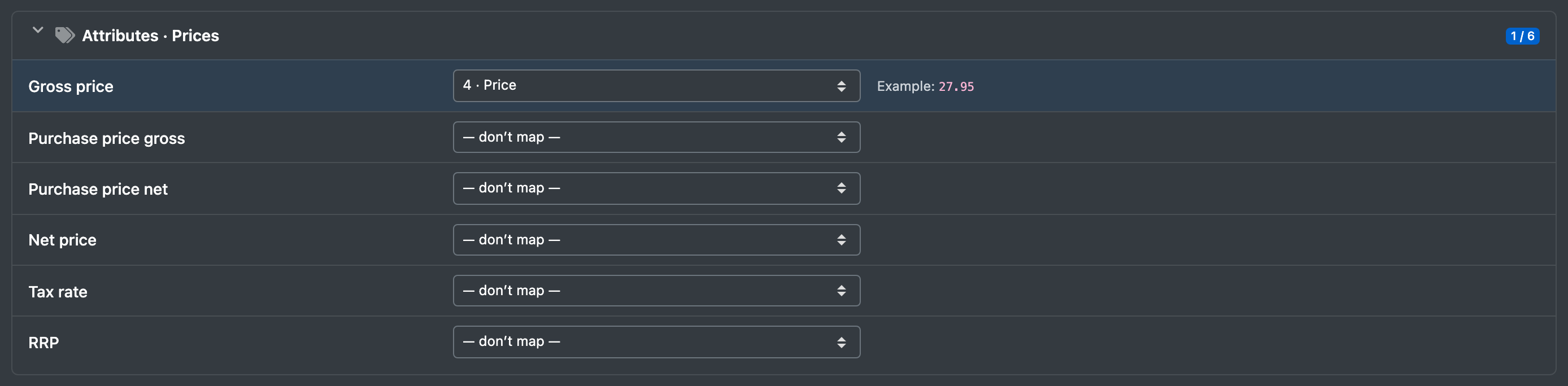
Other prices in X-Sitter
Good to know
- A changed price counts as a changed article: connected sales channels pick up the new value with their next transfer.
- Decimal separator: in imports, a comma is turned into a point automatically. A value of
0or an empty cell in an import is ignored and does not overwrite the existing price.