
Attribute groups
Group your article attributes into blocks such as basic data, prices or texts – the first step before creating attribute fields.
In X-Sitter, all article data is stored in attributes that you define yourself. Attribute groups bundle these attributes into blocks, for example "Basic data", "Prices", "Descriptions" or "Warehouse". The groups also set the order of the blocks in the Attributes tab of an article.
Every attribute field belongs to exactly one group. That is why you create the groups first, then the fields.
Before you start
- Your user needs the permission for the attribute management. Ask your administrator if the Attributes menu is missing.
- Groups apply to the company you have currently selected.
Step by step
Create a group
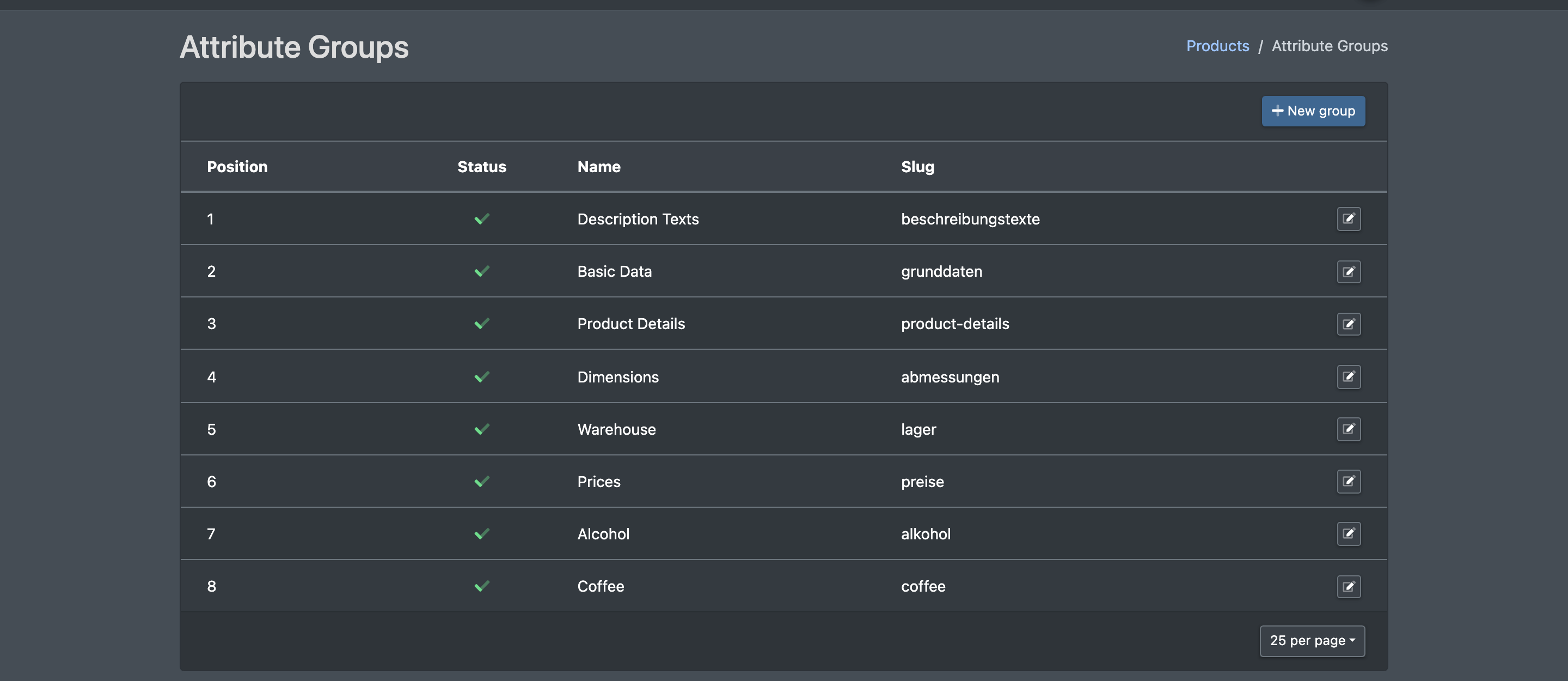
- Go to Catalogue › Attributes › Groups (Katalog › Attribute › Gruppen). The page Attribute Groups (Attribute Gruppen) shows all groups with name, slug, position and status.
- Click New group (Neue Gruppe). The form Creating an Attribute Group (Attributgruppe anlegen) opens.
- Enter the Name, check the Position (pre-filled with the next free number) and set the Status to active or inactive.
- Click Save (Speichern). You see "The attribute group has been created".

Edit a group
- Click the group in the list. The form Edit attribute group (Attributgruppe bearbeiten) opens.
- Change the values and click Save. You see "The group has been updated".
Delete a group
Click the delete symbol in the row of the group. You see "The attribute group and all assignments have been removed".
Deleting removes data
Deleting a group also deletes all attribute fields in this group and all their values on all articles. This cannot be undone.
Fields and options
Good to know
- If you create a group whose slug already exists, X-Sitter updates the existing group instead of creating a second one.
- The group X-Sitter (Basics) is a system group. It is hidden in the field lists.
What to do next
Create the attribute fields of the group, see Attribute fields.