
Article images
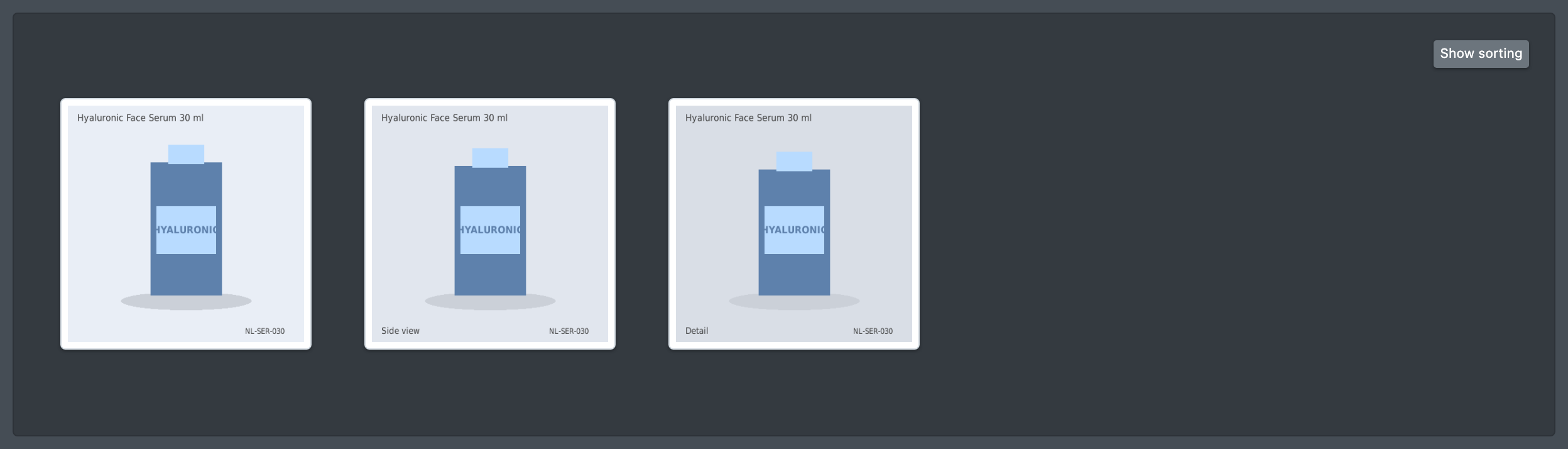
Every article can have several images. Image number 1 is the main image: it is shown in the article overview and sent to marketplaces first. If an article has no main image, it counts as "without image".
You can add images in several ways:
- upload them in the article,
- load them from a web address (URL),
- upload many images at once, matched by file name,
- import them with an import template,
- take them over automatically from your online shop's product feed.
Before you start
- The article exists, see Create an article.
- You need the permission to edit articles for the Images (Bilder) tab. The bulk upload, the shop-feed import and Renew upload need extra permissions – ask your administrator.
- Image sizes: X-Sitter always stores a small preview (thumbnail, max. 400 px). Depending on your company setting, it also stores a full-size version (up to 1400 px) in the cloud storage. If the full-size option is not available to you, contact X-Sitter support.
Upload images in the article
- Open the article (green pencil in the overview) and choose the Images (Bilder) tab.
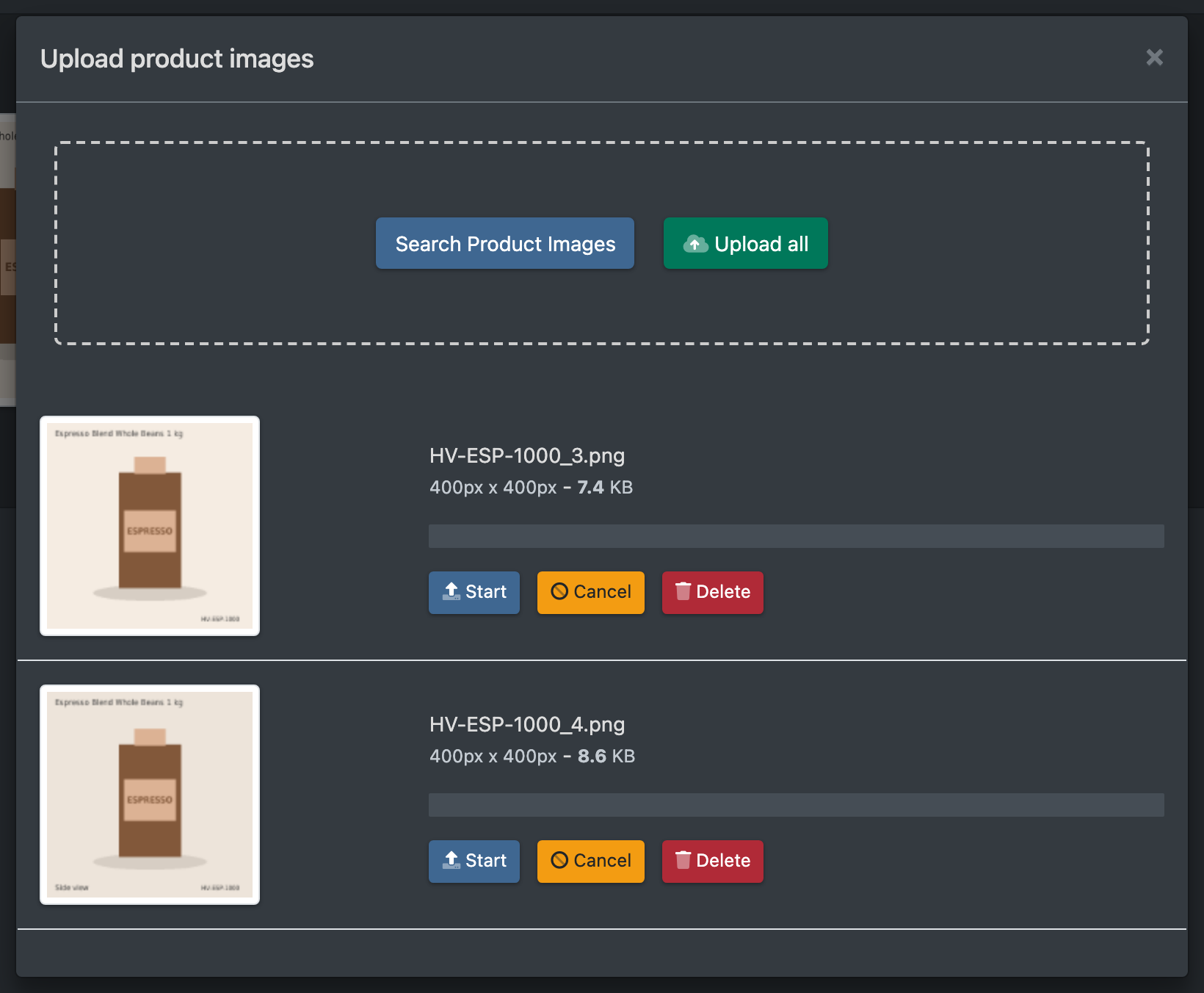
- Click Search Product Images (Produktbilder suchen) or drag files onto Drop files here (Dateien hier ablegen).
- Click Upload all (Alle hochladen), or use Start / Cancel (Abbruch) for single images.
- Each image gets the next free number.
Change the order
Drag and drop the images into the order you want. You see "The new sorting has been saved" (Die neue Sortierung wurde gespeichert). The first image becomes the main image.
Delete an image
Click Delete (Löschen) under the image. Both the thumbnail and the full-size version of this image are removed.
Load an image from a URL
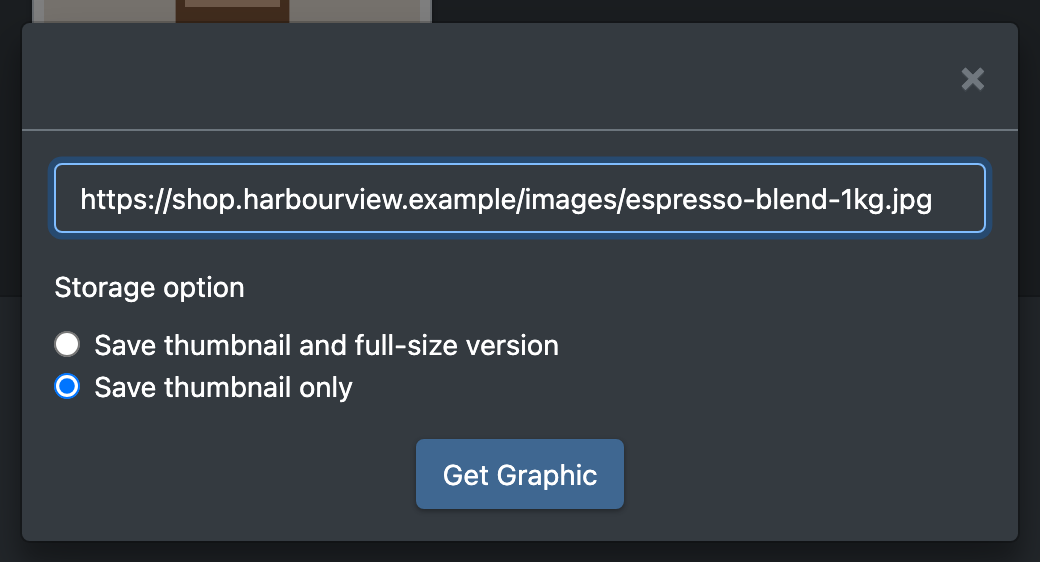
- In the Images tab, click Load image via URL (Bild via URL laden).
- Enter the address of the image (Url to the graphic).
- Choose the Storage option (Speicheroption): Save thumbnail only (Nur Thumbnail speichern) or Save thumbnail and full-size version (Thumbnail und große Version speichern).
- Click Get Graphic (Grafik holen). You see "The graphic has loaded successfully".
Allowed formats: JPEG, PNG, GIF and WEBP.
Upload many images at once
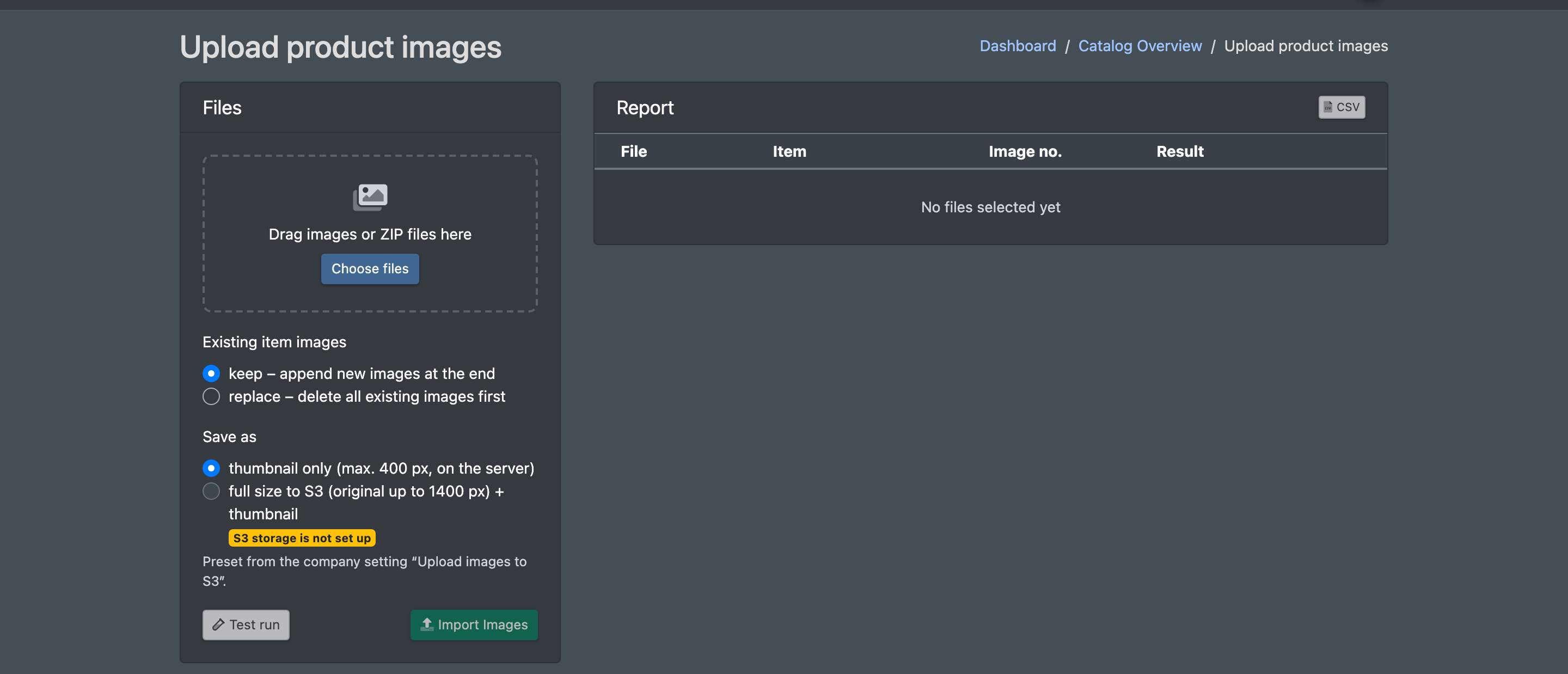
Use this page to upload images for many articles in one go. X-Sitter recognises the article by the file name.
- Go to Catalogue › Import › Upload product images (Katalog › Import › Produktbilder hochladen).
- Drag images or ZIP files onto the drop area (Bilder oder ZIP-Dateien hierher ziehen) or click Dateien wählen (choose files).
- Under Vorhandene Bilder der Artikel (existing images of the articles), choose:
- behalten – neue Bilder hinten anhängen: keep existing images and add the new ones at the end, or
- ersetzen – erst alle vorhandenen Bilder löschen: delete all existing images of each matched article first.
- Under Speichern als (save as), choose thumbnail only or full size + thumbnail. The option is pre-selected with your company setting. If the cloud storage is not set up, the full-size option is disabled (S3-Speicher ist nicht eingerichtet).
- Click Test run (Probelauf) to check which files match an article without saving anything.
- Click Import Images (Bilder importieren).
How the files must be named
- Allowed: JPG, JPEG, PNG, GIF, WEBP – also inside ZIP files (subfolders do not matter).
- Large images are made smaller before the upload.
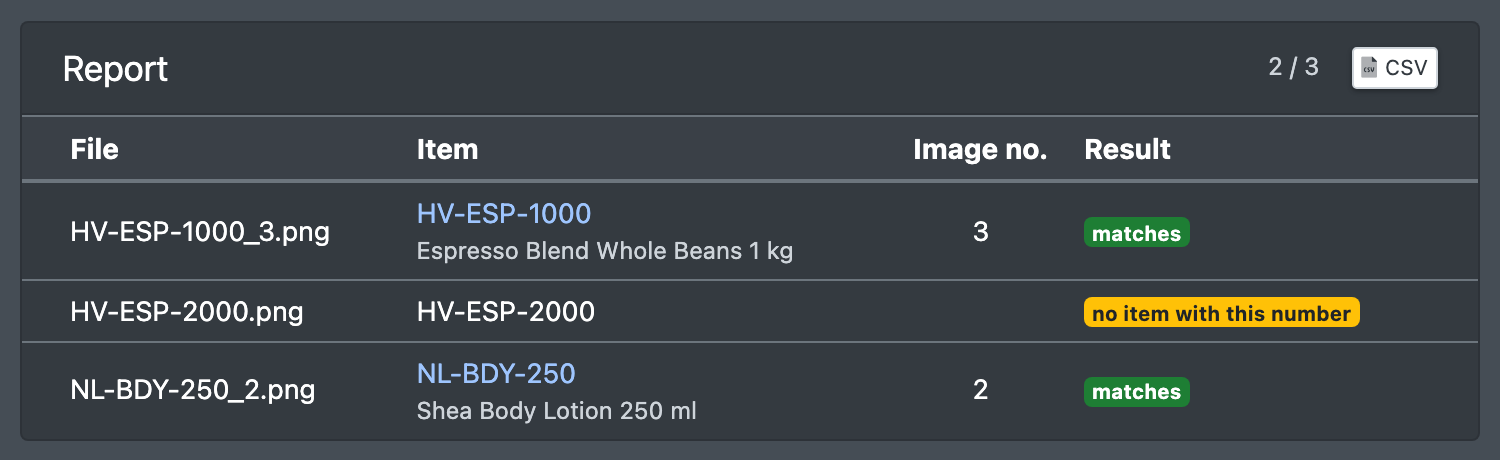
- Files without a matching article of the selected company are skipped and listed in the report.
The report on the right shows each file with the article, the image number and the result. You can download it as CSV.
Import images with an import template
In an article import template you can map a column with an image URL to the field Main image (Hauptbild). The image is then stored as image number 1 of the article. See Import templates.
Take over images from a shop feed
If your articles already have images in an online shop, X-Sitter can take them over automatically. Only articles without an image get one; existing images stay. The image becomes the main image.
Set up the feed
The feed is set up as the job Produktbilder aus Shop-Feed (product images from shop feed) under Jobs & connections:
Supported formats:
- Google Merchant (XML) – the address of the XML file. The article number comes from the ID (or MPN), the image from the image link.
- CSV (Artikelnummer, Bild-URL) – the address of a CSV file with the columns "SKU/Artikelnummer" and "Image/Bild" (otherwise the first two columns). Separator: comma, semicolon or tab.
- WordPress (REST-API) – for websites that show their products as a separate post type. Enter any address of the website or directly the list of the post type. The article number is the first word with a digit in the title; the image is the featured image.
- BigCommerce (GraphQL) – the address of the shop.
Matching rules
- The article number in the feed must match the article number in X-Sitter.
- Purely numeric numbers are also found with or without leading zeros (
18075401finds0018075401). - Codes made of two numbers are treated the same with comma or dot (
78.56finds78,56). - Images are always stored in the logistician's catalogue. A job set up for a client gives the image to that client's articles in the logistician's catalogue.
Run the import
- Go to Catalogue › Import › Produktbilder aus Shop-Feeds (Katalog › Import › Produktbilder aus Shop-Feeds).
- Pick the feed in the drop-down.
- Optional: tick Test run (check only) (Probelauf (nur prüfen)) to only check.
- Click Abgleich starten (start matching).
The run works in steps and continues on its own (Läuft – Seite …). Click Anhalten to stop it. The table shows new images and problems; totals per status are shown above it. Active feeds are also matched automatically every night between 1 and 5 a.m. The last match of each feed is shown on the page.
Renew the image upload to a marketplace
If a marketplace shows outdated images, open the Images tab and click (name of the marketplace) - Renew upload (Upload erneuern). You see "The upload has been flagged". The images are then sent to this marketplace again.
After every upload, X-Sitter automatically marks the article so that connected marketplaces reload its images.