
Consignment
Maintain purchase prices per JTL customer group, import the consignee's sales from JTL-Wawi and see what each consignor can bill.
In a consignment, one company – the consignee (Konsignatar) – sells goods that belong to other companies, the consignors (Konsignanten). The consignee sells through its own JTL-Wawi. For every unit sold, the consignor bills the consignee a net purchase price that depends on the JTL customer group of the buyer (for example end customers, hotels or wholesale).
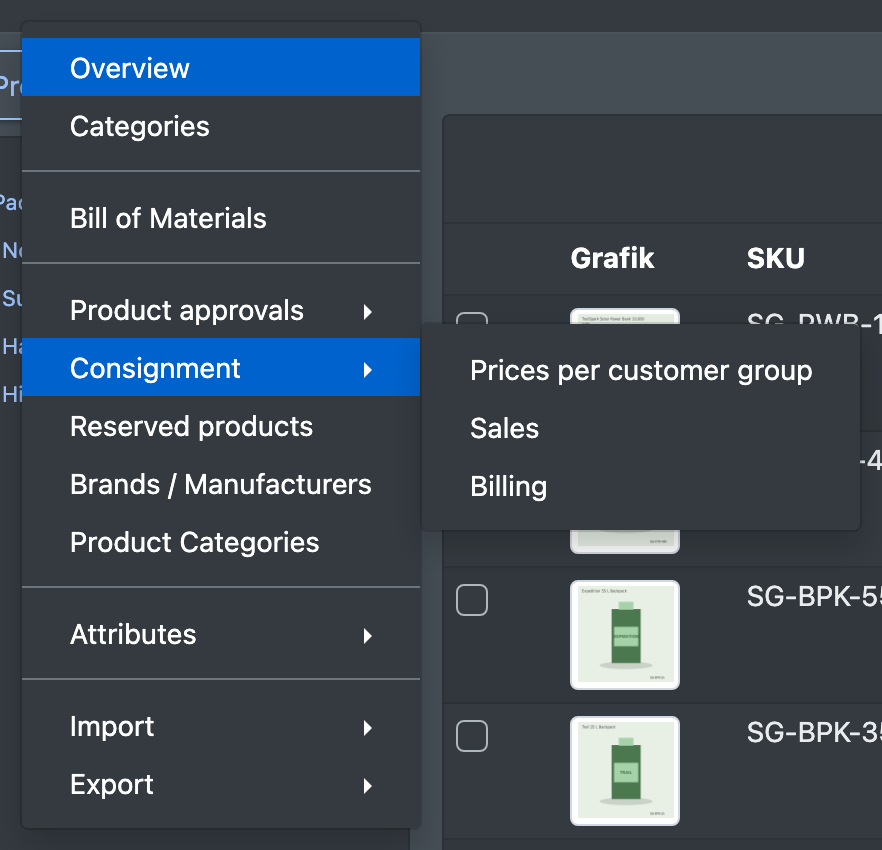
The menu Catalogue › Consignment (Katalog › Konsignation) has three pages:
- Prices per customer group (Preise je Kundengruppe) – the consignee links each consignor article to its JTL article and enters the prices.
- Sales (Verkäufe) – the consignee imports and checks the sales from JTL-Wawi.
- Billing (Abrechnung) – each consignor sees what it can bill the consignee.
Roles
The clients of the consignee are automatically consignors as well.
Before you start
- The consignment (consignee and its consignors) is set up by X-Sitter. Contact X-Sitter support to activate it.
- The consignee has a working JTL-Wawi database connection. See JTL connection.
- The consignor articles have the consignor as owner. See Article owner and client access.
- Permissions (in the Products › Consignment section of the rights tree – ask your administrator):
- consignee: maintain prices and JTL mapping, see sales, start the JTL import
- consignor: see billing
- For an automatic import: the job Consignment: fetch sales from JTL-Wawi (Konsignation: Verkäufe aus der JTL-WaWi holen) at the consignee or its main tenant. See Jobs & connections.
Step by step
1. Maintain prices per customer group (consignee)
- Open Catalogue › Consignment › Prices per customer group. You can also reach it via Catalogue › Overview › Product Actions › Consignment: prices per customer group (Produkt Aktionen › Konsignation: Preise je Kundengruppe).
- Check the connection badge at the top: JTL connected (JTL verbunden) or JTL not reachable (JTL nicht erreichbar).
- Every row is one consignor article. In the column JTL article of the consignee (JTL-Artikel des Konsignatars) you link it to the article under which the consignee sells it in JTL:
- X-Sitter suggests a JTL article with the same item number, the same supplier item number (HAN) or the same EAN. Suggestions are highlighted in yellow.
- Otherwise use the magnifier (Search in the JTL, In der JTL suchen) or type the JTL item number.
- For every customer group (the columns come live from the consignee's JTL), enter the net purchase price. Leave a field empty if there is no price for that group – those sales stay unvalued.
- Active (Aktiv) decides whether the article is included in the import.
- Save the row with the disk icon. Sales of the current and the previous month are re-valued with the new prices right away.
- The bin icon removes the mapping and the prices of the row. Sales that were already imported remain.
2. Import and check sales (consignee)
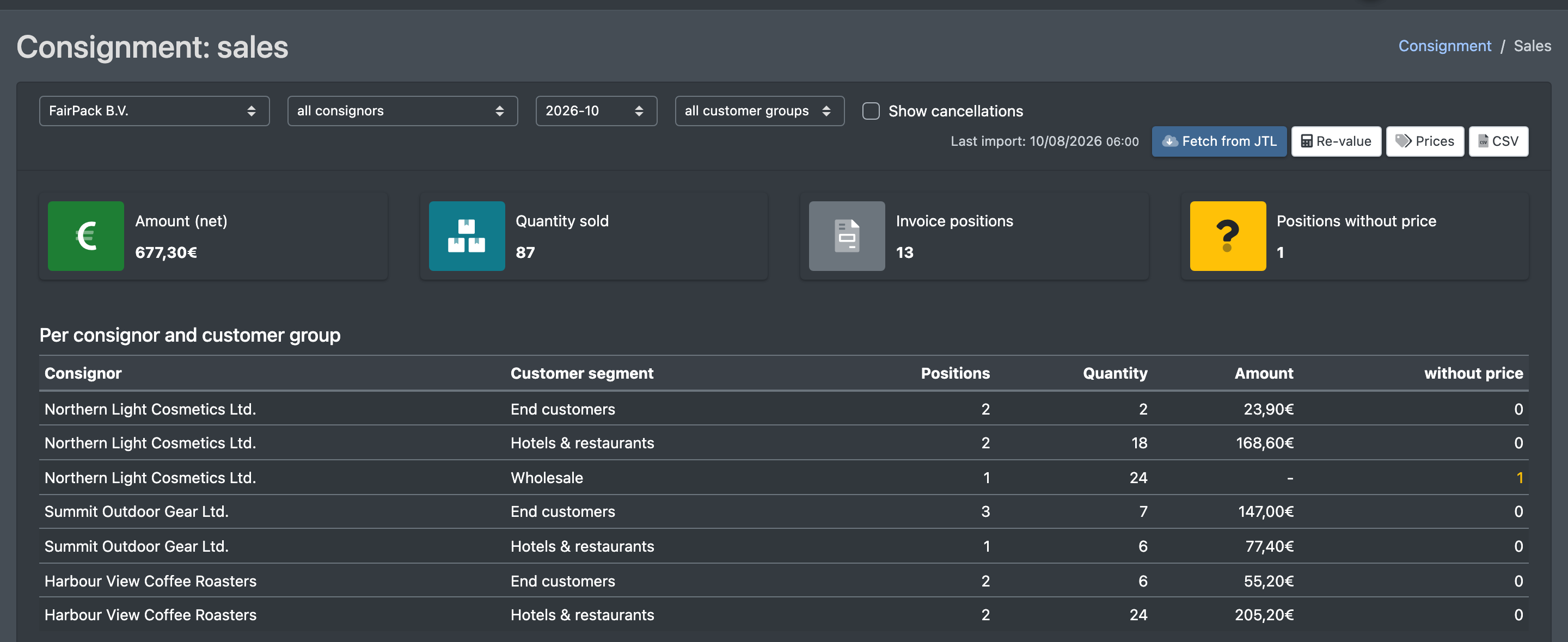
- Open Catalogue › Consignment › Sales.
- Filter by consignee, consignor, month and customer group. Tick Show cancellations (Stornos anzeigen) to see cancelled invoices as well.
- Click Fetch from JTL (Aus JTL holen). X-Sitter reads the invoice items of all mapped articles of the last 60 days. Items in this period are updated on every run.
- After you changed prices, click Re-value (Neu bewerten) to recalculate the period shown with the current prices.
- Use the CSV button to export the individual items.
The page groups the sales Per article and customer group (Je Artikel und Kundengruppe), Per consignor and customer group (Je Konsignant und Kundengruppe) and lists the Individual invoice positions (Einzelne Rechnungspositionen).
3. See the billing (consignor)
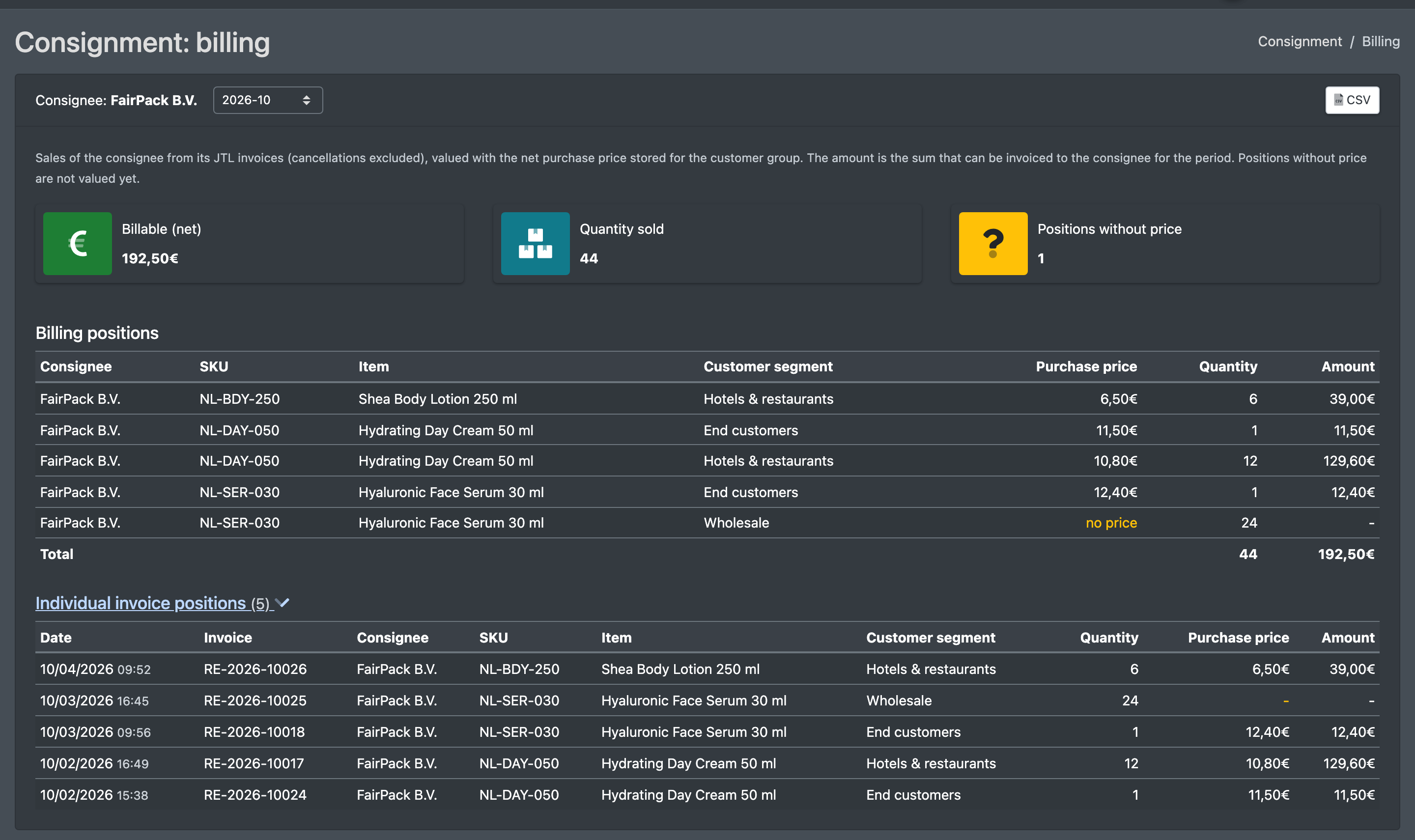
- Open Catalogue › Consignment › Billing.
- Choose the period and, if you work with several consignees, the consignee.
- You see the totals per article and customer group: purchase price, quantity sold and amount. Expand a row to see the individual invoice items. Export as CSV if needed.
- Billable (net) (Abrechenbar (netto)) is the amount you can bill the consignee for the period.
Fields and options
Good to know
- Each JTL invoice item is stored once. Cancelled invoices are marked and do not count.
- Items older than the import period stay as they were imported. Price changes only affect them when you click Re-value.
- Credit notes and returns from JTL are not deducted from the billing.
- Positions without price (Positionen ohne Preis) means that the consignee has not entered a price for this customer group yet.