
Article overview
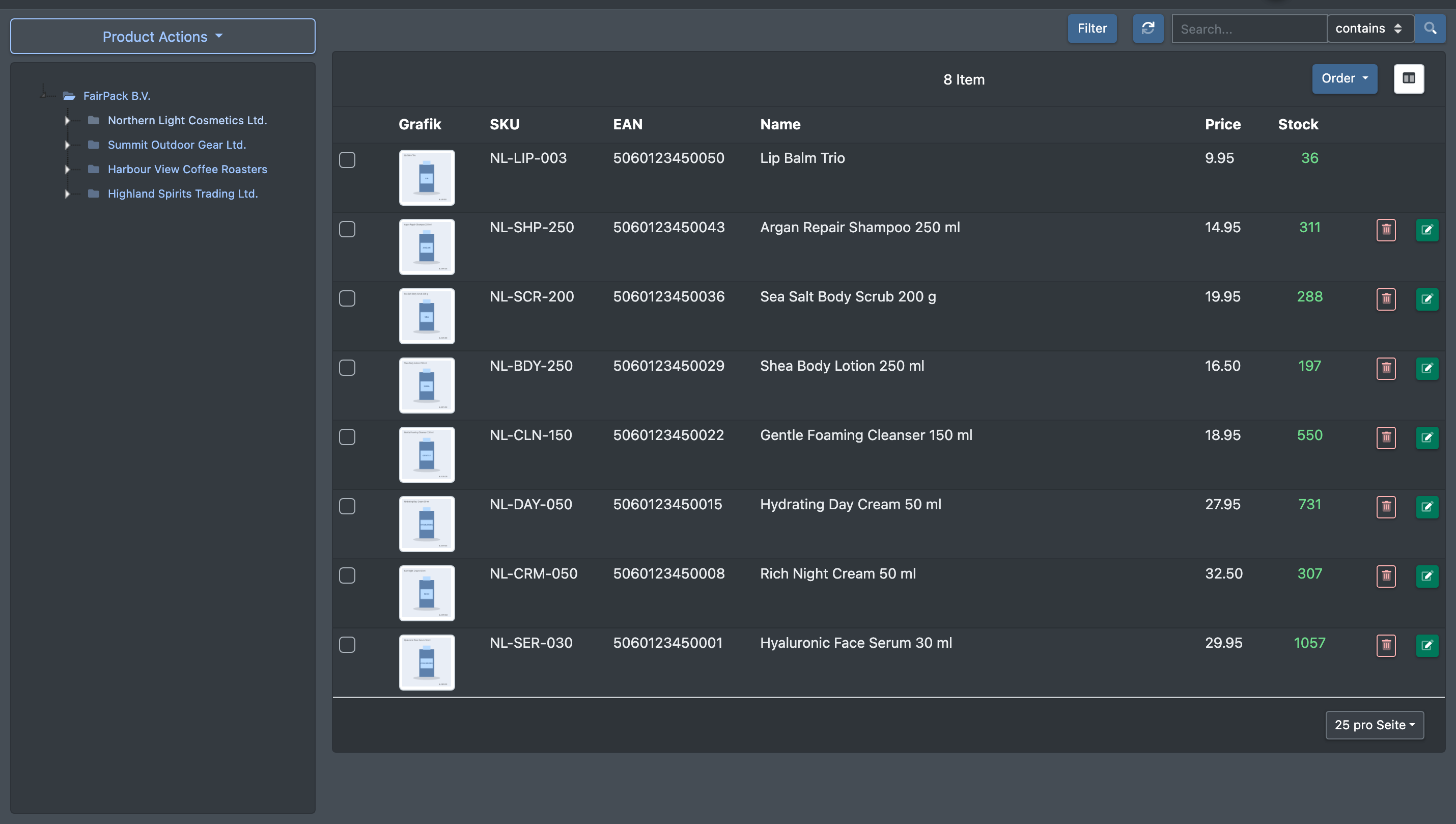
The article overview is the heart of the catalogue. It lists all articles of the company you have currently selected as a table, with the category tree on the left. From here you search and filter articles, choose which columns (attributes) are shown, and jump to editing, creating, bulk processing and publishing articles.
Your column selection and column order are saved as your personal view – per user and per company.
Before you start
- Your user needs access to the Catalogue (Katalog) menu. Some buttons only appear with extra permissions (edit, delete, product actions, filter) – ask your administrator if something is missing.
- An article only appears in the list if it has at least one attribute value, for example a name or SKU. See Attribute fields.
- The category tree on the left uses your categories.
- Logisticians see the articles of their own catalogue. Clients see the articles they own. More about ownership in Owner and sharing.
Open the overview
Go to Catalogue › Overview (Katalog › Übersicht).
Search for articles
- Enter at least 3 characters in the Search... (Suche...) field.
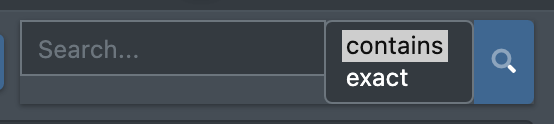
- Choose the Search Mode (Suchmodus) next to the field:
- contains (enthält): finds partial matches. This is the default.
- exact (genau): finds only articles whose article number, EAN or name matches exactly.
- Click the magnifying glass.
The search looks in the name, SKU and EAN. In both modes, exact hits are listed first. Click the orange X button to clear the search.
Filter by category
Click a category in the tree on the left. The list shows the articles of this category including all subcategories.
An active search has priority over the category filter. Clear the search first if you want to browse a category.
Filter by attribute value
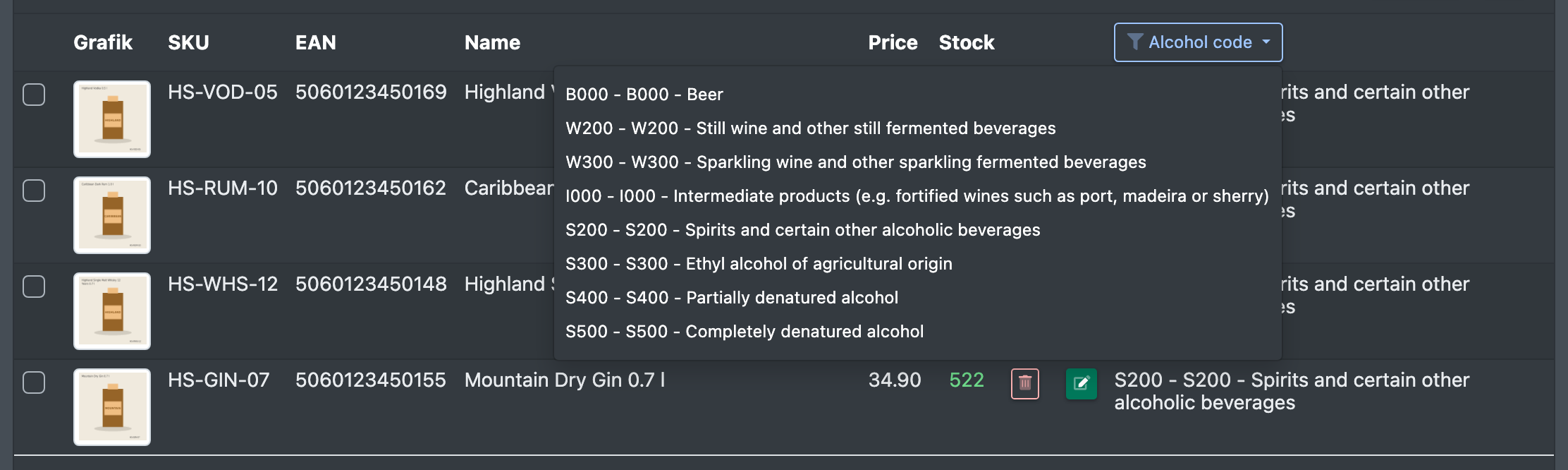
- Columns with a drop-down attribute (with more than one value) have a filter button in the column header. Click it and pick a value. Reset filter (Filter zurücksetzen) removes it again.
- If your articles belong to different owners (clients), use the All owners (Alle Eigentümer) selection in the top right to show only the articles of one owner.
- With the Filter button you open the filter sidebar for more complex filters. See Filter sidebar.
Sort and page through the list
- Use the Order (Sortierung) drop-down to sort ascending or descending. Reset sorting (Sortierung zurücksetzen) returns to the default.
- Page through the list at the bottom. Use the drop-down in the bottom right to choose how many articles are shown per page (default: 25).
- The button with the sync symbol reloads the table.
Adjust columns (your view)
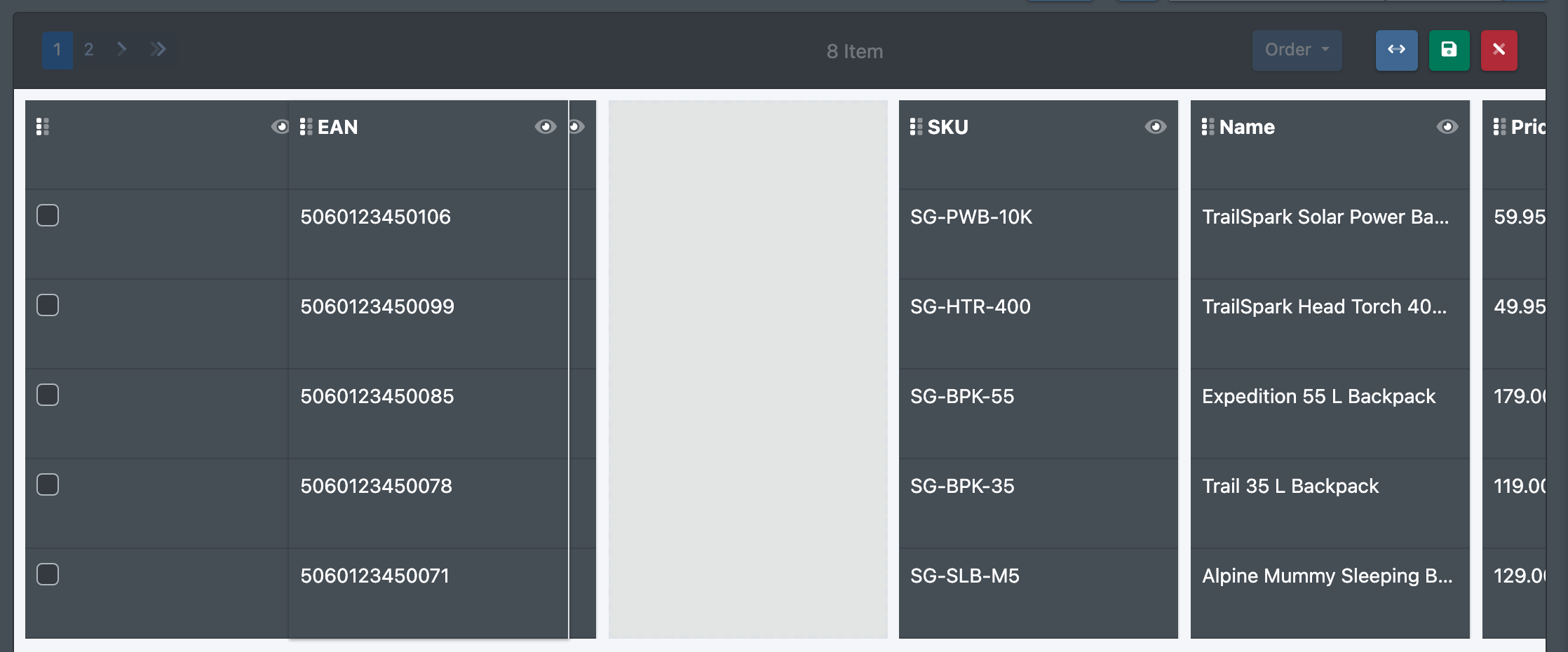
- Click Launch the Column Editor (Spalten Editor starten).
- Drag and drop columns into the order you want, and switch columns on or off. All attribute fields of the company are offered. New fields are switched off by default.
- Save. You see the message The view has been saved (Die Ansicht wurde gespeichert).
If you show many columns, use the width button ("The view can be widened to accommodate multiple columns") to switch to a wider page layout.
Your view is remembered for you and the selected company. If you have never saved a view, X-Sitter uses the standard view: checkbox, image, SKU, EAN, name, price, stock and actions. X-Sitter also remembers your page, page size and search term while you are logged in.
Columns
Badges next to the name
Actions in the overview
- Green pencil in a row: opens the article for editing, see Edit an article.
- Red bin in a row: deletes the article, see Delete an article.
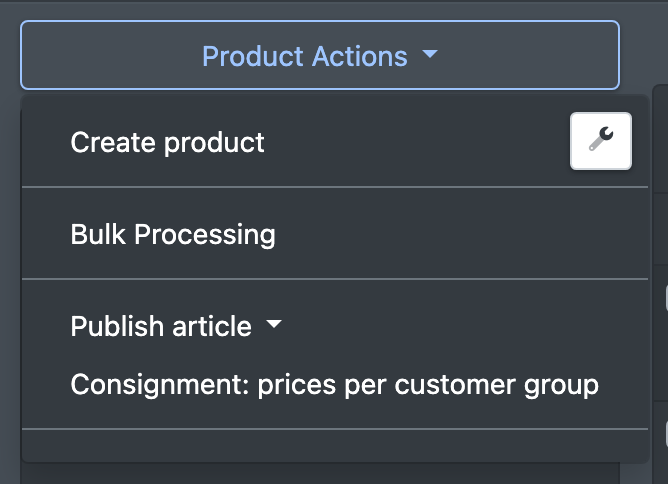
- The Product Actions (Produkt Aktionen) drop-down above the category tree offers, depending on your permissions:
- Create product (Produkt anlegen) and the wrench button to configure the input fields, see Create an article
- Bulk Processing (Massenverarbeitung), see Bulk processing
- Publish article (Artikel veröffentlichen) › Item (Artikel) / Categories (Kategorien)
- Consignment: prices per customer group (Konsignation: Preise je Kundengruppe), see Consignment
Someone else is editing an article
If another user currently has an article open, the overview shows This article is being edited by #user# (Dieser Artikel wird von #user# bearbeitet) with that user's name. When the other user leaves the article, the note disappears again after a short time.