
Filter sidebar and quick bulk edit
Use the filter sidebar of the article overview and its quick bulk edit to change the status or one attribute of many articles.
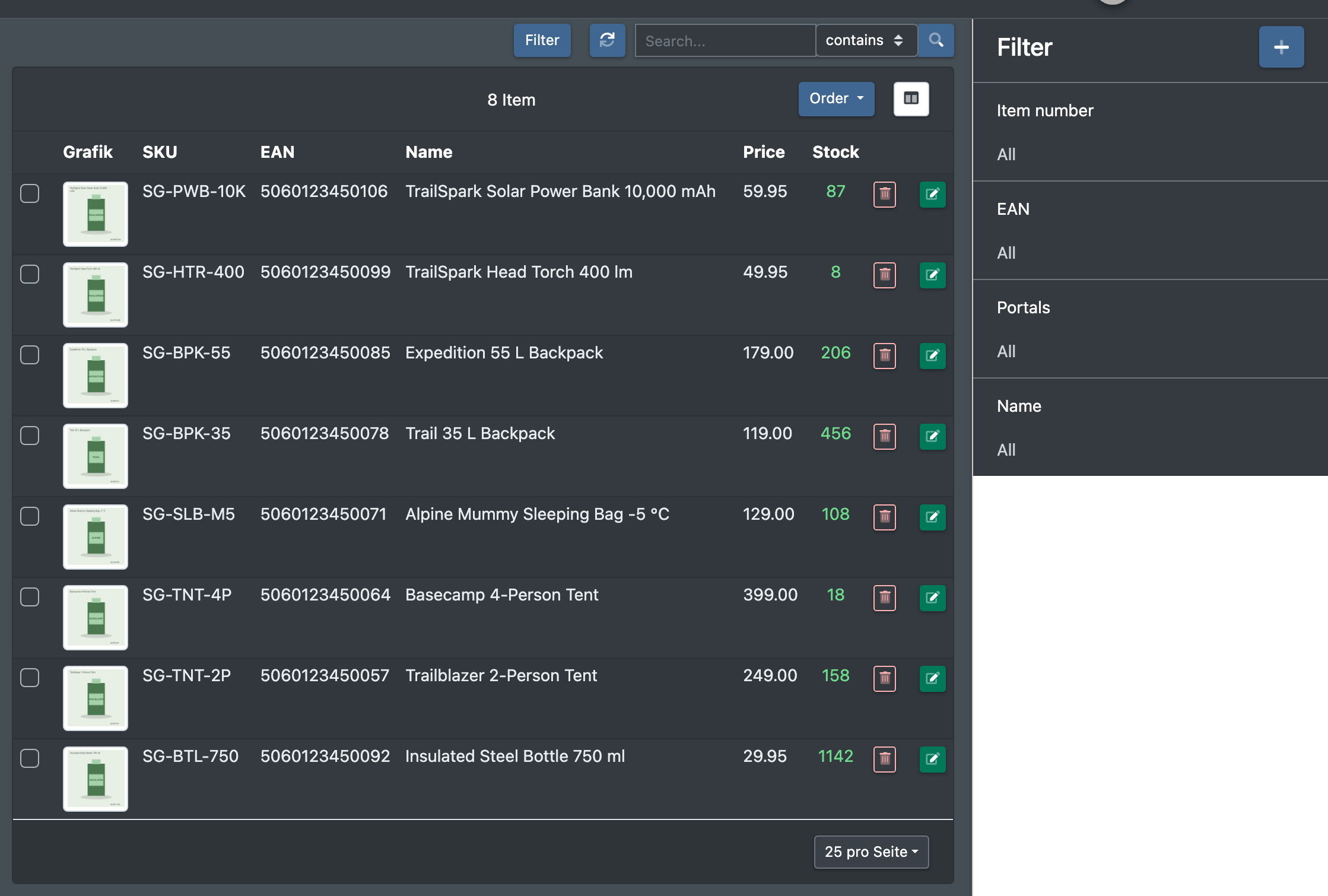
The article overview has a filter sidebar. In it you set filters on item number, EAN, name and any other attribute. From the same sidebar you can start a simple bulk edit for the articles you have ticked or for all articles found: Change status, Edit Attribute and Adding an attribute.
For larger or more complex changes, use Bulk processing. It has more conditions and actions and shows a preview before anything is saved.
Before you start
- Your user needs the permission for the Filter button of the article overview – ask your administrator.
- The attribute fields you want to filter on or change exist. See Attribute fields.
Step by step
Set filters
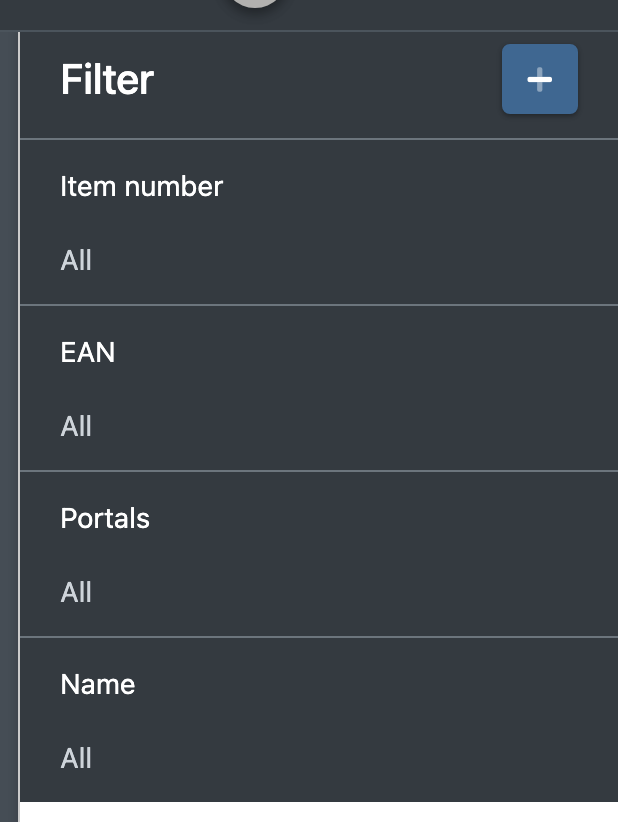
- Open Catalogue › Overview (Katalog › Übersicht) and click Filter in the top bar. The sidebar Filter opens on the right.
- The standard filters are Item number (Artikelnummer), EAN and Name.
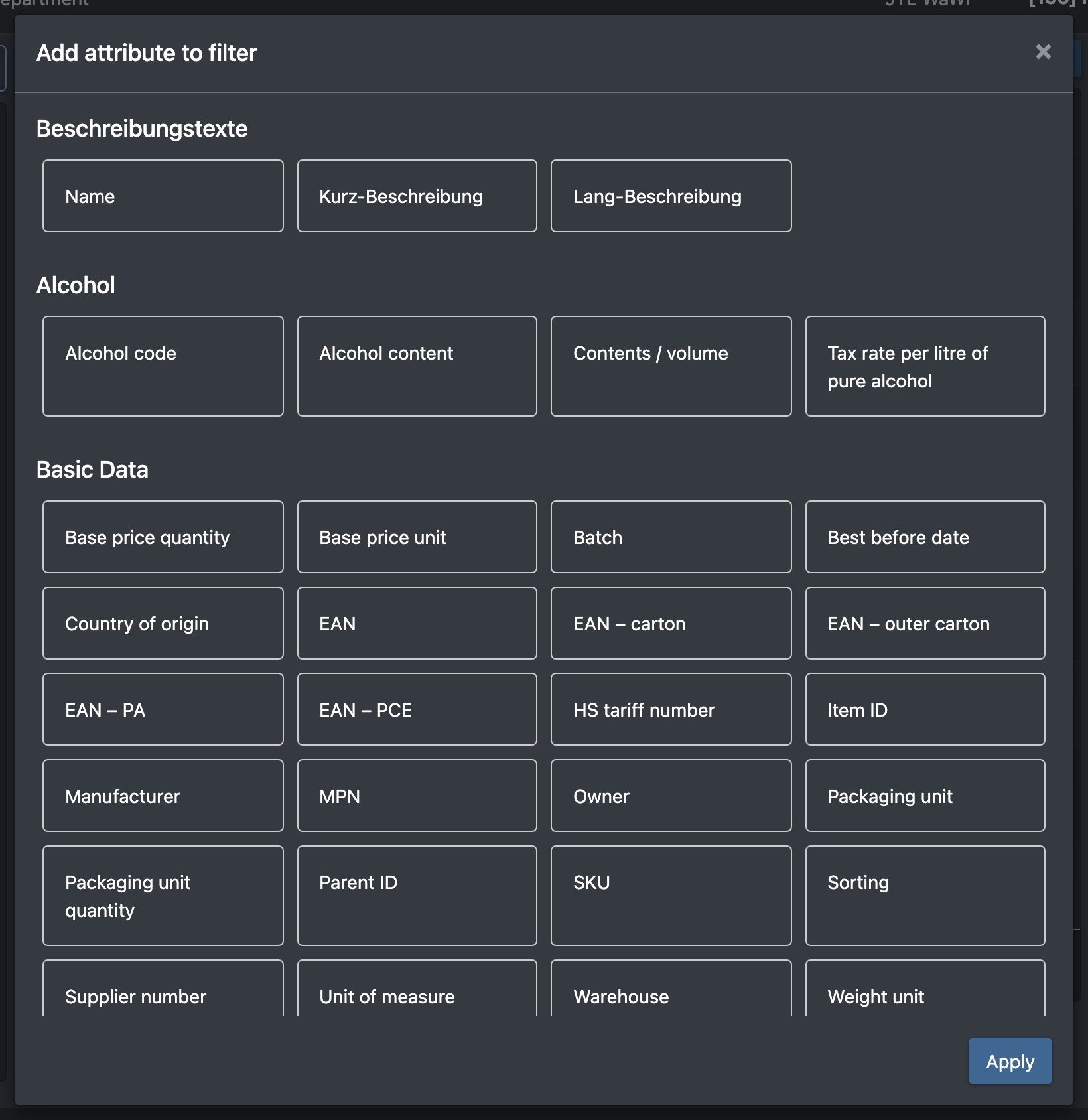
- To filter on another attribute, click the plus icon at the top of the sidebar, choose the attribute and click Apply (Übernehmen).
- Enter the values. For yes/no fields, choose All (Alle), Yes (Ja), No (Nein) or not set (nicht gesetzt).
- The number on the Filter button shows how many filters are set.
Edit many articles
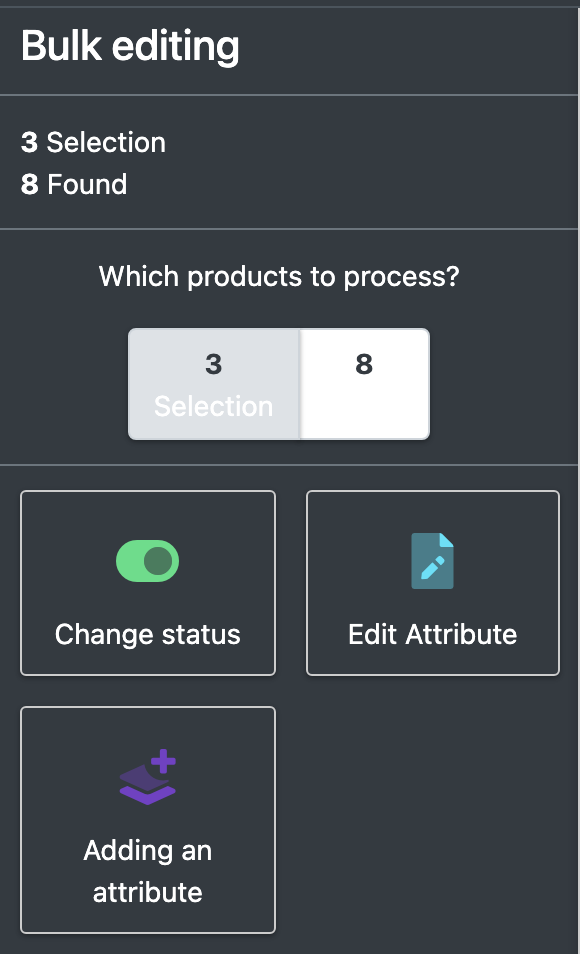
- Tick the articles you want to change in the overview. The area Bulk editing (Massenbearbeitung) appears in the sidebar with two counters: Selection (Auswahl) and Found (Gefundenen).
- Under Which products to process? (Welche Produkte bearbeiten?), choose your selection or all articles found.
- Choose the action:
- Change status (Status ändern) – switch the articles to active or inactive.
- Edit Attribute (Attribut bearbeiten) – set a new value for an attribute.
- Adding an attribute (Attribut ergänzen) – add a value for an attribute the articles do not have yet. Use Search attribute... (Attribut suchen...) to find it.
- Enter the value and confirm. The message … attributes were set (Es wurden … Attribute gesetzt) tells you how many values were set.
- Click Close Bulk Processing (Massenbearbeitung schließen) to leave the bulk edit mode.
Good to know
- Enter the value
removeto delete the attribute value from all chosen articles. - Changed articles count as edited: connected sales channels pick up the new values with their next transfer.
- If you only want to switch a few articles active or inactive, ticking them and using the bulk edit is the quickest way. For anything that needs conditions such as "price greater than" or "category is", use Bulk processing.