
Article mapping
Link an article to other article numbers and to its IDs in marketplaces and other connected systems.
In the Mapping tab of an article you link the article to numbers that differ from its own SKU. There are two kinds of mapping:
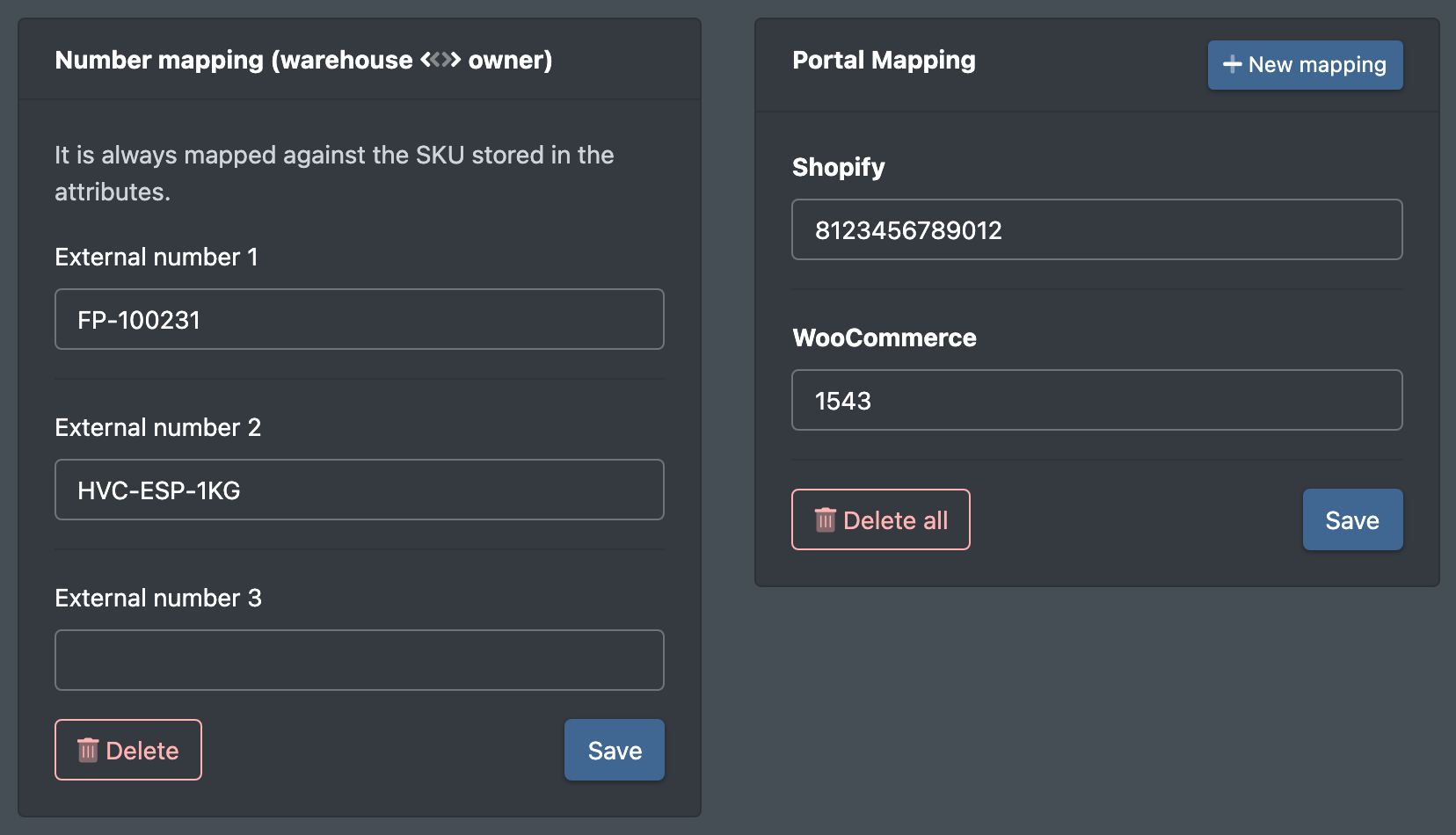
- Number mapping (warehouse ⇄ owner) – further article numbers for the same article, for example when a customer or supplier uses a different article number.
- Portal mapping – the ID of the article in a marketplace or another connected system.
Before you start
- Your user needs the permission for the article mapping. Ask your administrator if the Mapping tab is missing.
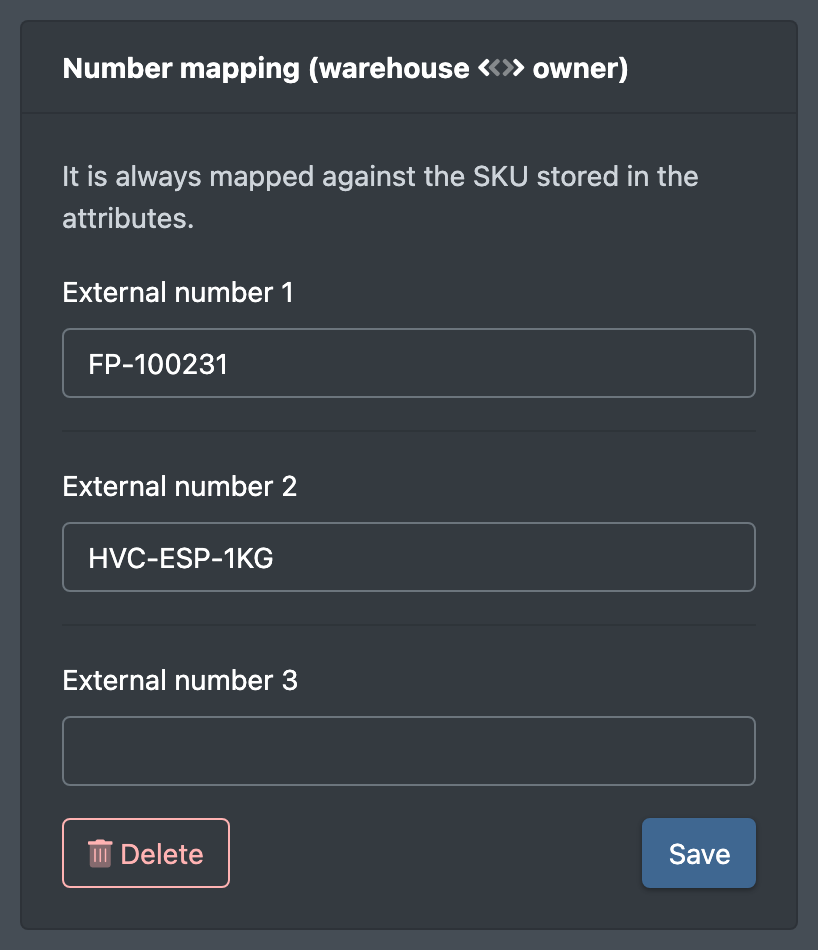
- The article has a SKU in its attributes. Mapping always works against this SKU: "It is always mapped against the SKU stored in the attributes." (Es wird immer gegen die in den Attributen hinterlegte SKU gemapped.)
Open the Mapping tab
- Go to Catalogue › Overview (Katalog › Übersicht) and click the green pencil of the article.
- Choose the Mapping tab on the left.
Number mapping (warehouse ⇄ owner)
- Enter the other article numbers in the fields External number 1, 2, … (Externe Nummer). There is always one empty field for a further number.
- Click Save (Speichern). You see "The mapping has been saved".
When you save, the complete list of numbers is written again as it is shown – an emptied field removes that number.
To remove all numbers at once, click Delete (Löschen) and confirm "Are you sure you want to delete all number mappings?". You see "All number mappings have been deleted".
Portal mapping
Add a portal mapping
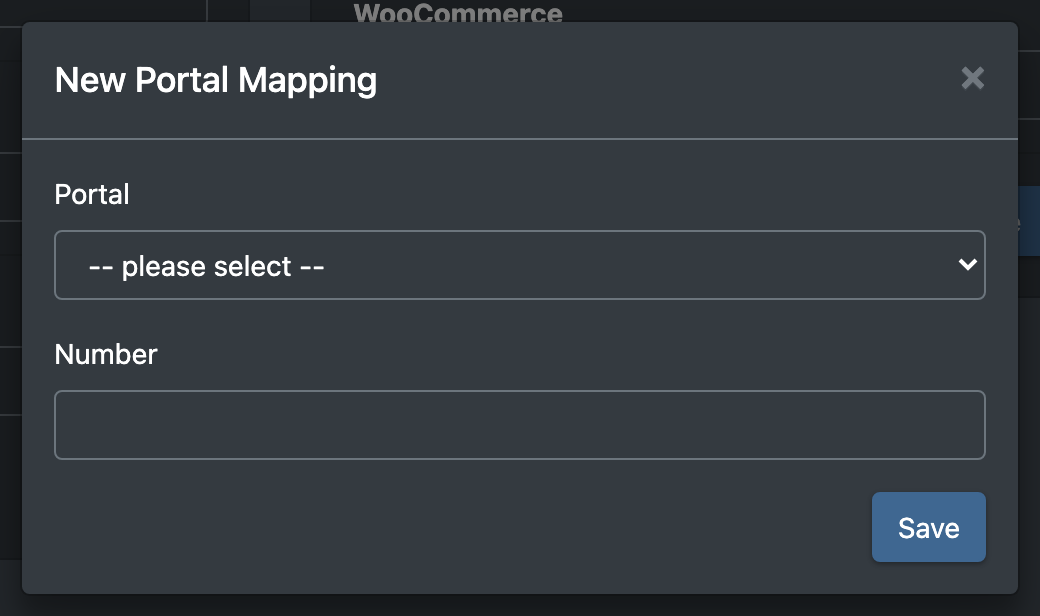
- In the Portal Mapping (Portal-Mapping) card, click New mapping (Neues Mapping).
- The dialog New Portal Mapping (Neues Portal Mapping) opens. Choose the Portal and enter the Number (Nummer) – the ID of the article in this portal, at most 36 characters.
- Save. If no portal is chosen or the number is too long, the dialog stays open and shows Please choose a portal. (Bitte wähle ein Portal.) or The number is too long (at most 36 characters). (Die Nummer ist zu lang (höchstens 36 Zeichen).).
Change or delete portal mappings
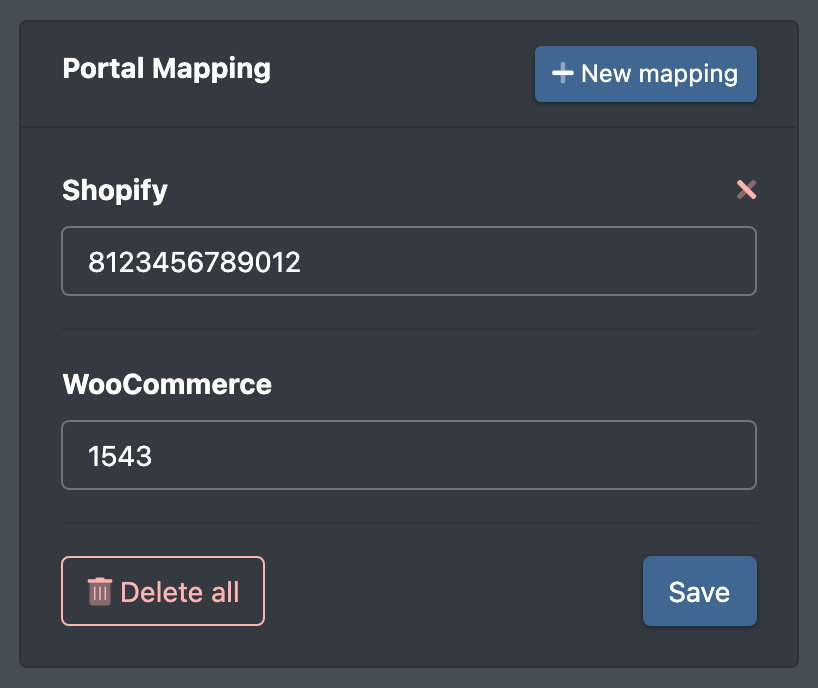
- Existing mappings are listed with the portal name and the external ID – all portal mappings of the article, including those a connected system (for example a JTL or Shopify synchronisation) created. Change an ID directly in its field and click Save.
- Click the red X next to a portal to delete this one mapping. Confirm "Are you sure you want to delete the mapping?".
- Delete all (Alle löschen) removes all portal mappings of the article after the question "Are you sure you want to delete all portal mappings?".
If the article has no portal mapping, you see No mappings available (Keine Mappings vorhanden).
Good to know
- The number mapping helps X-Sitter recognise the article when orders or stock movements arrive with a different article number.
- Portal mappings link the article to its counterpart in a marketplace, so that changes and stock can be synchronised. A portal mapping always belongs to the logistician, also for a client's article.
- To set the portal mappings of many articles at once, use the import type Portal Mapping – see Import templates.
- For sales channels, see also Categories and mapping.