
Bills of materials
Combine several existing articles with quantities into a set or bundle with its own name and SKU.
A bill of materials (Stückliste) combines several existing articles with quantities under its own name and its own SKU – for example a gift set made of three single articles. You can create bills of materials by hand or import them from a CSV file.
Before you start
- Your user needs the permission for bills of materials. Ask your administrator if the menu entry is missing.
- The single articles must already exist in the catalogue and belong to your company (or to the selected owner). See Create an article or Import templates.
Step by step
Create a bill of materials
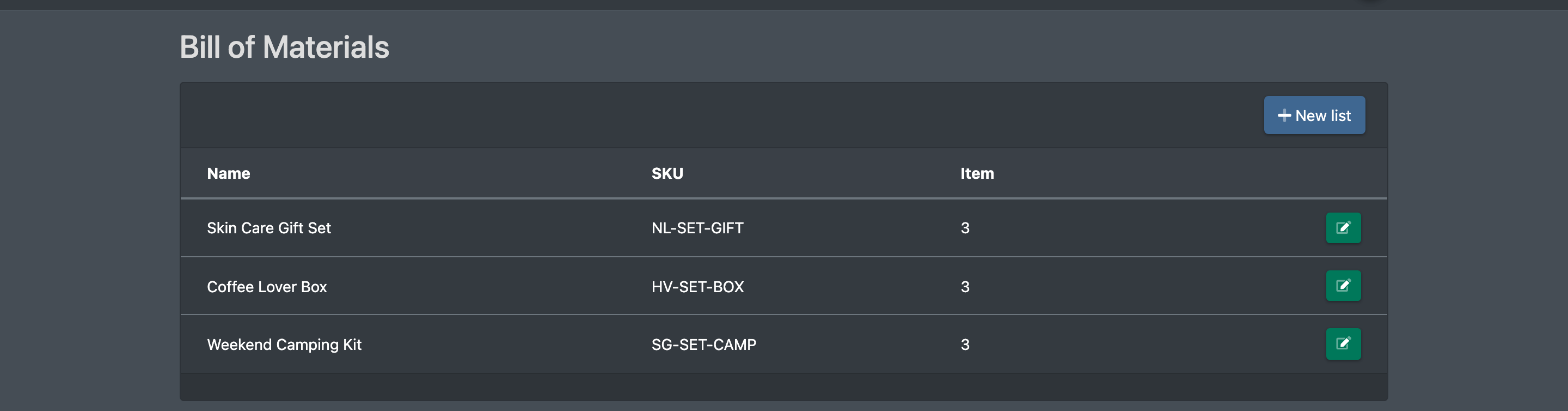
- Go to Catalogue › Bill of Materials (Katalog › Stücklisten). The list shows name, SKU and the number of articles of each bill of materials.
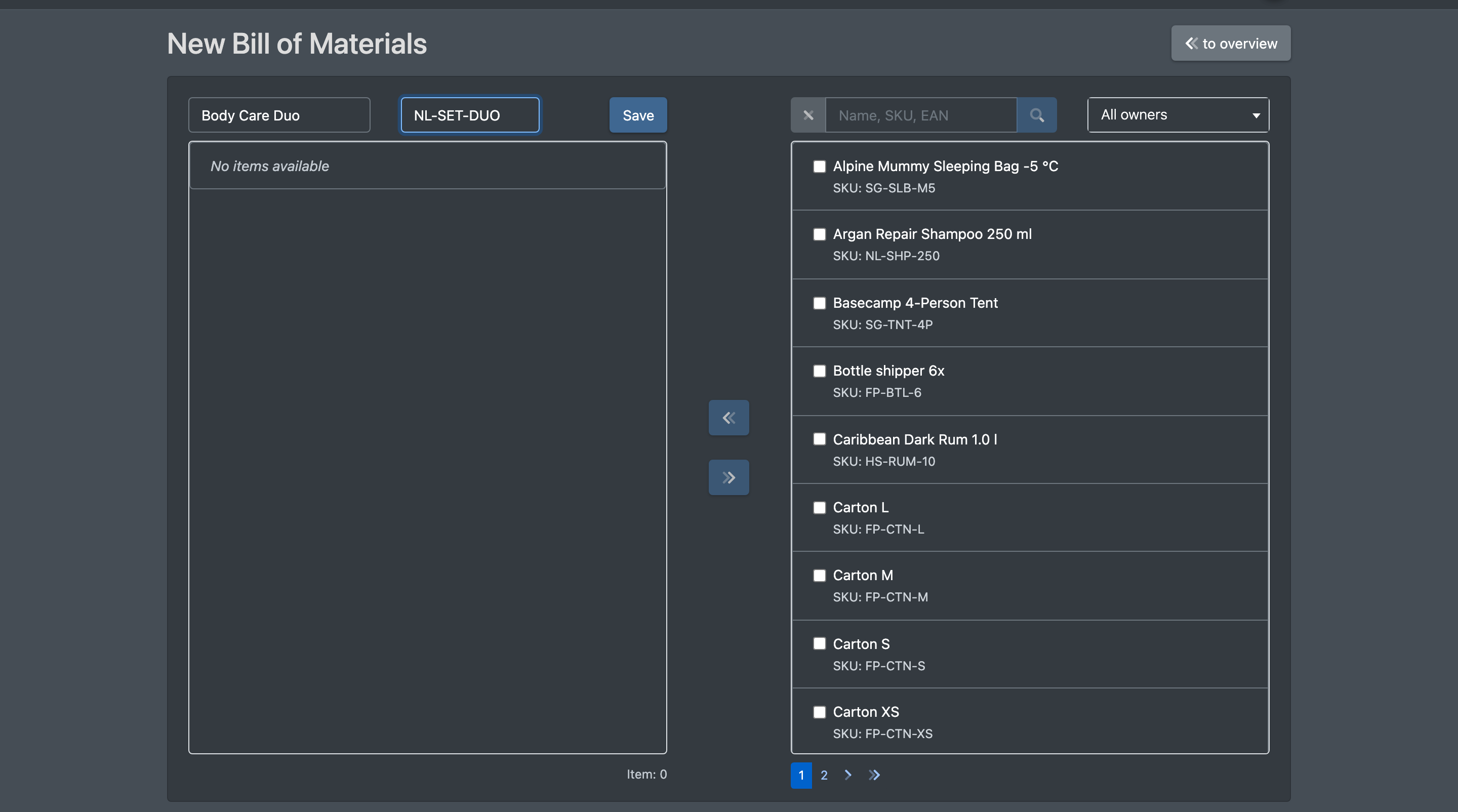
- Click New list (Neue Liste). The page New Bill of Materials (Neue Stückliste) opens.
- Enter the Bill of Materials Name (Stücklisten Name) and the SKU.
- Search for the single articles on the right with Name, SKU, EAN. If your company has clients, you can also choose All owners (Alle Eigentümer) or one owner.
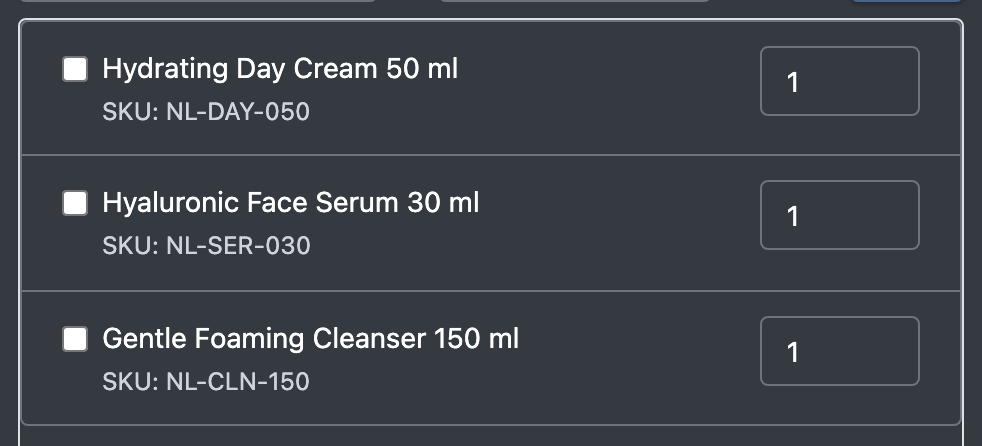
- Tick the articles you want and move them into the bill of materials with the « button.
- Enter the quantity for each article in the list.
- Click Save (Speichern). You see "The bill of materials has been saved".
Remove an article from the bill of materials
Tick the article in the list on the left and click the » button. Then save.
Edit a bill of materials
Click the bill of materials in the overview. The page Edit Bill of Materials (Stückliste bearbeiten) opens. Change name, SKU, articles or quantities and click Save. When you save, all positions are written again as they are shown.
Fields and options
Import bills of materials
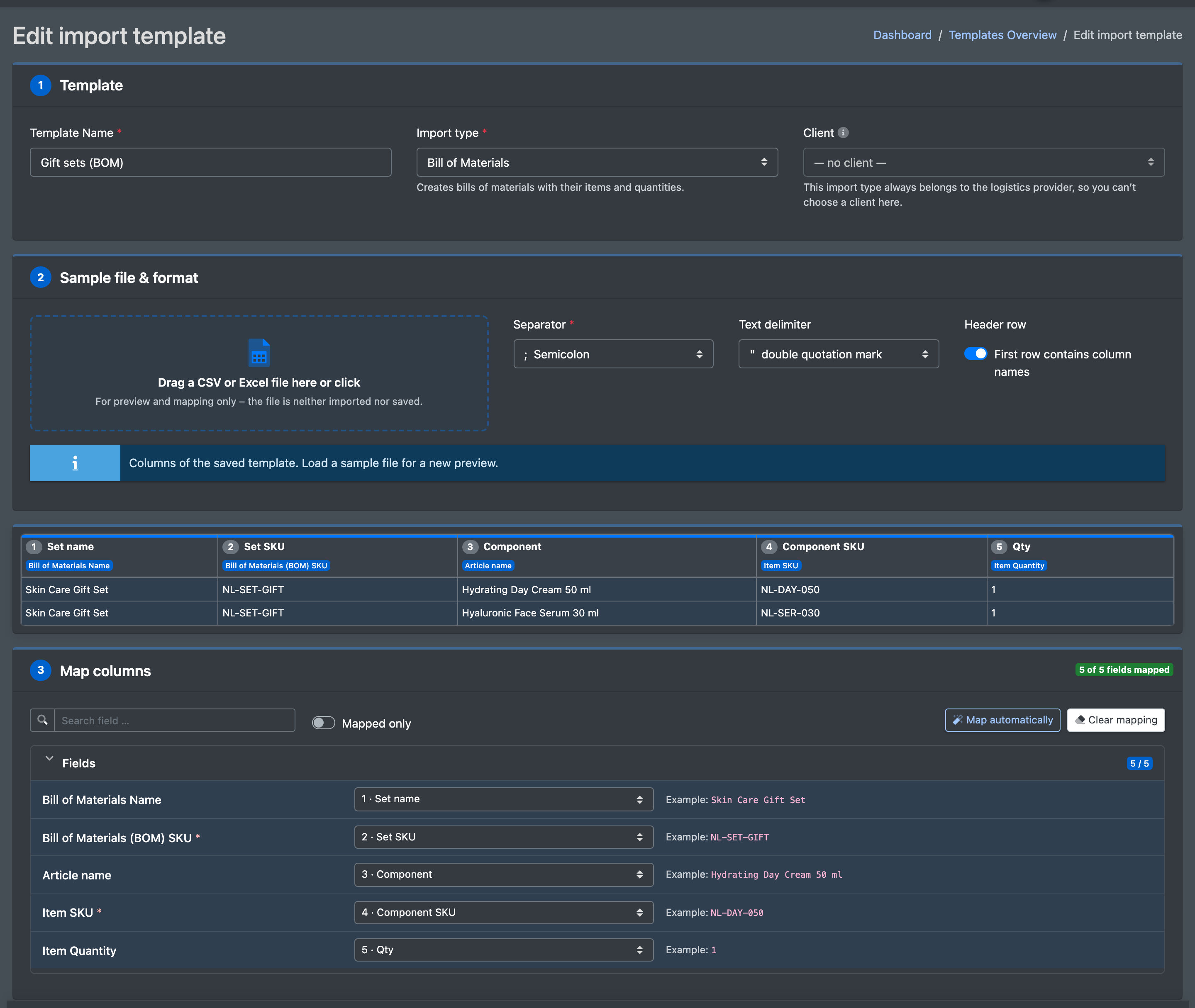
You can import bills of materials from a CSV file with an import template. Choose the target Bill of Materials (Stücklisten) and map these columns:
See Import templates.
Good to know
- Positions whose article does not belong to your company (or, for clients, to you as owner) are ignored when you save.
- Name and SKU of the positions are stored as a copy. If you later change the single article, the bill of materials is not updated automatically – open it and save it again.
- With JTL, a setting of the order transfer decides whether only the parent article of a bill of materials is sent. See JTL connection.