
Product groups
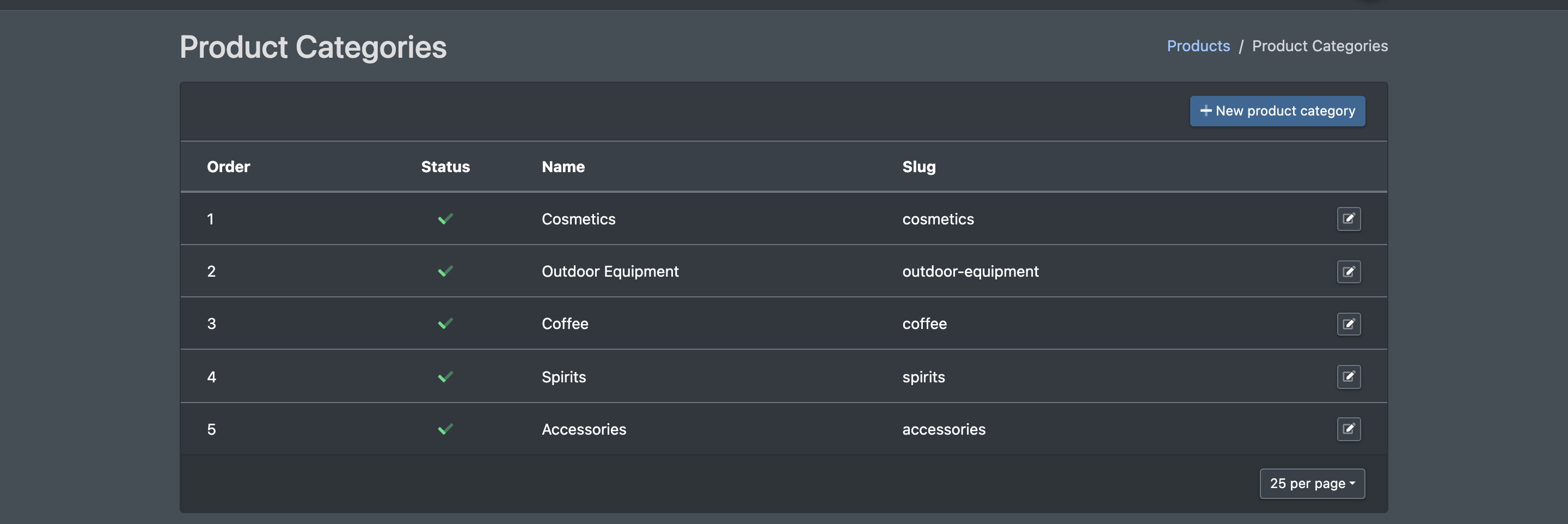
Product groups (Warengruppen, formerly "product families") group articles by subject matter, for example "Beverages" or "Spare parts". Each article can belong to exactly one product group. You can use product groups as a filter and as a change in Bulk processing, and they are also used in the warehouse.
In the English interface, the menu entry is called Product Categories (Warengruppen). Do not mix it up with Categories (Kategorien), the category tree of your catalogue – see Categories.
Before you start
- Your user needs the permission for product groups. Ask your administrator if the menu entry is missing.
Step by step
Create a product group
- Go to Catalogue › Product Categories (Katalog › Warengruppen). The list shows name, slug, order and status.
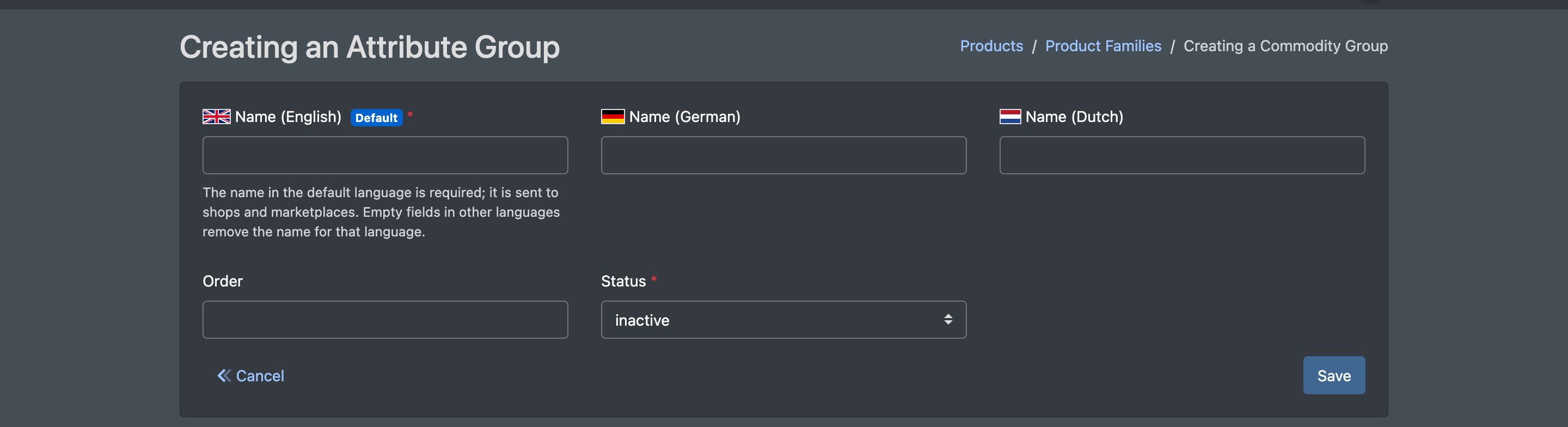
- Click New product category (Neue Warengruppe). The form Creating a Commodity Group (Warengruppe anlegen) opens.
- Enter the Name, the Order (Sortierung) and the Status (active / inactive).
- Click Save (Speichern). You see "The product group has been saved".
Edit a product group
Click the group in the list. The form Edit Product Category (Warengruppe bearbeiten) opens. Change the values and click Save.
Assign a product group to an article
- Open the article (green pencil in the article overview).
- Choose the tab Category (Warengruppe).
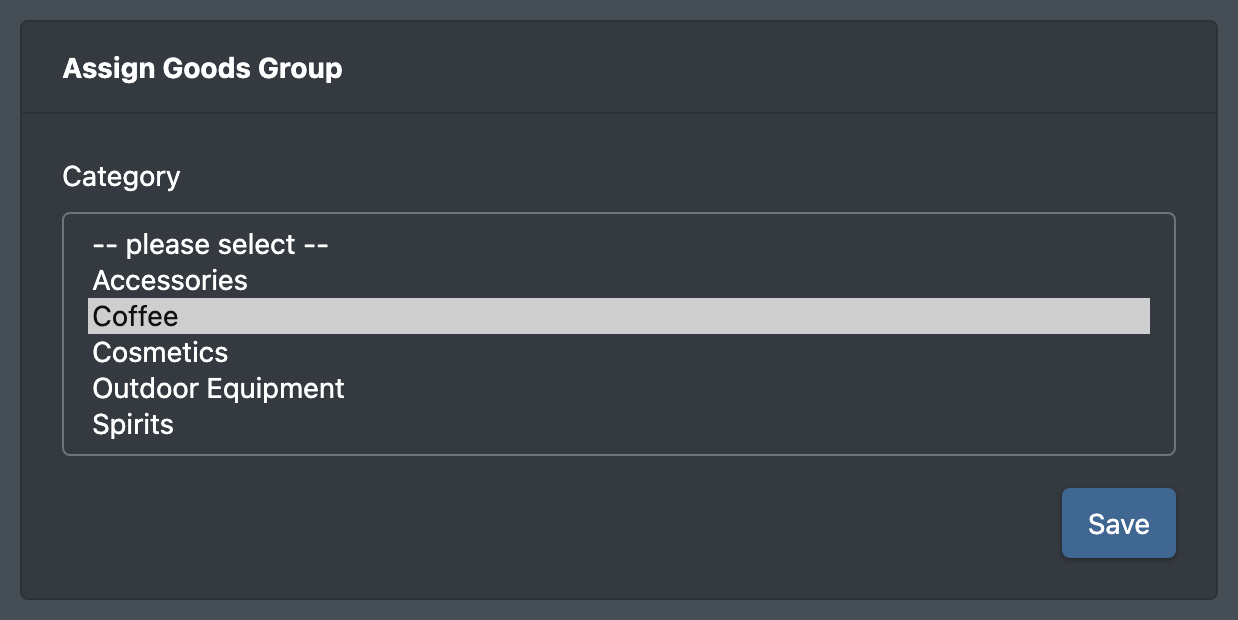
- Pick the group under Assign Goods Group (Warengruppe zuweisen) and click Save.
You can also create a new group directly in this tab with Create a new product group (Neue Warengruppe anlegen). See Edit an article.
To assign a product group to many articles at once, use Bulk processing.
Fields and options
Good to know
- If you create a group whose slug already exists, X-Sitter updates the existing group instead of creating a second one.
- An article has at most one product group. Assigning a new one replaces the old one.