
Order import templates
Describe once how the columns of a customer's CSV or Excel order file map to X-Sitter order fields.
An import template describes how the columns of a customer's order file (CSV or Excel) are mapped to the order fields of X-Sitter. You create the template once with a sample file. After that, you can import as many files in this format as you like.
Before you start
- Your user needs the permission to edit order import templates. Ask your administrator.
- Optional: the client the template should be used for. See Clients.
- A sample file from the customer (.csv or .xlsx).
Step by step
Create a template
- Open Orders › Create template (Aufträge › Vorlage erstellen).
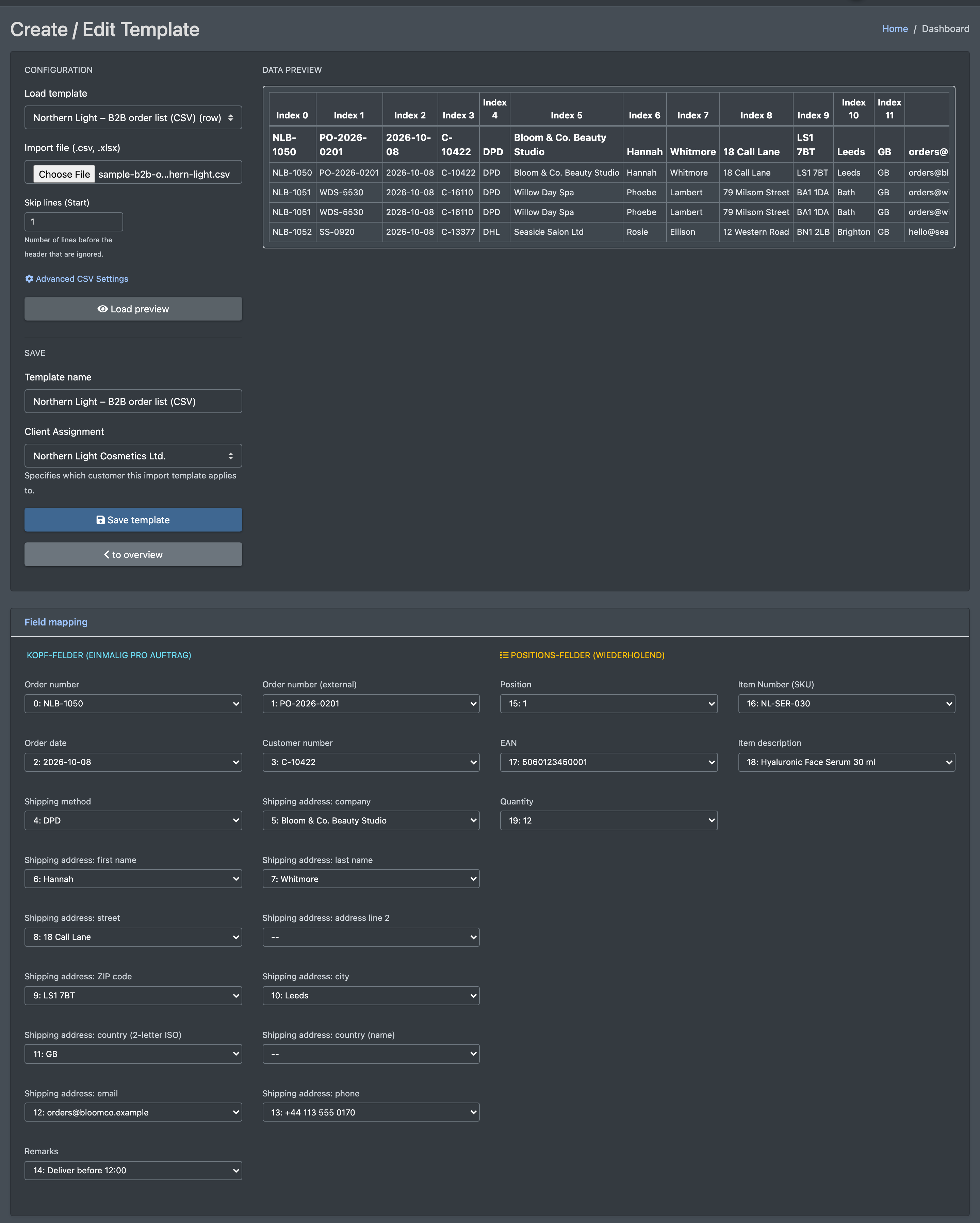
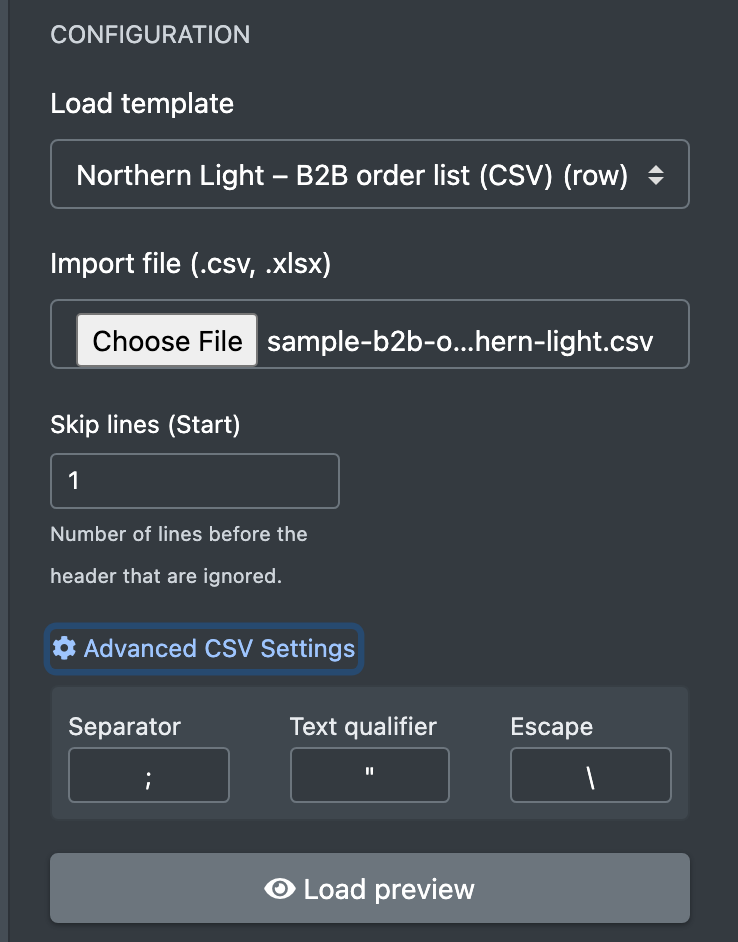
- Under Configuration (Konfiguration) choose Load template (Vorlage laden) to change an existing template, or create a new one (Neue Vorlage erstellen).
- Choose the Import file (.csv, .xlsx) (Import-Datei (.csv, .xlsx)).
- In Skip lines (Start) (Zeilen überspringen (Start)) enter the number of lines before the header line that are ignored.
- For CSV files open Advanced CSV Settings (Erweiterte CSV-Einstellungen) if needed: Separator (Trennzeichen, default
;), text delimiter (Text-Begrenzer, default") and Escape (default\). - Click Load preview (Vorschau laden). The Data Preview (Daten-Vorschau) shows the file. The structure is recognised automatically:
- Rows (Zeilen) – the first line is the header, every following line is one order line.
- Block – the first column marks head and position lines, usually with
HEAD/HandPOS/P.
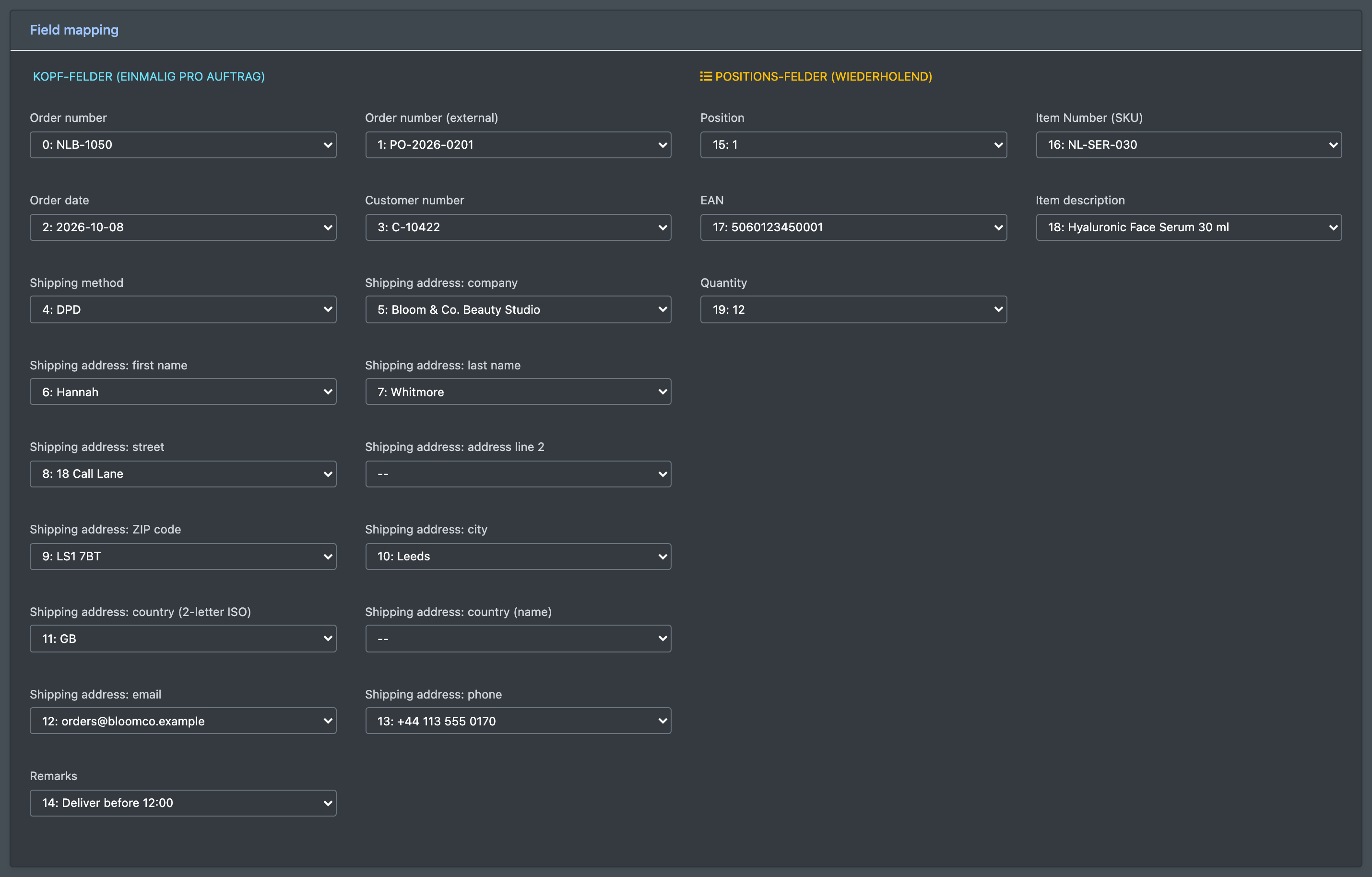
- Under Field mapping (Feld-Zuordnung) assign the columns of the file to the X-Sitter fields (see table below).
- Enter a Template name (Vorlagenname), for example "Format customer Miller".
- In Client Assignment (Zuweisung Mandant) choose the client the orders belong to, or General / No assignment (Allgemein / Keine Zuweisung).
- Click Save template (Vorlage speichern).
Manage templates
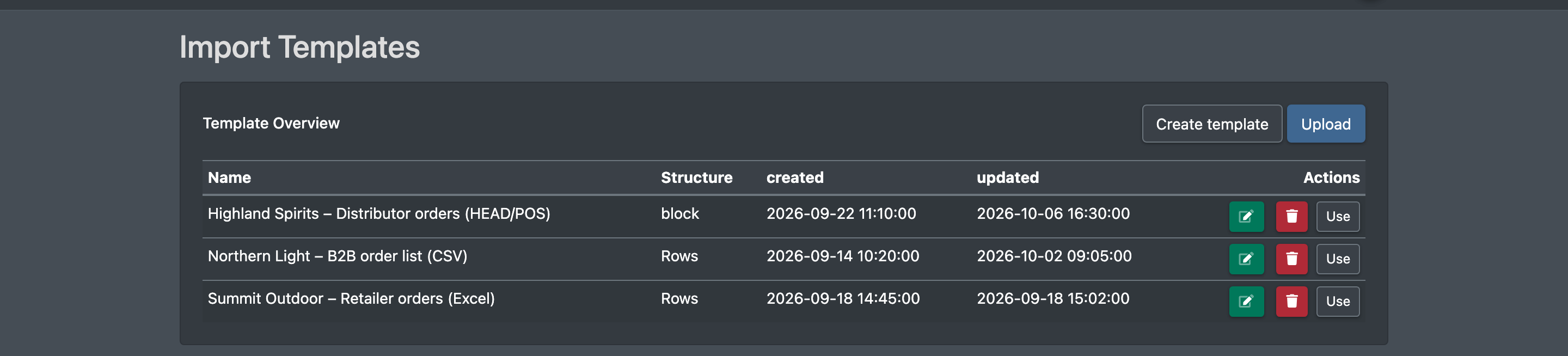
Open Orders › Import - Templates (Aufträge › Import - Vorlagen). The list shows Name, Structure (Struktur: block or rows), created (erstellt) and updated (aktualisiert). Actions:
- Use (Benutzen) – opens the upload with this template preselected.
- Edit – opens the template.
- Delete (Löschen) – asks whether the template should really be deleted permanently.
Fields and options
Good to know / Troubleshooting
A template without a client assignment creates the orders for your own company. If several clients send the same file format, create one template per client so the orders land with the right client.