PDF documents

Design delivery notes, packing lists, invoices and labels in the PDF Creator with HTML and placeholders.

In the PDF Creator you maintain the HTML templates for your documents and labels: delivery note, packing list / loading list, invoice, label (pallet / shelf label) and other documents. The templates are used

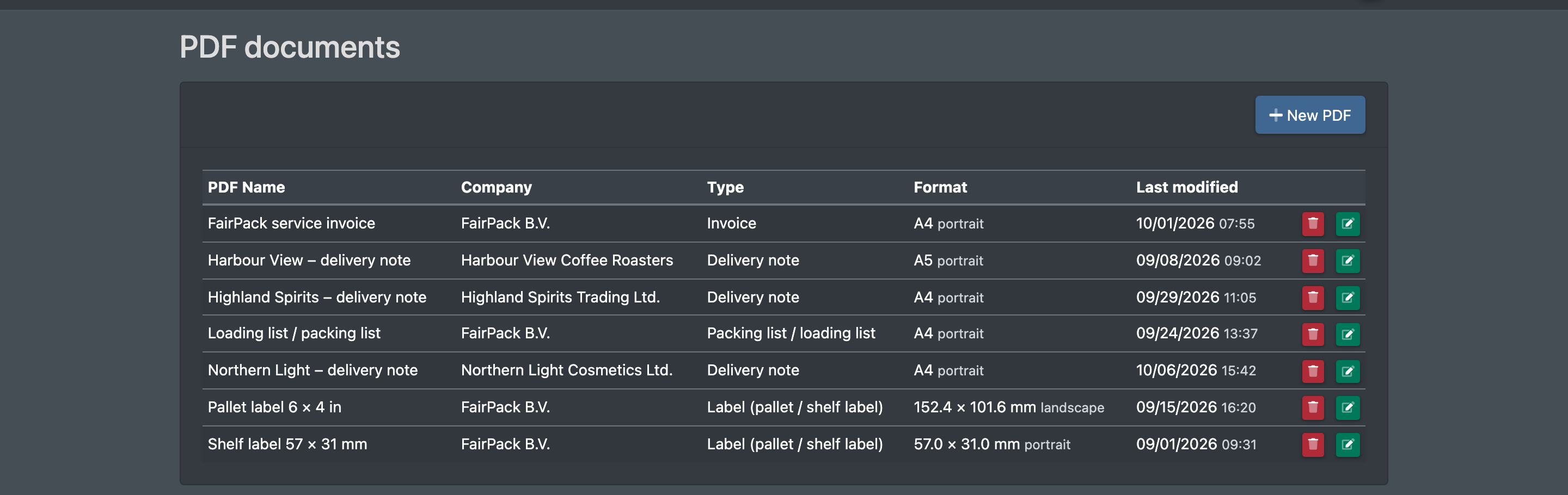
Screenshot: PDF documents overview with PDF name, company, type, format and last change

Before you start

  • Your user needs the permissions for Settings (Einstellungen) and PDF documents (PDF - Dokumente) in the WMS menu. Opening the form and deleting templates are separate permissions – ask your administrator.
  • The client the template is for – see Clients.
  • Logos and images in your company media – see Media.

Create a template

  1. Open WMS › Settings › PDF documents (WMS › Einstellungen › PDF - Dokumente).
  2. Click New PDF (Neue PDF). The PDF Creator opens.
  3. In Settings (Einstellungen) on the right enter
    • Template Name (Name der Vorlage), e.g. "Standard delivery slip",
    • For companies (Für Firma) – the client,
    • Document type (Dokumenttyp),
    • Format – A4, A5, A6 or Custom Size (Eigenes Maß) with Width (mm) and Height (mm),
    • Orientation (Ausrichtung) – Portrait format (Hochformat) or Landscape (Querformat),
    • Page Numbers (Seitenzahlen) – show page numbers.
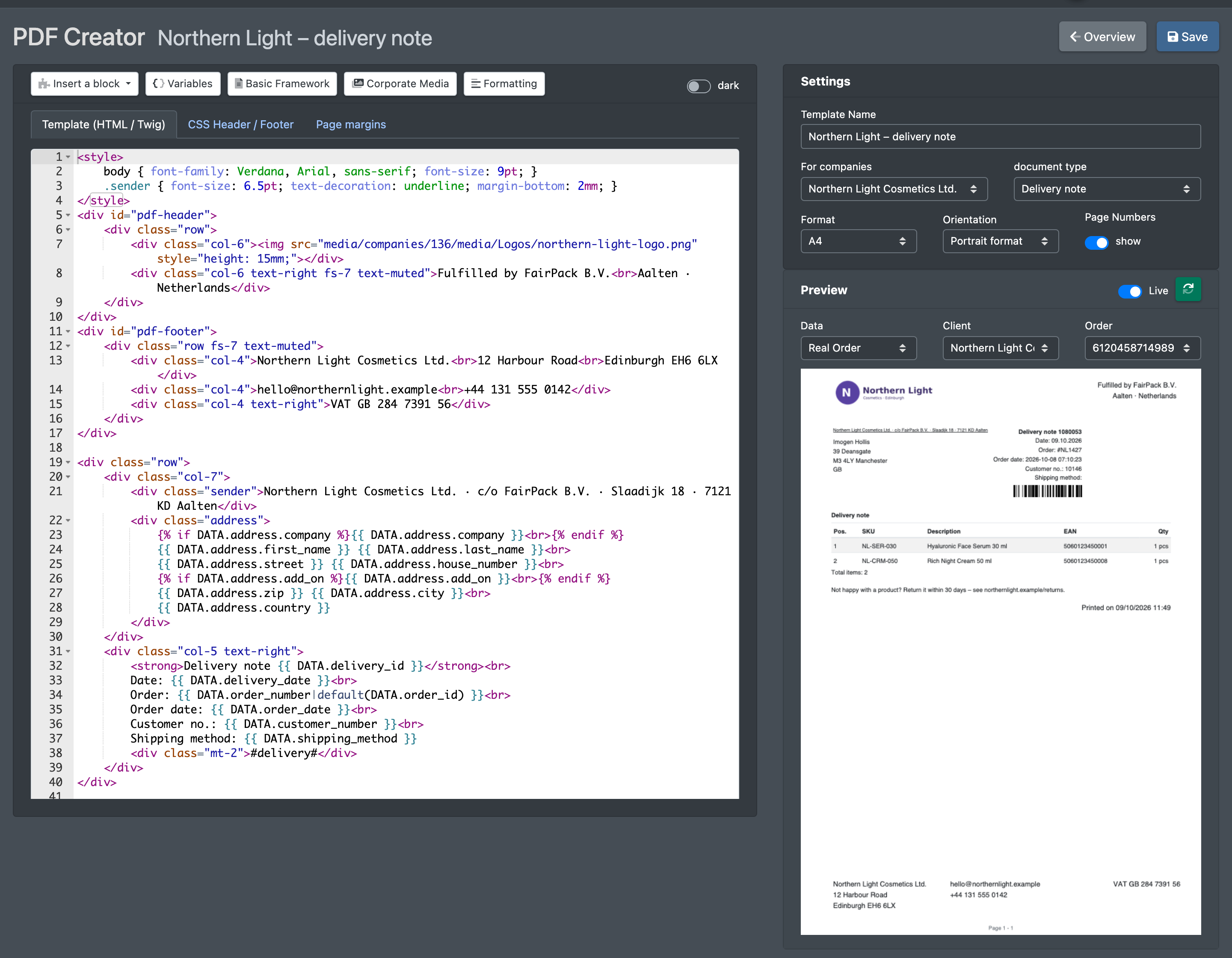
  4. Edit the Template (HTML / Twig) (Vorlage (HTML / Twig)). Helpers in the toolbar:
    • Insert a block (Baustein einfügen) – header and footer on every page, address block, position table (delivery note or invoice), two columns, delivery note barcode, page break, label per copy, print date.
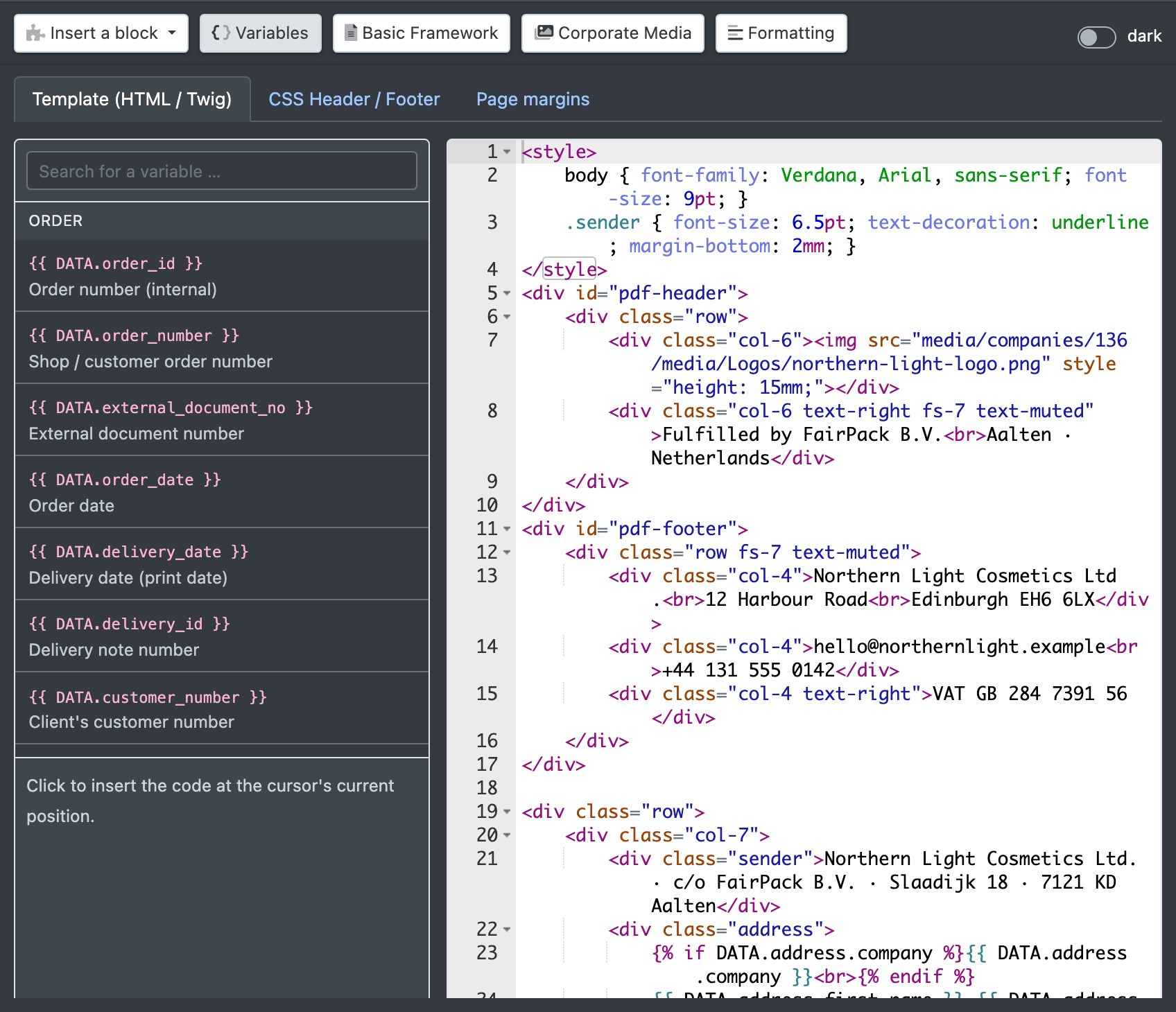
    • Variables (Variablen) – searchable list of the placeholders for the selected document type. A click inserts the code at the cursor position.
    • Basic Framework (Grundgerüst) – inserts a complete starter template for the selected document type.
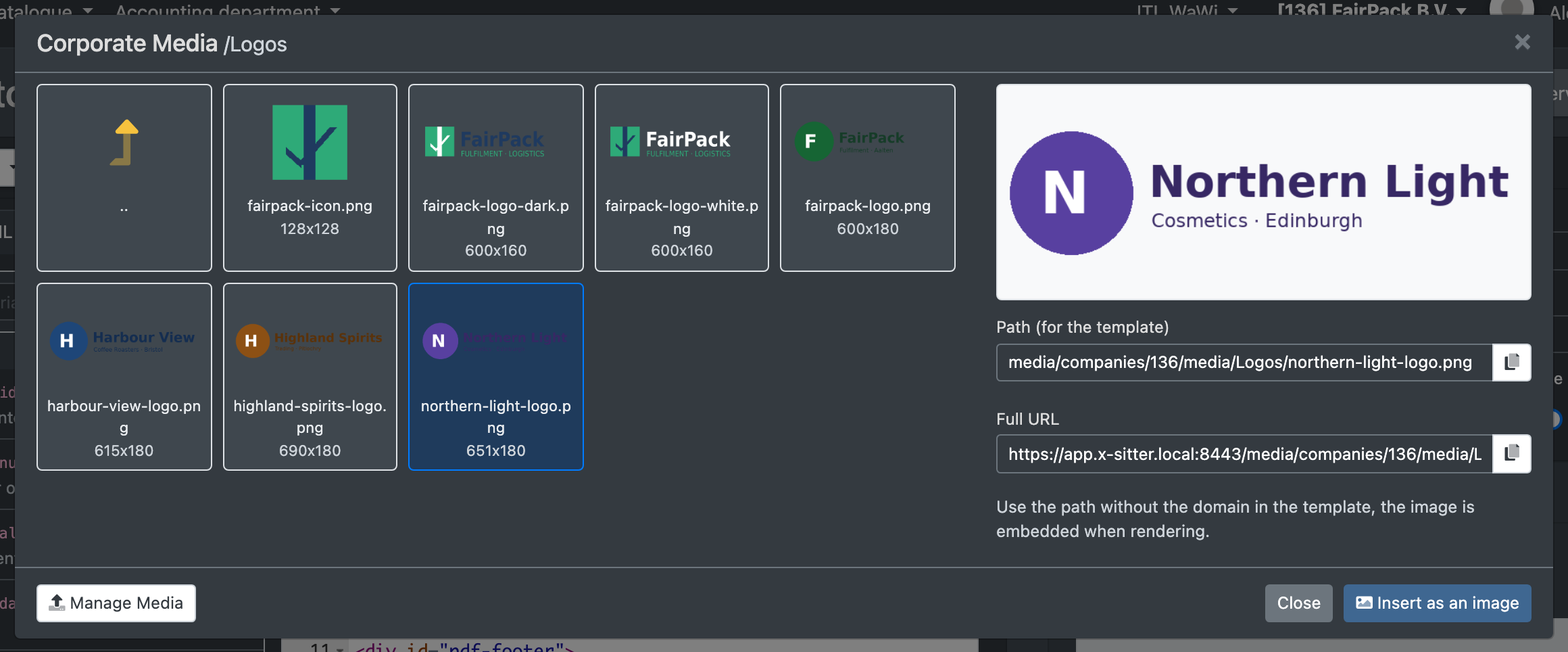
    • Corporate Media (Firmenmedien) – insert images from your company media or copy their path.
    • Formatting (Formatieren) – indents and tidies the source code (Ctrl/Cmd + Shift + F).
  5. Optional tabs:
    • CSS Header / Footer (Kopf- / Fußzeile CSS) – styles for the header (element with the id pdf-header) and footer (id pdf-footer). Typically position fixed with top/bottom, so they appear on every page.
    • Page margins (Seitenränder) – only the margins of the @page rule; the format comes from the settings. For labels set the margin to 0.
  6. Check the Preview (Vorschau) with Sample Data (Beispieldaten) or a Real Order (Echter Auftrag).
  7. Click Save (Speichern) – or press Ctrl/Cmd + S.
  8. Assign the template – see Use the template.
Screenshot: PDF Creator with the settings panel, the HTML editor and the live PDF preview
Screenshot: Variables panel of the PDF Creator for the document type delivery note
Screenshot: Company media dialog with an image selected and the "Copy path" button

Fields and options

Field Meaning
Template Name (Name der Vorlage) Name shown in the overview and in the selection lists. Required.
For companies (Für Firma) The client the template belongs to. Required.
Document type (Dokumenttyp) Delivery note (Lieferschein), Packing list / loading list (Packliste / Ladeliste), Invoice (Rechnung), Label (pallet / shelf label) (Etikett (Paletten- / Fachbodenlabel)) or Other (Sonstiges). It decides which variables are available and where the template can be selected.
Format / Custom Size Paper format or label size. For a custom size enter width and height as the label comes out of the printer, and leave the orientation on portrait.
Orientation (Ausrichtung) Portrait or landscape.
Page Numbers (Seitenzahlen) Prints page numbers.

Placeholders

Placeholders are written as the variable name in double curly braces – for example the variable name DATA.order_number in double curly braces prints the shop's order number. Insert them from the Variables panel to avoid typos. Lists such as positions are printed with a loop; the blocks Position table and Basic Framework already contain the right loop.

Group (document types) Examples of variable names
Order (delivery note, packing list) DATA.order_id, DATA.order_number, DATA.external_document_no, DATA.order_date, DATA.delivery_date, DATA.delivery_id (delivery note number), DATA.customer_number, DATA.total_count, DATA.shipping_method, DATA.packages_count, DATA.pallets_count, DATA.colli_count, DATA.order.note, DATA.order.tracking_id
Delivery address DATA.address.company, .first_name, .last_name, .street, .house_number, .add_on, .zip, .city, .country, .phone, .email
Positions DATA.products (list) with item.sku, item.name, item.quantity, item.delivered_quantity, item.unit, item.ean, item.article_number
Invoice DATA.invoice_number, DATA.customer_number, DATA.dates.added, DATA.dates.start / end (billing period), DATA.vat_id, DATA.tax_note (reverse charge note), DATA.total_netto, DATA.total_tax, DATA.total_brutto, DATA.positions (list)
Pallet label DATA.sku, DATA.name, DATA.quantity, DATA.spot_number, DATA.palette_number, DATA.batch_number, DATA.article_owner
Shelf label (article label) DATA.sku, DATA.name, DATA.name_full, DATA.spot_number, DATA.employee, DATA.date, DATA.ean, DATA.han, DATA.supply_number, DATA.copies
General Current date, conditions (print only if a value is set) and default values for empty fields

Barcodes and images are inserted with simple markers instead of placeholders: #delivery# (delivery note number), #order_barcode# (order number), #invoice_number# (invoice number), #article_barcode# (article number), #pallet_number_barcode# (pallet number) and #qr_code# (QR code of the article number), all as Code128 unless stated otherwise. Images use a relative path (media/…) – copy it from Corporate Media; the image is embedded when the PDF is rendered.
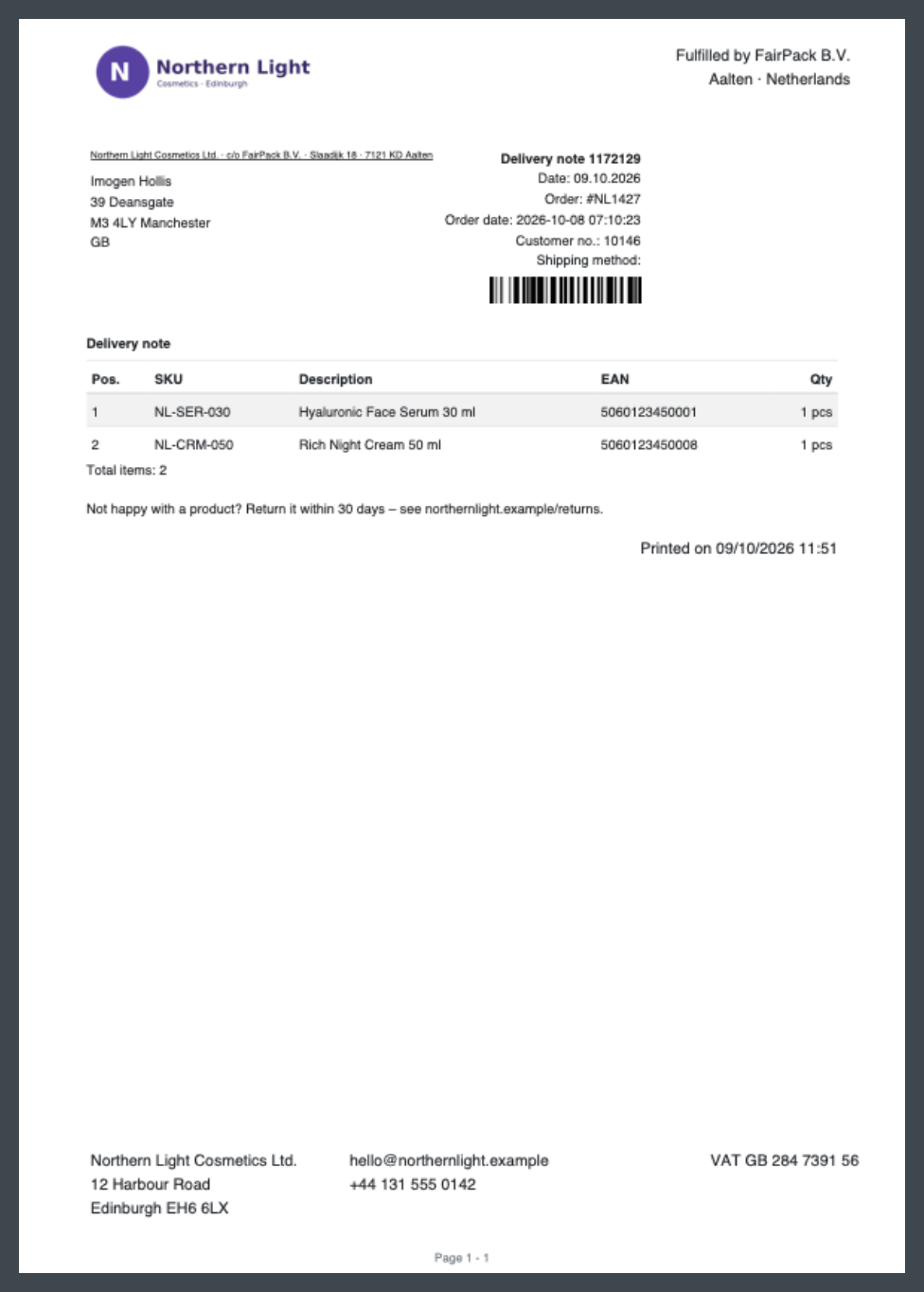
Screenshot: Preview of a delivery note template with sample data, barcode and position table

Use the template

  • Warehouse settings, tab Configurations (Konfigurationen): Standard Delivery Note, Invoice PDF Template, Label PDF Template and the template for Shelves (Fachböden) – see Warehouse settings.
  • Workflows: Delivery Note Template and Invoice Template in the print settings – see Workflows.

If no matching template exists, these selection fields show "No template was found".
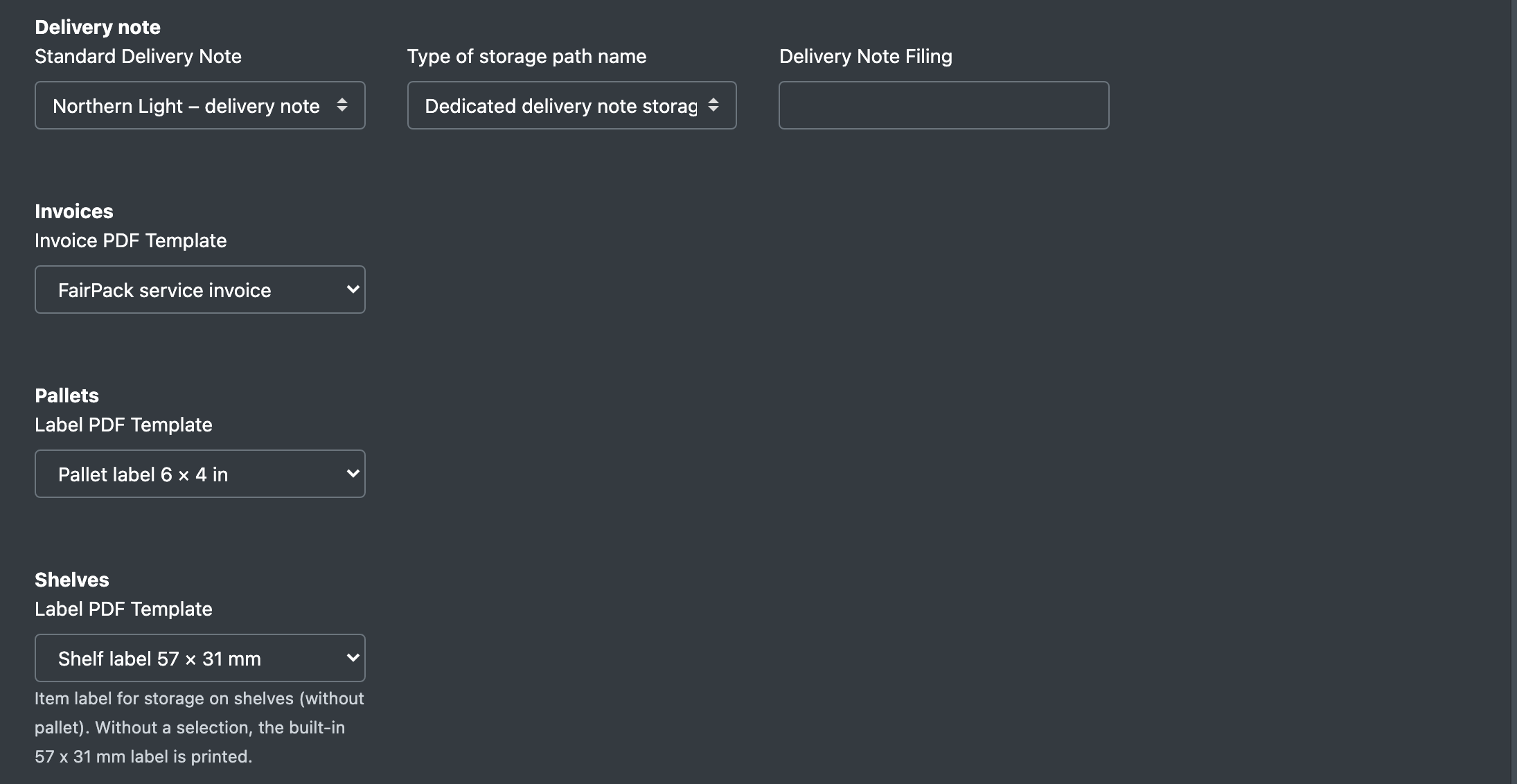
Screenshot: Warehouse settings, tab Configurations, with the template selection fields

Troubleshooting

Message Cause Solution
Please enter a name and company. (Bitte Name und Firma angeben.) Name or client missing. Fill in both fields.
The PDF template has been deleted (Die PDF Vorlage wurde gelöscht) Confirmation. –
No template was found (Es wurde keine Vorlage gefunden) No template of this document type for the client. Create a template with the right document type.
The article label could not be created from the PDF template. Please check the template in the warehouse settings. (Das Artikeletikett konnte nicht aus der PDF-Vorlage erzeugt werden. …) Faulty label template. Fix the template and check it with the preview – see Putaway.
There is no suitable PDF template! (Es gibt keine passende PDF Vorlage!) No delivery note template when printing in loading. Create a delivery note template and assign it.