
Service categories
Group your warehouse cost items into categories such as storage, handling and shipping for the client statement.
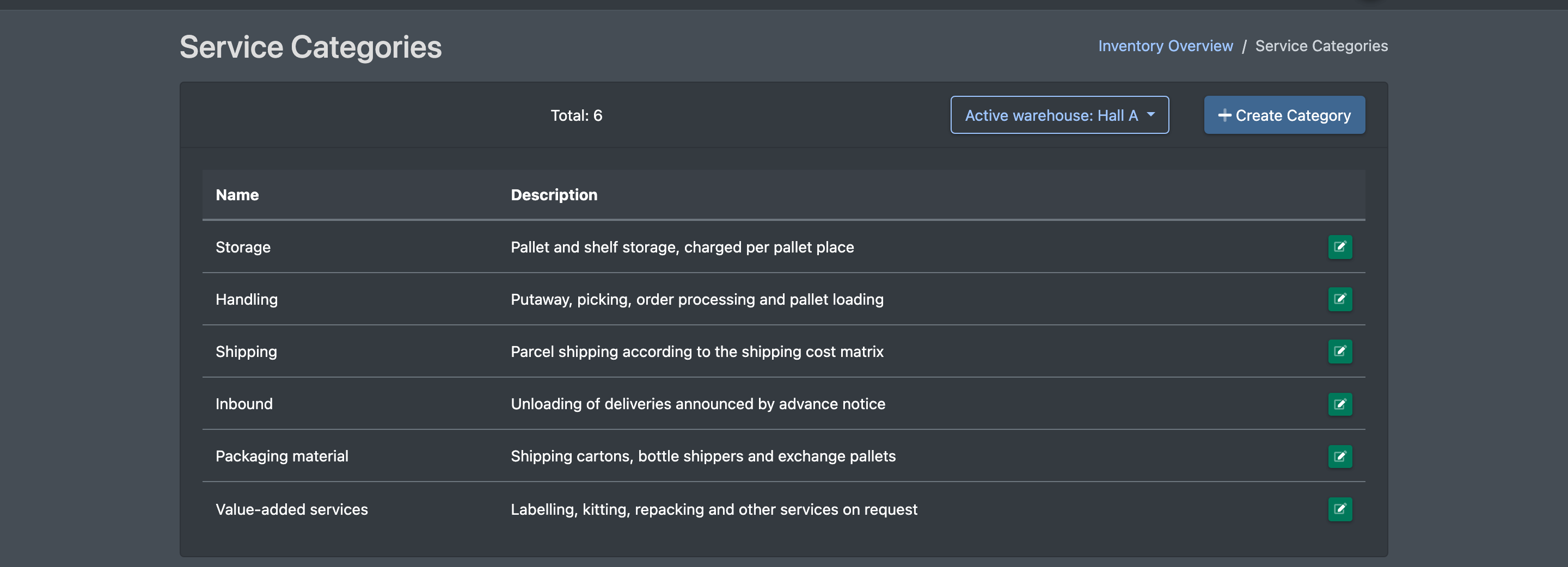
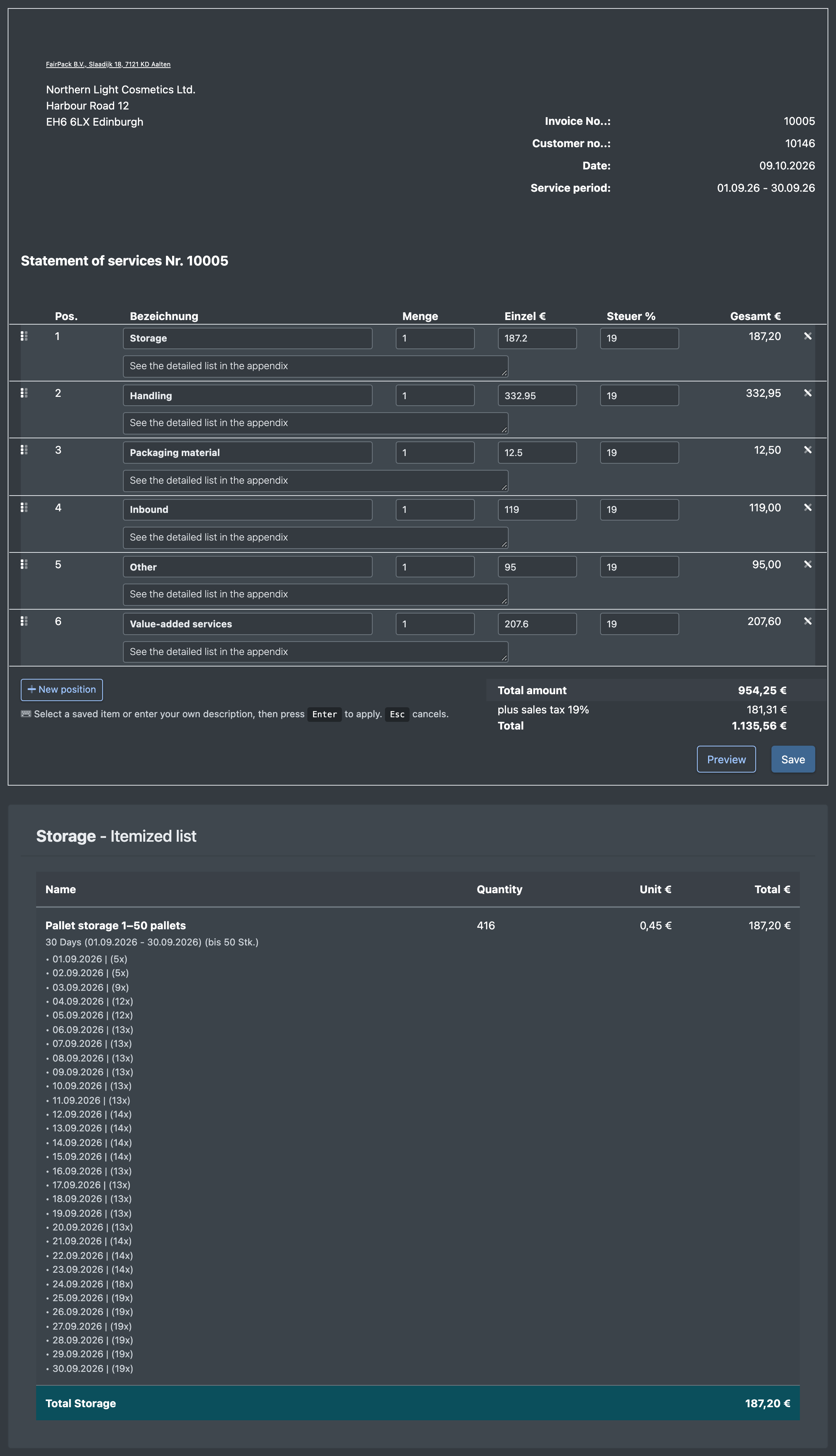
Service categories (Leistungs-Kategorien) group the cost items on your client statement, for example "Storage", "Handling" or "Shipping". On the statement, every category gets one total line, and the individual items appear in the itemized list below it. Categories are set up per warehouse.
Set up your categories first – almost every cost template asks for a Billing Category (Abrechnungs-Kategorie).
Before you start
- Your user needs the permissions for the cost settings and the service categories in the rights tree – ask your administrator.
- Select the warehouse you want to bill for in the warehouse drop-down at the top right. Categories always belong to the selected warehouse.
Step by step
- Open WMS › Settings › Cost settings › Service Categories (WMS › Einstellungen › Kosteneinstellungen › Leistungs-Kategorien).
- Click Create Category (Kategorie anlegen).
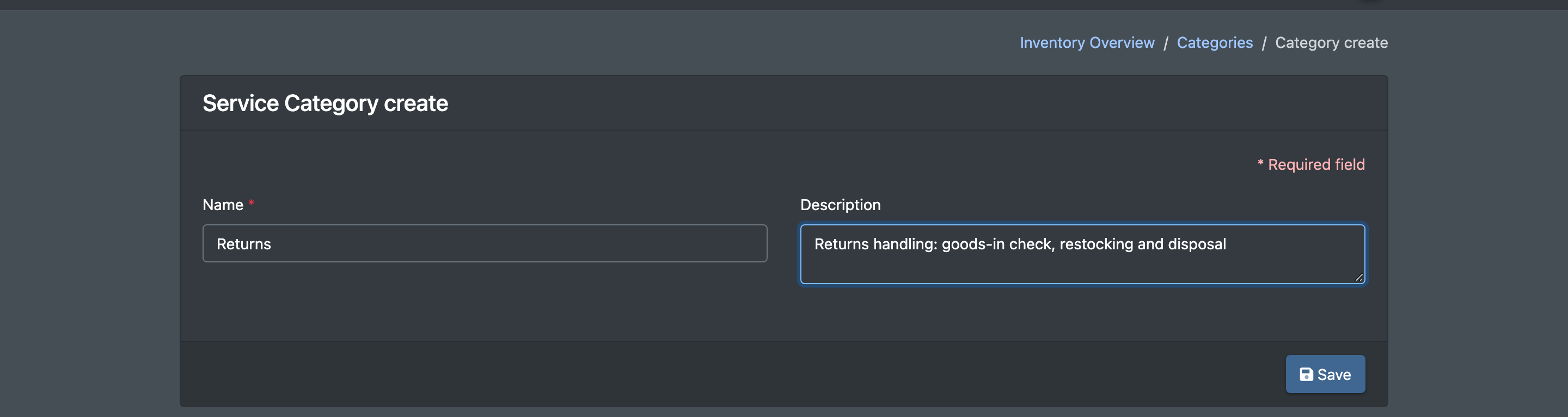
- Enter a Name (Name) and, if you like, a Description (Beschreibung).
- Click Save (Speichern). You see the message "The category has been created".
- Assign the category in your cost templates via the field Billing Category (Abrechnungs-Kategorie), for example in Order costs or Storage space costs.
Edit a category: click the pencil button in the list, change the name or description and save.
Delete a category: click the trash can button and confirm the question "Are you sure you want to delete this category?" (Soll die Kategorie wirklich entfernt werden?).

Fields and options
How categories appear on the statement
- Each category gets one total line with the note "See the detailed list in the appendix" (Siehe Einzelaufstellung im Anhang).
- Below the summary, every category has its own Itemized list (Einzelaufstellung) with all cost items of that category.
- Cost items without a category are collected under Other (Sonstiges).
Good to know
- Use a name containing "Versand" (shipping) for your shipping category: when you import shipping costs into the Shipping cost matrix, new entries are automatically assigned to the category whose name contains "Versand".
- Before you delete a category, reassign the cost templates that use it to another category. Otherwise their items may end up under Other.
- Recording VAS and VAS templates also use these categories.