
Shipping cost matrix
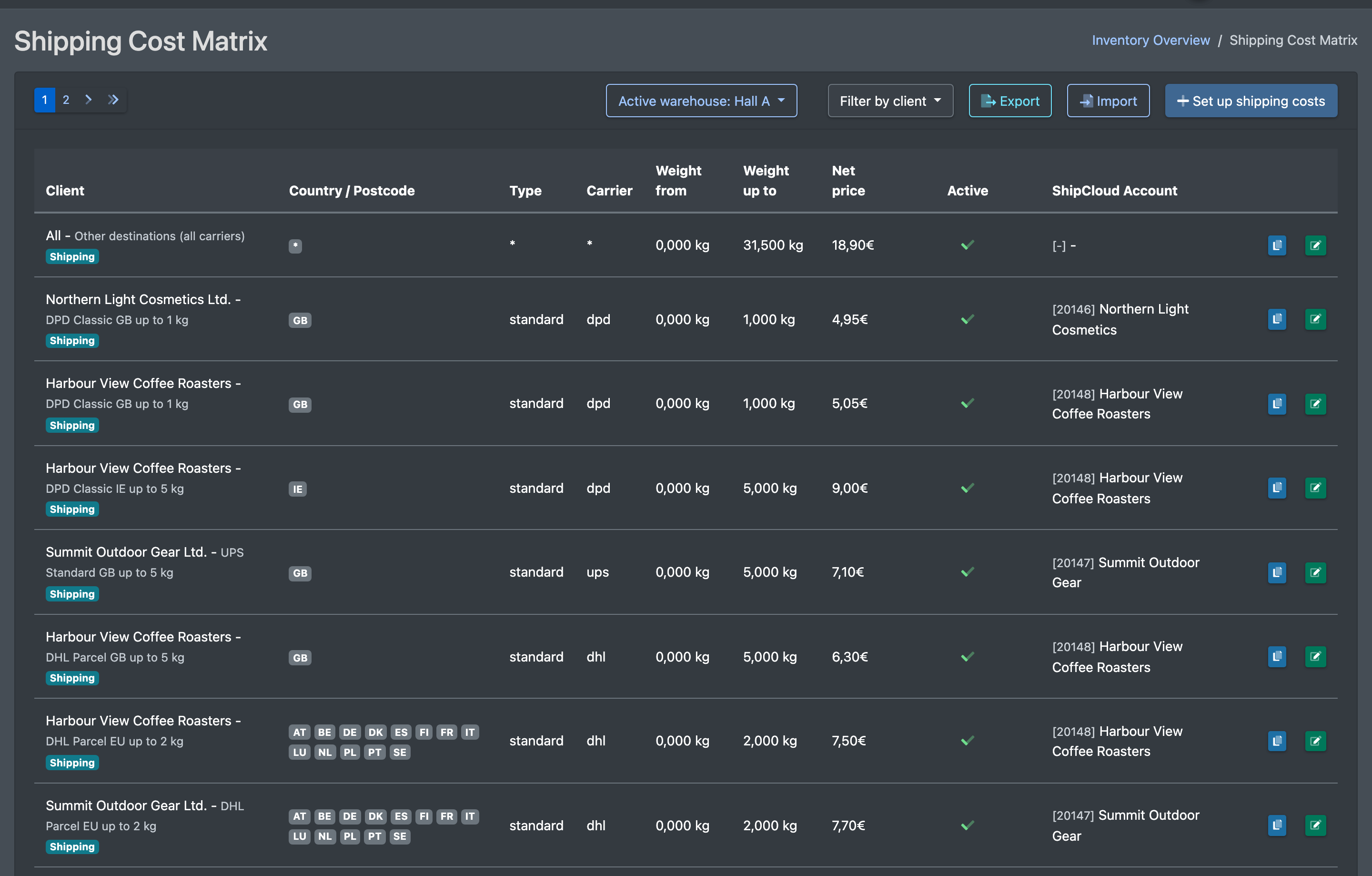
The shipping cost matrix (Versandkosten Matrix) defines the net price a client pays per shipping label – depending on the destination country, the carrier, the package type and the weight. On the client statement, every shipping label of the client in the billing period is matched to a row of the matrix.
Before you start
- Your user needs the permissions for the shipping costs in the cost settings – ask your administrator.
- The shipping labels are created via ShipCloud and belong to an order of the client, see Shipping labels and ShipCloud accounts.
- Recommended: a service category for shipping, ideally with "Versand" in its name.
Step by step
Create an entry manually
- Open WMS › Settings › Cost settings › Shipping Cost Matrix (WMS › Einstellungen › Kosteneinstellungen › Versandkosten Matrix).
- Click Set up shipping costs (Versandkosten anlegen).
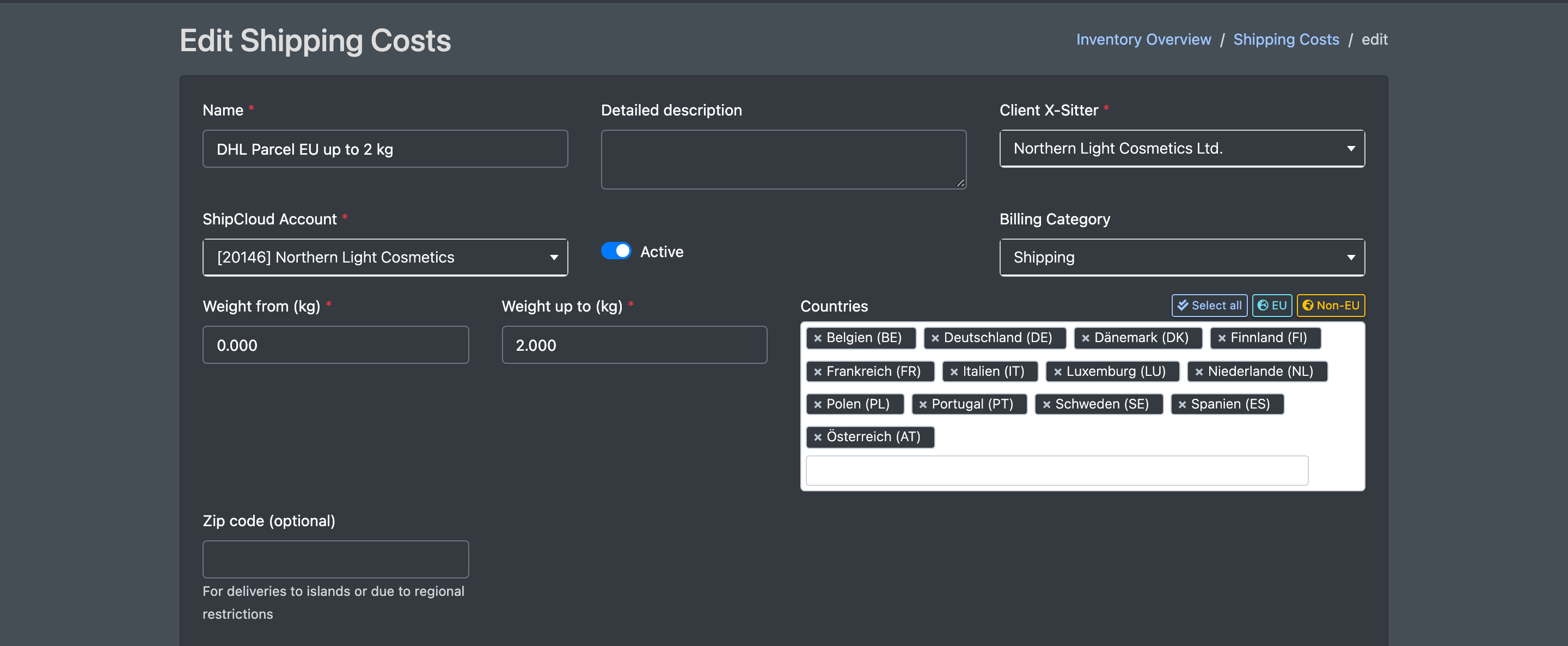
- Enter a Name (Name) and optionally a Detailed description (Detailbeschreibung), choose the Client (Mandant) or All clients (Alle Mandanten), the ShipCloud Account (ShipCloud Konto) and the Billing Category (Abrechnungs-Kategorie). Tick Active (Aktiv).
- Enter Weight from (kg) (Gewicht von (kg)) and Weight up to (kg) (Gewicht bis (kg)).
- Choose the Countries (Länder). Use the buttons Select all (Alle auswählen), EU or Non-EU (Nicht EU), or choose All countries / Wildcard (Alle Länder / Wildcard,
*). Optionally enter a Zip code (optional) (Postleitzahl (optional)).
- Enter the Package Type (Slug) (Paket-Typ (Slug)), e.g.
standard,dhl_kleinpaket,dhl_warenpostor*for all, and the Shipping carrier (Versanddienstleister (Carrier)), e.g.dhl,dpd,upsor*for all. - Enter the Net sales price (VK Netto) and optionally the Net purchase price (EK Netto). Optionally switch on Calculate multiple times (Mehrfach berechnen) and set a validity period.
- Click Save (Speichern).

Import a CSV file
-
In the list, click Import (Import). The shipping cost importer opens.
-
Under Billing (CSV) (Abrechnung (CSV)), choose the monthly billing file in CSV format. Optionally choose clients under Do not import these clients (Mandanten nicht importieren; empty = "Import all clients" – Alle Mandanten importieren). Lines of these clients are skipped, e.g. if their shipping costs are billed differently. The selection is kept for the next import.
-
Click Upload and import (Hochladen und Importieren).
-
Check the Summary (Zusammenfassung) and the Detail view (Detailansicht).
-
Check that the imported entries are Active and have the right category.
Export the matrix
Click Export in the list. You get a CSV file versandkosten_export_<date>.csv with the columns Company Name, Name, Carrier, Service, Weight From, Weight To, Shipping Charge (net sales price), Receiver Countries and Purchase Price. The current client filter applies.
Fields and options
How labels are matched
- For each shipping label, X-Sitter first checks the entries for the destination country (from the delivery address, default Germany), then the wildcard entries.
- An entry matches if carrier, package type, weight, Active and the validity period fit.
- The first matching entry is charged. Further entries are only charged if the previous matching entry has Calculate multiple times switched on.
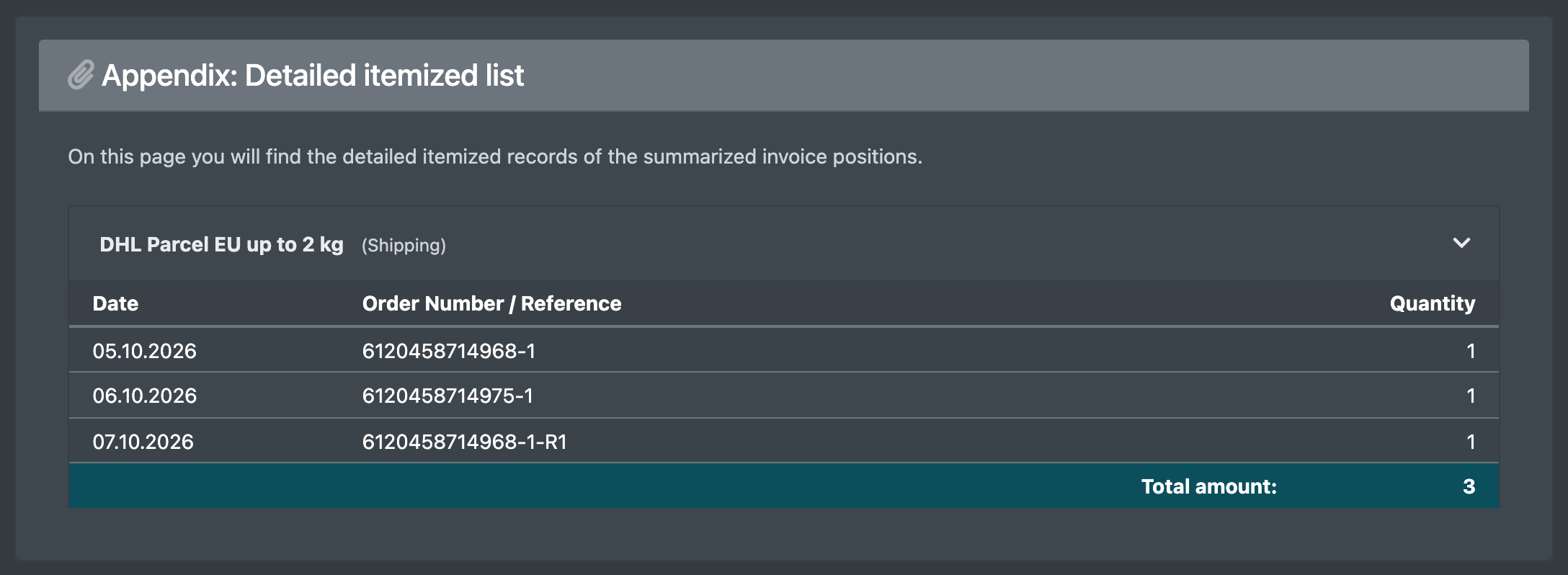
- On the statement, shipping costs always appear with the description "Shipping costs according to matrix" (Versandkosten nach Matrix) and a detailed breakdown in the appendix (reference = label reference or order number).
How the import works
- The file is a semicolon-separated CSV with the columns Company Name, Carrier, Service, Weight (or Weight To), Receiver Country (or Receiver Countries) and Shipping Charge, optionally Name. The export file has the same format; the importer reads only Shipping Charge as price.
- The Company Name must match the name of your client, and the client must have a ShipCloud account.
- The weights are grouped into the tiers up to 0.999 / 1.999 / 2.999 / 3.999 / 4.999 / 9.999 / 31 kg.
- Germany stays a separate entry, other EU countries are combined into "EU", non-EU countries get one entry per country.
- The carrier's charge is taken as the purchase price. New rows also get it as the sales price to start with; existing rows keep their sales price (Der Betrag des Versanddienstleisters wird als EK übernommen. Neue Zeilen bekommen ihn zunächst auch als VK; bei bestehenden Zeilen bleibt der VK unverändert.).
- Existing entries (same client and name) receive missing countries and the new purchase price. New entries get the category whose name contains "Versand".
Good to know / Troubleshooting
- Use Duplicate (Duplizieren) in the list to copy an entry. The copy is inactive until you activate it.