
Pallet costs
Charge your clients a fixed price per shipped pallet.
With pallet costs (Palettenkosten, also called pallet costs for loading) you charge a client a fixed price for every pallet shipped. X-Sitter counts the actual pallets of the client's orders in the billing period.
Before you start
- Your user needs the permissions for the pallet costs in the cost settings – ask your administrator.
- The client's orders are picked as pallets or packed as pallets at the packing station, see Picking, Pallet rides and Packing.
- Recommended: Service categories are set up.
Step by step
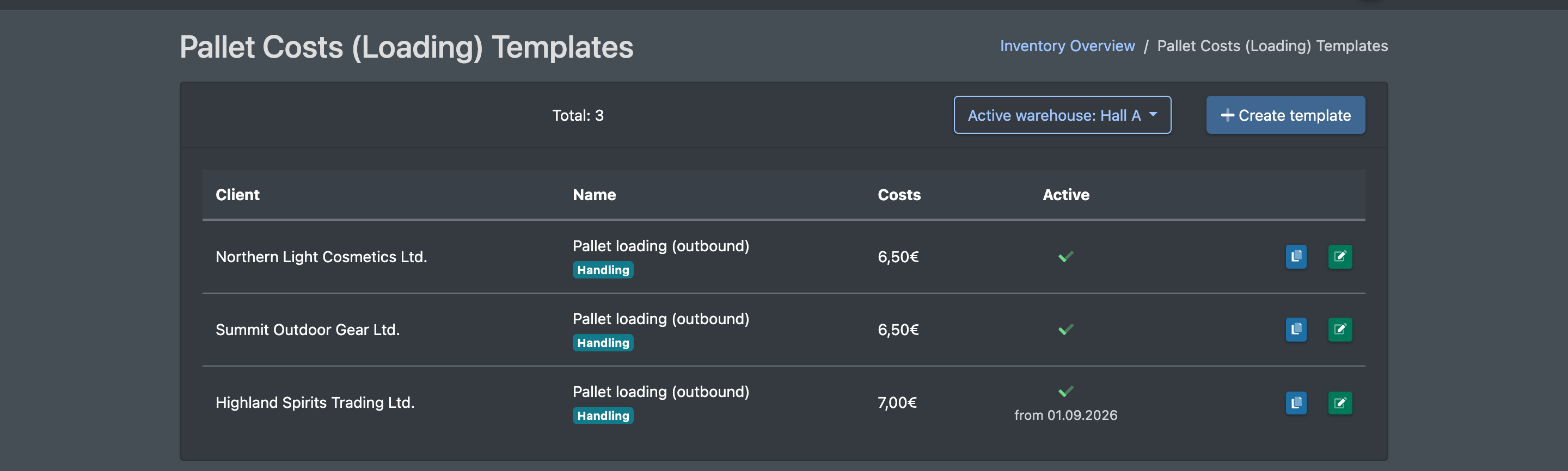
- Open WMS › Settings › Cost settings › Pallet Costs (WMS › Einstellungen › Kosteneinstellungen › Palettenkosten).
- Click Create template (Vorlage anlegen).
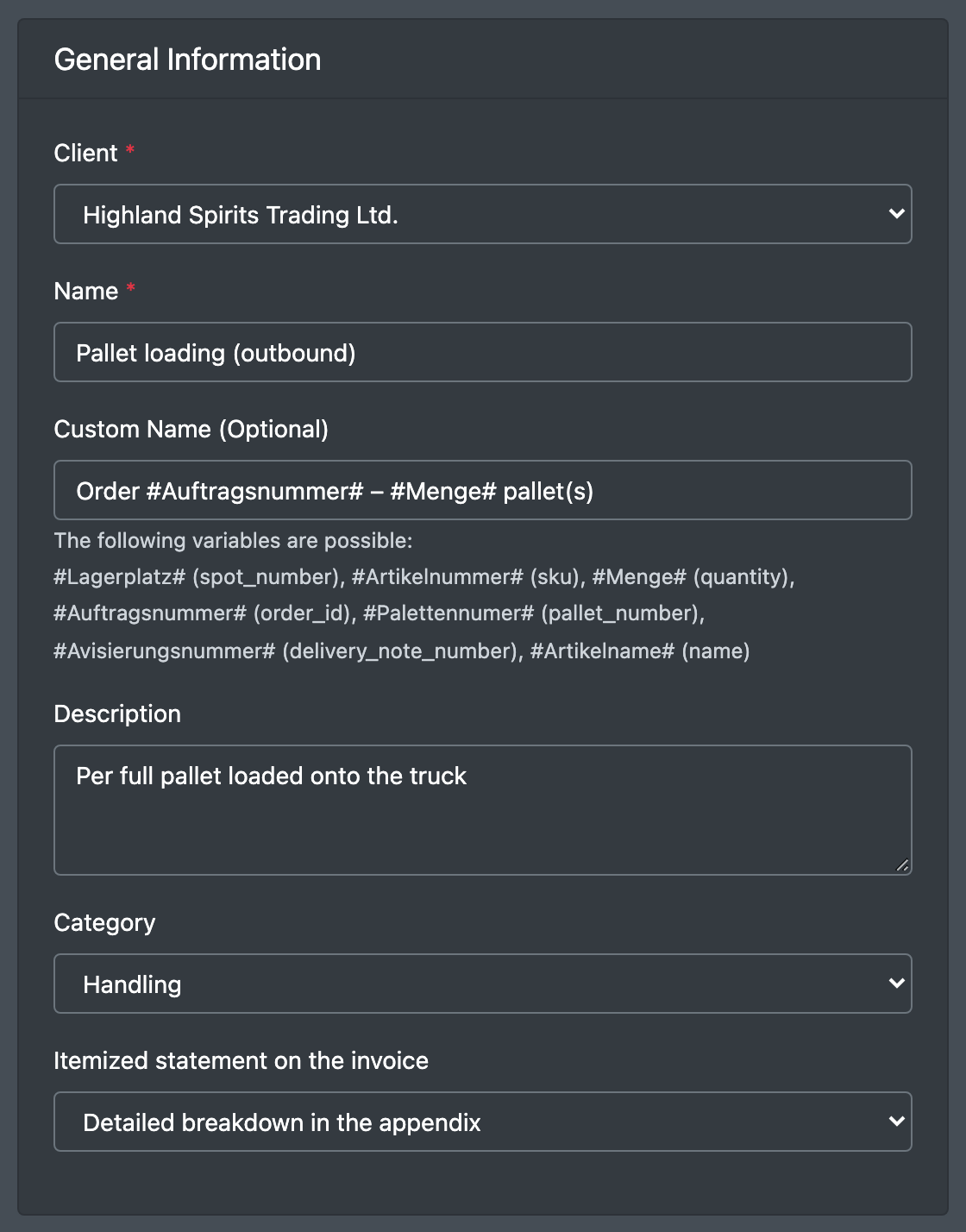
- Section General Information (Allgemeine Informationen): choose the Client (Mandant), enter a Name (Name), optionally a Custom Name (Individueller Name) and a Description (Beschreibung), and choose the Category (Kategorie) and the Itemized statement on the invoice (Detail-Darstellung auf Rechnung).
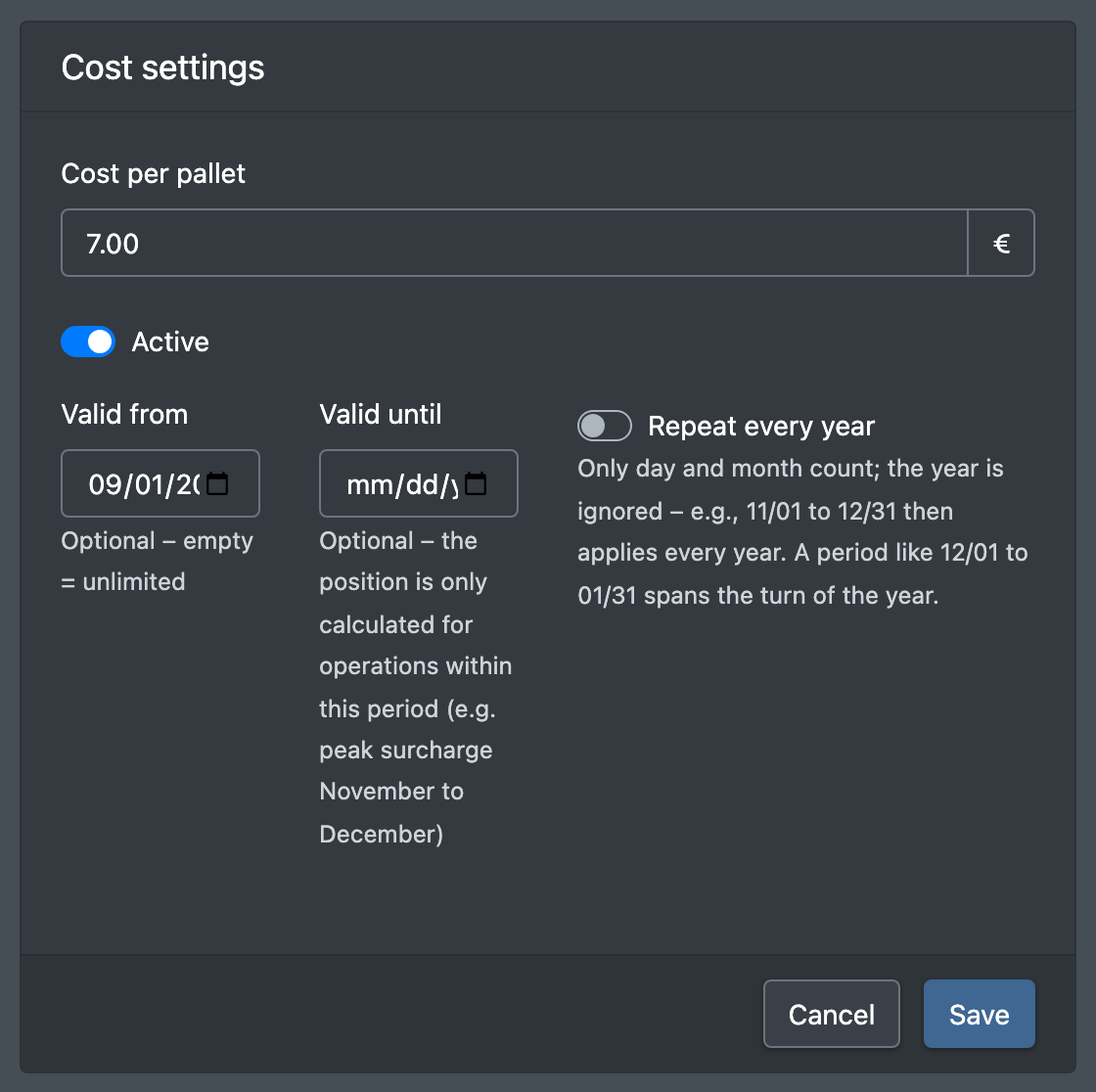
- Section Cost settings (Kosten & Einstellungen): enter the Cost per pallet (Kosten pro Palette), tick Active (Aktiv) and optionally set a validity period.
- Click Save (Speichern), or Cancel (Abbrechen) to discard.
Fields and options
How the pallets are counted
- X-Sitter takes the client's orders with an order date in the billing period that have pallets.
- Pallets registered at the packing station count first. If an order has no pallets registered there, the full pallets picked (status picked, packed or shipped) are counted instead.
- The two sources are never added up, so no pallet is charged twice.
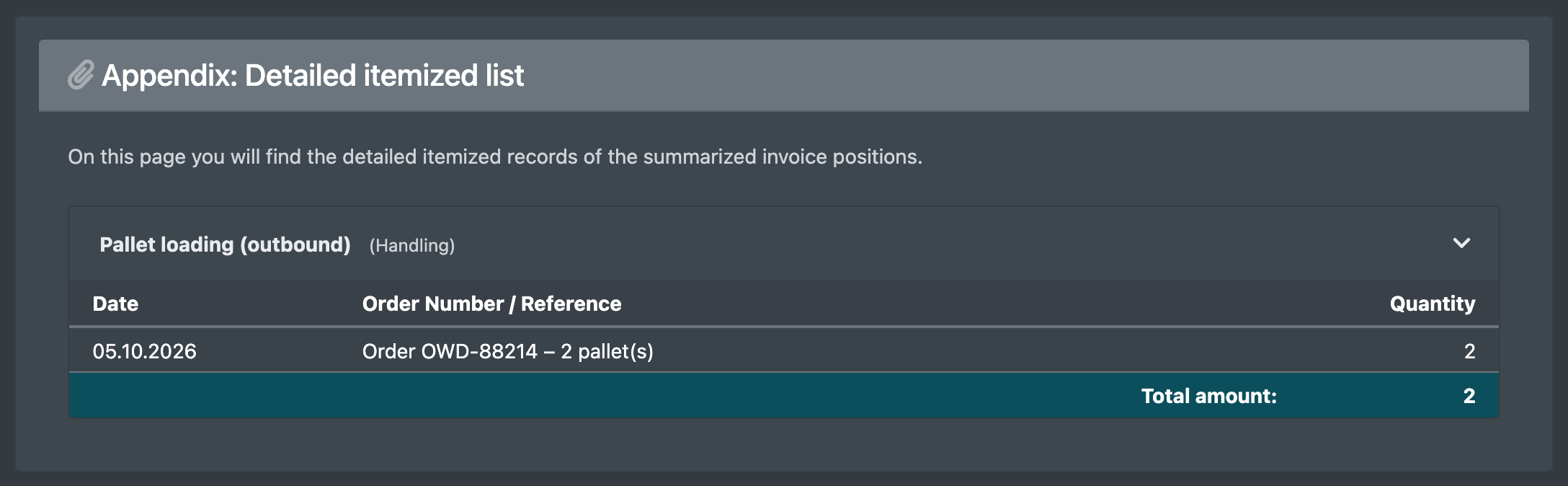
- The detailed breakdown shows the date, the order number (or your custom name) and the number of pallets.
Good to know / Troubleshooting
- Use Duplicate (Duplizieren) in the list to copy a template. The copy is inactive until you activate it.