Picking with the cart

Work through a picklist on your picking cart – scan item, confirm quantity, scan box.

In the step Order picking (Kommissionierung) the picker works through an open picklist on their picking cart: walk the positions in the given order, scan the item at the displayed storage place, confirm the quantity and scan the target box on the cart. Stock is booked out precisely by batch and best-before date. When all positions are picked, the picklist switches to picked and waits for packing.
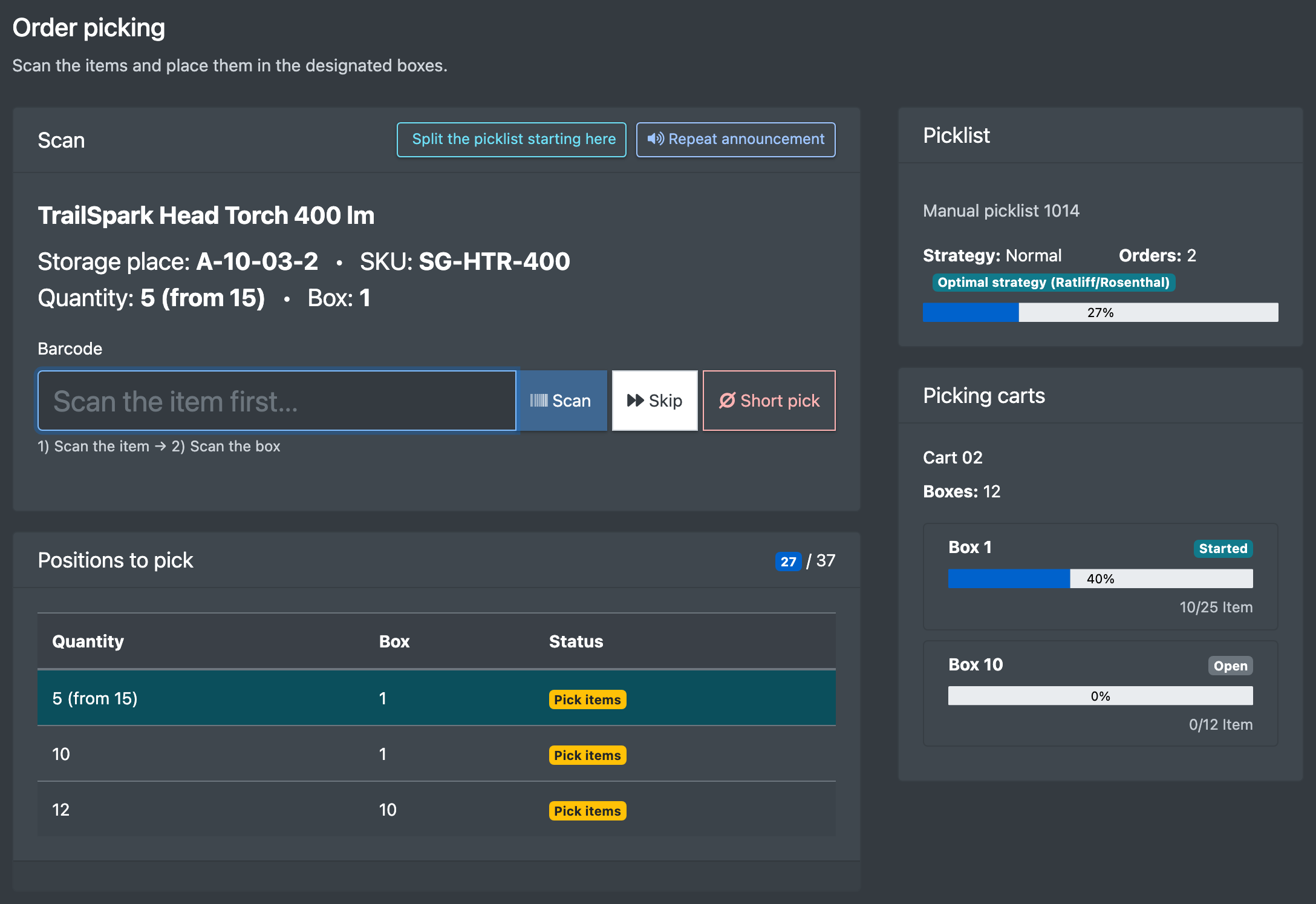
Screenshot: Picking step with the picklist card and the list of positions to pick

Before you start

  • Your user needs the permission Order picking (Kommisionierung). It also allows you to delete your own picklist when you cancel.
  • An open picklist on a reserved picking cart – see Create a picklist and Picking carts.
  • Items with a scannable barcode (EAN/SKU) and stock on the storage place.
  • For positions without a pick place: a finished restocking run – see Pallet rides.

Step by step

  1. Open WMS › Order picking (WMS › Kommisionierung) and scan or select your cart. If the cart has a running picklist, it opens directly; otherwise click Continue (Fortsetzen) under Your active picklists (Deine aktiven Picklisten).
  2. The Picklist (Pickliste) card shows the name and number, Orders: (Aufträge:), the strategy (Normal, Rolling or Collective) and the progress. Under Positions to pick (Zu pickende Positionen) you see the storage place, the item (SKU, best-before date), the quantity and the box.
  3. Order of work: first the forklift tasks (pallet runs and restocking, depending on the setting), then the item picks in the order of the pick route strategy.
  4. For each position follow 1) Scan the item → 2) Confirm the quantity → 3) Scan the box:
    • Scan the item ("Scan the item first...") – you see Article validated (Artikel validiert).
    • Click Confirm quantity (Menge bestätigen).
    • Scan the Target Box (Ziel-Box) ("Scan the box now..."). On a cart with only one box the box scan is skipped.
  5. Repeat for all positions.
  6. After the last position the list is automatically set to picked. Complete order picking (Kommissionierung abschließen) only confirms this on screen and takes you back to the cart selection. If positions are still open you see "Not all articles have been picked yet."
  7. Take the cart to the packing table – see Packing.
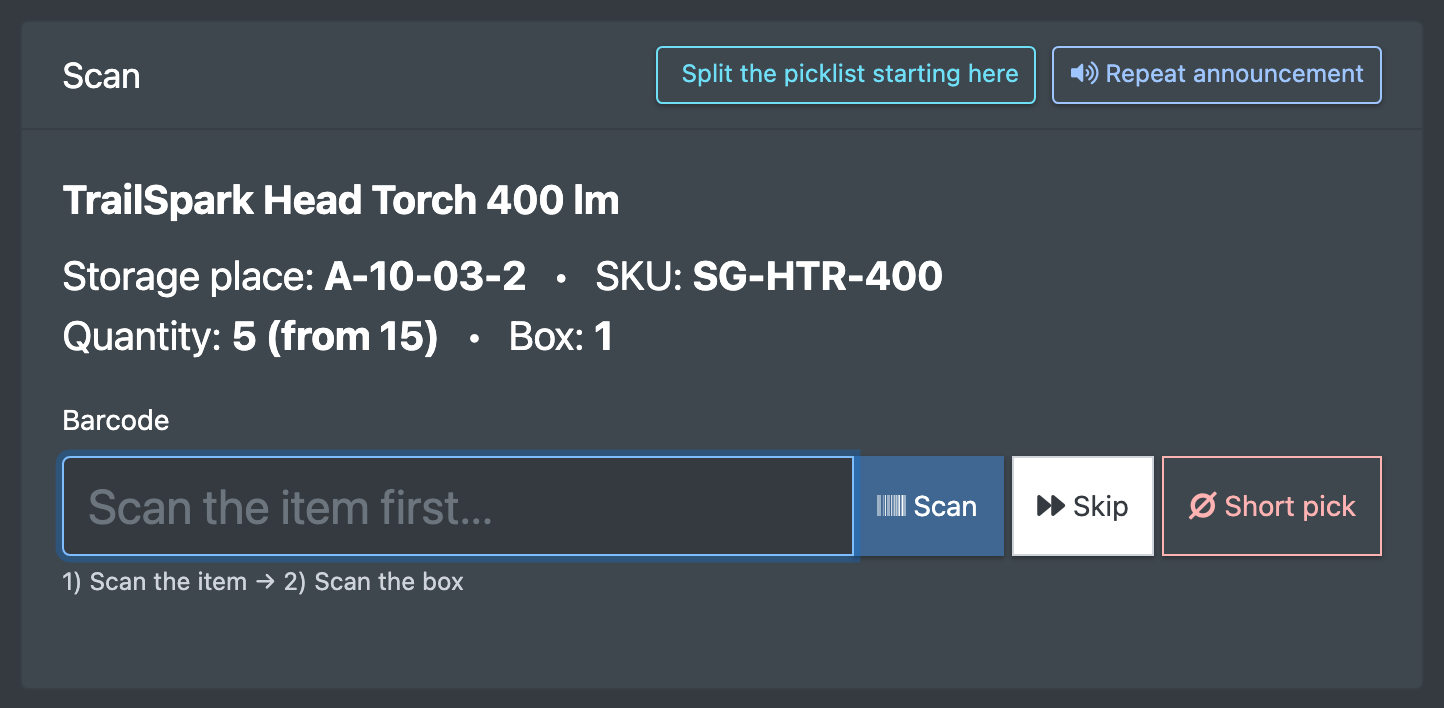
Screenshot: Current position with storage place, item image, quantity and the three-step hint "Scan the item → Confirm the quantity → Scan the box"

Options per position

Option What it does
Skip (Überspringen) Handle the position later.
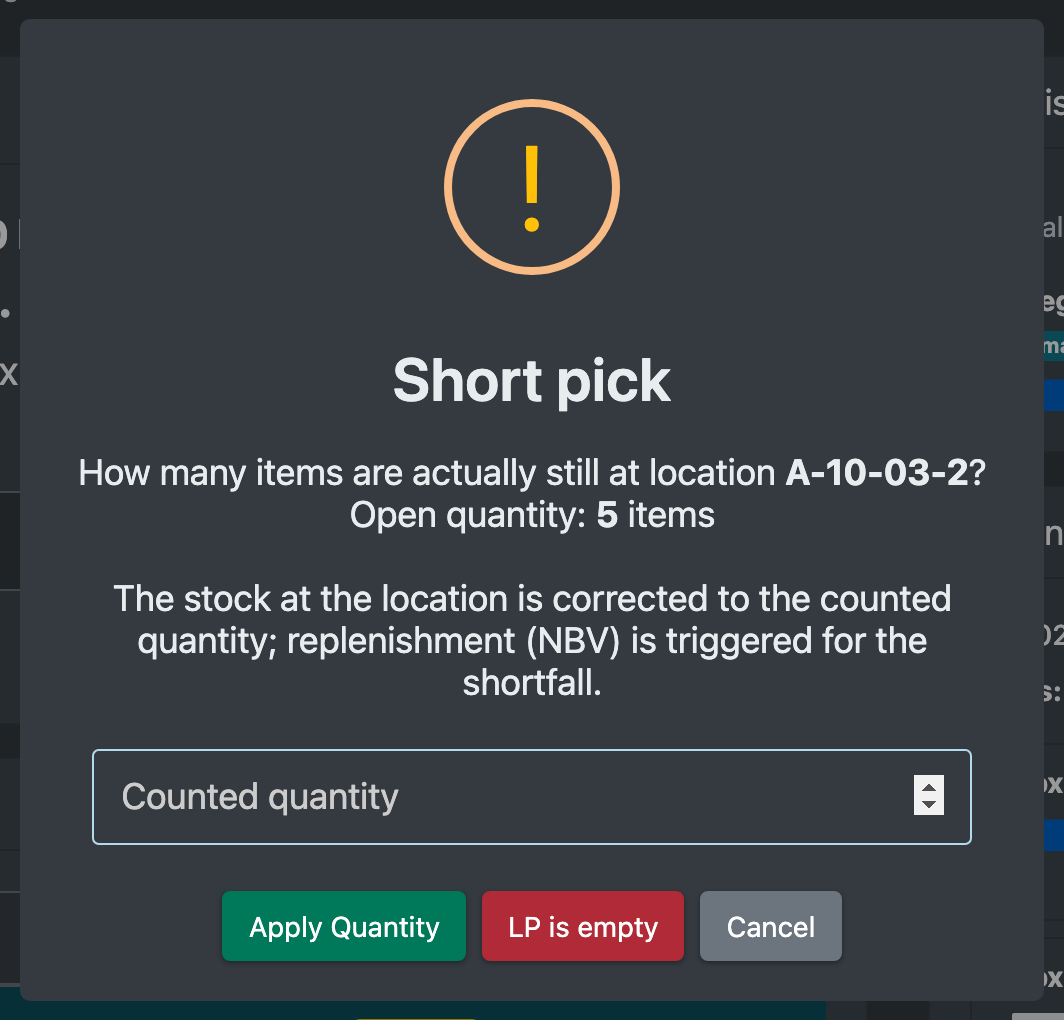
Short pick (Minderentnahme) Report a short pick: "Report the actual quantity at the place – correct stock and trigger replenishment". You are asked how many pieces are really left at the place, or you mark the place as empty (LP leer).
Check status (Status prüfen) "Checks whether the restocking has been completed" – for positions showing "Waiting for more supplies...".
Cycle count Save the counted quantity per batch (with batch and best-before date) at the place – "Inventory saved". See Cycle count.
Screenshot: Under-withdrawal dialog asking for the actual quantity at the storage place

Split a picklist

With Split the picklist starting here (Pickliste ab hier splitten) you move the open positions to another cart or box – for example when your cart is full.

  1. Click Split the picklist starting here.
  2. Choose the Target picking cart (Ziel-Pickwagen) and the Target Box (Ziel-Box). The dialog lists the positions that will be moved.
  3. Click Split now and switch to the new list (Jetzt splitten und zur neuen Liste wechseln).

Splitting is only possible after at least one position has been processed. At the packing table the main list must be packed before the split parts.
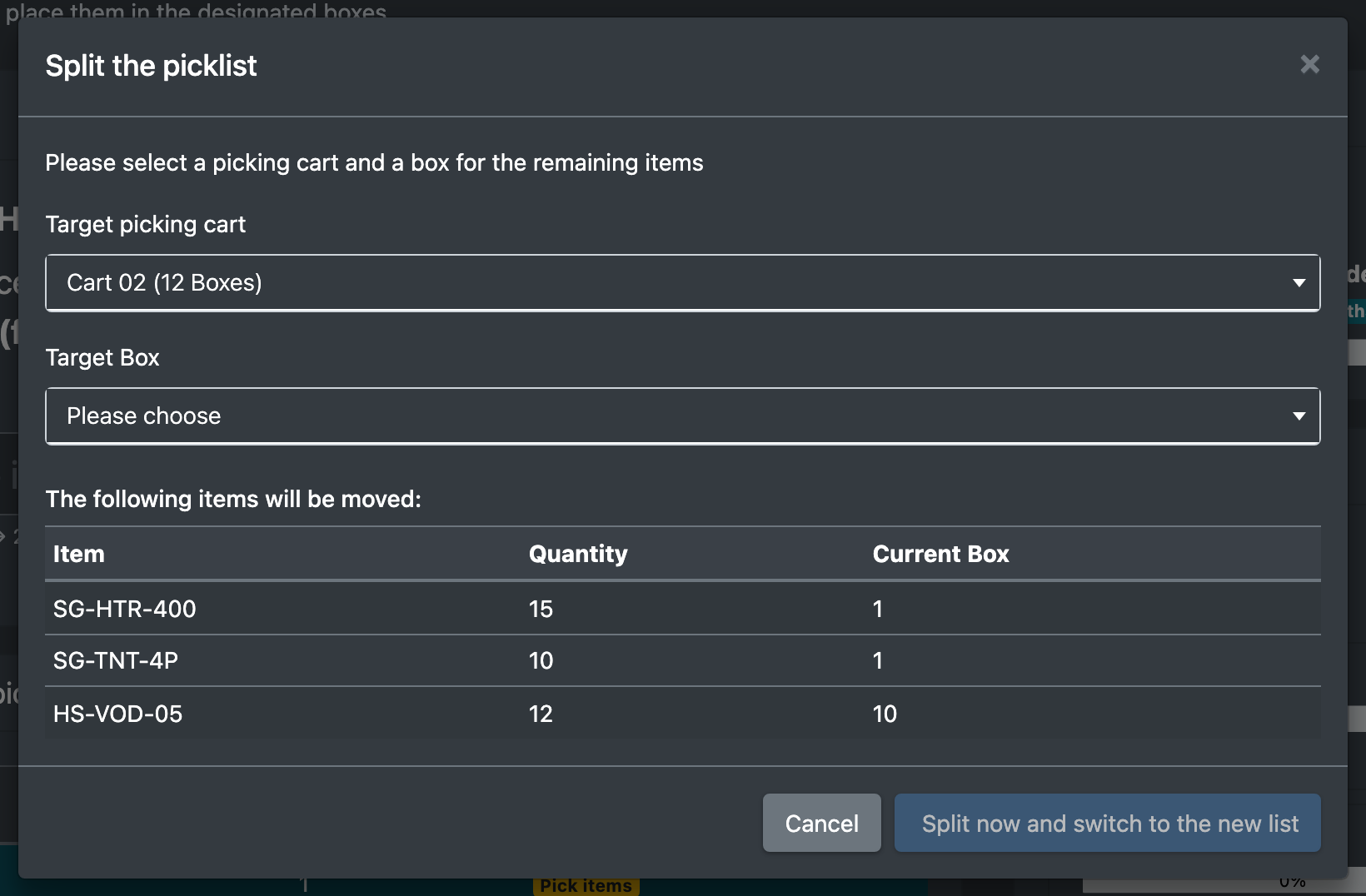
Screenshot: Split dialog with target cart, target box and the positions that will be moved

Statuses

Picklist

Status Meaning Set by
Open Created, nothing picked yet Creation
In progress Picking is running First booked position
Picked All pickable positions done, waiting for packing Last position (automatic)
Packed Picklist with only pallet positions finished Last position, if only pallet positions
Partly packed / shipped After packing Packing table

Positions: pending → picked. Partial quantities stay open with the remaining quantity. A position without a pick place that still has an open restocking run keeps the list open; without an open restocking run it no longer counts as open.

Orders: stay on the pick list while a position is open. When fully picked they become picked; orders with a pallet position become Waiting for loading (wartet auf Verladung). Every change is logged in the order history – see Order statuses.

Good to know

  • Stock on the storage place goes down and the withdrawal appears in the warehouse history. For best-before items the oldest date is taken first, otherwise first in, first out.
  • Stock never goes negative: the pick is booked, but no withdrawal is made, and you get a notice.
  • An expired best-before date blocks the pick. If a best-before rule requires a minimum remaining shelf life for the order, goods below it are blocked as well.
  • An under-withdrawal corrects the place stock and may trigger a restocking run.
  • The cart stays busy until the last box has been packed.
  • When an order is picked, workflows with the trigger "After picking is complete" run – see Workflows.
  • Release & delete (Freigeben & löschen) on an active picklist releases stock, deletes the related restocking runs and resets the orders to their previous status.

Troubleshooting

Message Cause Solution
The scanned barcode does not match any open item (Der gescannte Barcode stimmt nicht mit einem offenen Artikel überein) Wrong item scanned. Scan the correct item – nothing has been booked.
Box … does not belong to the picking cart of this picklist (Box … gehört nicht zum Kommissionierwagen dieser Pickliste) Box of another cart scanned. Scan a box of your own cart.
This box is not valid for this operation. (Diese Box ist für diesen Vorgang nicht gültig.) Wrong target box. Scan the box shown on screen.
Item already processed / This article has already been picked in its entirety The position is already picked. Continue with the next position – nothing is booked twice.
The quantity must not be greater than the remaining quantity (Die Menge darf nicht größer als die Restmenge (…) sein.) Quantity too high. Enter the remaining quantity.
Best-before date … has expired – these goods must not be picked (MHD … ist abgelaufen …) Expired goods at the place. Block or relocate the stock – see Stock overview and Relocation.
Please wait until the restocking process is complete. (Bitte warte, bis die Nachbevorratung abgeschlossen ist.) The position is waiting for restocking. Wait for the pallet ride, then click Check status.
Error: Restocking not possible (Fehler: kein Nachschub möglich) No reserve stock. Put away stock; the message names the reasons (reserved, blocked, expired).
Under-withdrawal is not possible for full-pallet positions – please inform the warehouse manager (Minderentnahme ist bei Voll-Paletten-Positionen nicht möglich …) Pallet position. Inform your warehouse manager.
The item has no picking location – partial picking is not possible (Die Position hat keinen Pickplatz – Minderentnahme nicht möglich) Position without a pick place. Wait for restocking.
A split is only possible after at least one item has been edited (Split erst möglich, wenn mindestens eine Position bearbeitet wurde) Split too early. Pick at least one position first.
No open positions found to split (Keine offenen Positionen zum Splitten gefunden) Nothing left open. –
The pick list cannot be deleted because it has already been finalized. The list is picked. Pack it instead of deleting it.
No items found in this pick list (Keine Artikel in dieser Pickliste gefunden) Empty list. Delete the list.