
Classic order picklists
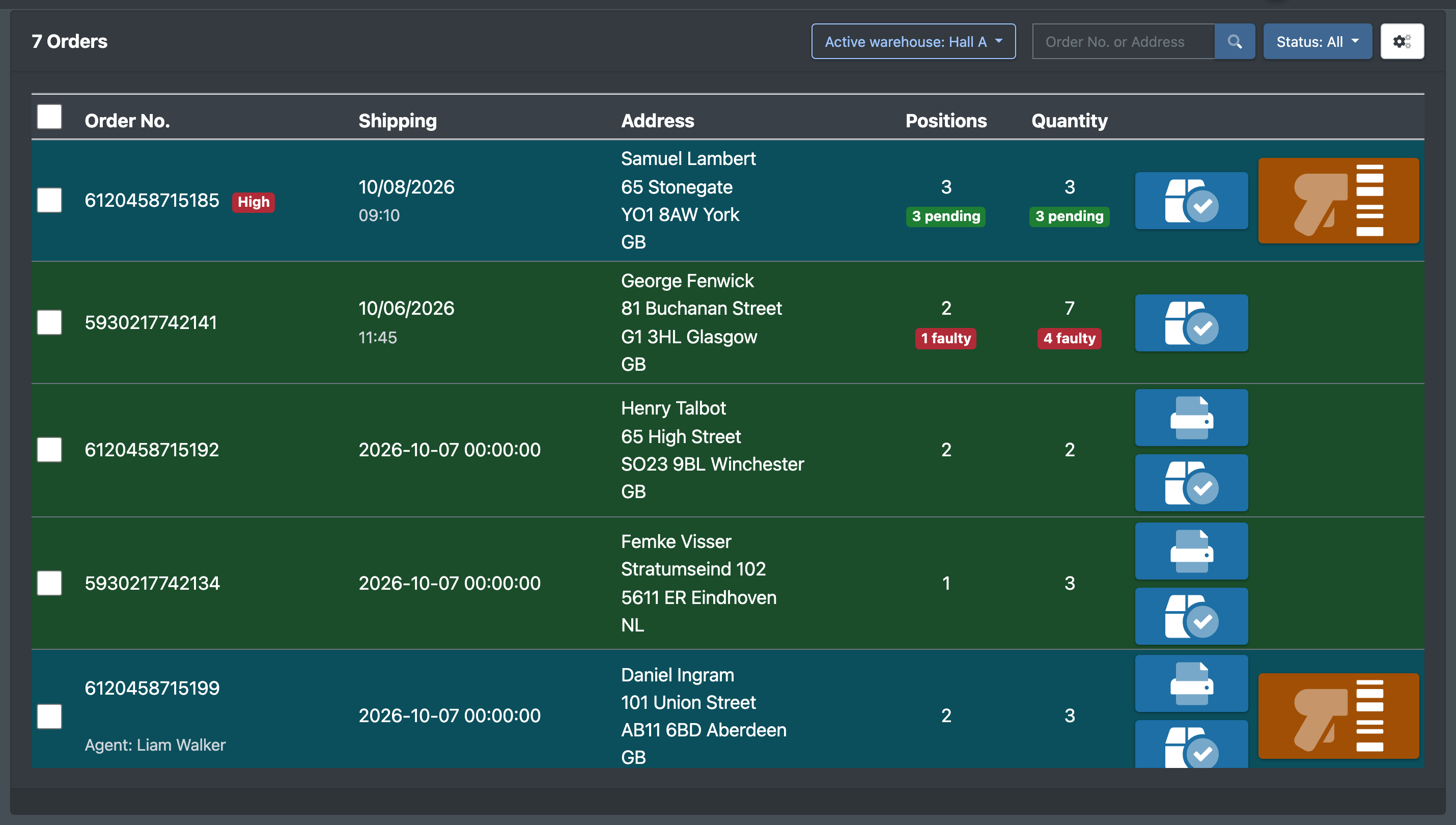
The page Pick lists (Picklisten) is the classic, order-based way of picking: every customer order gets its own picklist with its item positions. You work through it in a dialog (scan storage place and item, confirm quantity) and close it with a delivery note. It works without picking carts and boxes and is independent of the cart-based picking process described in Create a picklist and Picking.
The picklists are created automatically from your clients' orders.
Before you start
- Your user needs the permission Pick lists (Picklisten). Changing priority or status, viewing delivery notes, deleting, replacing or removing items and the settings are separate permissions – ask your administrator.
- The job Create picklist (Pickliste erstellen) must be active for the order module, with order status, client and warehouse configured – see Jobs & connections. If you cannot see the job, contact X-Sitter support to activate it.
- The items of the order positions must exist in the article master (matched by SKU) and have stock in the warehouse – see Putaway and Storage places.
Step by step
- Open WMS › Pick lists (WMS › Picklisten). Switch the warehouse at the top right if necessary.
- Search with Order No. or Address (Best.-Nr. oder Adresse) or filter by Status: All (Alle), Open (Offen), Open - In shipping (Offen - Im Versand), In progress (In Bearbeitung), Closed (Geschlossen), Closed - Shipping (Geschlossen - Im Versand), Open Again (wieder Geöffnet), Part - Closed (Teil - Geschlossen).
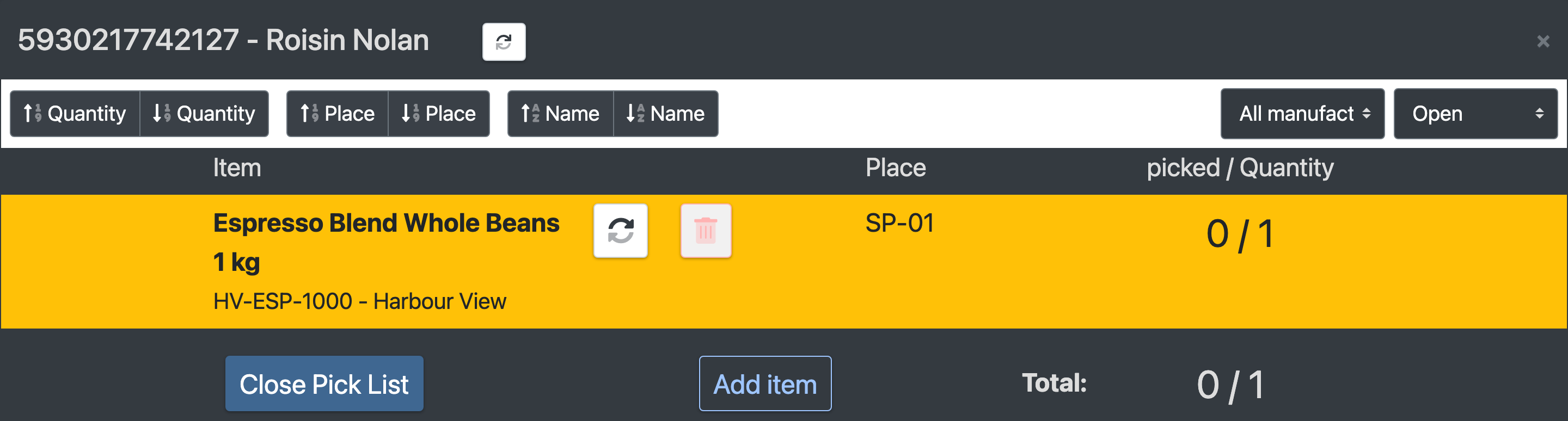
- Open an order in the table (columns Order No., dispatch, Address, Positions, Quantity). The positions dialog opens. If somebody else is working on the list, you see "Being edited by …".
- Pick a position:
- Scan Storage Bin (Lagerplatz scannen) and Scan article (Artikel scannen) – optionally with the Camera (Kamera).
- Enter the Actual amount picked (Tatsächlich gepickte Menge) and confirm.
- If needed: Add item (Position hinzufügen), Exchange article (Artikel austauschen) or Remove article (Artikel entfernen).
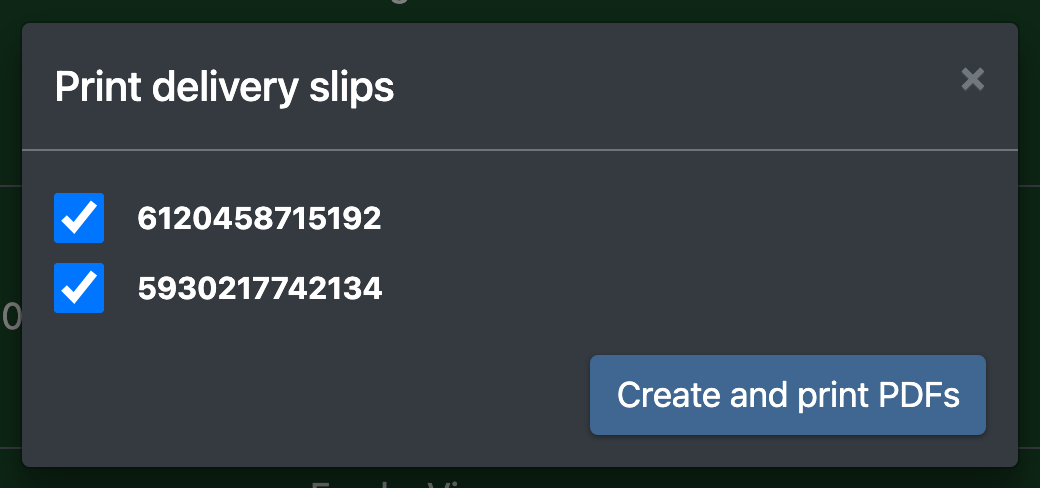
- Finish with Close Pick List (Pickliste schließen) – "Should the picklist really be closed?" – or use the delivery note dialog: Print a delivery slip? (Lieferschein drucken?), Print shipping labels (Versandlabel drucken), Create and print PDFs (PDFs erzeugen und drucken).
Bulk actions and settings
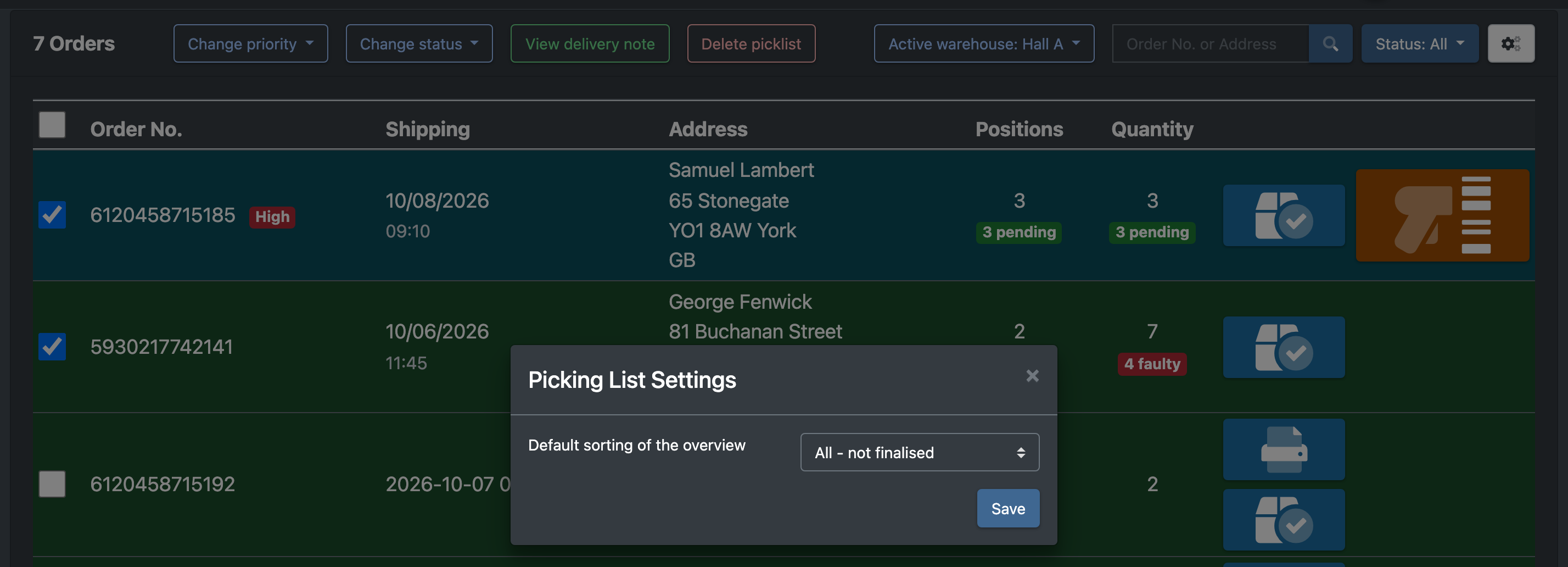
Tick the checkboxes of several picklists to use:
The gear icon opens Picking List Settings (Picklisten Einstellungen) with the Default sorting of the overview (Standard Sortierung der Übersicht).
Statuses
Positions show statuses such as picked, no stock, not enough stock, not booked in, exchanged or faulty.
Good to know
- Picking reduces the stock on the storage place. If there is no stock on the scanned place, the oldest stock with quantity is used. Corrections are booked as "pick position correction".
- Deleting a picklist books picked quantities back (history entry "Picklist deleted").
- Removing a picklist from the overview only hides it.