
Picklist overview
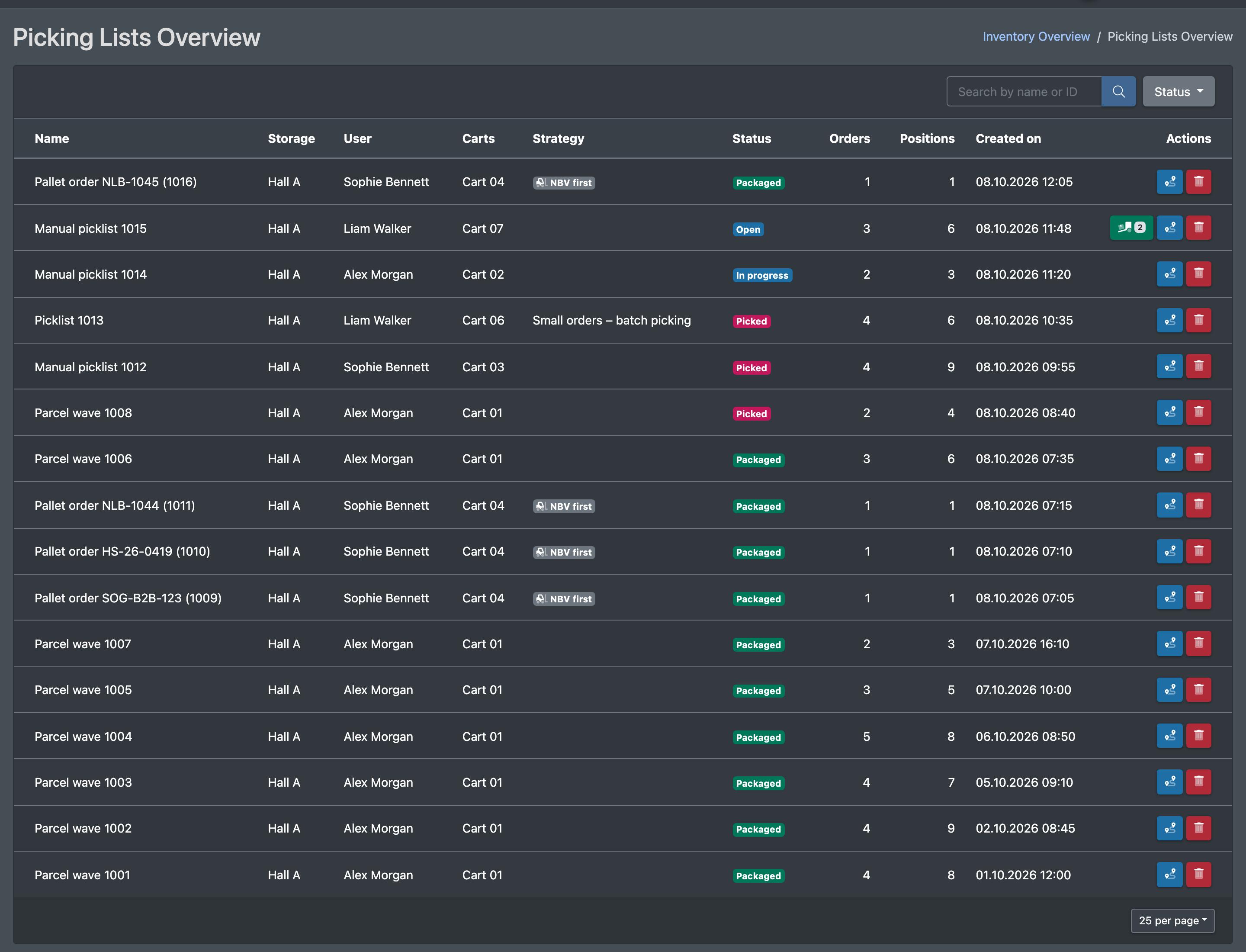
The picklist overview lists all picklists of your company, newest first, with warehouse, user, cart, strategy, status and the number of orders and positions. Use it to keep an eye on running and finished picklists, to look at their positions and pick routes and to delete faulty picklists.
Before you start
- Your user needs the permissions Storage (Lager) and Picking Lists Overview (Picklisten Übersicht). Deleting picklists is a separate permission – ask your administrator.
- Picklists must have been created – see Create a picklist.
Step by step
- Open WMS › Storage › Picking Lists Overview (WMS › Lager › Picklisten Übersicht).
- Search with Search by name or ID (Name oder ID suchen) and narrow down with the Status filter: Display all (Alle anzeigen), Open (Offen), In progress (In Arbeit), Picked (Gepickt), Packed (Gepackt).
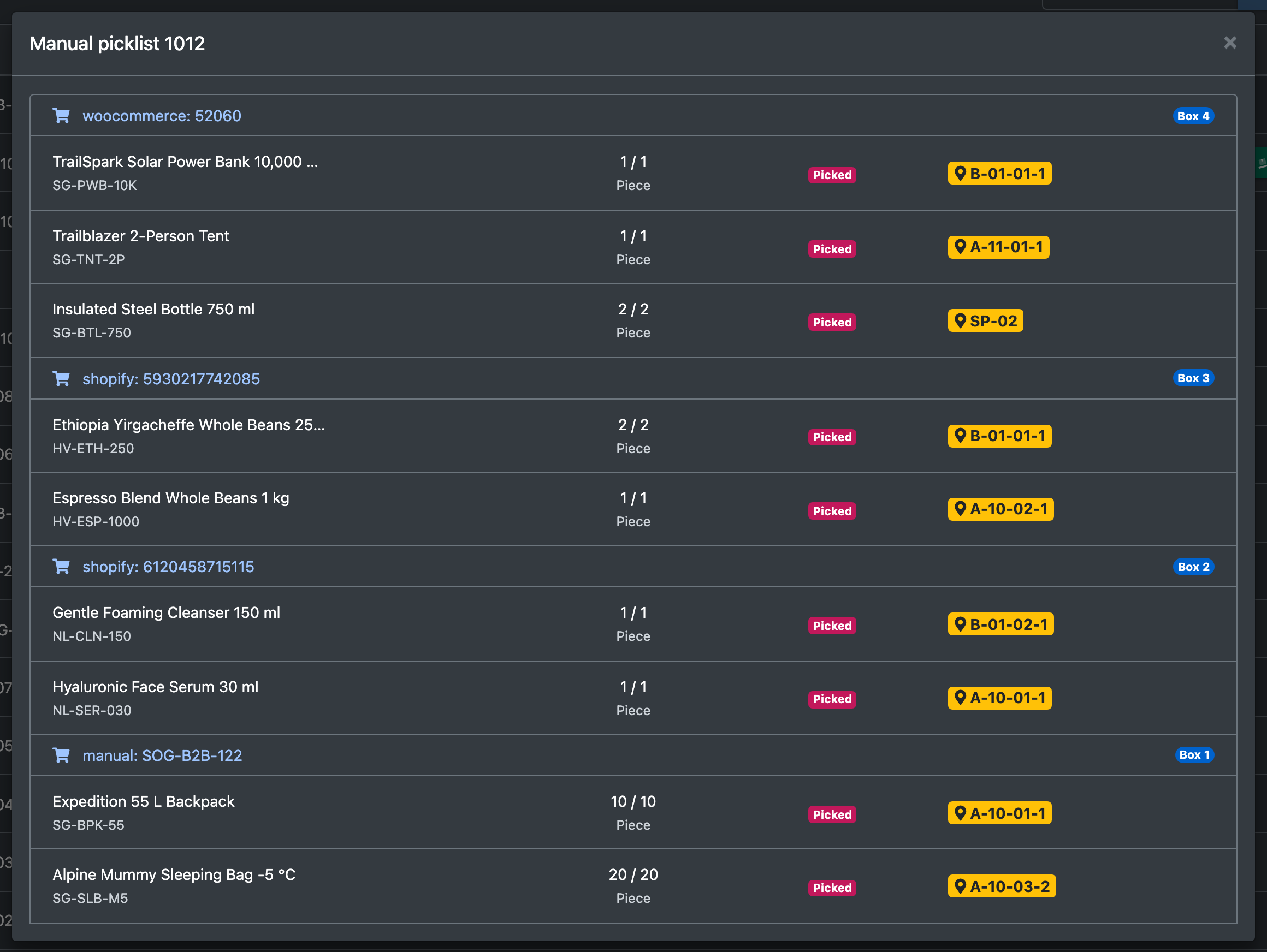
- Open a row to see the positions of the picklist (storage place, item, quantity, box – as in the picking process).
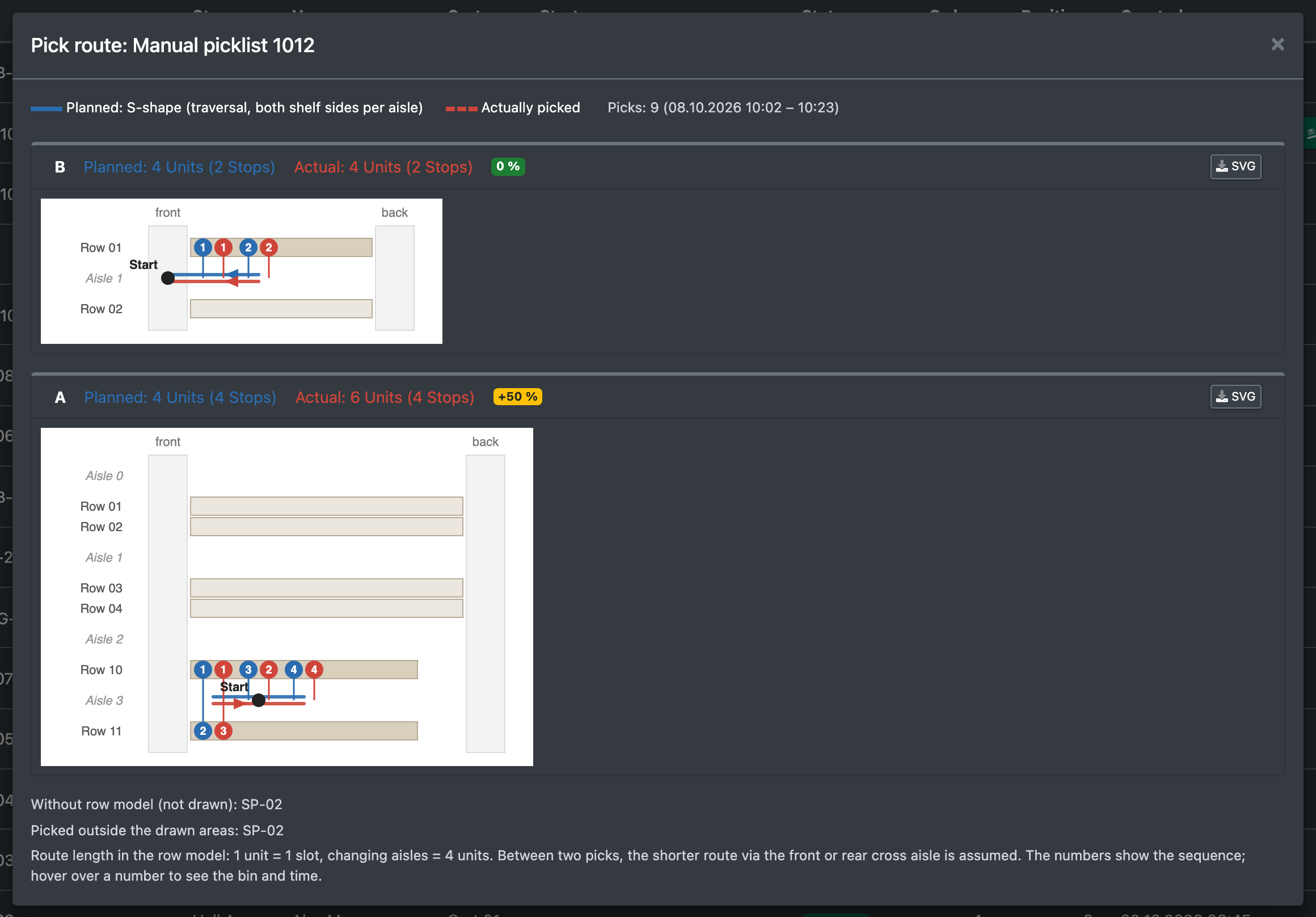
- Click the route button Show pick path (optimal vs. actual) (Pickweg anzeigen (optimal vs. tatsächlich)) to compare the planned route with the route actually walked.
Columns
Pick path diagram
The diagram shows the pick route in the row model of your storage areas:
- Planned (Geplant) – the route according to the picklist's route strategy. If the list has no route strategy, the composite route is shown for comparison.
- Actual (Tatsächlich) – the order in which the picks were really booked. Hover over a number to see the place and the time.
- The walking length is given in units: 1 unit = one storage place, an aisle change = 4 units.
- If no picks have been booked yet, only the planned route is shown. Positions in areas without a row model are listed but not drawn.
- You can download the diagram as SVG.
Delete a picklist
- Click Delete picklist (Pickliste löschen) in the row.
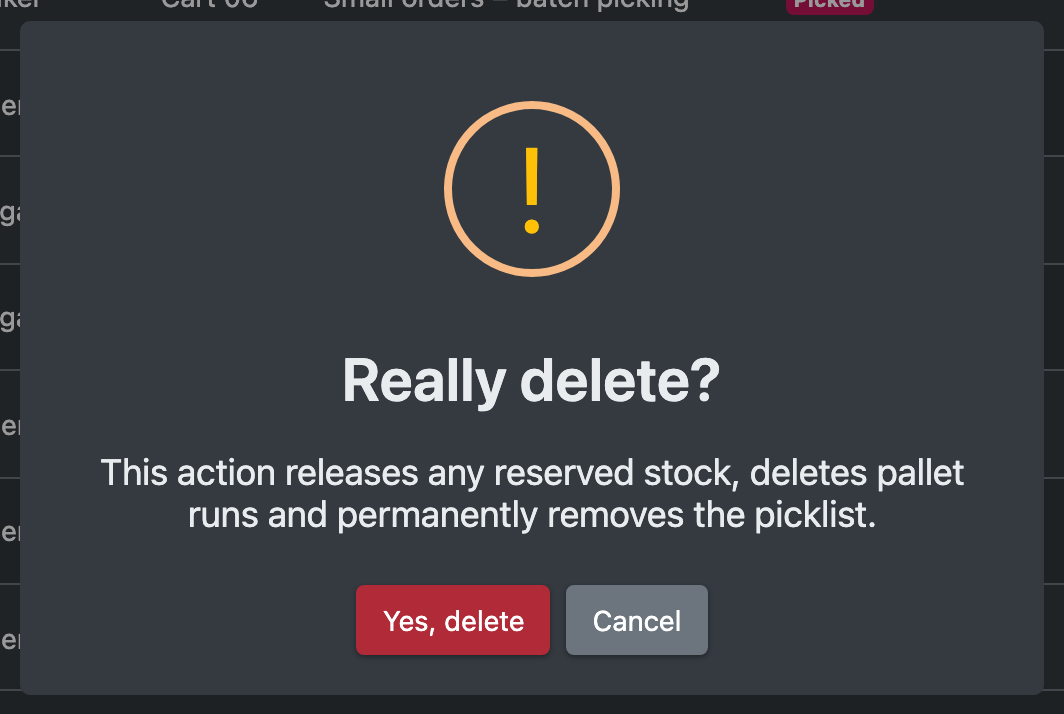
- Confirm the question Really delete? (Wirklich löschen?) with Yes, delete (Ja, löschen).
Deleting a picklist
- releases reserved stock and books back picks already made,
- deletes the restocking and pallet runs of the list,
- resets the orders to their previous status,
- removes the picklist including its split lists. If you delete a split list, its positions go back to the original list.
warning
A picklist with the status picked cannot be deleted. Pack it at the packing table instead, or reset single orders there – see Packing.
Transit pallets
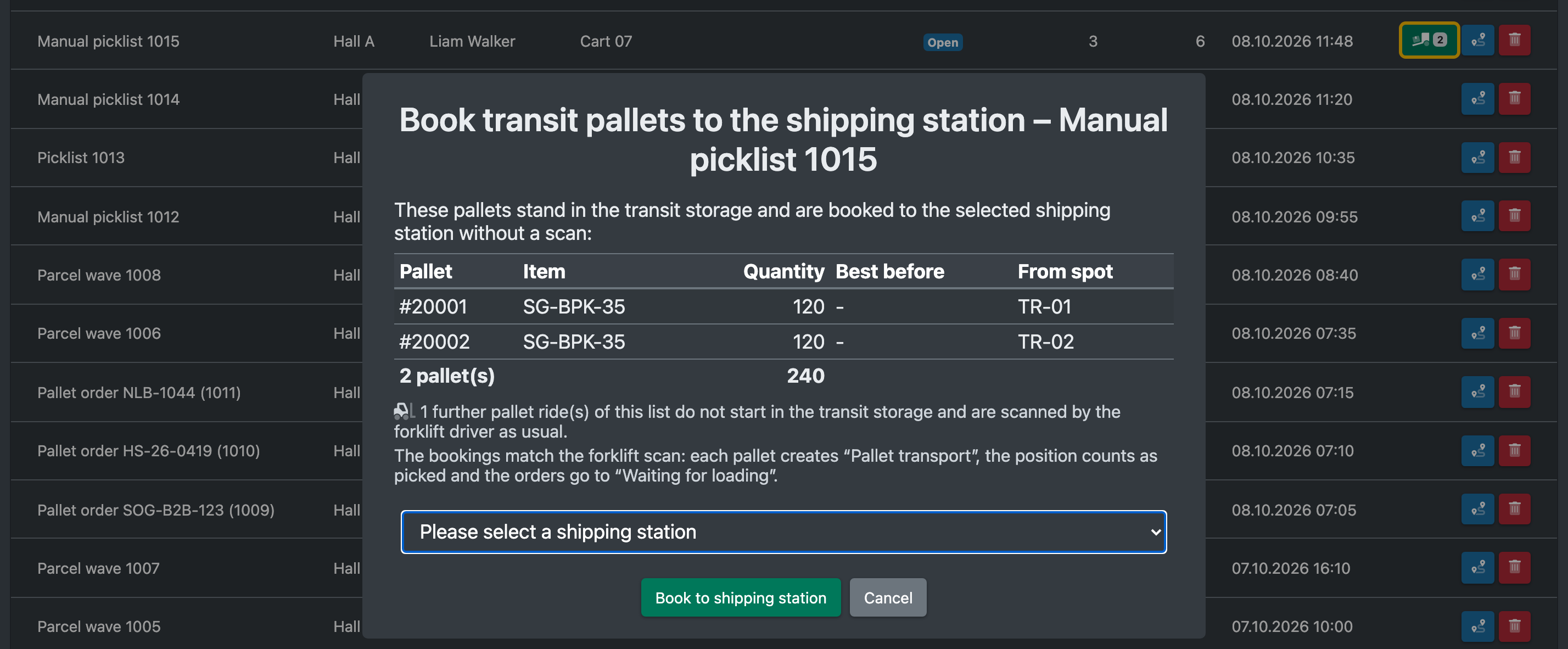
If the list has open pallet runs from storage places of the type transit, the Actions column shows a green forklift button with the number of pallets ("Book %d transit pallet(s) to the shipping station without a scan"). The dialog books all these pallets onto a shipping station you choose. This needs the Order picking permission. See Transit warehouse.
Statuses
Status changes happen in the picking process and at the packing table, not in this overview.