
Relocation
Move pallets or partial quantities to another storage location with the scanner – one by one or several at once
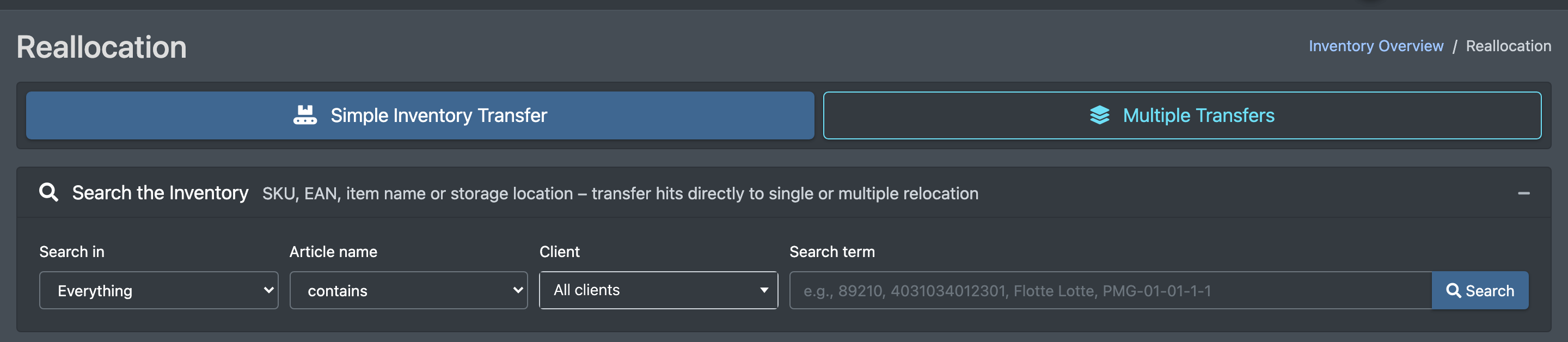
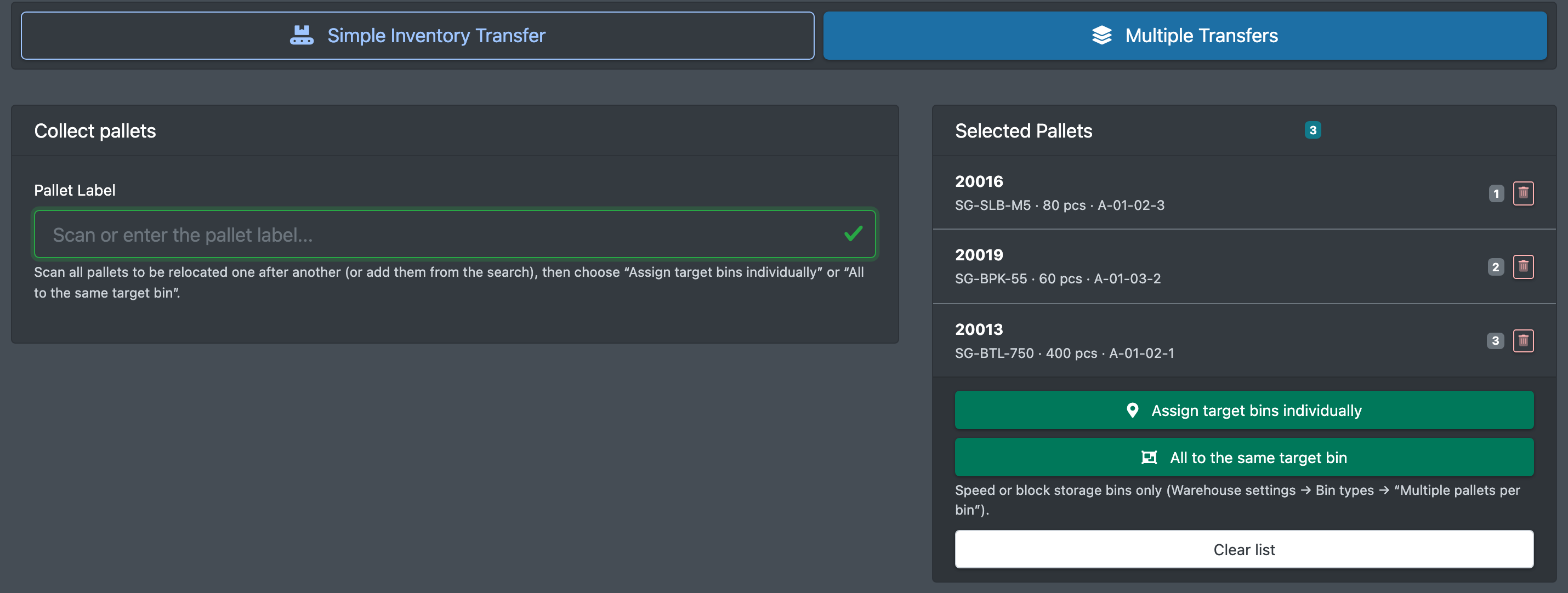
With the relocation you move a pallet, or part of it, from one storage location to another – supported by the scanner. Simple Inventory Transfer (Einfache Umlagerung) moves one pallet. Multiple Transfers (Mehrfachumlagerung) collects several pallets and assigns their targets one by one or all at once. X-Sitter suggests target locations in the storage area you choose.
Before you start
- Your user needs the permission for Reallocation (Umlagerung). Ask your administrator if the menu entry is missing.
- The stock was stored with a pallet label, see Putaway. Loose stock without a label can only be moved with Transfer a Subset / Unallocated Inventory (see below).
- Active target locations exist in storage areas, see Storage places and Storage areas.
- You only see and use the storage areas assigned to you. Without an assignment you see all areas, see Employee assignment.
- To put several pallets on one location, the location type must allow Multiple pallets per bin (Mehrere Paletten je Platz) – typically speed or block storage locations, see Warehouse settings.
- Optional: if your workstation is anchored to a row of a storage area, the area is preselected.
Step by step
Search stock (start for both modes)
- Open WMS › Reallocation (WMS › Umlagerung).
- In Search the Inventory (Bestand suchen), choose:
- Search in (Suchen in): Everything (Alles), SKU / Item Number, EAN, Article name (Artikelname) or Bin location (Lagerplatz)
- contains (enthält) or begins with (beginnt mit)
- Client (Mandant)
- Search term (Suchbegriff), at least 2 characters
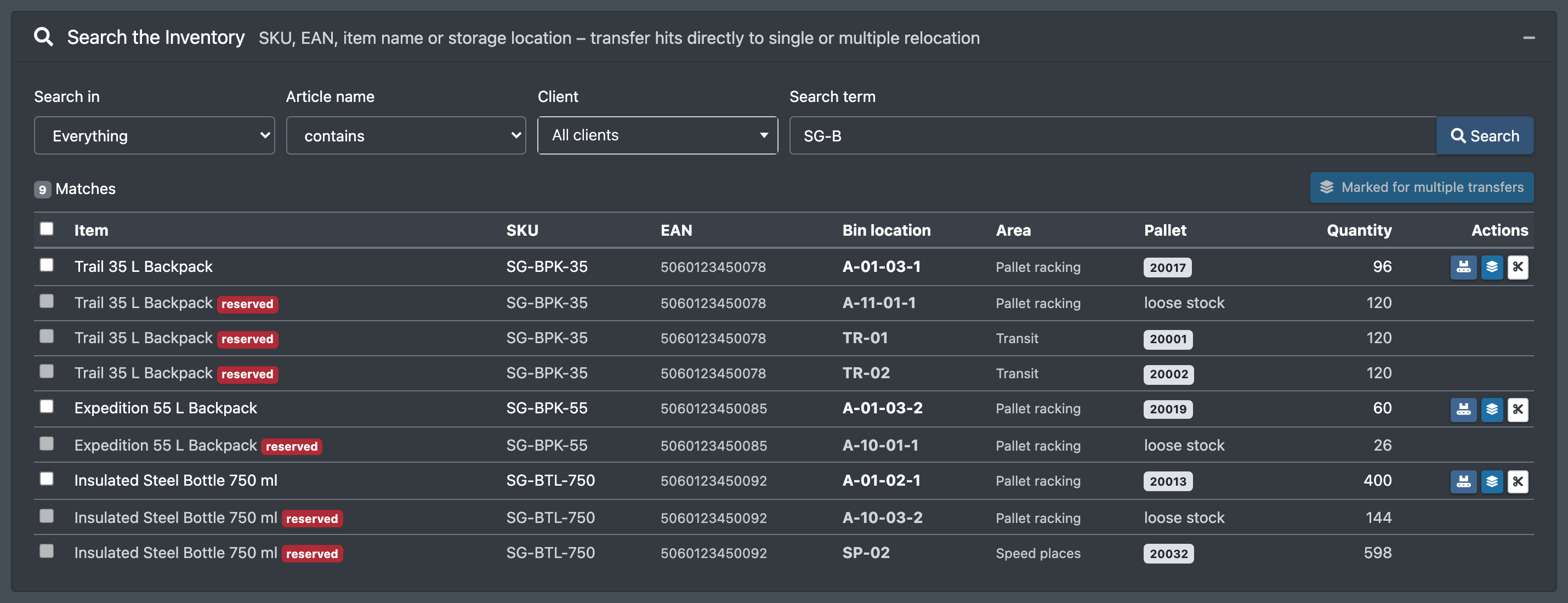
- Click Search (Suchen). You get at most 150 matches – narrow the search if needed.
- Take a match over with one of the buttons:
- Ganze Palette einfach umlagern – move the whole pallet in simple mode
- Zur Mehrfachumlagerung – add it to the multiple transfer list
- Rebook partial quantity / loose stock (Teilmenge / losen Bestand umbuchen) – move part of the stock or loose stock
Simple relocation
- Open the tab Simple Inventory Transfer (Einfache Umlagerung).
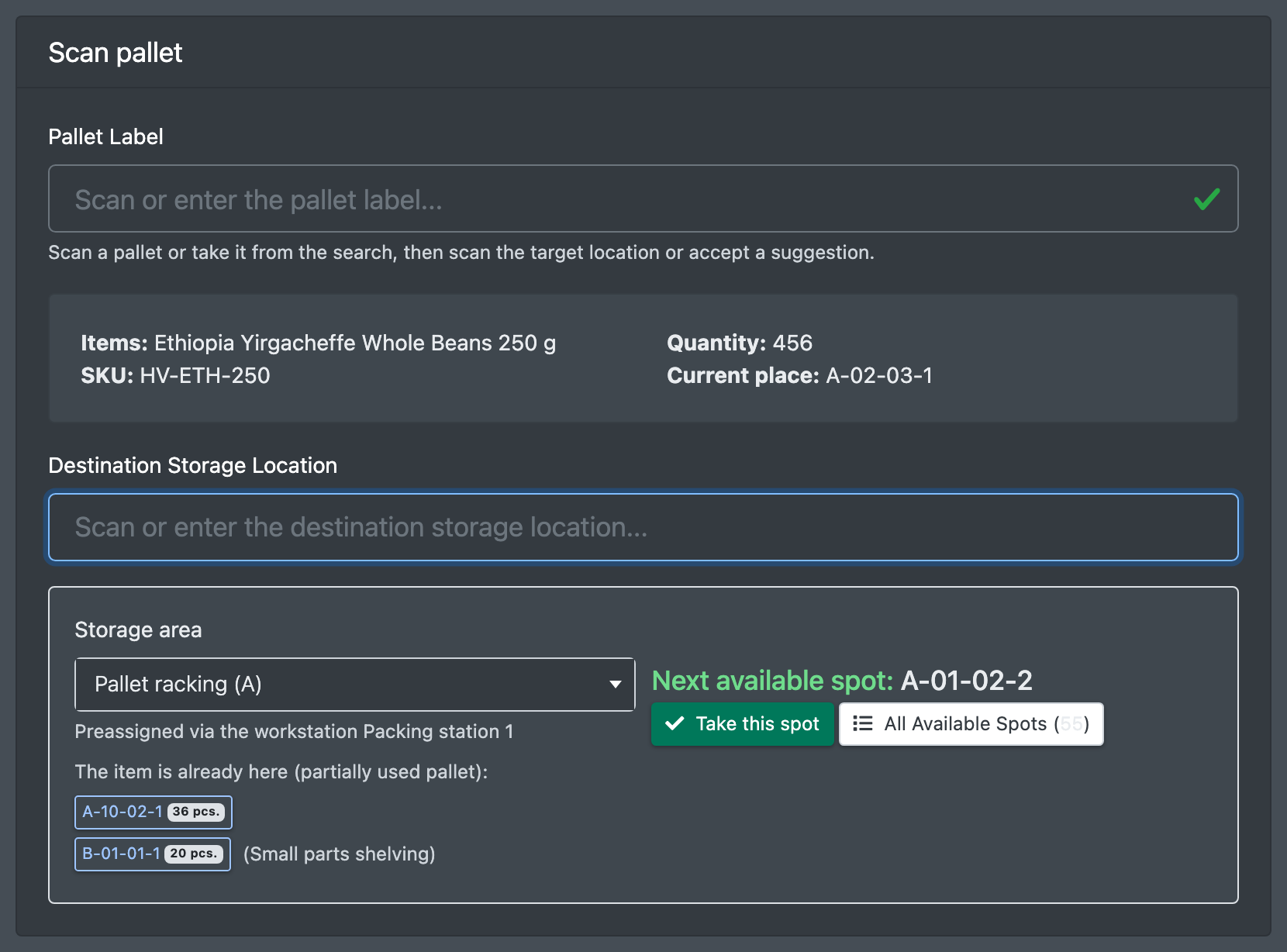
- Scan the pallet in Scan or enter the pallet label... (Paletten-Label scannen oder eingeben...). You see article, SKU, quantity and Current position (Aktueller Platz).
- Choose the Storage area (Lagerbereich). It is preselected by your workstation (Vorbelegt über die Arbeitsstation) or remembers your last choice. X-Sitter now suggests:
- Next available spot: (Nächster freier Platz:) – take it with Take this spot (Diesen Platz übernehmen)
- All Available Spots (Alle freien Plätze)
- The item is already here (partially unloaded pallet): – locations where the article already lies
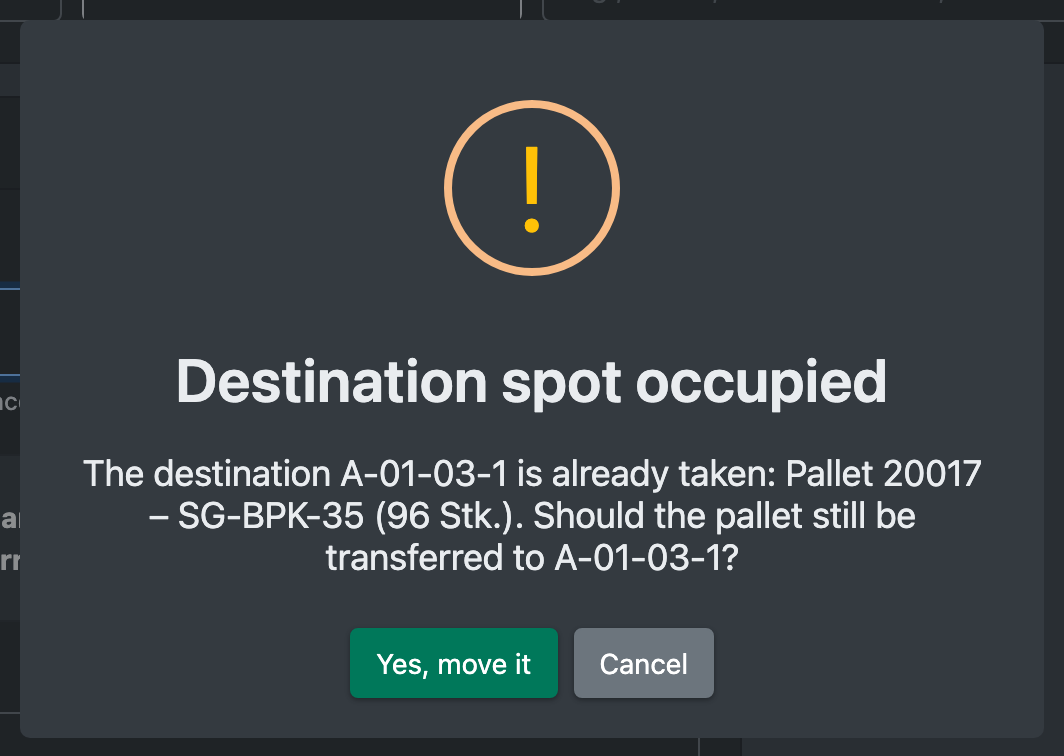
- Scan the target in Scan or enter the destination storage location... (Ziel-Lagerplatz scannen oder eingeben...). If the target is occupied, X-Sitter asks Destination spot occupied (Zielplatz belegt) – confirm with Yes, move it (Ja, umlagern).
- Partial quantity: enter the quantity to move. The moved goods get a new pallet ID and a new label is printed; the rest stays on the old location with the old ID. If you move the whole quantity, the pallet keeps its ID and label.
Multiple relocation
- Open the tab Multiple Transfers (Mehrfachumlagerung).
- Scan the pallets one after another. They appear under Selected Pallets (Ausgewählte Paletten). Clear list (Liste leeren) starts over.
- Choose how to assign the targets:
- Assign target bins individually (Zielplätze einzeln zuweisen) – one target scan per pallet
- All to the same target bin (Alle auf denselben Zielplatz) – one scan for all pallets; only for speed or block storage locations
- X-Sitter confirms with Multiple Transfers Completed (Mehrfachumlagerung abgeschlossen) and the number of pallets moved.
Good to know
- Every relocation is written to the article history with the reason "Reallocation" (Umlagerung) from the warehouse settings.
- Moving a partial quantity away from a picking location creates a new pallet. A full move keeps the label.
- If goods land on a location with the same article, the stock is merged and the label may be dissolved. X-Sitter warns you before. On locations with Multiple pallets per bin, pallets are never merged.
- Pallets reserved for a picklist cannot be moved.
- The location and pallet label change accordingly in the stock overview and the pallet overview.
- Why can I not put all pallets on one location? The type of the target location does not allow several pallets.
- I cannot find stock in the search. The storage area is not assigned to you, or the search term has fewer than 2 characters.