
Storage space costs
With storage space costs (Lagerplatzkosten) you charge a client for the storage places (or running metres, the stock quantity in pieces, e.g. rent per bottle, or the volume of their stock in m³) their goods occupy – per day, week, month or year. You can use tiered prices (e.g. places 1–50 at price A, from place 51 at price B), bill the highest stock level of the period, grant rent-free days per pallet and tier the price by storage duration. With conditions you create a separate template per storage place type – e.g. pallets per place and shelves per running metre or per m³.
Before you start
- Your user needs the permissions for the storage space costs in the cost settings – ask your administrator.
- The client exists and is active, see Clients.
- The client's articles are assigned to the client as owner, see Owner and sharing, and their stock is put away on storage places, see Putaway.
- The daily occupancy snapshot is running for your warehouse (see below). Without snapshots the quantity is 0.
- For billing by running metres: the widths of your storage places (or compartments) are maintained, see Storage places.
- For billing by volume: Length, Width and Height (Länge, Breite, Höhe, in cm) are maintained in the article master, see Edit an article. Articles that lack one of the three dimensions are not billed.
- For templates per storage place type: your storage places have a Storage place type (Lagerplatztyp), see Storage places.
- Recommended: Service categories are set up.
The daily occupancy snapshot
Once a day (shortly before midnight), X-Sitter records for every client and warehouse how many storage places the client occupies, how wide these places are and how long each pallet has been in stock. Storage space costs are calculated exclusively from these daily snapshots.
- The snapshot is a background job (WMS - Paletten Snapshot). If it is offered for your company, you can set it up under Jobs & connections and choose the warehouses there (without a selection the default warehouse is used). Otherwise contact X-Sitter support to activate it.
- There is exactly one snapshot per client, warehouse and day.
- Later corrections to the stock do not change snapshots of past days. If days are missing (e.g. because the job was not active yet), contact X-Sitter support to recalculate them.
Step by step
- Open WMS › Settings › Cost settings › Storage space costs (WMS › Einstellungen › Kosteneinstellungen › Lagerplatzkosten).
- Click Create template (Vorlage anlegen).
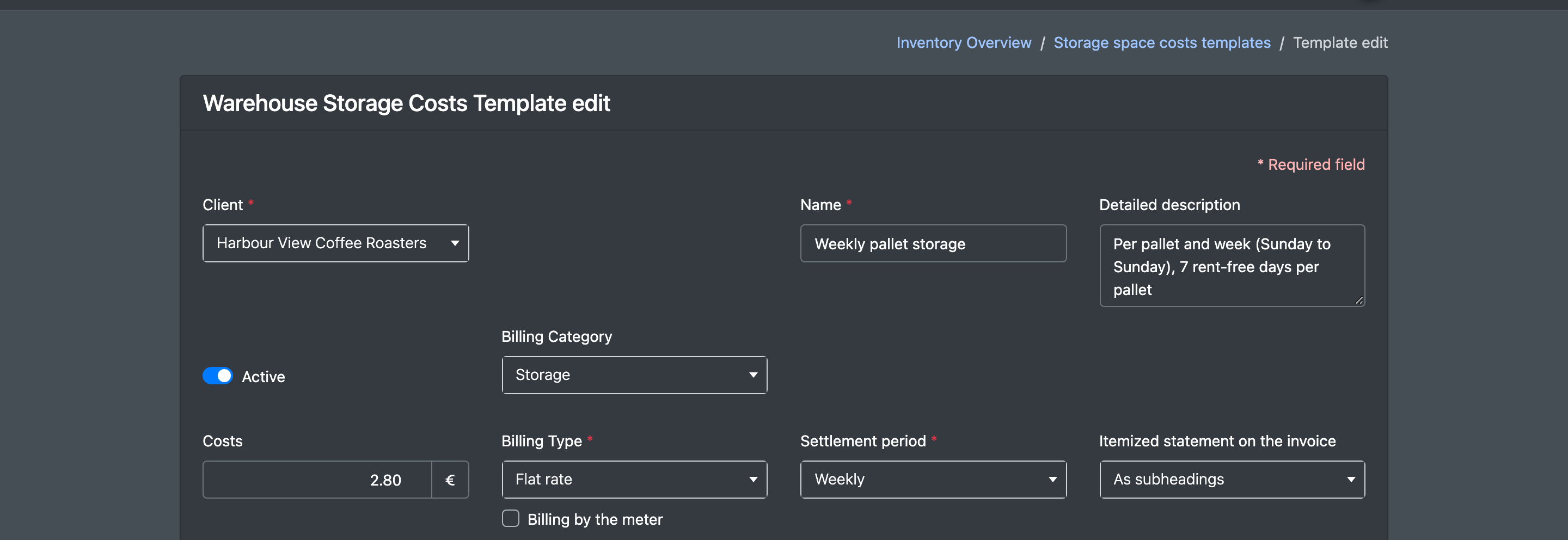
- Fill in Client (Mandant), Name (Name), Billing Category (Abrechnungs-Kategorie) and Costs (Kosten).
- Choose the Billing Type (Abrechnungs-Typ): Flat rate (Pauschal) or Per unit (Pro Einheit). Optional: switch on Billing by the meter (Abrechnung nach laufenden Metern) and, if needed, the breakdown by compartments (Auf Fächer herunterbrechen) – or Billing by piece count (Abrechnung nach Stückzahl) to bill per piece (e.g. per bottle) instead of per place – or Billing by volume (m³) (Abrechnung nach Volumen (m³)) to bill the volume of the stock. The three options exclude each other: ticking one removes the others.
- Choose the Settlement period (Abrechungszeitraum): Daily (Täglich), Weekly (Wöchentlich), Monthly (Monatlich) or Annual (Jährlich). For weekly billing you can switch on Billing from Sunday to Sunday (Abrechnung von Sonntag bis Sonntag).
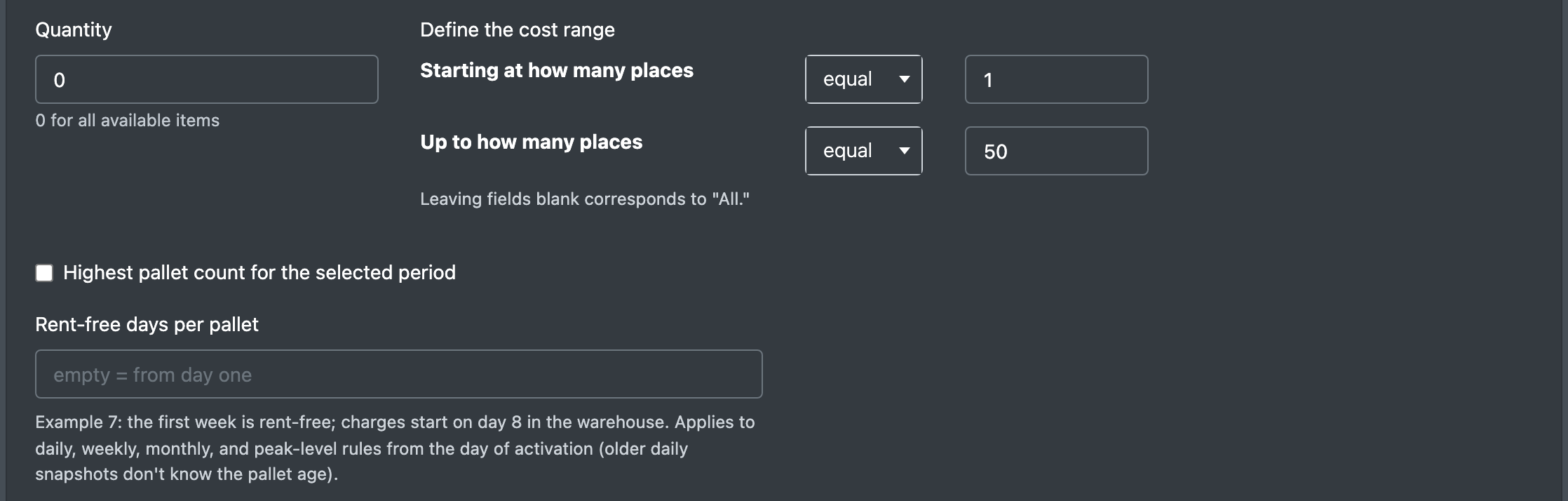
- Enter the Quantity (Anzahl) for flat rates ("0 for all available items") and, for tiered prices, Define the cost range (Kosten-Bereich definieren) with the lower and upper limit of places and an operator ("equal", "more", "less"). Leaving the fields empty means "all".
- Optional: switch on Highest pallet count for the selected period (Höchster Paletten-Stand für gewählten Zeitraum) and enter Rent-free days per pallet (Mietfreie Tage je Palette) and Storage duration up to (days per pallet) (Lagerdauer bis (Tage je Palette)).
- Optional: restrict the template under Conditions / Triggers (Optional) (Bedingungen / Auslöser (Optional)). Click Add a condition (Bedingung hinzufügen) and choose field, operator and Value (Wert) – e.g. Storage place type (Lagerplatz Typ) == (Equal) (== (Gleich)) "Pallet space" (Palettenplatz). Only the stock that matches all conditions is then billed.
- Choose the Itemized statement on the invoice (Detail-Darstellung auf Rechnung), optionally set a validity period, tick Active (Aktiv) and click Save (Speichern).

Fields and options
How the quantity is calculated
- Daily: the quantity of each day comes from that day's snapshot.
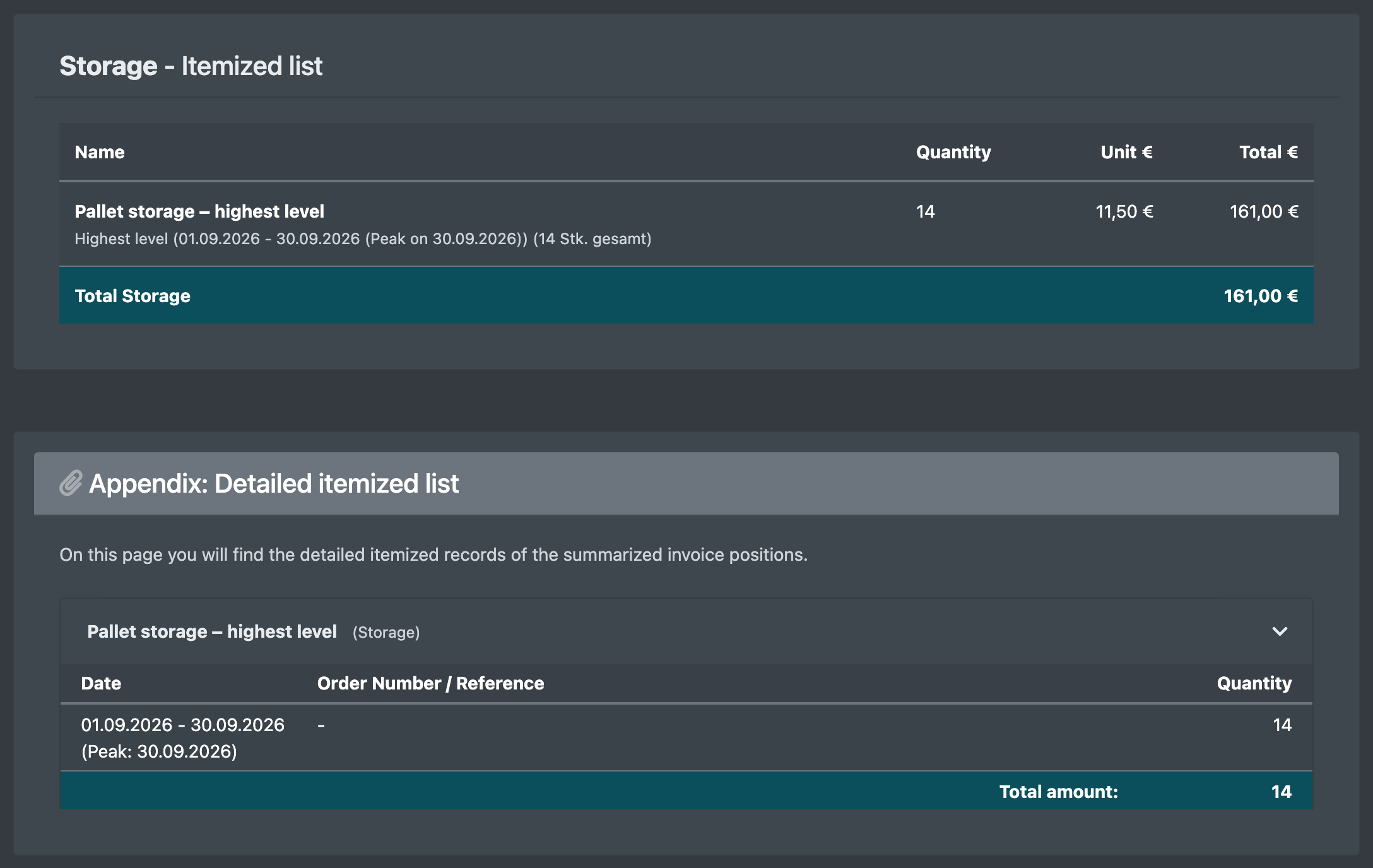
- Weekly, monthly, annual or with Highest pallet count: for each (partial) period the highest daily value is billed – with billing by piece count, the day with the most pieces; with billing by volume, the day with the largest volume. The statement shows e.g. "Highest level … (highest level on …)", "Monthly flat rate" or "n weeks (Sun–Sun)".
- Rent-free days are deducted from each day first; with the highest count, the highest of the reduced daily values is taken. Rent-free days work for all snapshots recorded since the feature exists – older snapshots do not know the pallet age and are billed in full.
- Storage duration up to counts a pallet only as long as it has been in the warehouse for at most that many days on the billing day. Rent-free days and storage duration work for places, running metres, pieces and m³ – with and without conditions. Here too, snapshots without the pallet age are billed in full.
- Volume: the volume is rounded to one litre (0.001 m³); tier limits apply in whole m³. The dimensions are read when the statement is created – dimensions you add later also apply to days that have already passed.
- Conditions: which stock lay on which place and place type is recorded by the daily snapshot from the first day on which the client has an active template with a condition or with volume. When you save such a template as active, X-Sitter adds this breakdown for the days of the current month – so the template works at once. For running metres, a condition means that only the widths of the matching places or compartments count.
Example: tiered prices
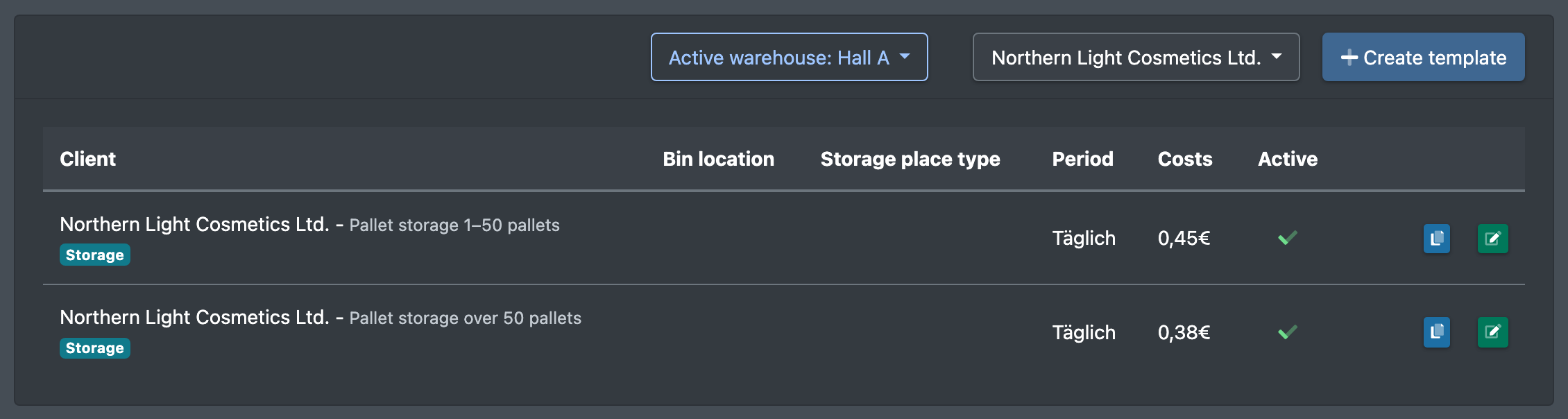
To charge places 1–50 at 10.00 € and every further place at 8.00 € per month:
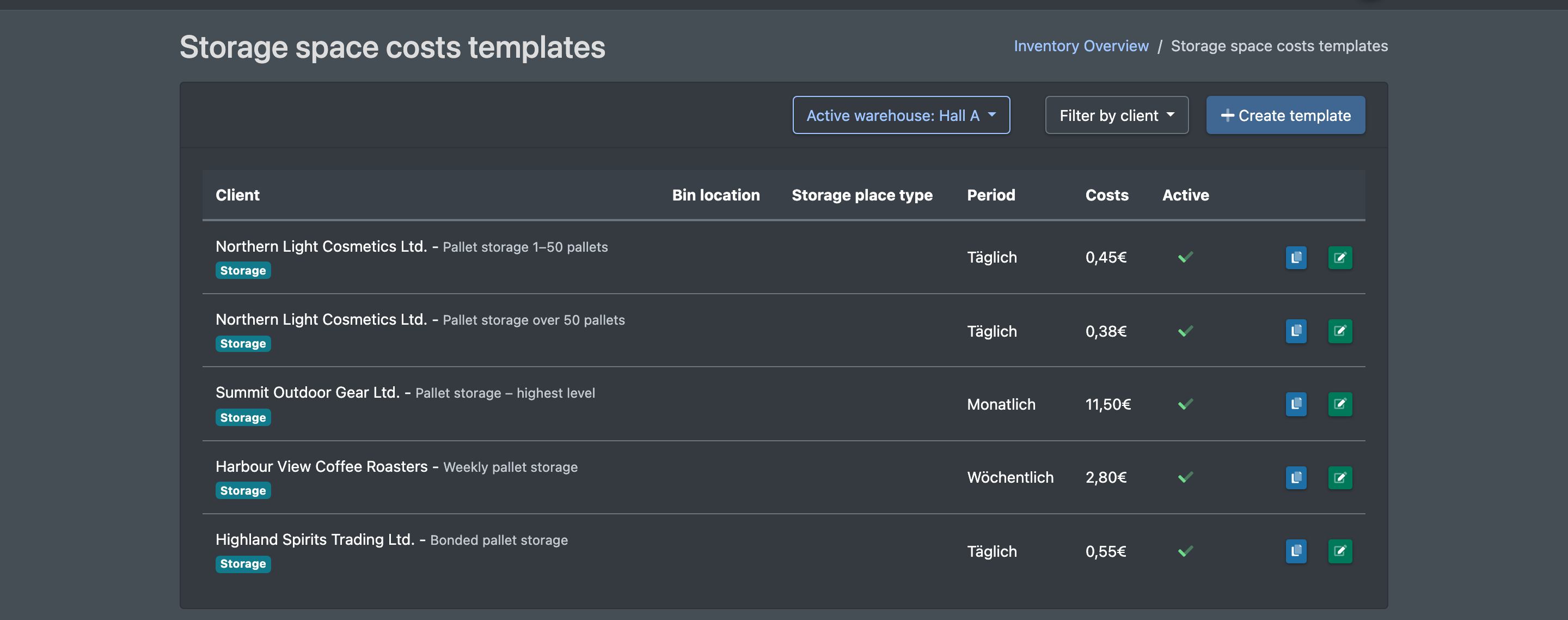
- Create a template with Monthly, Per unit, costs 10.00, range "from 1 / up to 50".
- Click Duplicate (Duplizieren) in the list, change the copy to costs 8.00 and range "more than 50", leave the upper limit empty, tick Active and save.
Both templates must use the same period and settings and differ only in the range.
Example: pallets and shelves in the same area
If a client stores goods on pallet places and on shelves in the same storage area (mixed storage), you do not bill per area but per storage place type – with one template per type:
- Template "Rent per pallet place": Per unit (Pro Einheit), price per place, condition Storage place type (Lagerplatz Typ) == (Equal) "Pallet space" (Palettenplatz).
- Template "Shelf rent per running metre": Per unit, tick Billing by the meter (Abrechnung nach laufenden Metern) and, if needed, the breakdown by compartments (Auf Fächer herunterbrechen), price per metre, condition Storage place type == (Equal) "Shelf" (Fachboden).
This way every place counts in exactly one template: the first counts only the pallet places, the second only the widths of the shelves. Without a condition, the place template would also count the shelves, and the metre template would also count the widths of the pallet places.
The names of the place types come from the Storage place types (Lagerplatz Typen) in your Warehouse settings. With Bin location (Lagerplatz) instead of Storage place type you compare the place number, e.g. Contains (Enthält) "PMO" for all places of one row.
If stock lies on a place type that none of the client's templates bills, the client billing shows the notice Stock without storage cost template (Bestand ohne Lagerplatzkosten-Vorlage) – see Client billing.
Example: shelves by volume
To bill goods on shelves by their volume and pallets still per place:
- Create a template with Per unit (Pro Einheit) and tick Billing by volume (m³) (Abrechnung nach Volumen (m³)). The ticks at running metres and piece count are removed.
- Enter the price per m³ under Costs (Kosten), e.g. 25.00 per m³ and month.
- Add the condition Storage place type (Lagerplatz Typ) == (Equal) "Shelf" (Fachboden).
- For the pallets, create a second template with the condition Storage place type == (Equal) "Pallet space" (Palettenplatz).
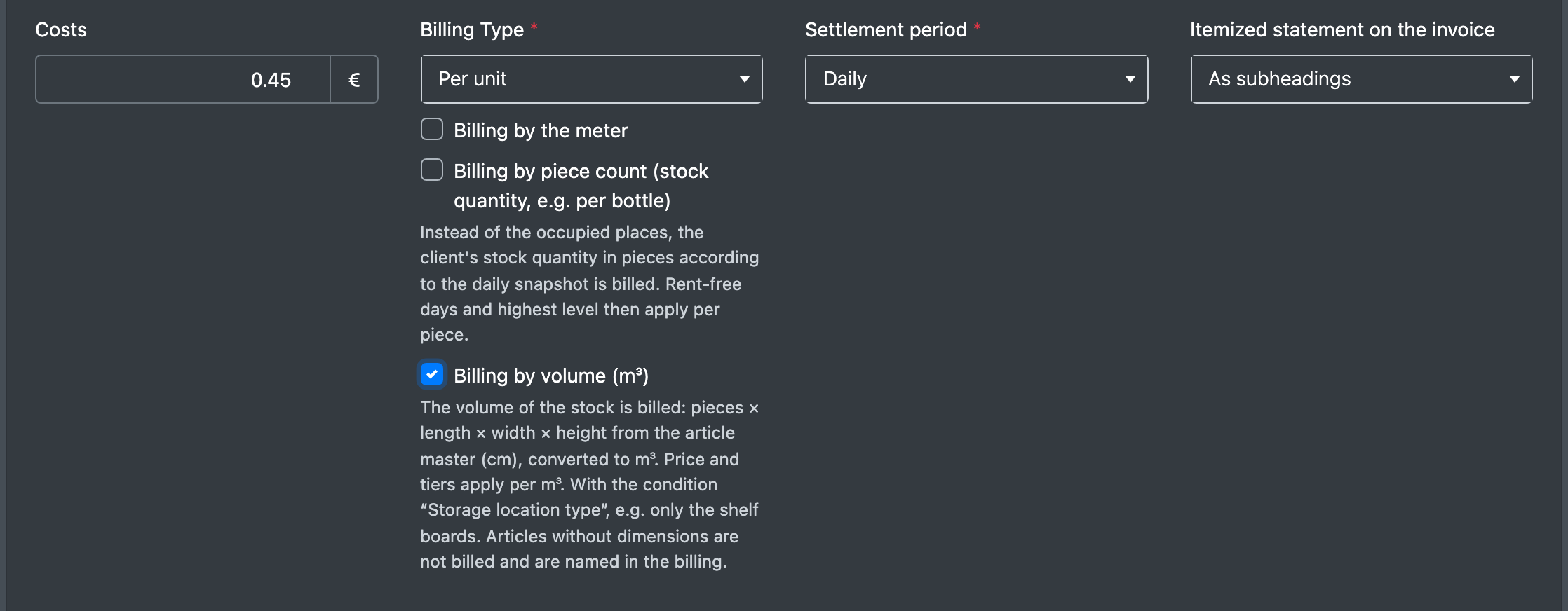
For every article on the shelves, pieces × length × width × height from the article master is billed, converted to m³. If an article lacks one of the three dimensions, it counts as 0, and the description of the item says "n articles without length/width/height in the article master not billed" (n Artikel ohne Länge/Breite/Höhe im Artikelstamm nicht berechnet).
Example: price by storage duration
To bill the first 30 days of a pallet at €8.00 and the time after that at €10.00, create two templates for the same client:
- Template "Rent day 1–30": costs 8.00, Storage duration up to (days per pallet) (Lagerdauer bis (Tage je Palette)) 30.
- Template "Rent from day 31": costs 10.00, Rent-free days per pallet (Mietfreie Tage je Palette) 30.
Depending on its age on the billing day, every pallet counts in exactly one of the two templates – without a gap and without overlap. Further tiers work the same way, e.g. one template with 30 rent-free days and Storage duration up to 90 for day 31–90, and one with 90 rent-free days from day 91.
Example: rent per bottle instead of per storage place
You agreed with a client that they pay per bottle in stock, not per pallet place. For this you use the stock quantity in pieces as the basis instead of the occupied places:
- Open WMS › Settings › Cost settings › Storage space costs (Lagerplatzkosten) and click Create template (Vorlage anlegen).
- Choose the Client, enter a Name such as "Storage rent per bottle" and enter the price per bottle under Costs (e.g. €0.02 per bottle and day, or €0.30 per bottle and month).
- Choose Per unit (Pro Einheit) as the Billing Type and tick Billing by piece count (stock quantity, e.g. per bottle) (Abrechnung nach Stückzahl). The ticks at Billing by the meter and Billing by volume (m³) are removed automatically – only one of the three options is possible at a time.
- Choose the Billing period: Daily bills the piece count of every day, Monthly (ideally together with Highest pallet count for the selected period) bills the day with the most bottles once per month.
- Leave the cost range empty so that all bottles are billed the same. Tiered prices (e.g. cheaper from the 10,001st bottle) work like for places, with several templates and ranges – the limits then apply per bottle.
- Optional: Rent-free days per pallet – with piece count, bottles that have not been in stock for that many days do not count on that day.
- Tick Active and click Save.
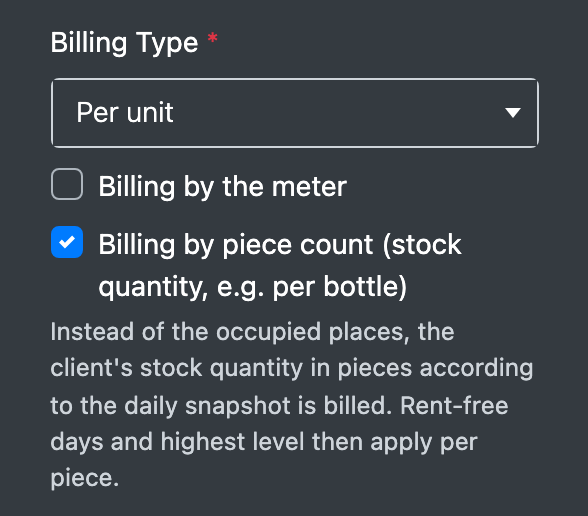
The piece count comes from the daily occupancy snapshot: X-Sitter adds up the stock quantities of all the client's articles in the warehouse (every bottle of a stock row counts individually, no matter how many pallets or places they occupy). The piece count is recorded from the first snapshot after this feature was introduced – billing therefore starts on the day after you set it up, not retroactively. On the client statement the item shows the number of pieces, and with the highest level also the date of the peak.