
Client billing
Create the statement of warehouse services for a client for any period and save it as a PDF.
With client billing (Mandanten Abrechnungen) you bill a client for your warehouse services in a period. X-Sitter automatically calculates all active cost templates of the client – storage space, articles, orders, material, unloading, fixed invoice items, shipping according to the matrix, VAS and pallets – groups them by service category and creates a statement of services (Leistungsnachweis) that is saved as a PDF.
Before you start
- Your user needs the permissions for Client Billing and for the billing page – ask your administrator.
- The client is an active client of yours, see Clients.
- The right warehouse is selected in the warehouse drop-down at the top right. All cost templates belong to a warehouse.
- Cost templates for the client are created and active: Storage space costs, Article costs, Order costs, Material costs, Unloading costs, Pallet costs, Shipping cost matrix, Invoice items, plus recorded VAS. Without templates the statement stays empty.
- Service categories for grouping.
- The Billing number (Abrechnungs-Nummer) is set in the Warehouse settings, tab configurations (Konfigurationen). Default: 10001.
Step by step
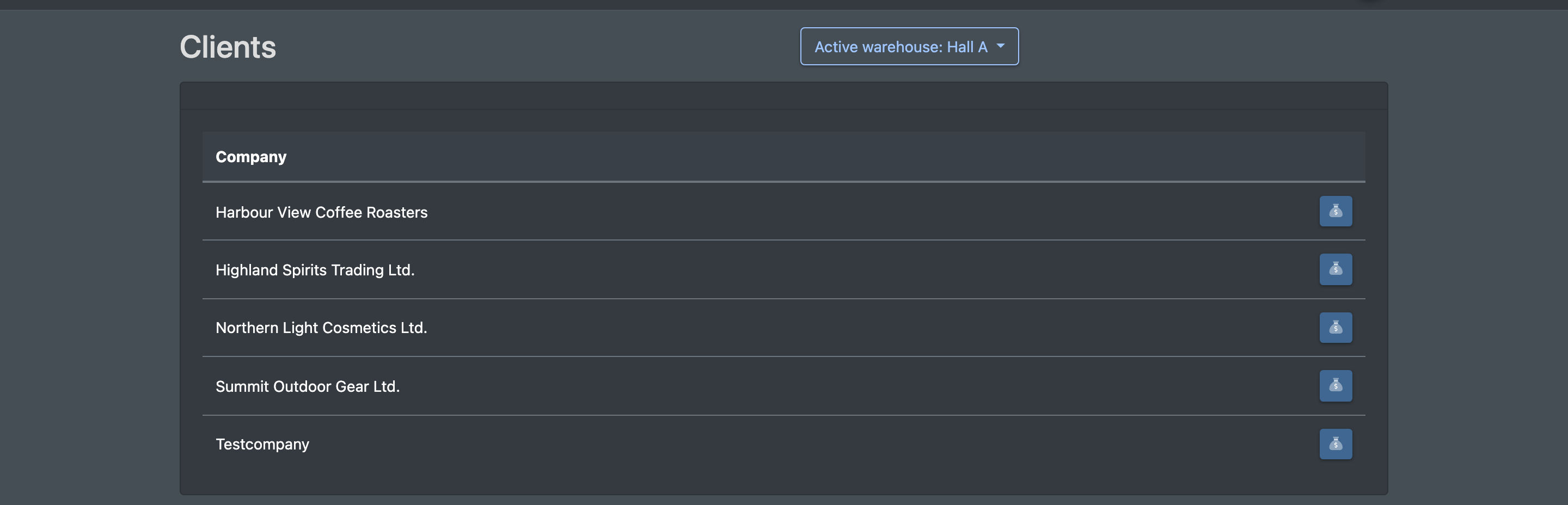
- Open WMS › Storage › Client Billing (WMS › Lager › Mandanten Abrechnungen). The page Clients (Mandanten) lists all active clients alphabetically (column Company, Firma).
- Click the money button next to the client. The page Storage costs billing (Lagerkosten Abrechnung) opens.
- At the top left, choose the period: this month (dieser Monat), last month (letzter Monat) or a custom range (Eigener Bereich). The default is the current month.
- At the right, choose Net (Netto) or Gross (Brutto). This controls the total lines (see below).

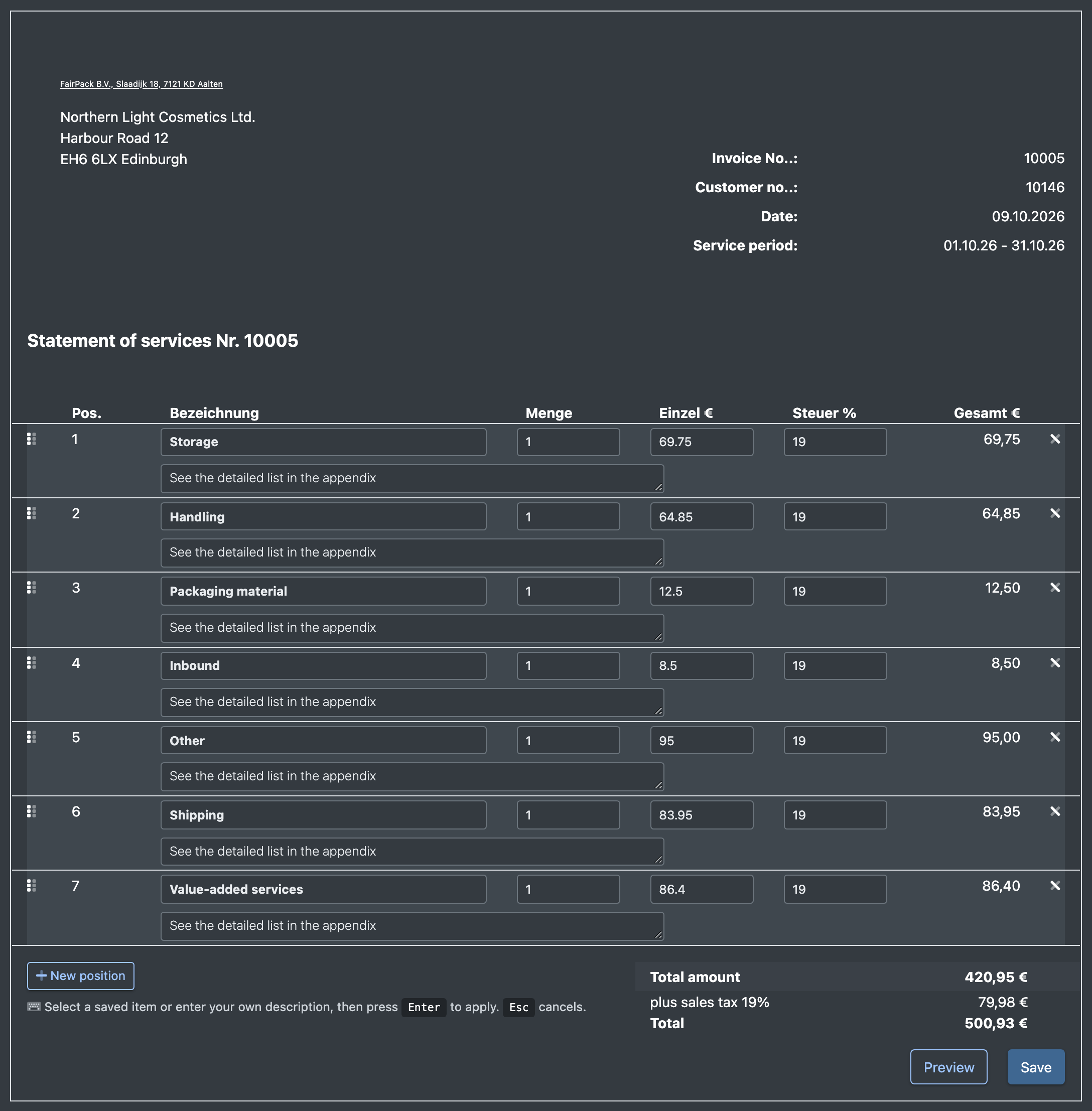
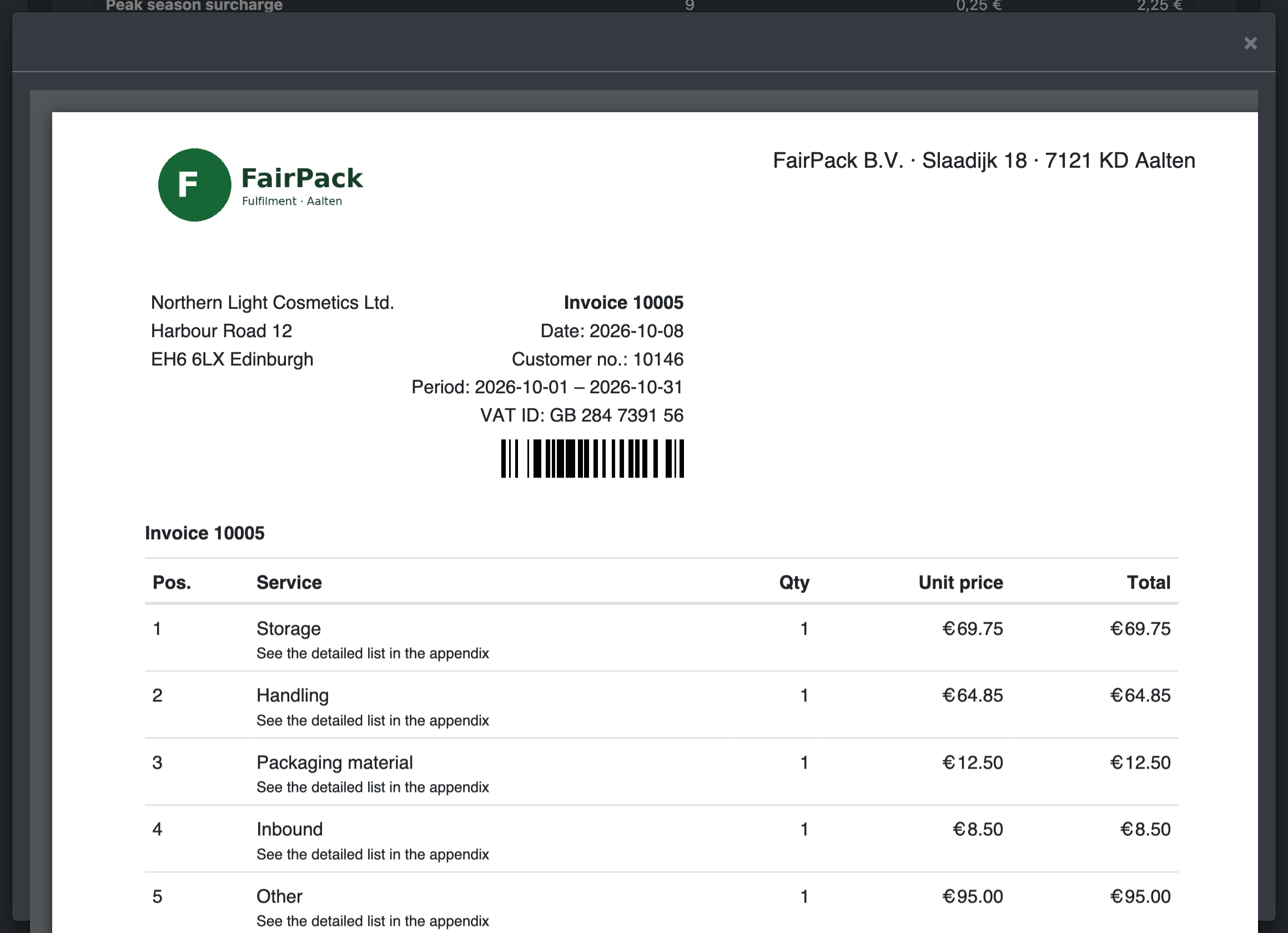
- The statement is loaded. The header shows Invoice No. (Rechnung-Nr), Customer no. (Kunden-Nr), Date (Datum) and service period (Leistungszeitraum), followed by the text "We will invoice you for our services as follows." Each service category has one total line with "See the detailed list in the appendix".
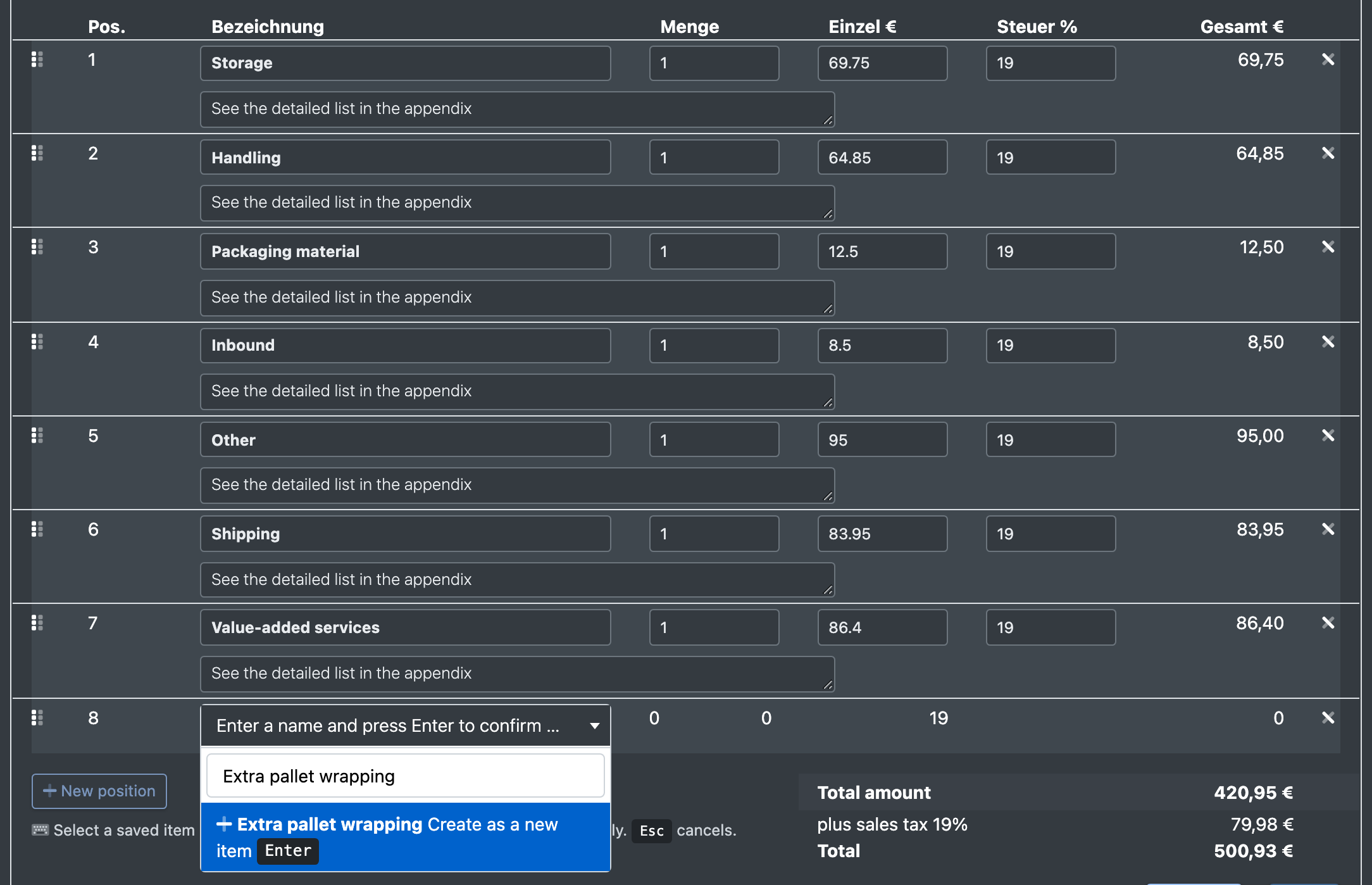
- Optional: add lines with New position (Neue Position). Select a saved invoice item of the client (see Invoice items) or type your own name and press
Enter.Esccancels. You can change the quantity and price of a line and remove lines; the totals are recalculated.
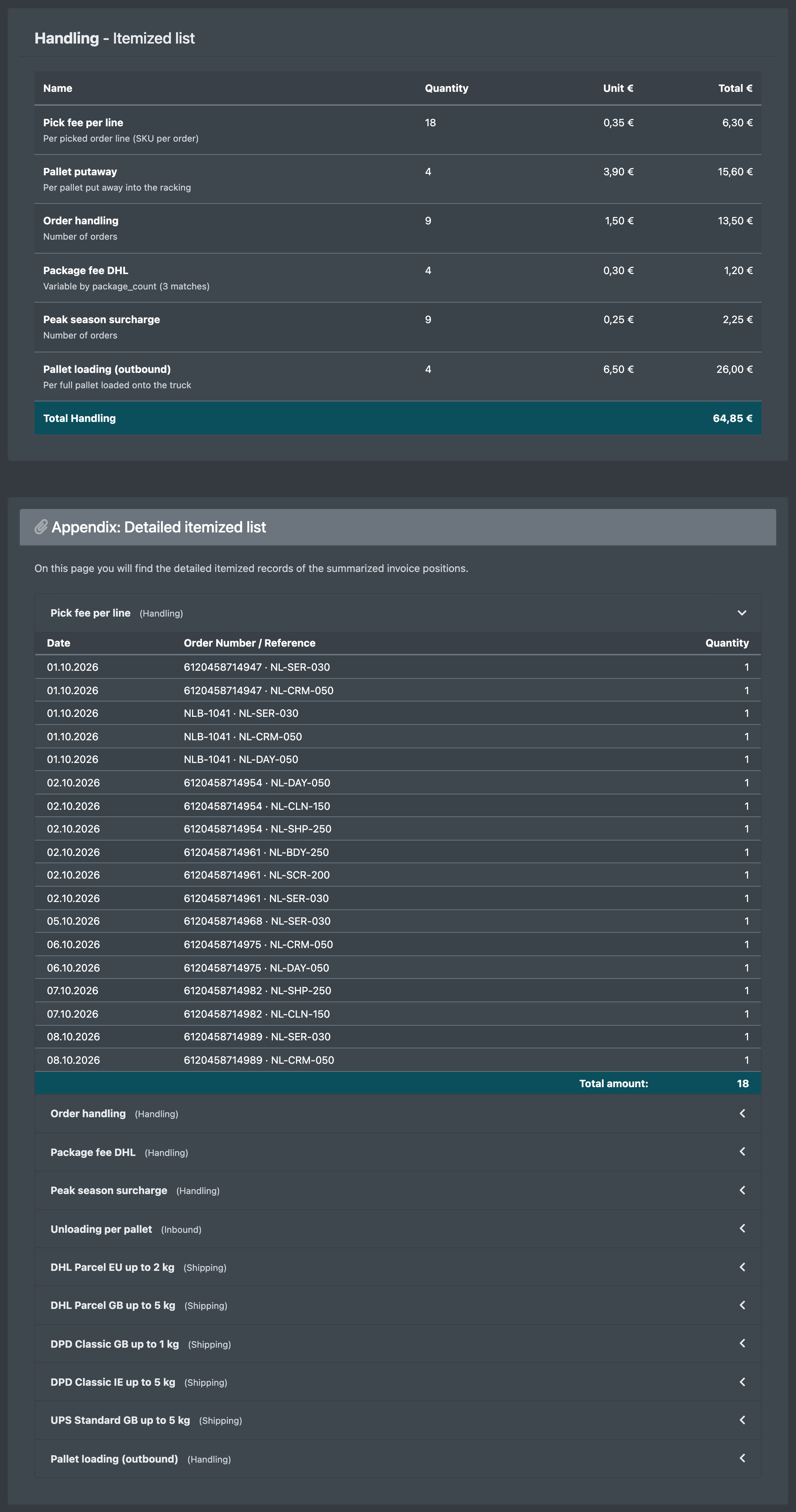
- Below follows the Itemized list (Einzelaufstellung) per category (name, quantity, unit €, total €) and, if applicable, the Appendix: Detailed itemized list (Anhang: Detaillierte Einzelnachweise) with date, order number / reference and quantity.
- Click Preview (Vorschau) to see the PDF in a window. The billing number is not increased.
- Click Save (Speichern) to save the statement for good. You see "The invoice has been saved", and the billing number of the warehouse is increased by 1.
Fields and options
How the statement is built
- The costs are calculated live when the page loads, in this order: storage space costs, article costs, order costs, material costs, unloading costs, fixed invoice items ("Insert on each invoice" = Yes), shipping costs (matrix), VAS, pallet costs.
- Items with the same name, unit price and itemized display are combined. Items without a category appear under Other (Sonstiges).
- Only Save increases the billing number, Preview does not. If you save again with the same invoice number, the existing statement is overwritten.
- Each cost template only counts within its validity period.
Good to know / Troubleshooting
Tip: test new cost templates with a short period (e.g. one day) before you create the first real statement.