
Order costs

Charge your clients per processed order – as a flat rate per order or per package or pick line.

With order costs (Auftragskosten) you charge a client for every processed order – either as a flat rate per order or variably, e.g. per package or per pick line. Filters for module, order status, packaging and conditions decide which orders of the client count.
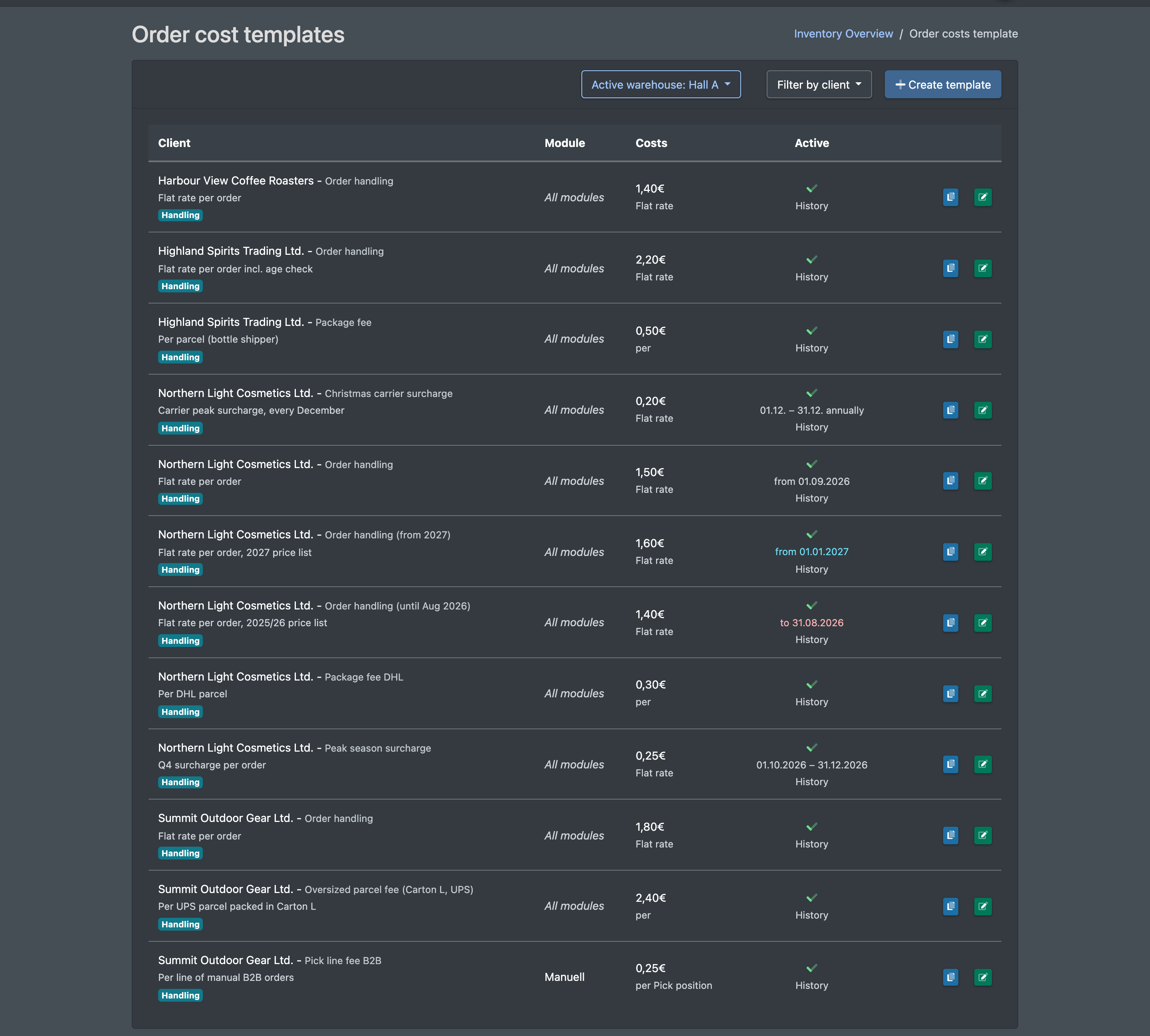
Screenshot: Order cost templates list with client filter, columns Client, Module, Costs and Active

Before you start

  • Your user needs the permissions for the order costs in the cost settings – ask your administrator.
  • The client is an active client of yours, see Clients. The client's sales channels appear in the Module field.
  • A Billing Category is required, see Service categories.
  • For the packaging filter: your packaging materials (cartons) are set up as articles marked as packaging.
  • The orders are picked and packed in X-Sitter, see Picking and Packing.

Step by step

  1. Open WMS › Settings › Cost settings › Order costs (WMS › Einstellungen › Kosteneinstellungen › Auftragskosten). Use Filter by client (Mandant filtern) to narrow the list.
  2. Click Create template (Vorlage anlegen).
  3. Choose the Client (Mandant), optionally a Module (Modul, default All modules), and enter a Name (Name) and optionally a Custom Name (Individueller Name) and a Detailed description (Detailbeschreibung).
  4. Enter the Costs (Kosten) and choose the Billing Type (Abrechnungs-Typ):
    • Flat rate (per order) (Pauschal (Pro Auftrag)) – costs × number of matching orders.
    • Per unit (variable) (Pro Einheit (Variabel)) – also choose the Basis for calculation (Berechnungsgrundlage), e.g. Packages or Pick positions (lines).
  5. Choose Calculate from (Ermitteln aus): History or Orders.
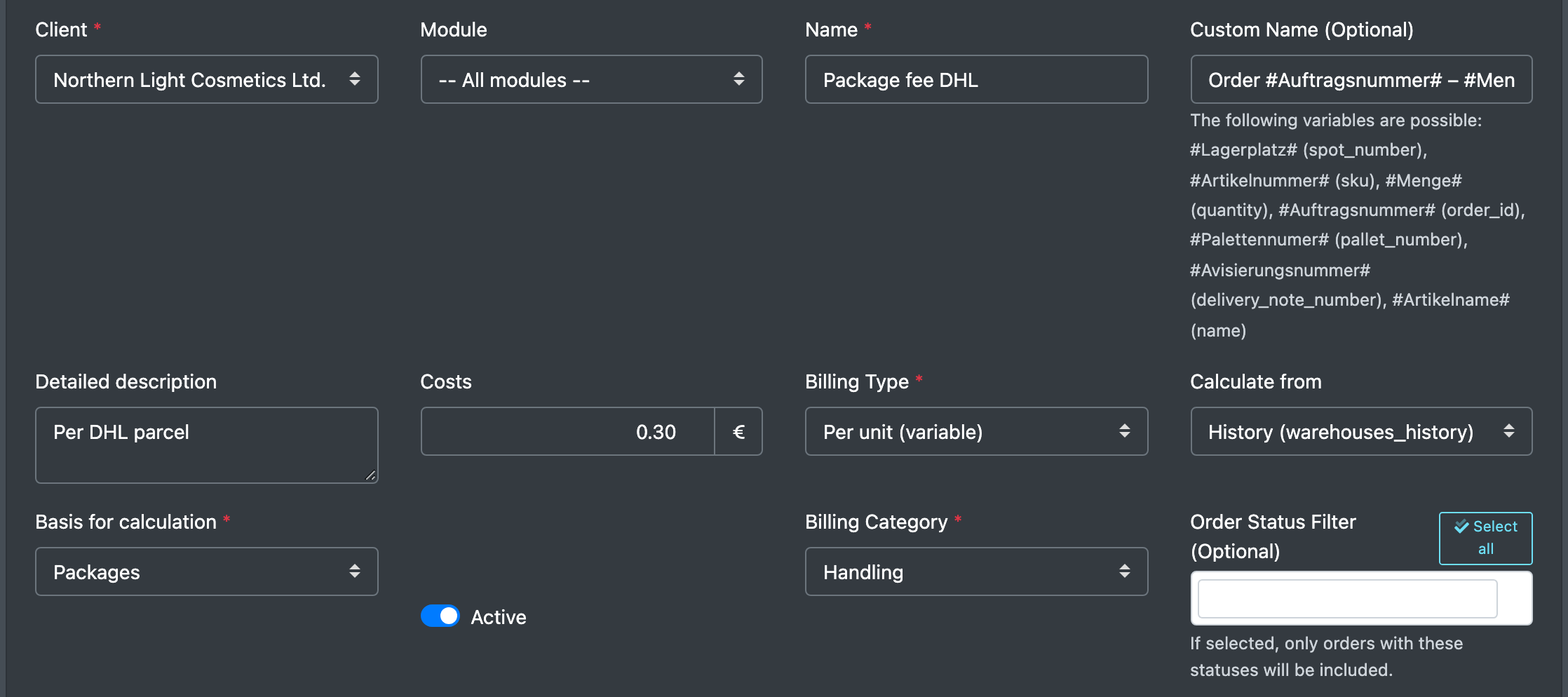
Screenshot: Order cost template form with Client, Module, Name, Costs, Billing Type "Per unit (variable)" and Basis for calculation "Packages"
  1. Choose the Billing Category (Abrechnungs-Kategorie) and the Itemized statement on the invoice (Detail-Darstellung auf Rechnung). Optionally set the Order Status Filter (Auftragsstatus Filter), the Packaging Filter (Verpackungs-Filter) and conditions (Add a condition, Bedingung hinzufügen).
  2. Optionally set a validity period, tick Active (Aktiv) and click Save (Speichern).
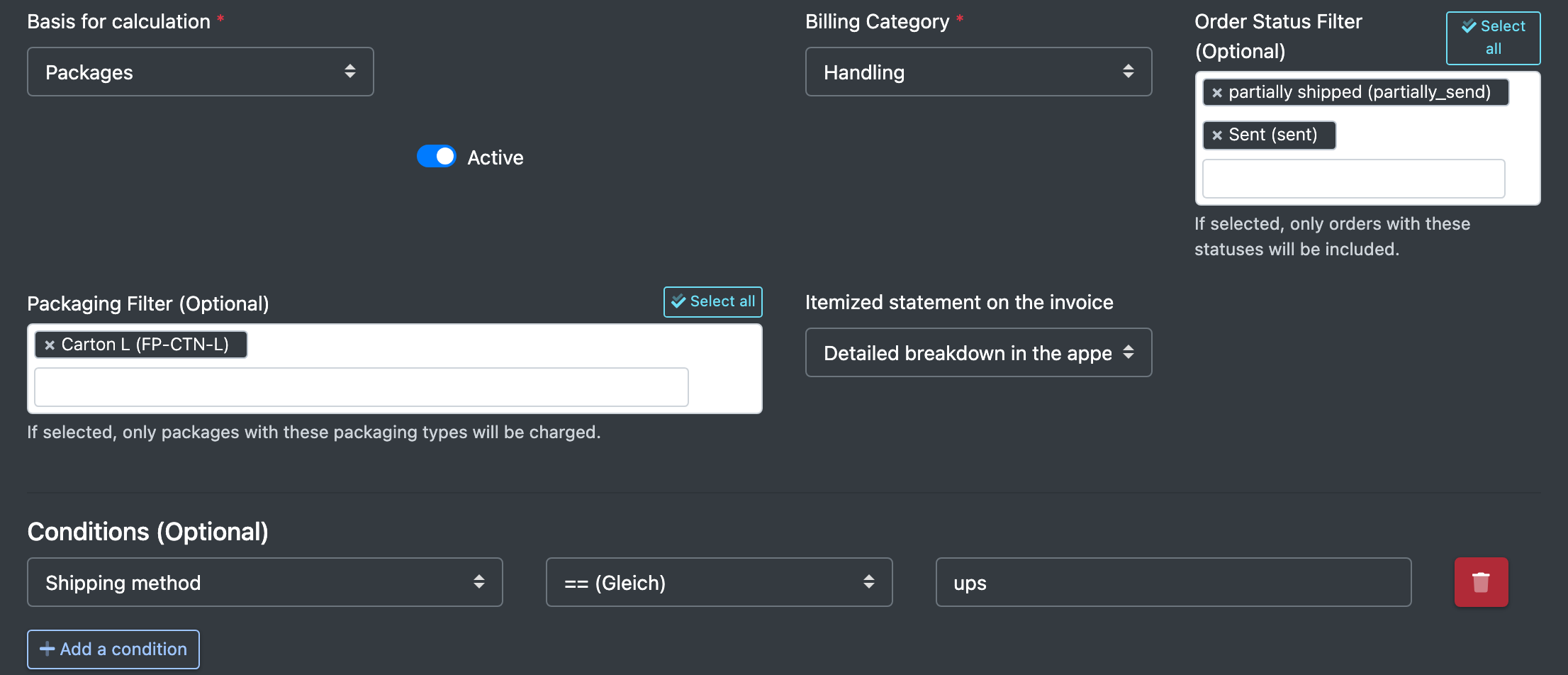
Screenshot: Lower part of the form with Order Status Filter, Packaging Filter and a condition "Shipping method equals …"

Fields and options

Field Meaning Required
Client (Mandant) The client you are billing. yes
Module (Modul) Only orders from this sales channel. Empty = all. no
Name (Name) Name of the item on the statement. yes
Custom Name (Optional) (Individueller Name (Optional)) Text per line in the detailed breakdown. Variables: #Auftragsnummer# (order number), #Menge# (quantity), #Avisierungsnummer# (advance notice number). no
Detailed description (Detailbeschreibung) Description of the item on the statement. no
Costs (Kosten) Price per order or per unit (€). yes
Billing Type (Abrechnungs-Typ) Flat rate (per order) or Per unit (variable). yes
Calculate from (Ermitteln aus) History (warehouses_history): orders from the packing data, date = order date. Orders (orders + orders_products) (Aufträge (orders + orders_products)): the orders and their lines, date = delivery date. Default: History. no
Basis for calculation (Berechnungsgrundlage) For variable billing: Packages (Pakete) = number of packages of the order (with a packaging filter only the matching packages); Pick positions (lines) (Pick-Positionen (Lines)) = number of different SKUs in the order; Individual items (Einzel-Artikel (Items)) = total quantity of all items in the order. Inserts (Beilagen) and Weight (Gewicht) can be selected, but are currently counted as one unit per order. for variable
Billing Category (Abrechnungs-Kategorie) Groups the item on the statement. yes
Order Status Filter (Optional) (Auftragsstatus Filter) If selected, only orders with these statuses are included, see Order statuses. no
Packaging Filter (Optional) (Verpackungs-Filter) If selected, only orders/packages with these packaging types are charged. no
Itemized statement on the invoice (Detail-Darstellung auf Rechnung) No details (Keine Details), As subheadings (Als Unterpunkte, default) or Detailed breakdown in the appendix (Einzelnachweis auf Anlage). no
Conditions (Optional) (Bedingungen (Optional)) Field Country (Land) or Shipping method (Versandart), an operator (equal, not equal, contains, in list, not in list, greater/less …) and a Value (Wert). no
Active (Aktiv) Only active templates are charged. –

How the charge is calculated

  • The calculation runs live when you open the client statement.
  • For every order of the client in the billing period, X-Sitter checks module, status filter, packaging filter and conditions. All conditions must apply; text comparisons ignore upper/lower case.
  • Flat rate: costs × number of matching orders.
  • Variable: costs × packages, pick lines or individual items of each matching order.
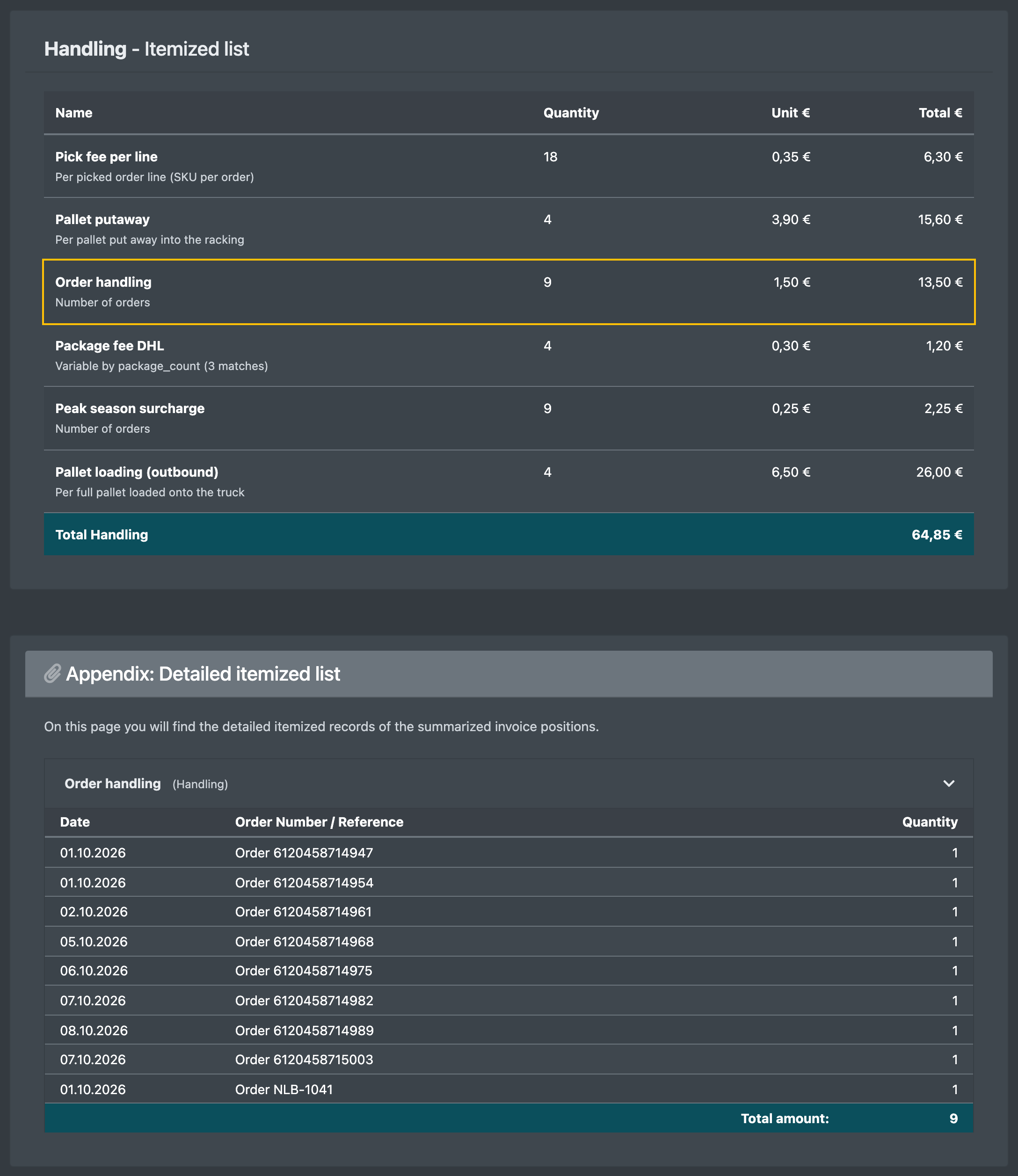
Screenshot: Client statement with an order cost item and its detailed breakdown listing order numbers and quantities

Example

You charge 1.50 € per order plus 0.30 € per additional package for DHL orders:

  1. Template "Order handling": Flat rate (per order), costs 1.50.
  2. Template "Package fee DHL": Per unit (variable), basis Packages, costs 0.30, condition Shipping method contains "dhl".

Good to know / Troubleshooting

Message Cause Solution
The entry has been saved / The entry has been updated (Der Eintrag wurde gespeichert / Der Eintrag wurde ge-updated) The template was saved. –
Should the entry really be removed? (Soll der Eintrag wirklich entfernt werden?) Confirmation before deleting. Confirm – you see "The entry has been removed" (Der Eintrag wurde entfernt).
Item missing on the statement Template inactive, wrong module or status, a condition does not apply, or outside the validity period. Check the filters, Active and the validity period.
  • Use Duplicate (Duplizieren) in the list to copy a template. The copy is inactive until you activate it.